
How to Bulk Export Student Information as a PDF
This guide will show you how to export students' information as PDFs
From the dashboard, select a list of students, for example from a tile or from an application status hyperlink.

You are able to filter the students within any list.

Select students by ticking the box (as shown below) and click on Export to PDF. You may select students one by one or in bulk.
NOTE: You can only export up to 100 PDFs at a time.

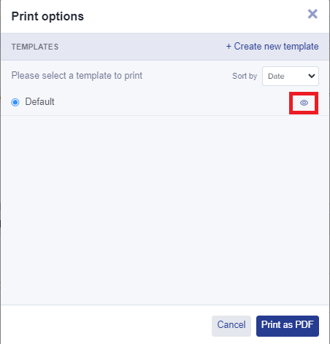
Before printing, you can click on the preview icon to view the default template or **create a new one.
**
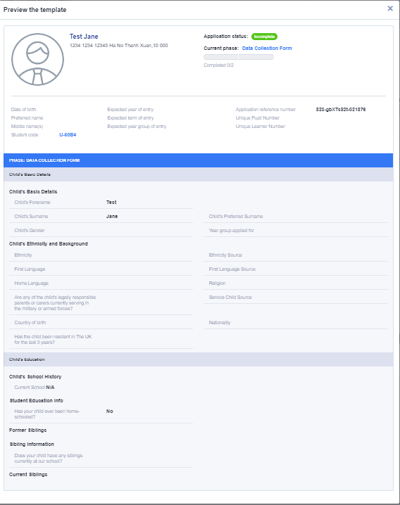
When creating a new template, you must assign a name and tick the boxes to include the information you want in your template. Then, click Save.
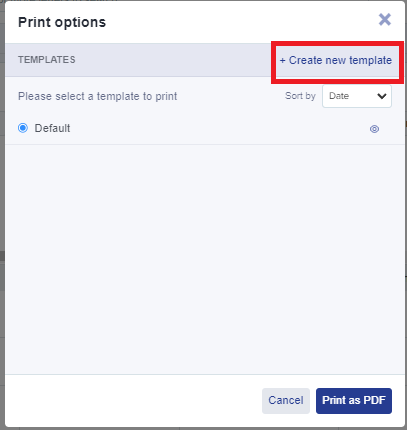

Select your chosen template and click Print as PDF.

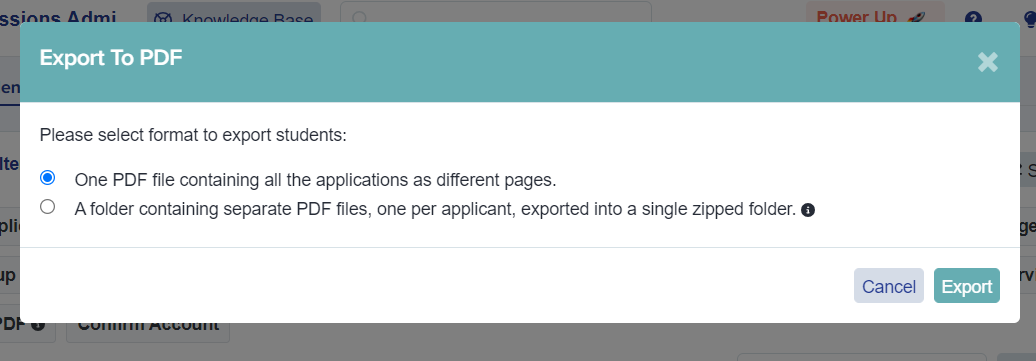
Choose whether you want one PDF containing all applications or a folder containing separate PDF files, and hit Export.
Click on "here" (as shown below).

Click on Download file to save your PDF.


Was this article helpful?