
Data Transfer Guide
Please note: before you can transfer enrolled classes to your MIS (Year 12), you must first ensure you have transferred the students' data into your MIS - they have to exist in your MIS first, before their class allocations can then be transferred.
Export students and classes to Bromcom
The Bromcom export sends external applicants, their contacts, enrolled classes, and tutor groups from Admissions+ to Bromcom.
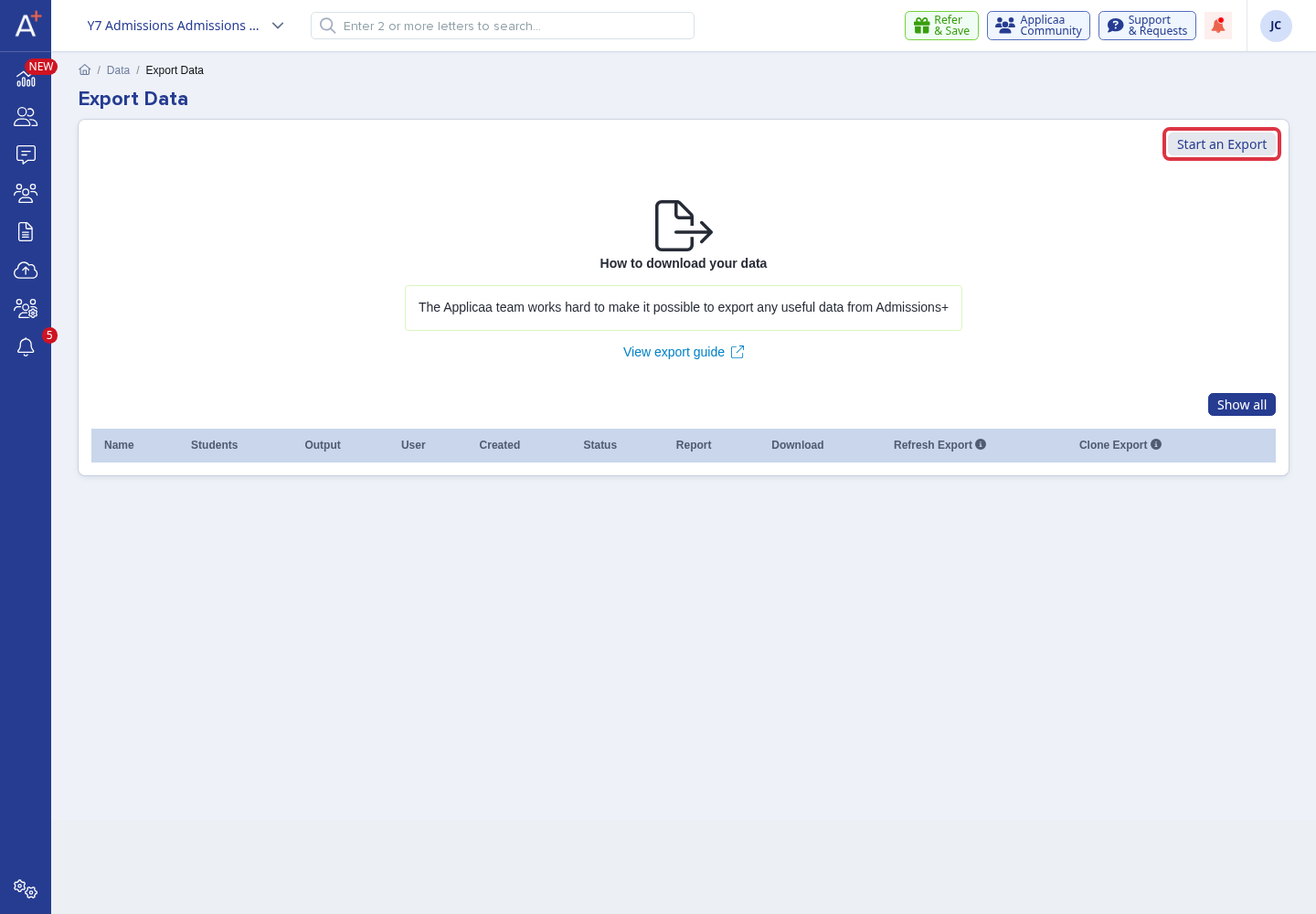
Open the application form that you need. Go to Data > Export, then select Start an Export.
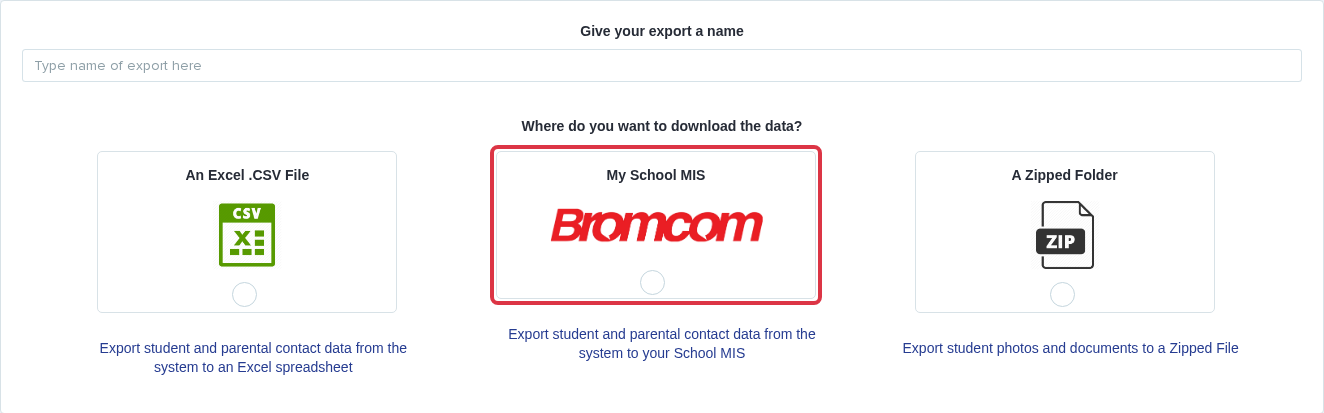
Enter an export name, select My School MIS, and choose the Bromcom option.
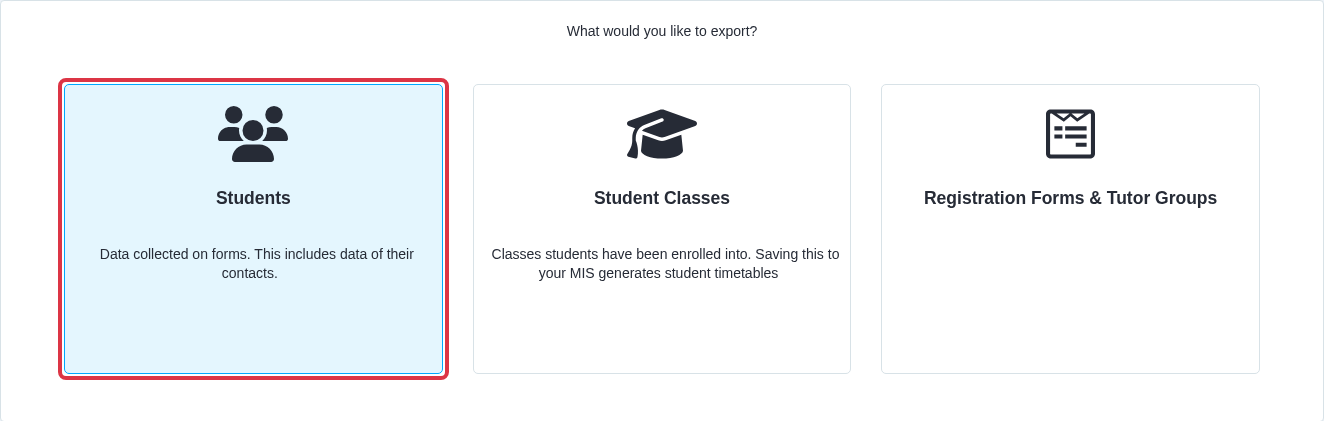
Select Students, Student Classes, or Registration Forms & Tutor Groups.
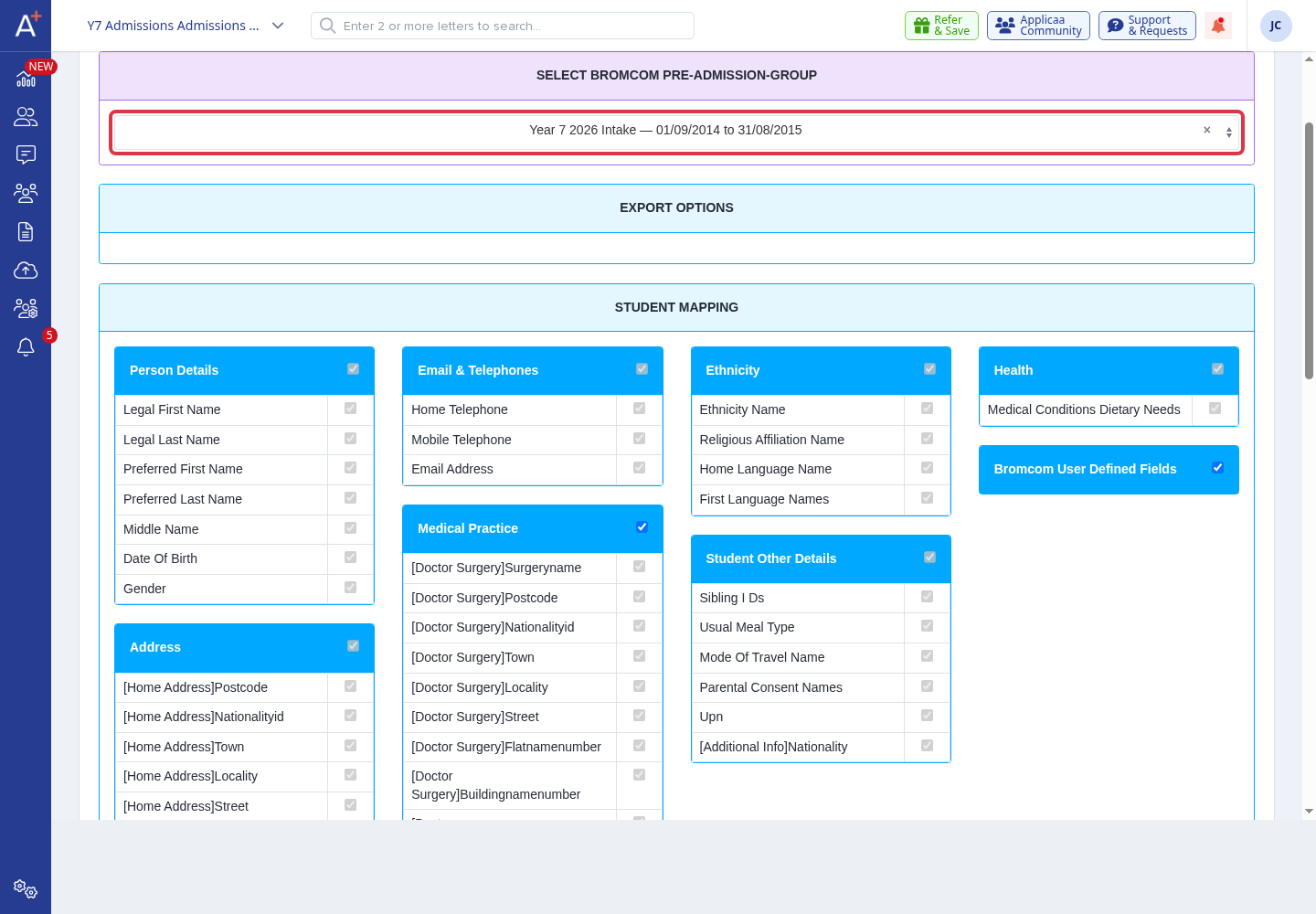
For a student export, select the correct Bromcom pre-admission group. Review the mapped fields before you continue.
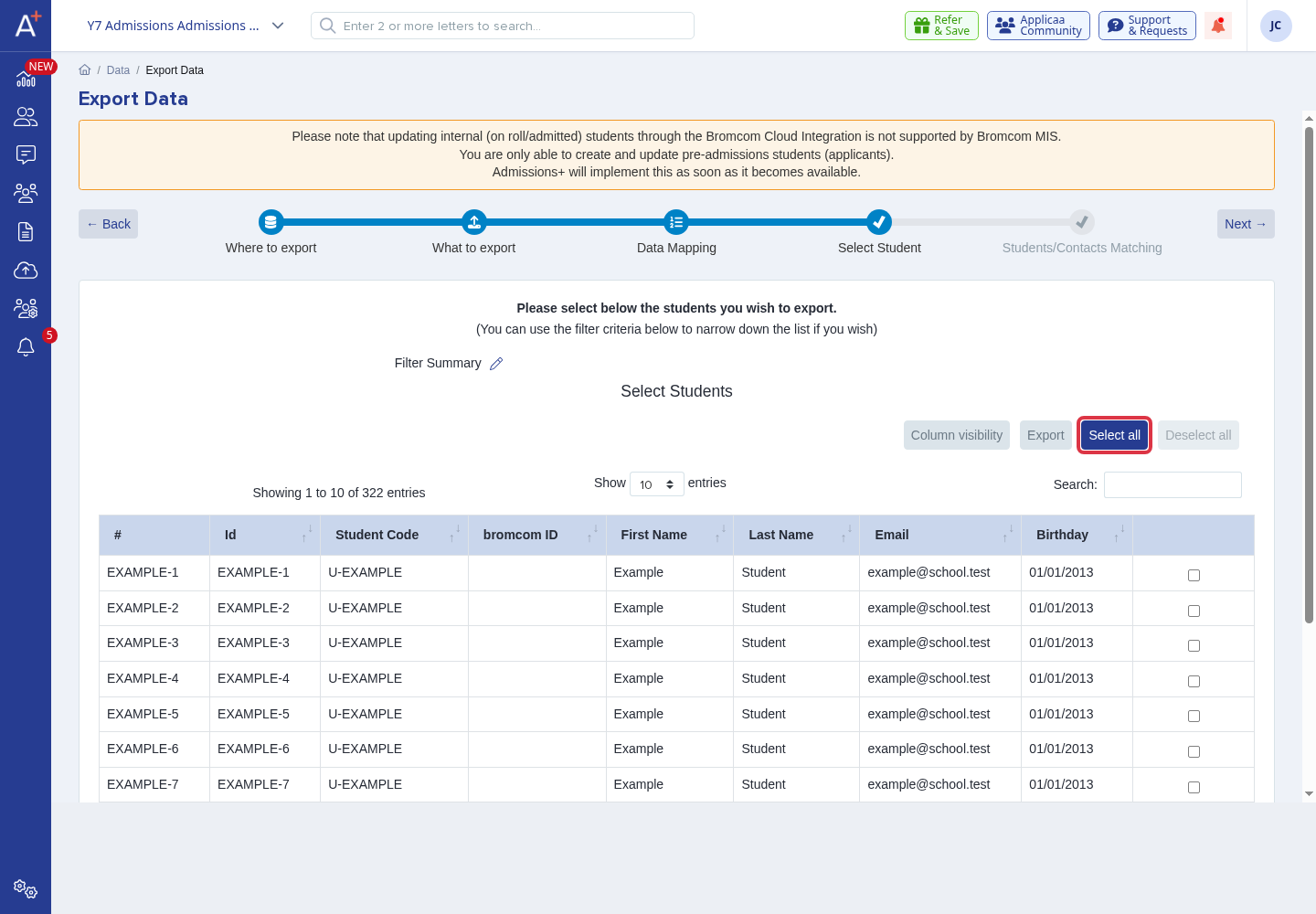
Use the filters to find the external applicants that you need. Select individual rows or select Select all, then select Next.
For a class export, map each Bromcom class to the correct Admissions+ class. Then continue to export the enrolled class members.

Why a student or class is missing
- The student list contains external applicants from the selected application form. Change an incorrect internal or external status before you retry.
- The first student export does not require the Admissions+ status 'Enrolled'. Bromcom must still hold the student as a pre-admission applicant.
- Bromcom does not let Admissions+ update an on-roll student. You can export a pre-admission applicant again, but Bromcom skips an on-roll match.
- A class or tutor-group export uses enrolled students that have a Bromcom student ID. Export new external students first.
- Create classes, tutor groups, and pre-admission groups in Bromcom before you start the export that matches them.
- Start a new export if you created a Bromcom group after the current export. The current export keeps its original group list.
- Tutor-group names must match the correct Bromcom groups. Each Bromcom group also needs a valid start date and end date.
- If a student export fails, open its report and use the recorded error. Resolve duplicate contact matches before you retry.
When Admissions+ says a student is "already in Bromcom"
Bromcom will not let Admissions+ update a student who is already on roll there. If you export a student who already has an on-roll record in Bromcom, Admissions+ does not send their data again and does not fail the export. The student's row in the export report shows a "Skipped" badge and a message that names the student and their Bromcom ID.
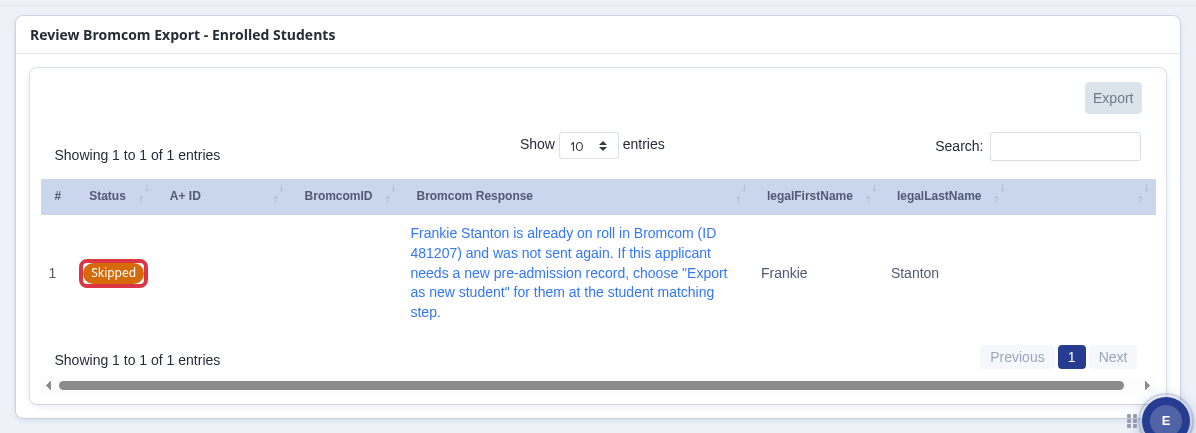
This is expected. It does not mean the export failed, and it does not mean the wrong student matched. It means Admissions+ found that exact student already on roll in Bromcom and left that record untouched, so nothing is overwritten and no new data reaches Bromcom for them.
Resolving a potential duplicate at the Students/Contacts Matching step
Before Admissions+ sends a pre-admission applicant to Bromcom, it checks whether a similar record already exists there. When it finds a possible match, the export wizard stops at the Students/Contacts Matching step and shows Bromcom Student Mapping with a "Potential duplicates detected!" notice and a table of unresolved matches.
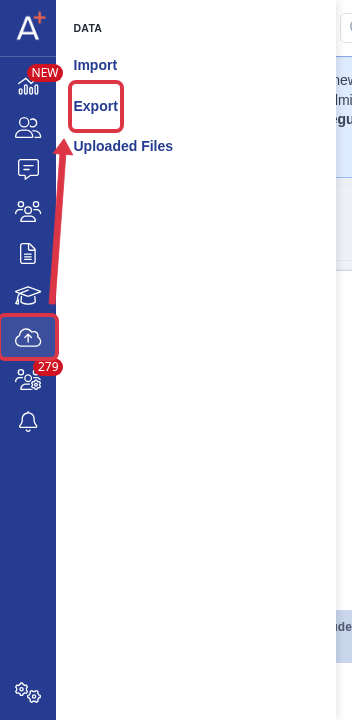
Open the application form's Data menu and select Export to reach the export wizard.
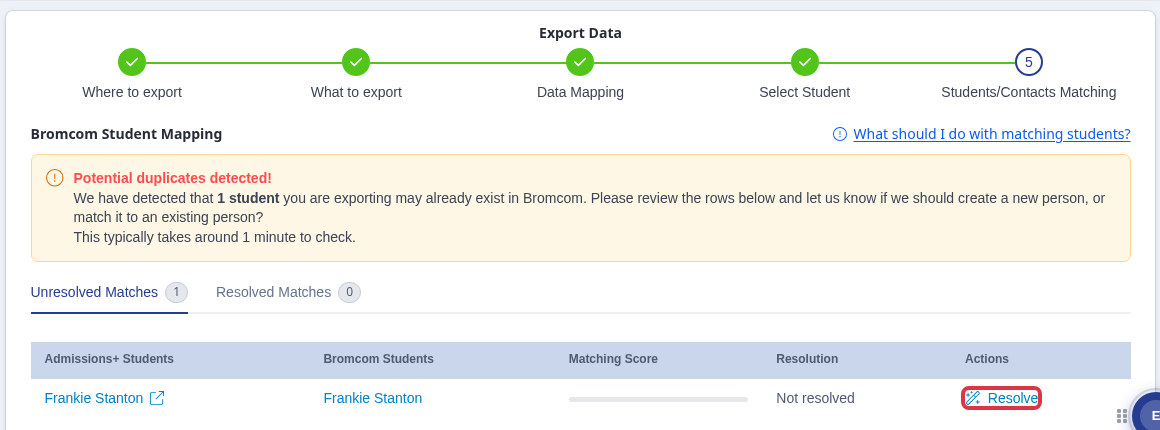
Select Resolve on a student's row to open the matching options. Choose one of:
- Merge to Bromcom student #1/#2- links the Admissions+ student to that existing Bromcom record instead of creating a new one.
- Export as new student- sends the Admissions+ student to Bromcom as a new, separate pre-admission record. This does not touch or update the on-roll record it was compared against; both records exist afterwards as separate students in Bromcom.
- Skip this student- leaves the match unresolved and does not export this student now, so you can decide later.
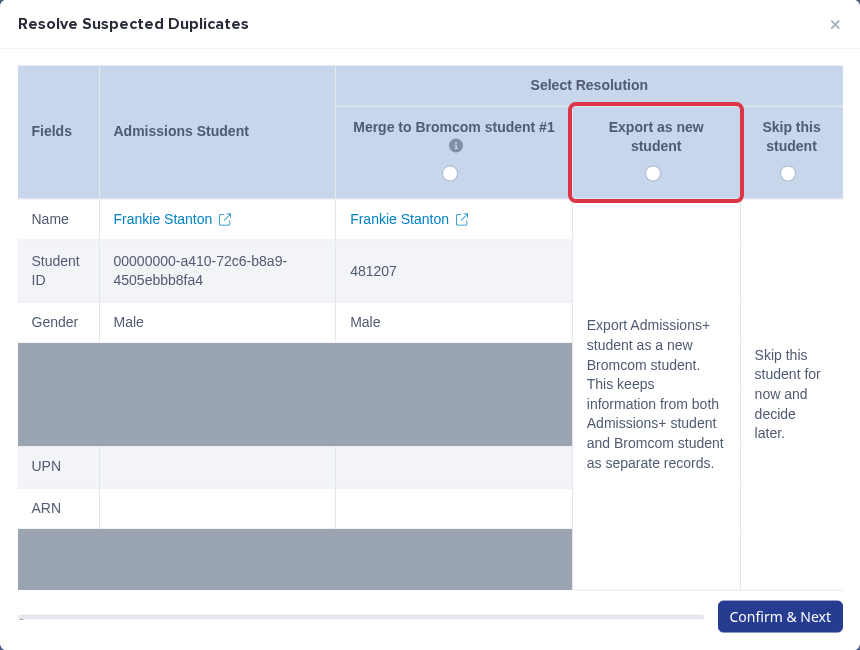
If a form is completed for a student who already has an on-roll record in Bromcom, choosing Export as new student is how you get a second, separate pre-admission record for them. It does not add or change any data on their existing on-roll record. If you instead want the applicant's answers matched to the person already on roll, use Merge to Bromcom student so the two records point at the same Bromcom student.
Data included in the student export
- The standard map includes names, date of birth, gender, addresses, email addresses, telephone numbers, contacts, ethnicity, languages, GP details, nationality, UPN, and the mapped medical or dietary values.
- The standard map does not include the NHS number or a separate disability field.
- Student photos are not part of the Bromcom student export. Download the photos through the zipped-folder export when you need them.
Gender and medical information
Admissions+ sends the applicant’s Gender value to the Bromcom student field gender.
Admissions+ sends standard Medical Condition and Specific Dietary Needs values to the Bromcom student field medicalConditionsDietaryNeeds. It sends each value only when it has a matching Bromcom medical or dietary code.
Admissions+ does not send free-text Medical Condition Notes in this field. If a medical or dietary value is missing in Bromcom, check that the applicant has a selected standard value and that Bromcom has a matching code. If the value is still missing, ask Emma in Admissions+ and include the student name, the selected value, and the export error text.
If a record still fails after these checks, ask Emma in Admissions+ and include the export error text.