
Where to find the Global Form Settings
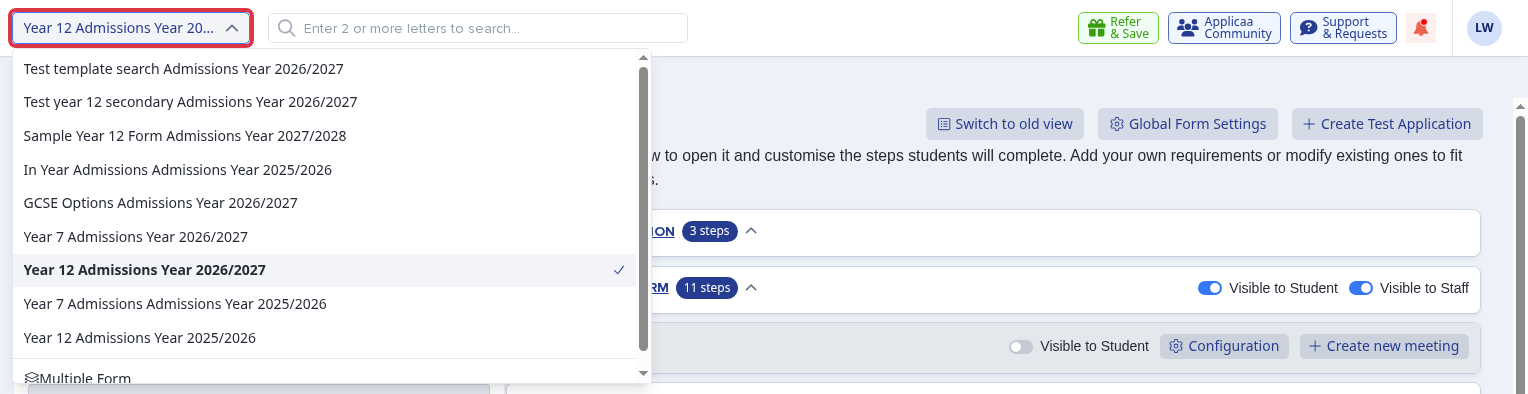
The Global Form Settings belong to one form. Before you open them, read the form name at the top left of the screen and select the form you want to change.
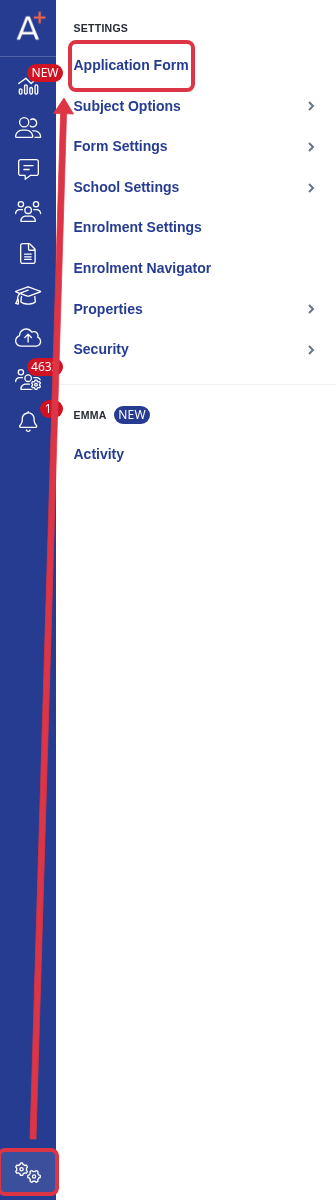
The "Settings" menu is the gear icon at the bottom of the left sidebar. Click the gear, then select "Application Form".
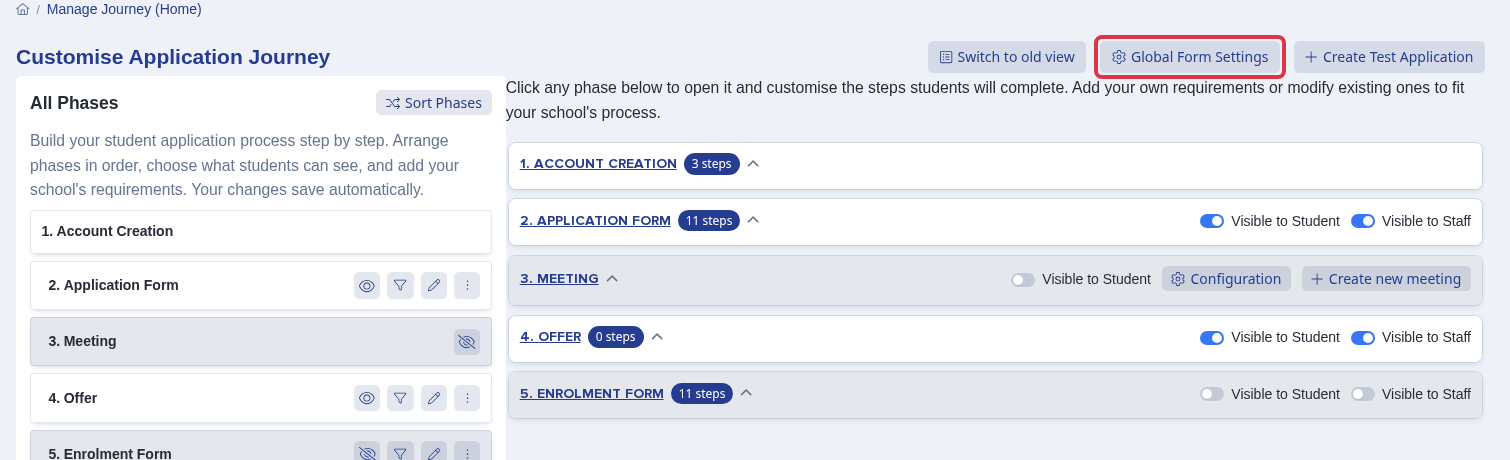
The "Customise Application Journey" page opens. Click "Global Form Settings" at the top right.
If you do not see "Application Form" under "Settings", or the page shows "Access denied. Your account is not allowed to edit application at the moment.", your role does not have permission to customise the application form. Ask a Super Admin at your school to give you the permission.
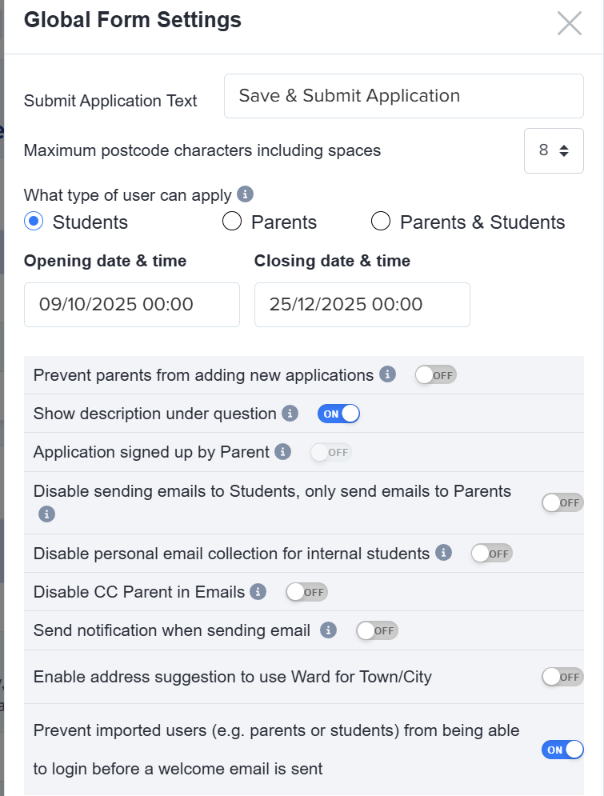
Once clicked, you will be seeing different toggles for certain actions you would like to apply on the form.
If you hover on each of the ⓘ icons it will tell you more about what that option is for.
One of the main uses of the Global Form Settings is disabling the form for new applications. (i.e if you want to lock the application form for parents or students).
You may choose to “Prevent parents from adding new applications” or to “Turn off registration button on landing page”.
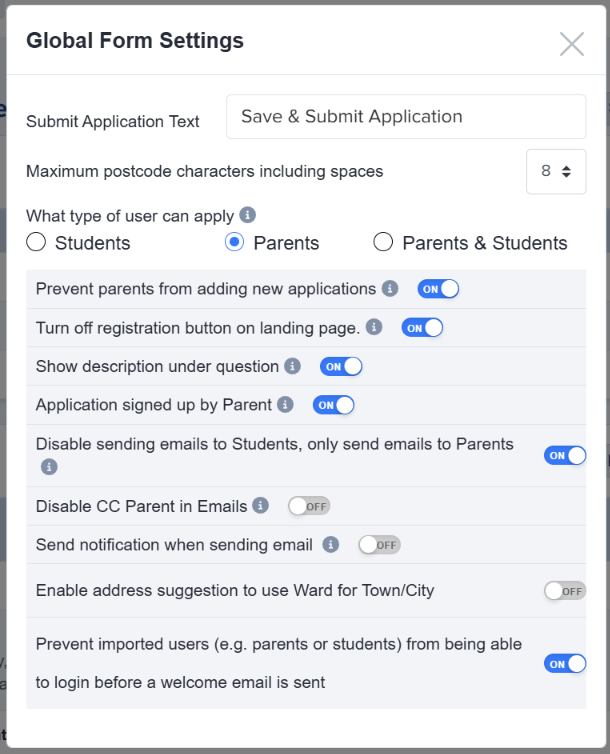
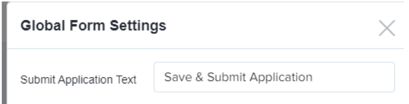
Submit Application Text field is where you can update the text on the button that the parent/student will click once done with the application form.
If you are using the form for Y7, you should choose Parents as the type of user and if you are setting it up for Y12, use Students .

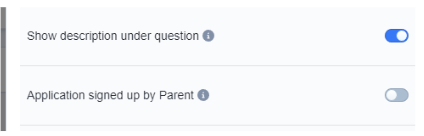
Show description under question - if this is toggled on, description for the question will be shown under the question, instead of a pop up.
Application signed up by Parent - if switched on, this shows text on the registration page as a parent is registering for their child’s application.
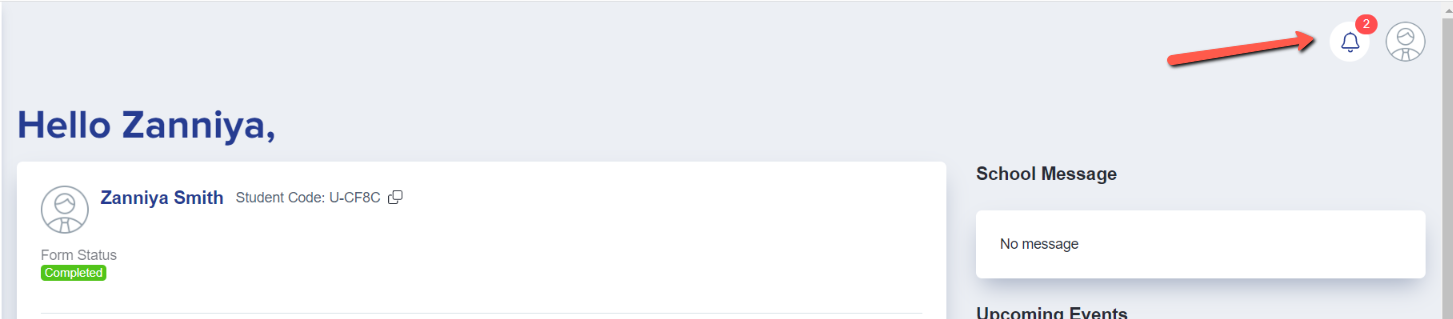
Send notification when sending email - if switched on, when the teacher sends an email then the student/parent will receive a notification that will show on their homepage.
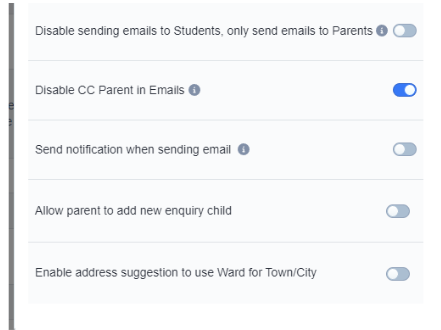
Disable sending emails to students, only send emails to parents - if this is toggled on, this will only allow you to send emails to the parents.
Disable CC Parent in email - if switched on, this will not allow you to copy parents when sending emails to students.
Enable address suggestion to use Ward for Town/City - if switched on, this will provide some address suggestions on the application form.
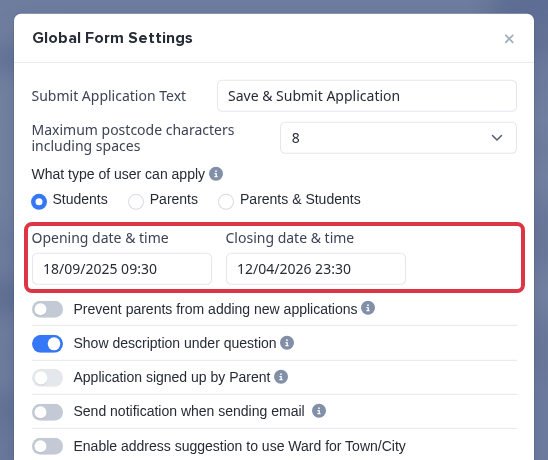
For Sixth Form, you can set when your application form will automatically open and close by setting the opening date & time and the closing date & time.
You can also toggle on the Disable personal email collection for internal students, if you do not want internal students to provide a personal email address during the application process.
Opening and closing dates
On a Sixth Form application form, the "Opening date & time" and the "Closing date & time" fields are at the top of the Global Form Settings, under "What type of user can apply". Click a field, pick the date and the time, and the new value saves immediately. The opening date and time must be before the closing date and time, or the panel shows the message "Opening datetime must be before closing datetime" and keeps the old value.
A form that is not a Sixth Form form, for example a Year 7 or a Year 10 form, has no opening and closing date fields. You open and close this form by hand, in the same panel. Turn on "Turn off registration button on landing page." to stop new applicants from registering, and turn on "Prevent parents from adding new applications" to stop a parent from adding another child. Turn them off again to open the form.
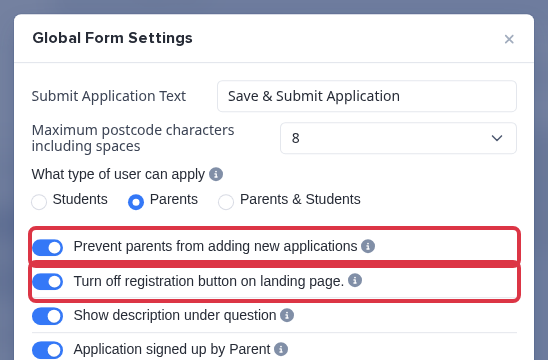
- The date fields show only on a Sixth Form application form. Every other form uses the two toggles above.
- Each form keeps its own Global Form Settings. A change on your Sixth Form form does not change your Year 10 form.
- When your MAT sets the dates for you, the two fields are locked and the panel shows the message "These dates are set by your MAT and cannot be changed."
- An applicant who already registered can still sign in after you close the form. Control what that applicant can still edit or submit in the Phase View area.
If you are not sure which setting to change, ask Emma in the app, or search this helpdesk.