
This article lists things that staff often expect Admissions+ to do but that are not supported today, together with the closest alternative that does exist. Check here before raising a ticket for one of these - if it is not listed, it may be a genuine gap worth reporting.
Showing a student's age as a column in a student list
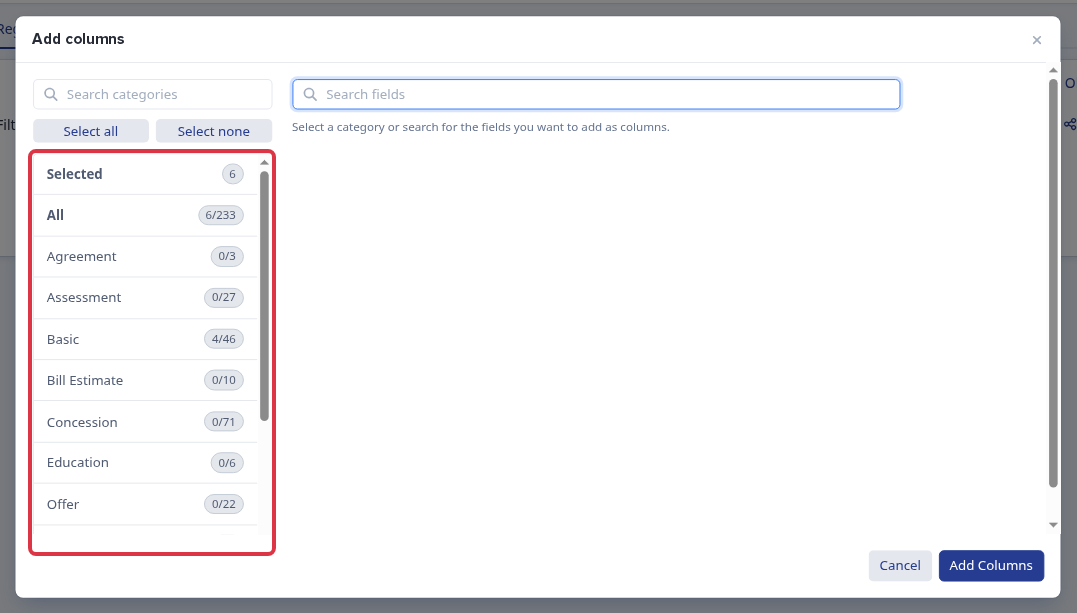
A student's age is not one of the fields you can add as a column in a student list or table view. Age is calculated on the fly from the student's date of birth and is not stored as its own field, so it cannot be selected the way "Gender" or "Current Year" can.
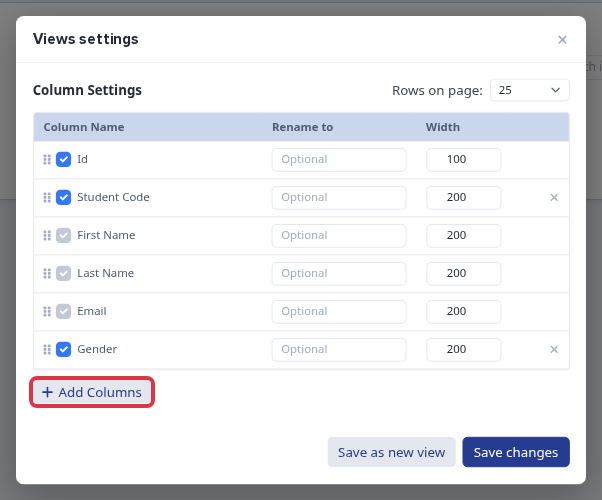
To see this for yourself, open a student list and click the eye icon next to "View".

In "Column Settings", click "Add Columns".
The "Add columns" picker lists every available field by category. There is no "Age" field in any category, including "Basic", where date of birth itself lives.
- You can still add "Date of Birth" as a column and read the age from that.
- If you need age in an email, letter or offer document, use the "Age" mail merge token when writing the template - this is a different feature (a token resolved at send time) from the table column picker, and it does work.
Moving a group of selected students into a new form group
There is no bulk action on the student list that lets you select several students and move them into a form group in one step. The only way to assign students to a form group in bulk is a CSV import on the "Form Groups" settings page.
Go to Settings → Form Settings → "Form Groups".
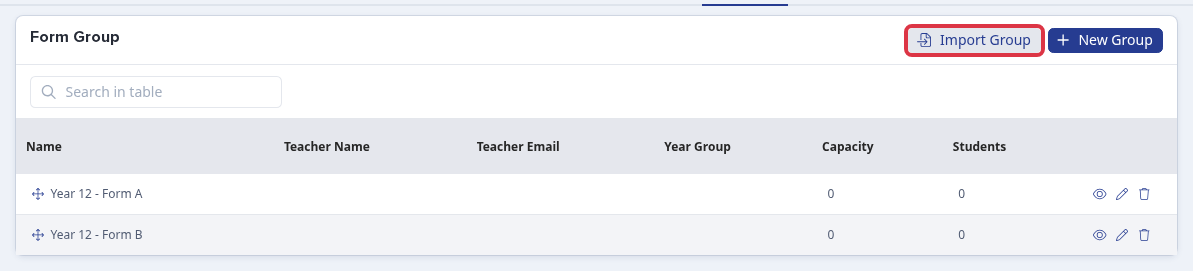
Click "Import Group" to upload a CSV of students and their form group.
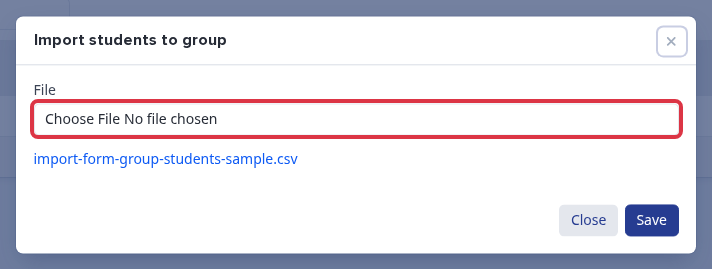
- The CSV needs exactly these column headers: "Email/Username", "Forename", "Surname", "Form group". Use the sample file linked in the upload dialog as a starting point.
- Each student in the file must already have a registered email address in the system - the import matches students by that email.
- This is separate from "Application Groups" (sometimes called "Groups"), which do have a select-students-then-add/move bulk action from the student list. Application Groups and form groups are different features: an application group is for interview or application organisation, a form group is the student's cohort/tutor group. If you are looking for the bulk "Add to group" / "Move to group" buttons on the student list, those only affect Application Groups, not form groups.
Adding more than one video to the offer section
You can attach exactly one video link and one image to a student's offer, not several. The "Bulk Update" panel only exposes a single "Offer video link" field and a single "Offer video image" field - there is no way to add a second video.
Select one or more students from the list and click "Bulk Update", then choose "Offer video link" (or "Offer video image") from the "Property" list.
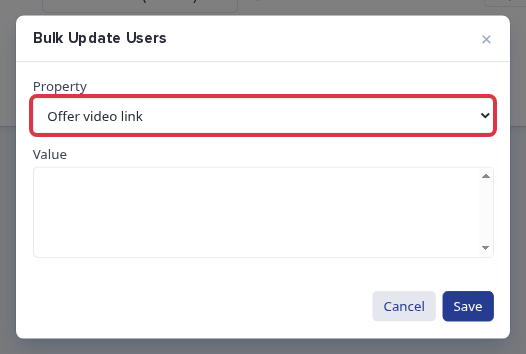
- Both fields live under the "Offer Data" group in the "Property" dropdown, and that group only ever contains these two entries.
- The video link and image are inserted into offer emails and offer letters as mail merge tokens, so every applicant who receives that template sees the same single video.