
Emma keeps a chat history for your school. Every member of staff at your school sees the same history, so a colleague can read a chat that you had with Emma. Nobody outside your school sees it, and nobody but you can write in your chat.
To open the history, select the round Emma button, then select "View chat history" at the top of the chat panel.
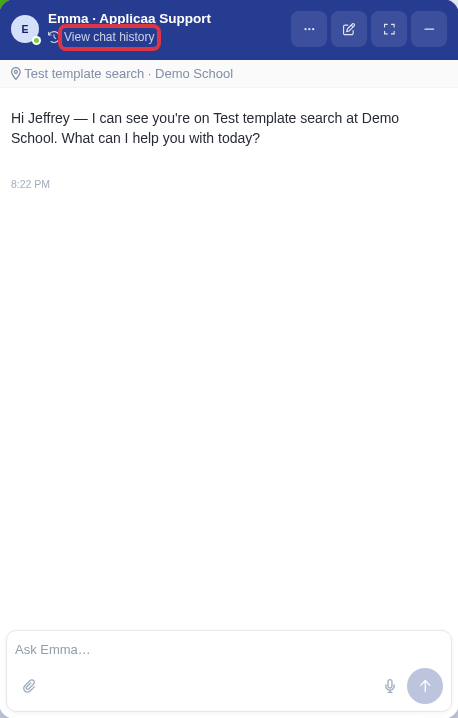
The "Conversation history" list holds the Emma chats of your whole school, not only your own. A chat that a colleague started carries the name of that colleague under the title. Your own chats carry no name.
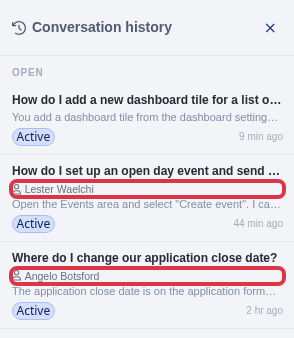
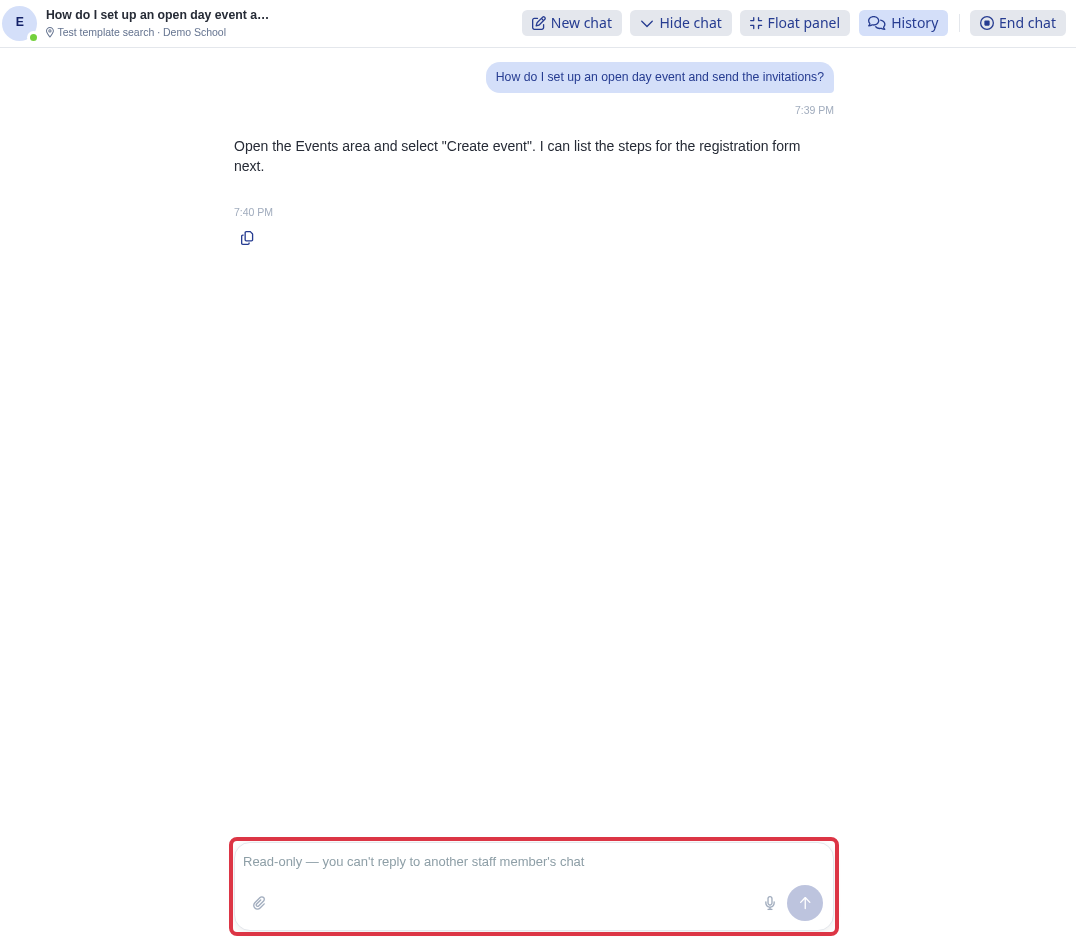
Select a chat that a colleague started. It opens as a transcript that you can read but not change, and the message box is locked with the text "Read-only - you can't reply to another staff member's chat".
What this means for your school:
- Every member of staff at your school sees every staff chat of your school. The list has no filter by person, by role or by permission.
- Only the person who started a chat can send a message in it, hand it to our support team, or end it. Everybody else reads it.
- A chat enters the list only after the person who started it sends a first message. A chat that is open with nothing sent stays out of the list.
- Unread reply marks belong to the owner of the chat. A chat of a colleague never adds an unread mark to your Emma button.
- Emma is for staff. Students, applicants and parents never open the staff chat or its history.
- No other school sees your chats. Emma holds each conversation inside the school that it belongs to.
- When you ask Emma to pass you to a person, the conversation goes to the Applicaa support team, so the agent answers with the full context. Applicaa staff can also open a chat when they investigate a support request from your school.
Write in an Emma chat only what a colleague can read, in the same way that you write in a shared mailbox. For a private matter, or for a question that this article does not answer, ask Emma in the chat panel, or type "pass me to a person" to reach our support team.