
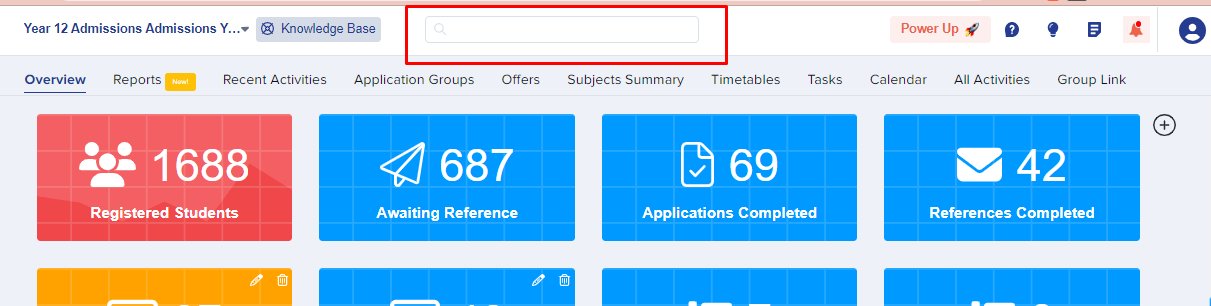
If a student emails to say they would like to change their subject choice, you may do it manually on their behalf by going into their student profile. You can search the name of the student in the search bar shown here:
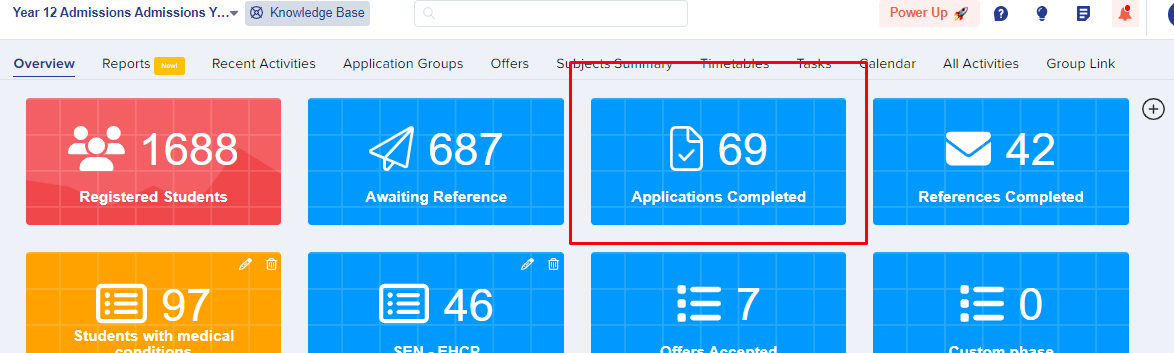
You may also find the student in one of your dashboard cards or application groups, for example "completed applications". Click on a card to load the list of students, which you can then search for the students you would like to edit.
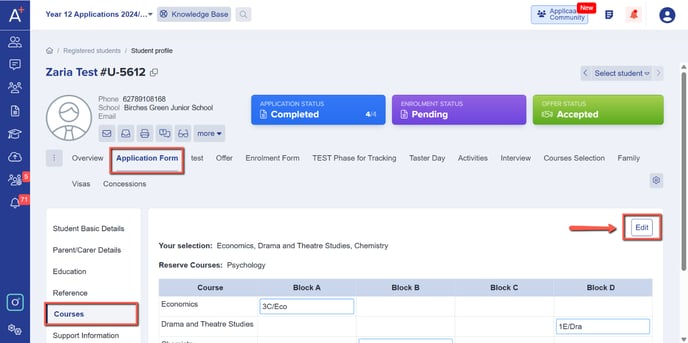
Click the name of a student within any list that they appear and it will take you to their profile. On a student's profile, click on the 'Application Form' tab and then go to courses. In the courses section, click on the 'edit' button.
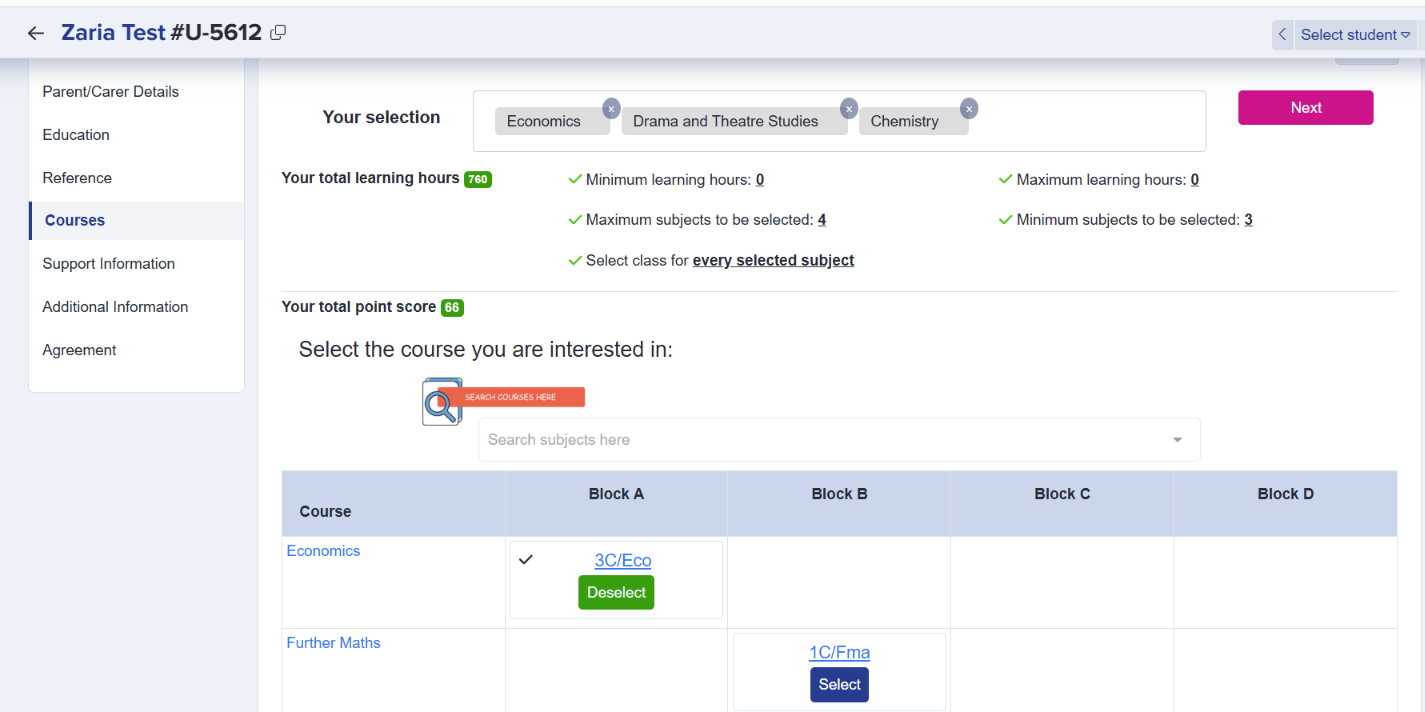
You may then, remove subjects by clicking on the 'x' or 'deselect', and then 'select' the new subject. When done, you may click on the 'Next' button to save changes.
Another way to change a student's subject choice is by impersonating. To do this, click the impersonate button.
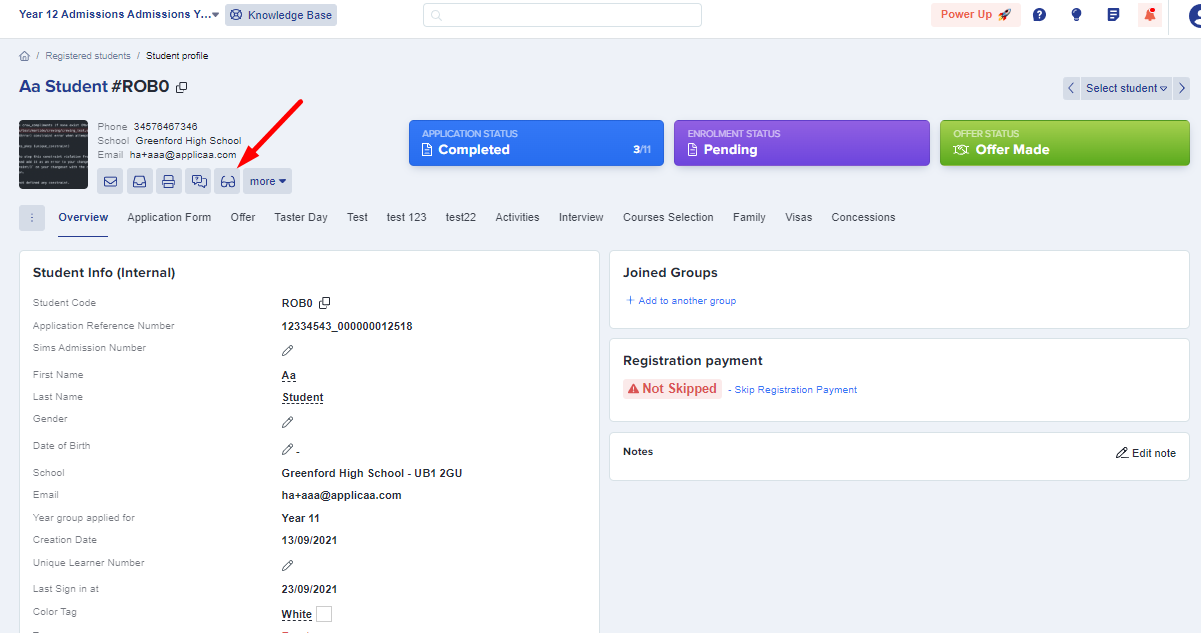
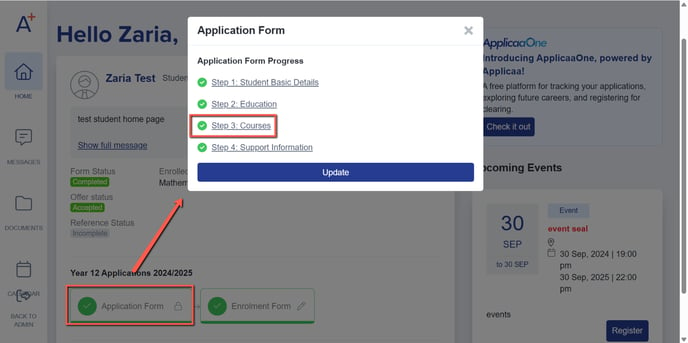
While impersonating, you will be redirected and will be viewing the page from a student's view. Click on the Application Form and select the Courses step.
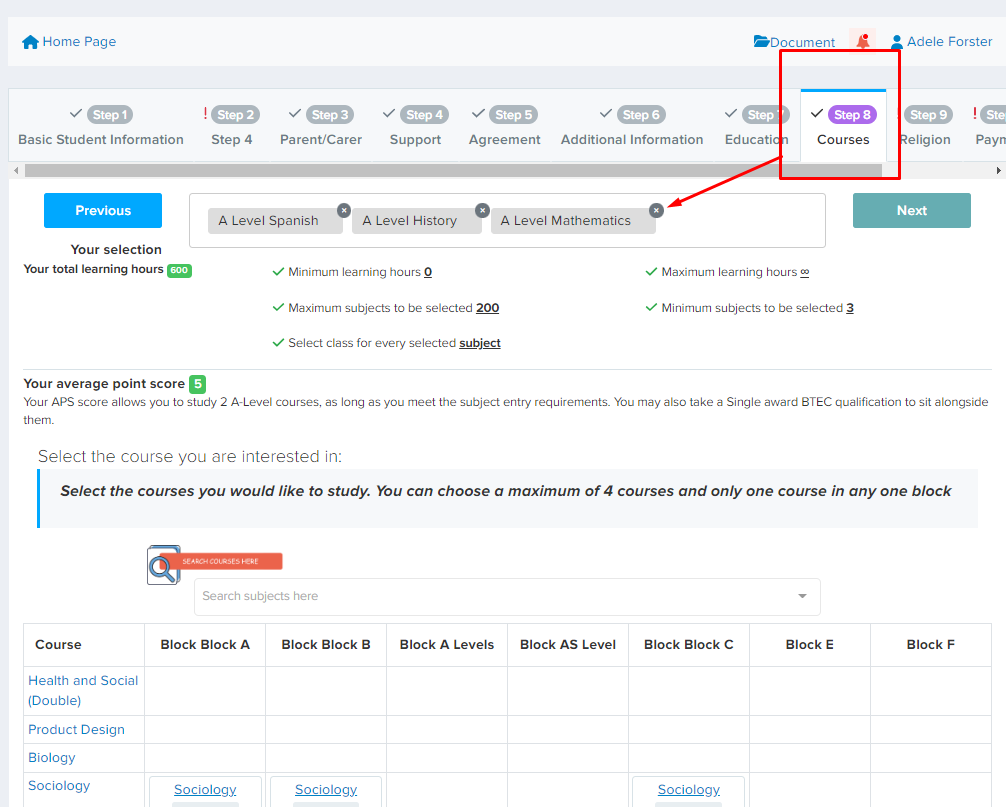
To change their choices, you may click the 'x' button to remove the subject on the list then scroll further down to select the new subject as requested. After the changes have been made you may now click the 'Next' or 'Save & submit' button to apply the change.
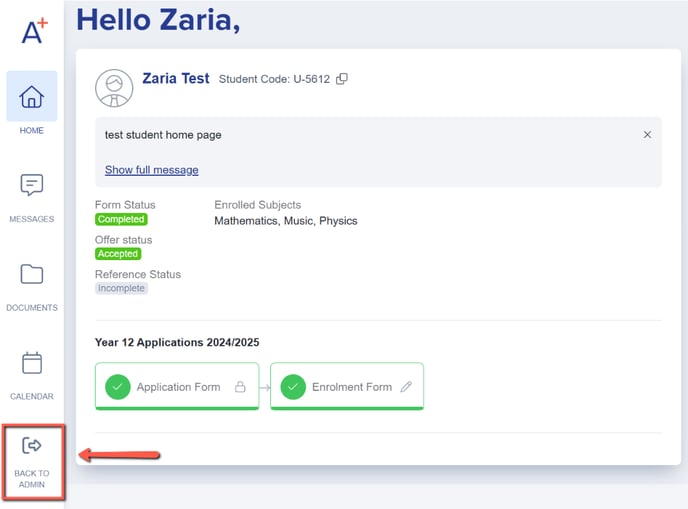
When done changing their choices, you may click on the 'back to admin' button to go back to your dashboard.
Note: If the automated email "Notify Student Application Complete" is currently enabled in your Automated Messages area, the applicant will receive this email again if you submit any changes you make on their courses step.