
If a student's grades clearly meet a subject's entry requirements but the system still shows them as Not qualified- or an applicant who does not meet the requirements is allowed through - the grades themselves are rarely the problem. In almost every case one of the settings below is not matching the grades to the requirement in the way you expect. Work through the checks in order; each one takes under a minute.
1. Check the requirement is actually linked to the subject
Go to Settings > Subject Options > Specific Requirements. Each row shows the requirement's category, its name, the conditions it contains, and - in the last column - every subject it is currently applied to. If the subject the student chose is not listed against any requirement, no check is being run for that subject at all, which is why an ineligible applicant can get through.
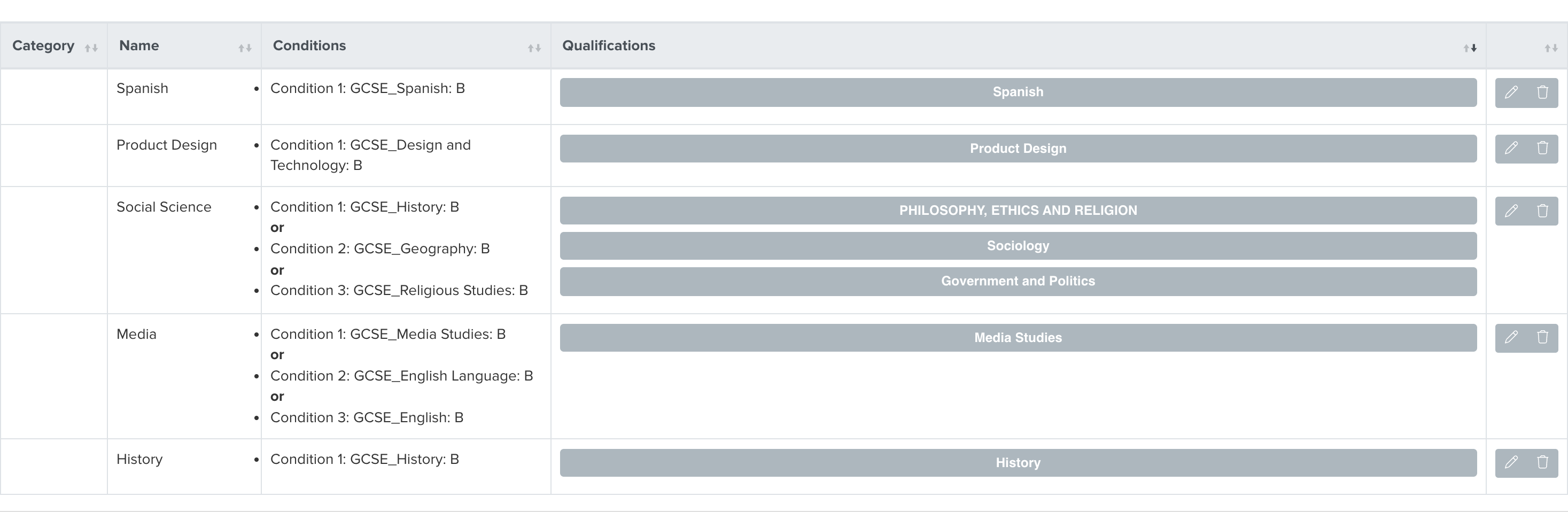
Read the Conditions column carefully. Where a requirement has more than one condition they are separated by or, and the student only has to satisfy one of them. Within a single condition every line must be met. A student who looks like they should fail will pass if a second, easier condition exists.
2. Check the qualification type and subject name on the requirement match the student's grades
Click the pencil icon on the requirement to open it. Each line has four parts: Applies (Always or If Taken), Category (the qualification type, such as GCSE), Title (the subject name) and Grade.
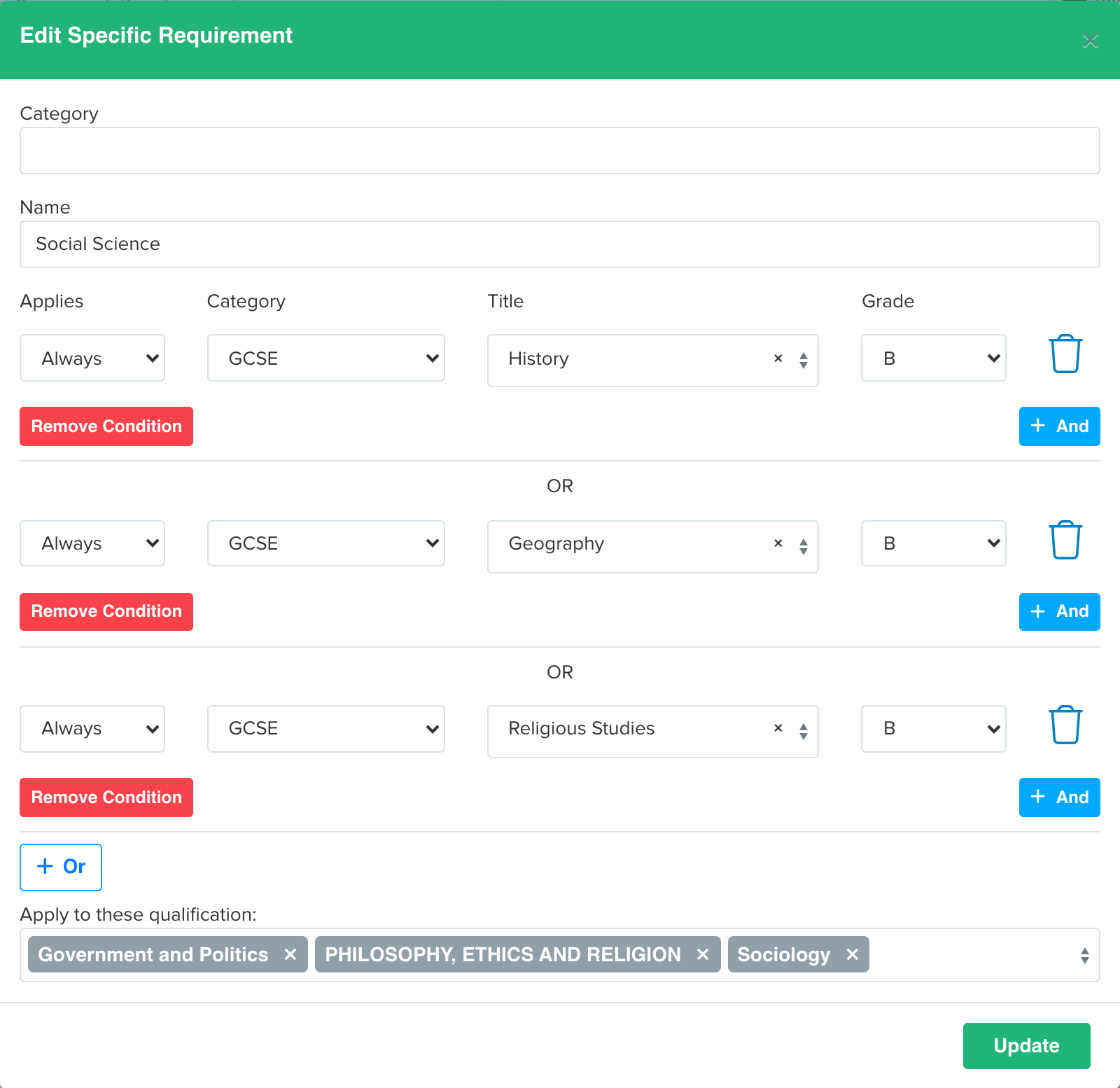
This is the single most common cause of a misfire. The requirement is matched against the student's results on qualification type and subject title together, so all of the following will make a student fail even with the right grade:
- The requirement asks for a GCSE but the student's result was imported as an iGCSE or a Level 2 Certificate.
- The subject title on the requirement is spelled differently from the title on the student's result - for example "Maths" against "Mathematics", or "English" against "English Language".
- The student sat the subject under a title that appears twice in your list, and the requirement points at the unused one.
The Applies setting explains the opposite symptom. Set to Always, a student with no result at all for that subject fails the condition. Set to If Taken, a student with no result for that subject skips that line and can still qualify - so a requirement that looks strict lets people through. Also check the Apply to these qualification selection at the bottom of the panel: if the student's own qualification is not ticked there, the requirement is not applied to them.
3. Check the student's qualification type is being counted at all
Open Settings > Application Form, go to the Education step and open its Settings tab. The Calculated course categories list controls which qualification types are included when eligibility is worked out.
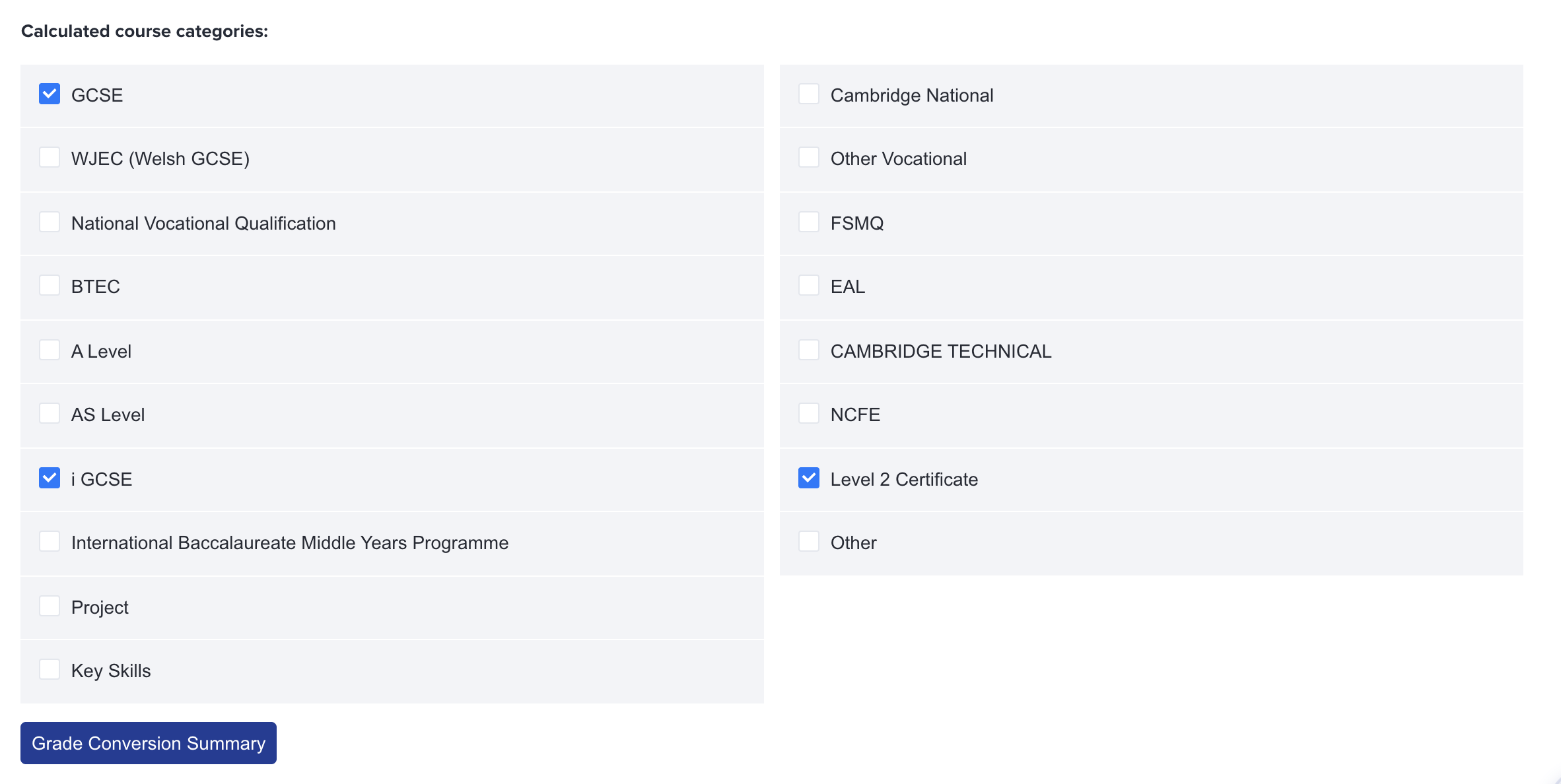
Any qualification type that is not ticked here is removed from the student's results before the requirement is even looked at. If a student's grades sit on an unticked type, the system behaves exactly as though they had sat nothing: an Always condition fails, and an If Taken condition is skipped. This is the usual explanation for a BTEC or vocational learner showing as not qualified while their grades are plainly on the record.
4. Check the grade scale, not just the grade
On the same Education settings tab, open Grade Conversion Summary. This lists every origin grade you accept and the converted value it is scored as.
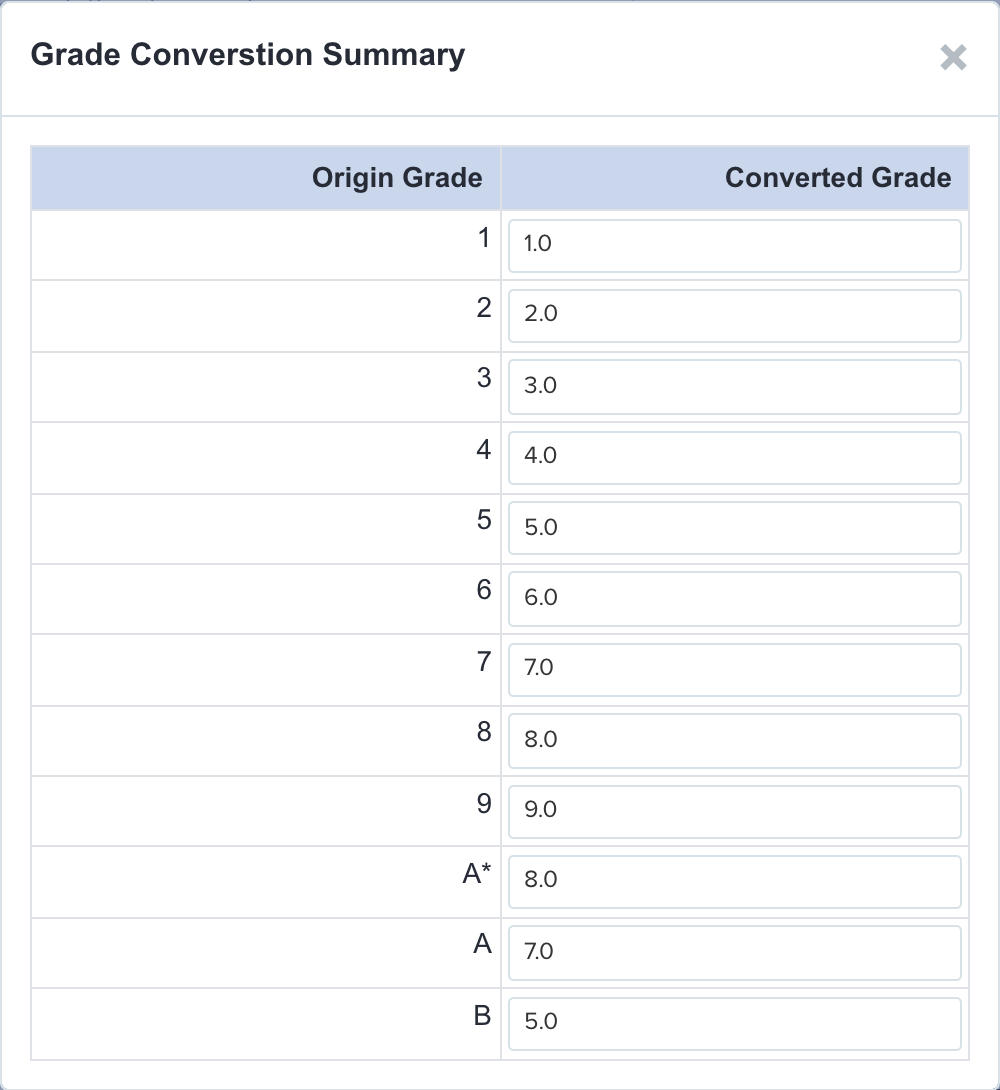
Grades are never compared as text - both the student's grade and the required grade are converted to a number first, and the student passes only if their number is greater than or equal to the requirement's. Two things go wrong here:
- The two scales don't line up. If a legacy letter grade converts to a lower value than the numbered grade you assumed it matched, a student who "clearly has a B" can fall below a requirement written in numbers.
-
The grade is missing from the table. A grade with no conversion row scores zero, so the student fails every requirement that mentions that subject. Watch for imported grades with different punctuation or spacing, such as
A*versusA *, or unusual vocational grades like Distinction*.
If you add or correct a row here, the change only affects students after their point scores are recalculated - see the last section.
5. Check whether the restriction is switched on for this applicant type
Eligibility can be calculated and displayed without ever blocking anyone. In Settings > Application Form, on the Courses step, the setting "Would you like to prevent applicants from choosing subjects for which they do not meet the entry requirements?" is what stops an applicant selecting a subject they don't qualify for.
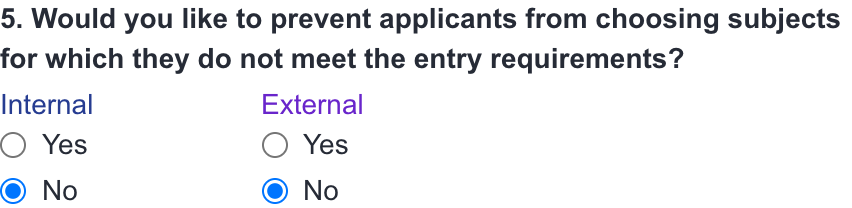
It is set separately for internal and external applicants. A very common report - "it blocks our external applicants but not our own Year 11s" - is simply this setting being Yes on one side and No on the other. Check the side that matches the student you are looking at.
There is a matching staff-side control, Teacher Course Enrolment Restriction, again split into internal and external.

When this is No, staff can enrol any student onto any subject and the eligibility result is shown for information only - the "Not qualified" label is real, it just isn't enforced. This also affects the colour a student is given, so leaving it off will make the pipeline colours look wrong.
6. Check which stage the colour is being taken from
If the eligibility label looks right but the RAG colour in your enrolment pipeline does not, check Enrolment Pipeline Colour Coding in your enrolment settings.

The colour can be based on the subjects the student chose on the Application Form, the subjects they were Offered, or the subjects on their Enrolment Form. If a student's choices changed between those stages, the colour will reflect the stage you selected here - not the one you are currently looking at.
7. Specific Requirements are not the same as your school entry requirements
These are two separate checks and they are frequently confused. Specific Requirements are per-subject: they decide whether a student is qualified for an individual course. Your school entry requirements are the whole-school bar, and they are configured under Settings > Enrolment Navigator > Grade Requirements, with the red-flag behaviour set in Enrolment Red Flags Settings.

The school-level check uses a minimum average or total points score plus your general requirements, and you can additionally nominate specific requirements to raise a red flag on. That means:
- A student can be qualified for every subject they picked and still carry a red flag, because they are below the school's minimum points score.
- A student can clear the school bar comfortably and still show as Not qualified for one subject.
- Changing the school minimum will not change any subject's qualified/not qualified label, and tightening a subject requirement will not change the red flag unless that requirement is nominated in the red-flag list.
Decide which of the two you are actually looking at before changing anything.
8. Re-run the check after you change a setting
Eligibility results are stored, not worked out fresh every time you open a page, so a corrected setting will not appear until the check is re-run.
- Editing and saving a Specific Requirement re-runs automatically for every subject that requirement is linked to. Give it a minute or two to work through, then refresh.
- Changes to grade conversions, calculated course categories or point scores do not. These need a manual recalculation.
To force a full recalculation, go to Settings > Application Form > Point Score Conversions and select Update Student Point Score.

This rebuilds every student's point score on the form and refreshes their qualified/not qualified status, pipeline colour and red flags together. Run it whenever you have changed a grade scale or the qualification types being counted, then re-check the student.
Still not matching?
Pick one student and one subject, and note the exact qualification type, subject title and grade on their record alongside the exact wording of the requirement. Nearly every remaining case is a difference between those two. If they genuinely match and the result is still wrong, contact Applicaa support with that student, the subject and a screenshot of the requirement.