
The Communication Log shows every email, SMS and notification sent to a student or a parent from Admissions+, in one place. Open it from a profile to read the history, filter it, reply, resend, or download it.
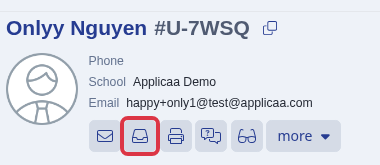
From a student's or parent's profile, click the inbox icon in the action row to open their Communication Log.
The list on the left has a search box and a "Filter" button. Click "Filter" to choose which messages show.
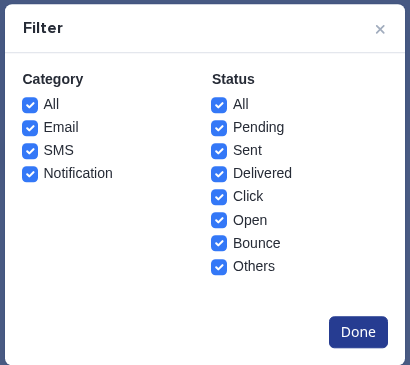
- Category- "All", "Email", "SMS", "Notification".
- Status- "All", "Pending", "Sent", "Delivered", "Click", "Open", "Bounce", "Others".
- Tick or untick any combination, then select "Done" to apply the filter to the list.
On a parent's Communication Log, the list has an "All" tab plus one tab for each of their children, each showing that child's message count. Select a child's tab to see only the messages tied to that child.
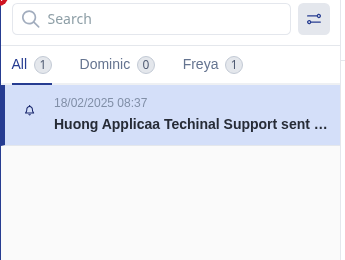
Each row in the list is one message or notification.
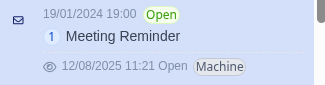
- A status badge next to the date - "Pending", "Sent", "Delivered", "Click", "Open", "Bounce", or a notification's own status.
- A number badge showing how many messages are in that thread.
- A "Replied:" line with a timestamp, when the recipient has replied to that thread.
- A "Machine" badge on the last event, when that open or click was an automated mail scanner or image proxy opening the message rather than the recipient.
Select a message to read it on the right. For an email, the header above it shows "User Email Token", "Reply", "Resend original", and "Download".

- "User Email Token" copies a special email address for this person. CC that address on any email you send from outside Admissions+, and the message is added to this Communication Log.
- "Resend original" re-sends the exact original email again, after you confirm, without creating a new thread.
- "Download" opens a dialog to export the full email history for this person as a file.
Select "Reply" to answer an email from inside the Communication Log.
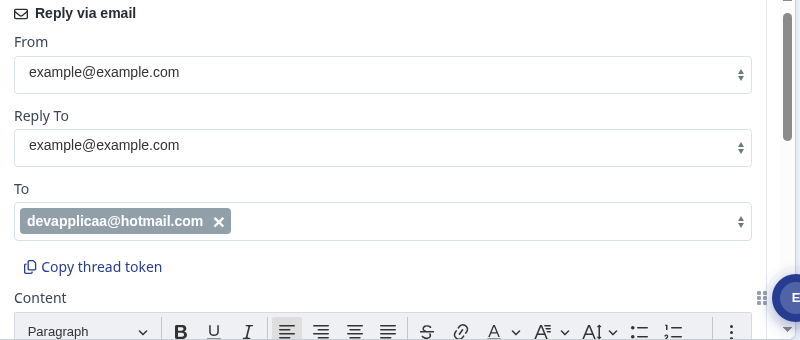
- From- a school email address, your own staff email, or another staff member's, depending on what your school allows. When sending from a school address is off, this is fixed to the system's own sending address.
- Reply To and To- you can add addresses, but sending fails unless "To" still includes one of the recipient's own known email addresses.
- "Copy thread token" copies the same kind of email address as "User Email Token", but scoped to this one thread instead of the whole person.
- Write the reply in the content box and select "Send".
You can only reply to an email this way. SMS messages and notifications in the Communication Log are read-only history; there is no reply option for them.
Select "Download" to export the person's messages to a file.
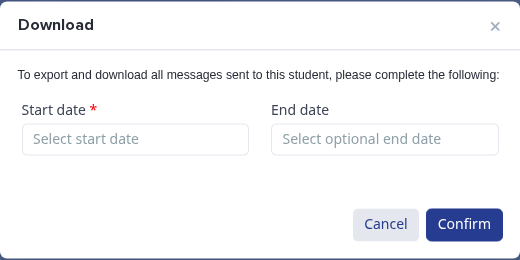
- "Start date" is required.
- "End date" is optional; leave it blank to export up to today.
Questions staff ask
Can I reply to an SMS or a notification from here?
No. "Reply" only appears for email messages. SMS and notification rows are history only.
Why does a message show as "Open" with a "Machine" badge, even though the parent says they never opened it?
Some mail providers and security scanners open a message automatically to check it for threats, before a person ever reads it. The "Machine" badge marks that automated open so you know not to rely on it as proof the recipient read the message.
Why did my reply fail to send after I changed the "To" address?
Sending checks that "To" still includes one of the recipient's own known email addresses, so a reply can never be misdirected away from them entirely.
Why it behaves this way
Not every school sees this exact screen. A school still on the older setup sees a smaller pop-up version of the log instead of this full-page view, and a school that has moved on to the Communication Hub sees a separate inbox-style area there instead. Which one your school sees depends on settings your Applicaa contact configures for you; if you are not sure which one you have, ask your Customer Success Manager.