
You can change the message families see after they submit an embedded enquiry form, and the automatic reply email that goes with it. Use the form's mode to select the correct completion message.
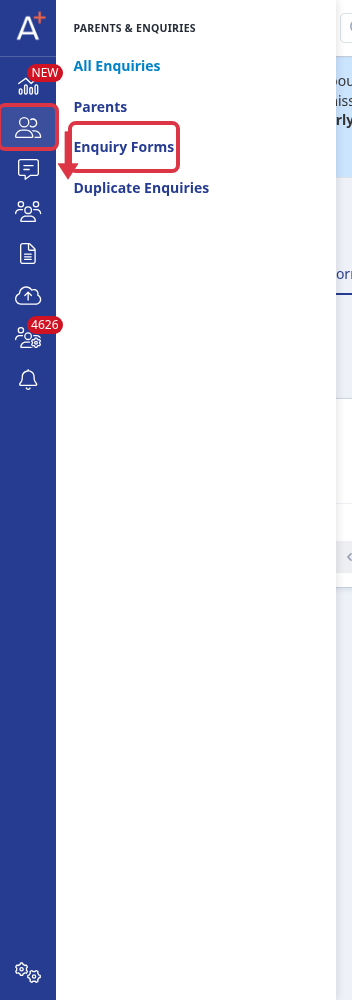
Go to Parents & Enquiries > Enquiry Forms.
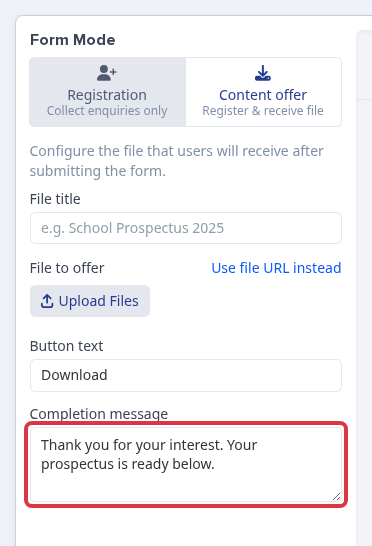
Open the form, select Content offer, then change the Completion message. The form saves your change automatically.
The form can also send an automatic reply email after a family submits it. Click Edit form content in the top right of the form editor.

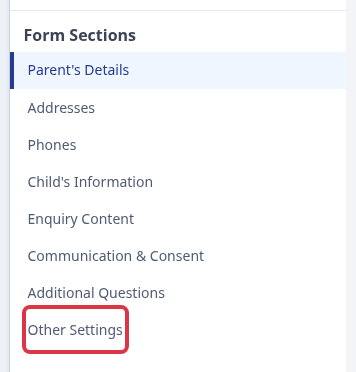
In the Form Sections list, select Other Settings.
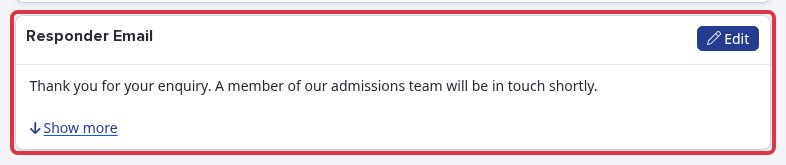
Scroll to Responder Email and click Edit to change the text of this reply email. This is separate from the Completion message above: the Completion message shows on screen straight after submission, and the Responder Email is sent to the family's inbox.
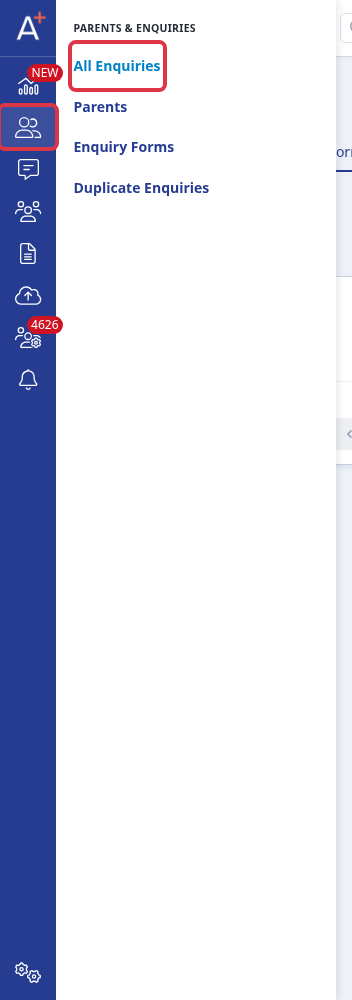
To return to the enquiry overview page from the new enquiry form builder, go to Parents & Enquiries > All Enquiries.
What to know
- Use the Registration completion message for a form that collects an enquiry only.
- Use the Content offer completion message for a form that gives a file after submission. The default message asks the family to download the file.
- The Completion message and the Responder Email are two different messages. Change both if you want the on-screen text and the reply email to match.
- Universal search can show the same name in both the Student and Leads groups. Leads are matching enquiry records, so this does not change the applicant's status.
Questions staff ask
How do you get to the overview page from the new enquiry page?
Click All Enquiries in the Parents & Enquiries tab. This returns you to the enquiry pipeline from the new enquiry form builder.
For help with an enquiry record or form, ask Emma from your Admissions+ screen.