
Once a student has a pre-admission record in Bromcom, running the Bromcom export again does not resend or update it automatically - Admissions+ skips them. This article covers how to send a student to Bromcom again when you need to, what "Export as new student" actually does, and what data the Bromcom export does and does not include, such as Parental Consent answers.
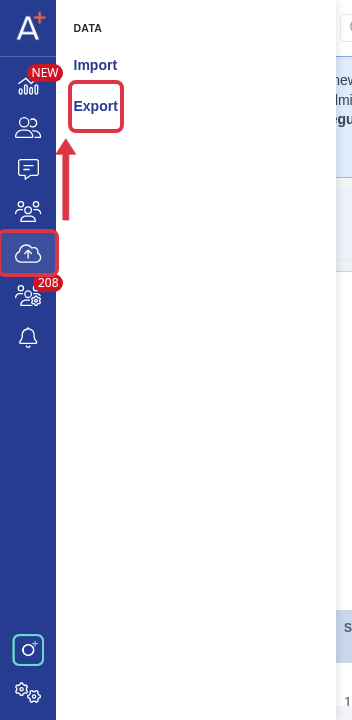
Go to "Data" > "Export" for the application form. This page lists every export already run for this form, and lets you start a new one.
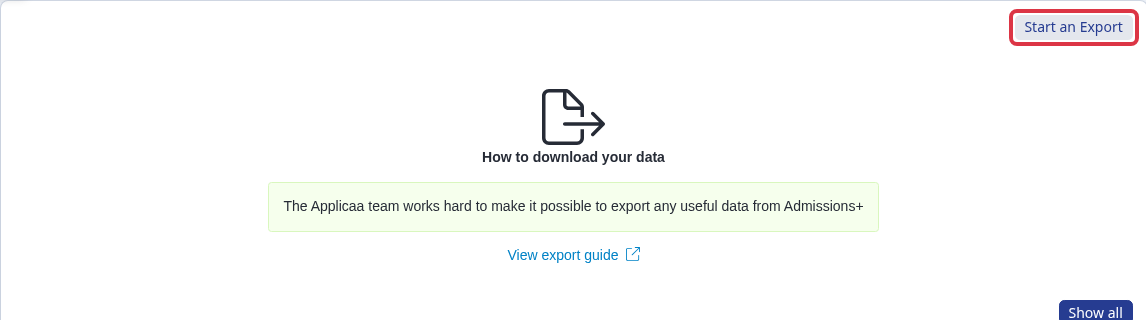
Click "Start an Export" to run the Bromcom export again, choosing the students, classes or tutor groups to send. The steps are the same as your first export - see "Data Transfer - Bromcom" under Related articles for the full walkthrough.
A completed Bromcom export does not get the "Refresh Export" or "Clone Export" icons that other export types show on this page - those two actions are not available for Bromcom. To send updated or additional students, start a new export instead of trying to refresh or clone an old one.

If a student in that new export already has a record in Bromcom, Admissions+ does not send them again by default. The export's report marks that student "Skipped" and explains why in the "Bromcom Response" column:

That message tells you to choose "Export as new student" for the applicant at the student matching step of a new export, if you want Bromcom to receive their record again. This is the way to send a student a second time - for example when their pre-admission form, and the Parental Consent answers described below, was only completed after the first export already ran.
Why it behaves this way
"Export as new student" does not update the applicant's existing Bromcom record. It creates a new, separate pre-admission record in Bromcom and leaves the original exactly as it was - the two records are not linked afterwards. Choose "Export as new student" only when you want Bromcom to hold both. Choose "Merge" at the same step instead if you want the student's existing Bromcom record to be the one that is updated. If you only need to correct or add a detail Bromcom already has for the applicant, update it directly on their Bromcom record rather than re-exporting them.
What gets sent - Parental Consent
The Parental Consent answers your application form collects are included in the Bromcom export. Each selected consent option is only sent if its name matches a Parental Consent Type already set up on your school's Bromcom - Admissions+ compares the two by name. An option whose wording does not match anything already configured in Bromcom is left out of the export silently; no error is shown for that student or that option. If Parental Consent answers are missing in Bromcom after an export, check that the wording of each Parental Consent option on your application form matches a Parental Consent Type that already exists on your school's Bromcom, then export the affected students again.
What it does not do
- A medical or emergency consent question collected as its own field, separate from Parental Consent, is not part of the Bromcom export. Only the Parental Consent answers above are sent.
- Re-exporting a student with "Export as new student" does not merge or correct their existing Bromcom record - it always creates an additional, separate one (see "Why it behaves this way").