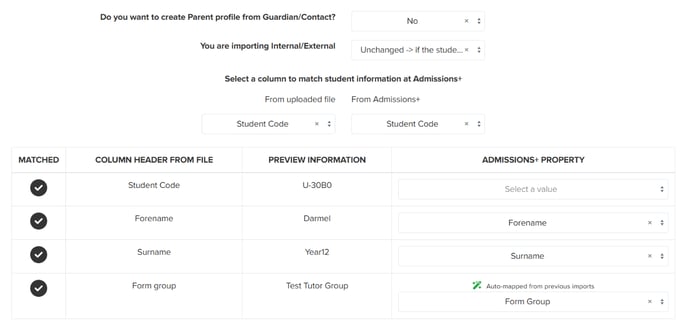
- Student Identifier (Student Code, UPN, ULN, UCI, Email)
- Forename
- Surname
- Form Group
Please note that the identifier should be something that is already linked to the student's data in the system. If you are unsure, it would be best to use the Student Code as all students in the system will have their unique student code.
You can export the student code from the system via the export page or by going to your registered students. In the registered students table, select the students you would like to export and click on the "Export" button, then choose Export as CSV or Excel.
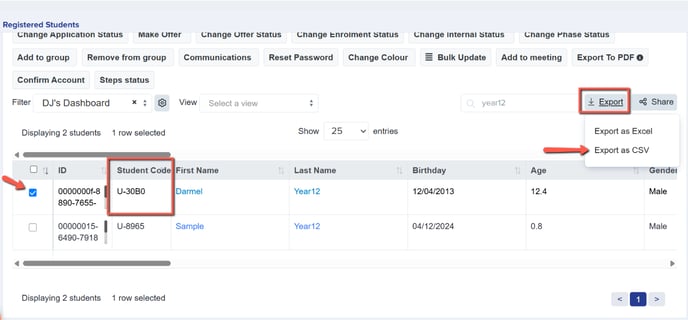
In the exported CSV or excel file, copy the student code and transfer it over into your main CSV file for importing form groups.
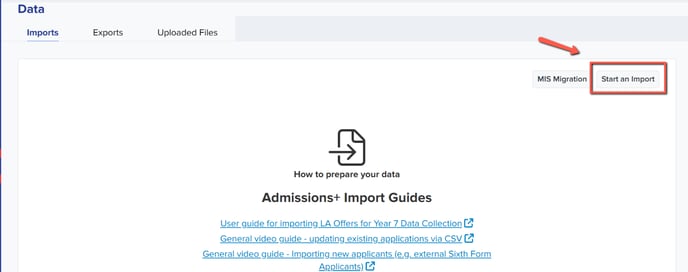
Once your CSV file is ready, navigate to Data --> Import
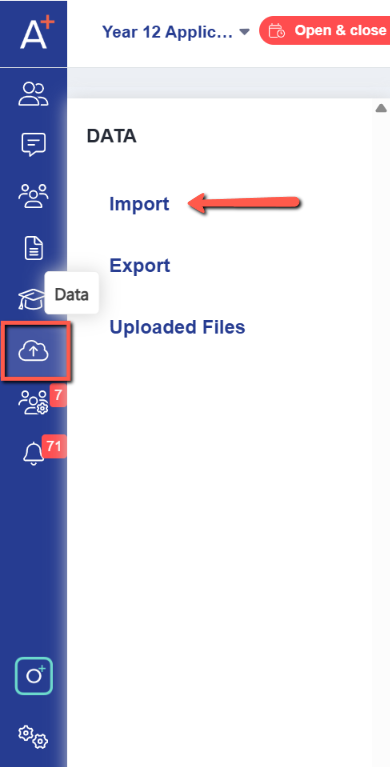
In the Import page, follow the following prompt
1. Start an import
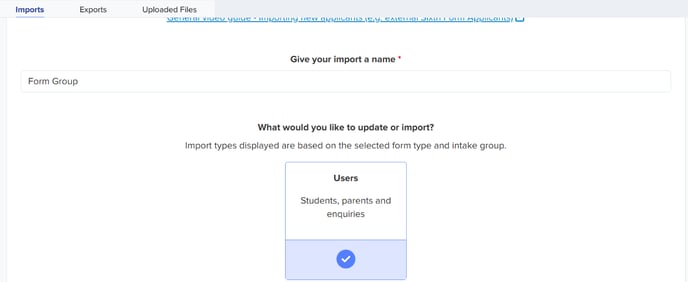
2. Name your import and select User
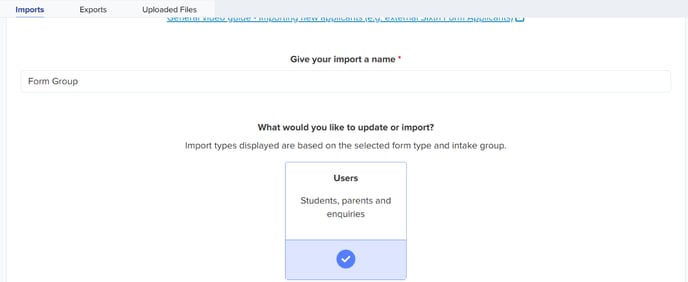
3. Select Existing Users
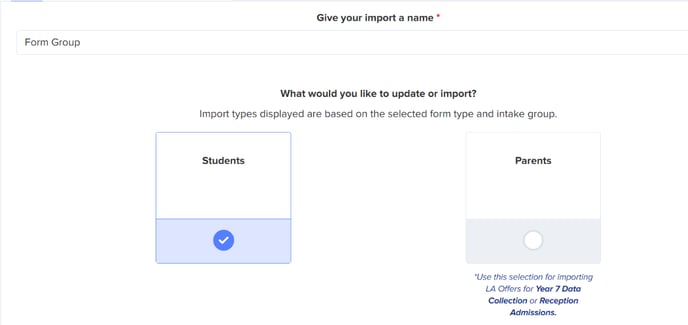
4. Select Students
5. Select CSV
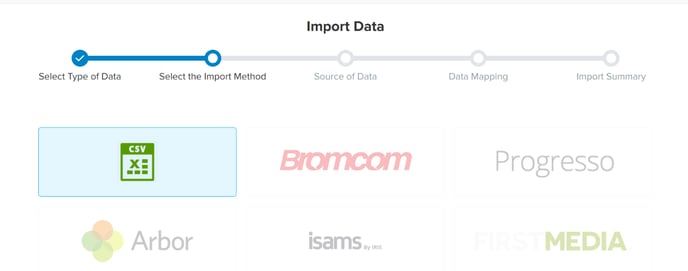
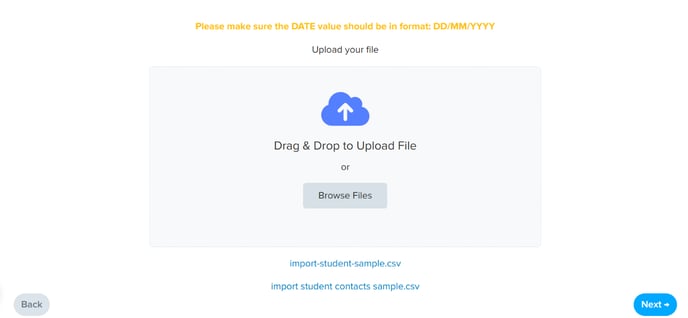
6. Upload your CSV file by clicking on the browse files button
In the data mapping step, select the value of your column headers to their admissions+ property equivalent.
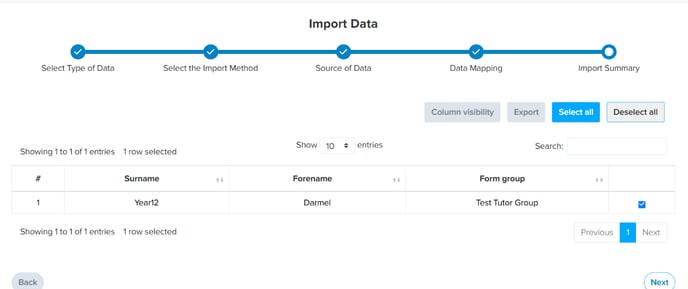
Finally, review the summary and once you are happy with this select all the students you want to import, and click next to start the import process.
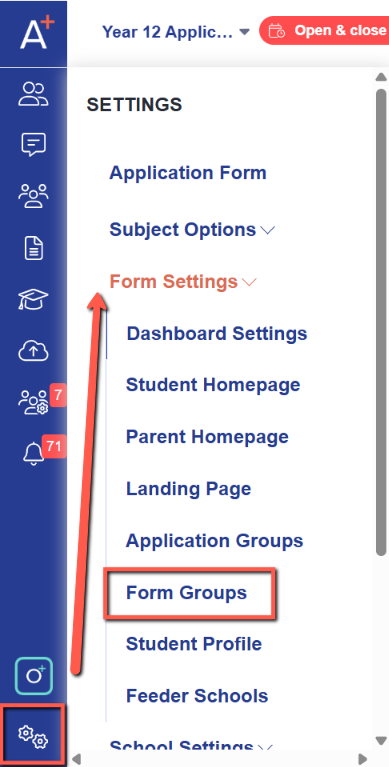
You will be notified with a report whether your import is successful or not. You may double check that your import has worked by going into Settings -->Form Settings --> Form Groups.
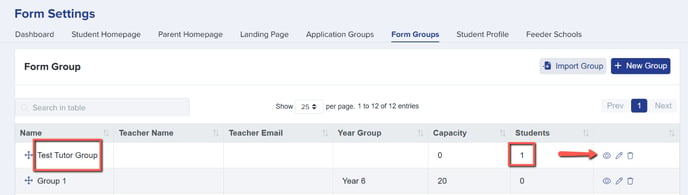
In the Form Groups page, your recently imported form group should appear in the list and the number of students allocated into each group. You may view which students are in a group by clicking on the view button.
Check rows that did not import
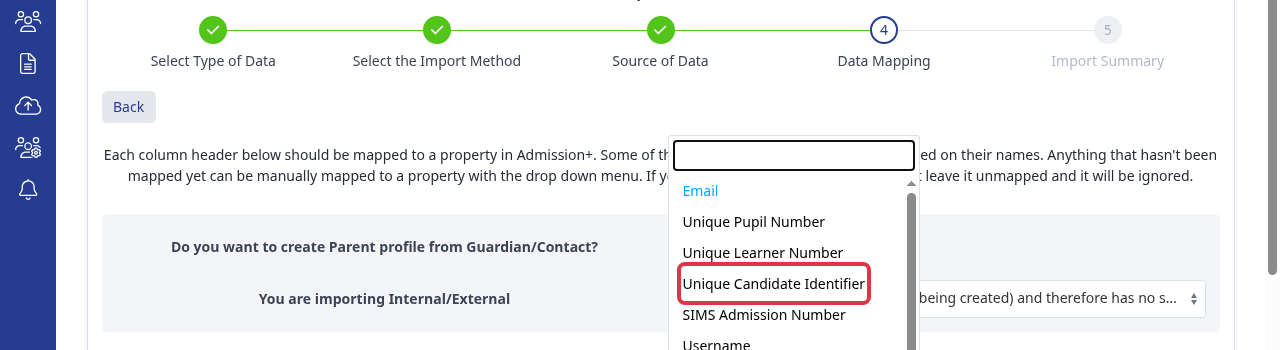
\nWhen your CSV contains UCI values, select "Unique Candidate Identifier" as the Admissions+ field to match. Map your UCI column to the same property so that the report can show it.
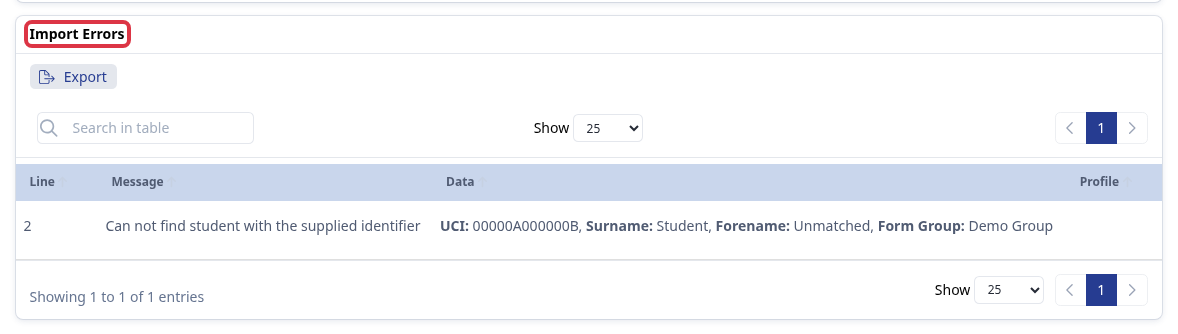
\n[[media:edit-tutor-groups-1.png]]\nAfter the import finishes, open its report. Compare the imported and updated record counts with the number of submitted rows. Any rows that are neither imported nor updated appear in the "Import Errors" section. It shows the CSV line number, the exact message, and the row data. Correct the CSV values or the matching identifier, then import only the corrected rows again. Use "Export" to download the displayed report as CSV or Excel when you need to review or share the UCI values.
\n[[media:edit-tutor-groups-2.png]]\nQuestions staff ask
\nI submitted 201 rows but only 182 imported. Where are the other rows?
\nCheck the updated record count first. Then open the import report and review "Import Errors". The report identifies each row that did not complete and gives its line number, message, and submitted data.
\nCan I run a report with UCI values?
\nYes. Include a UCI column in the CSV and map it to "Unique Candidate Identifier". The completed import report includes mapped columns and you can export it as CSV or Excel.
\n