
When an enrolment email doesn't arrive, arrives with blank gaps where a name should be, or comes back as a bounce, the cause is almost always one of four things: the message was never switched on, the sender details aren't set, the merge fields don't match the audience, or the recipient's mail server rejected it. This article shows you where to check each one.
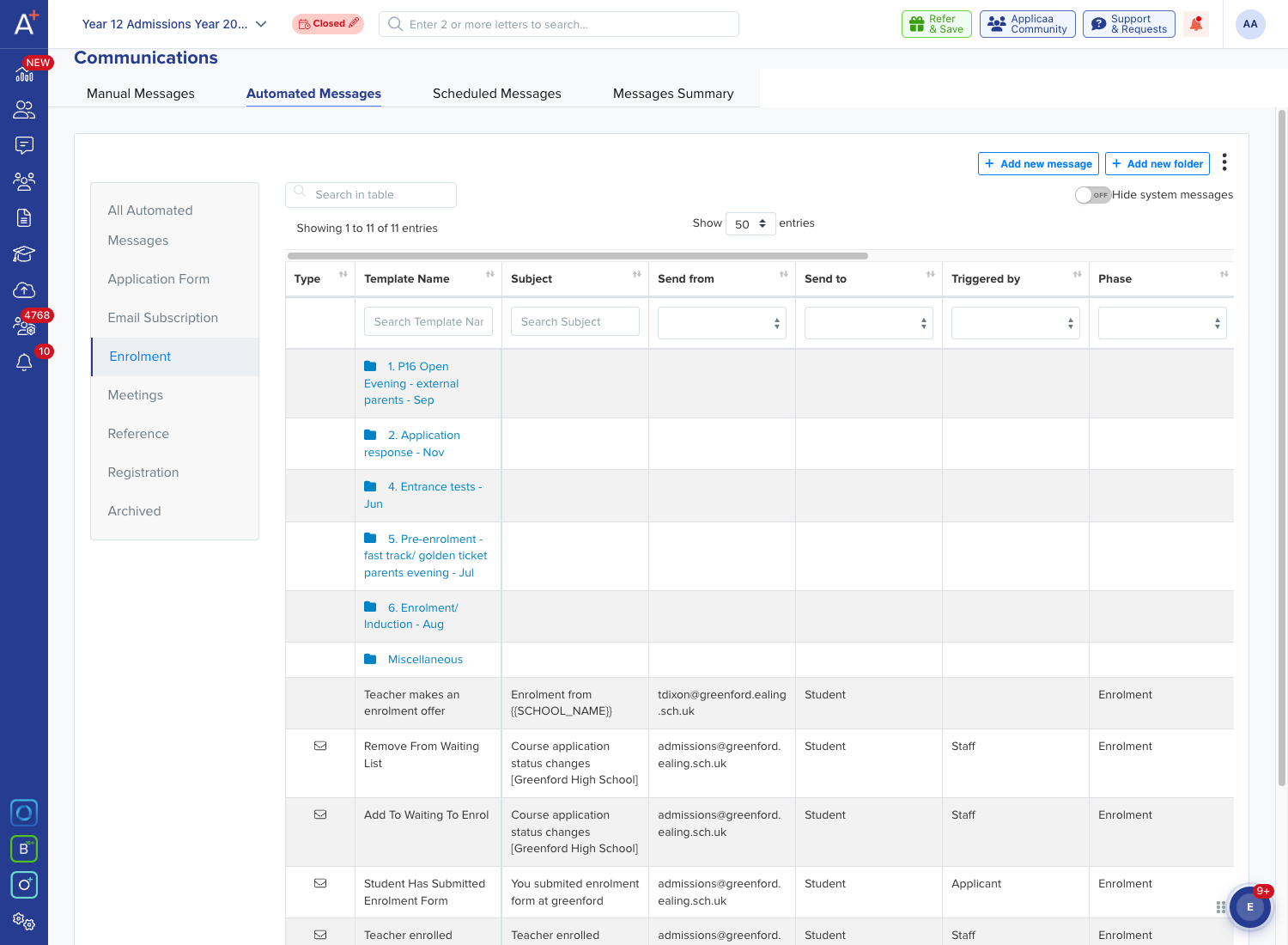
Start in "Communications" and open the "Automated Messages" tab, then select the "Enrolment" folder in the left-hand list. Every message that can send itself during enrolment is listed here. The "Send from" column tells you which address each one goes out as, and "Triggered by" tells you whether a staff action or the applicant sets it off.
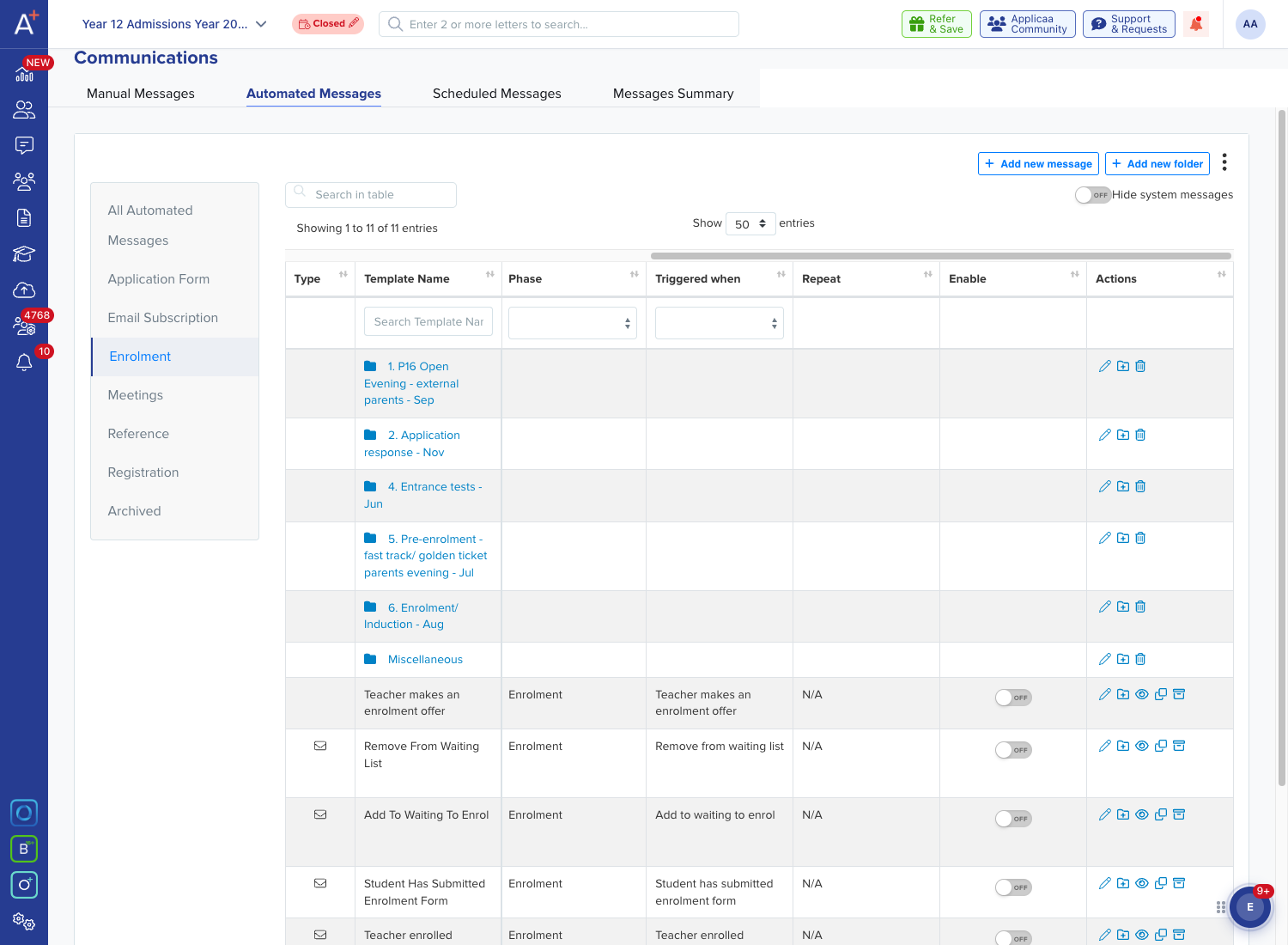
Scroll the table across to see "Triggered when" and the "Enable" column. A grey "OFF" toggle means that message will never send, no matter how many students reach the trigger - switch it on for each enrolment message you want sent, and use the eye icon in "Actions" to preview the content first.
Why a template doesn't appear in the list
If a message you set up doesn't appear in the Enrolment list at all, work through these before assuming it was never created:
- A draft you haven't finished, or a template you've archived, is hidden from this list until you publish it or restore it - open "Archived" in the left-hand list to find it.
- A template built on a different application form never appears in another form's list, even when a template with the same name and settings exists there too. Check you're looking at the application form the template was built on.
- A "Parental Consent Request" template is hidden from this list while the application form's GCSE options are switched off.
- A template that sends on a schedule rather than a trigger is managed from the Email Schedulers area, not the Automated Messages list.
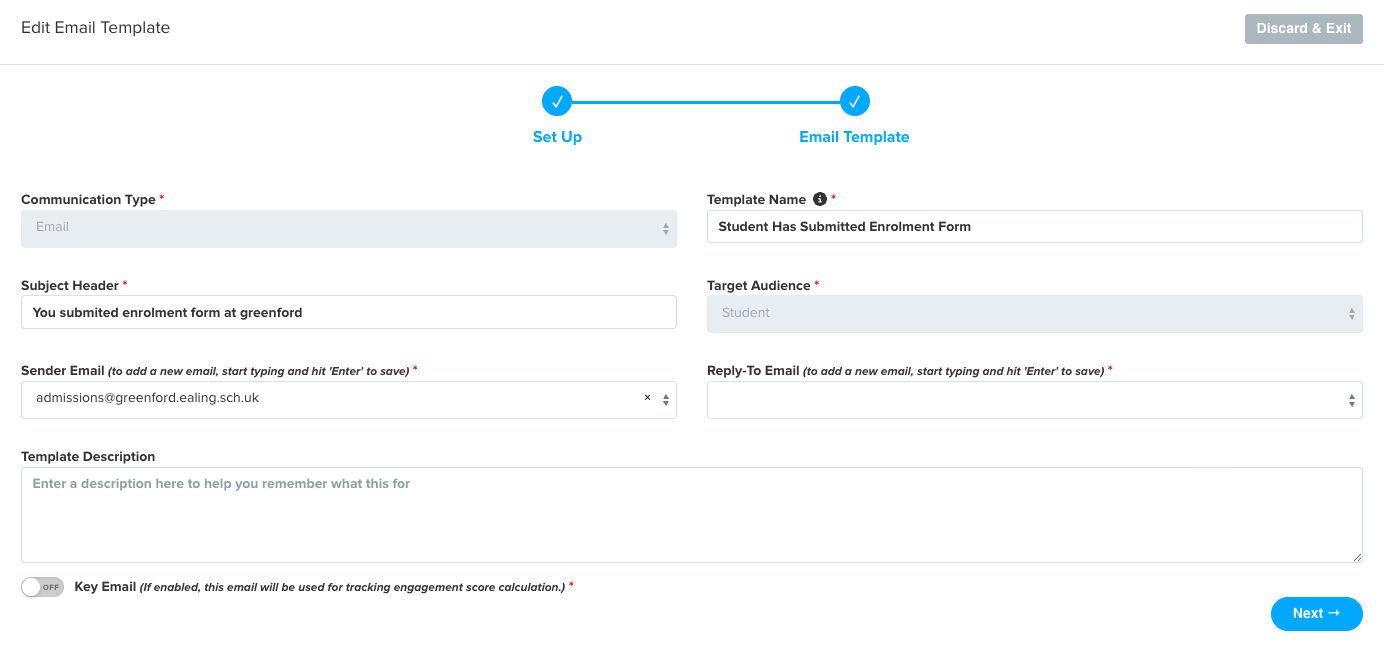
If the message sends but comes from the wrong address, open the template with the pencil icon and check the "Set Up" step. "Sender Email" only offers addresses that already belong to an active staff user or to a connected inbox on your system. "Reply-To Email" is required, so the template won't save from this step while it is empty, and the "Target Audience" you set here decides which merge fields you can use later.
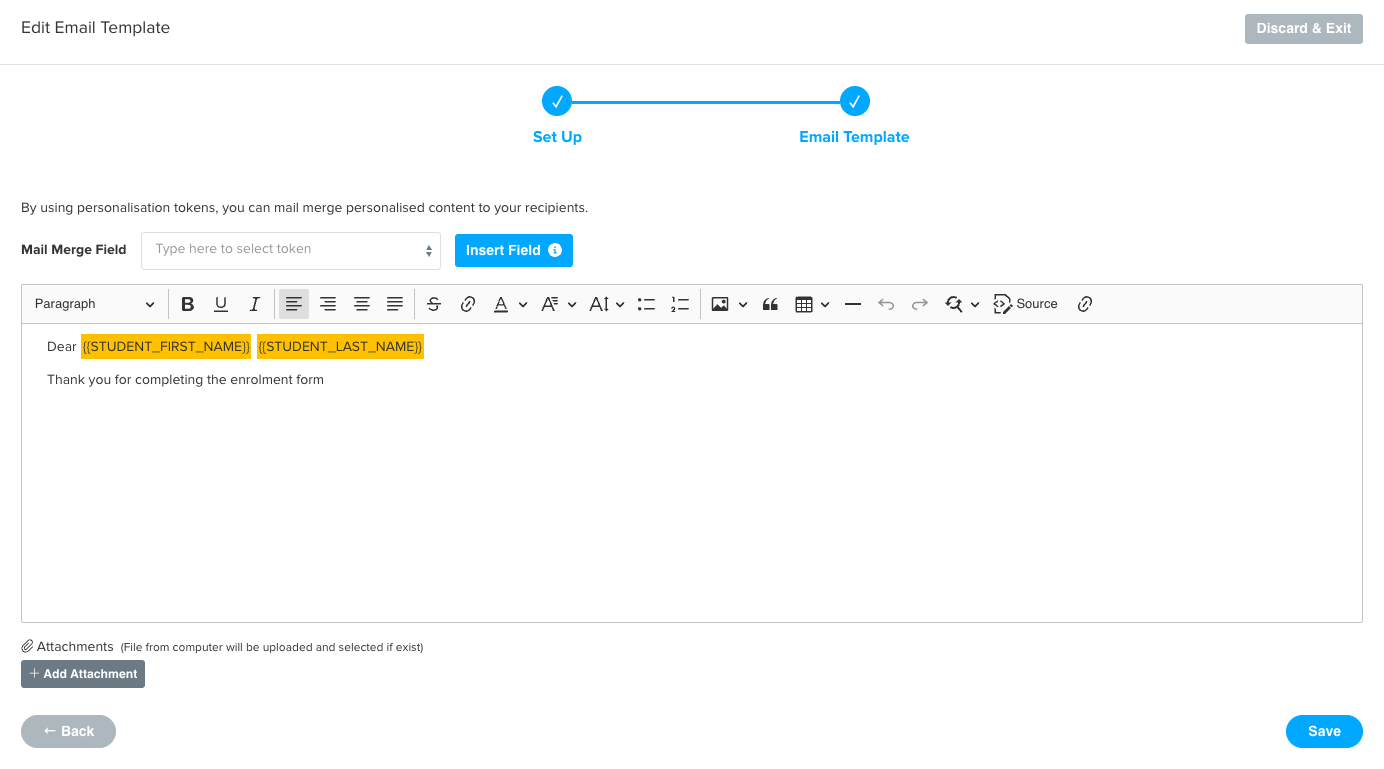
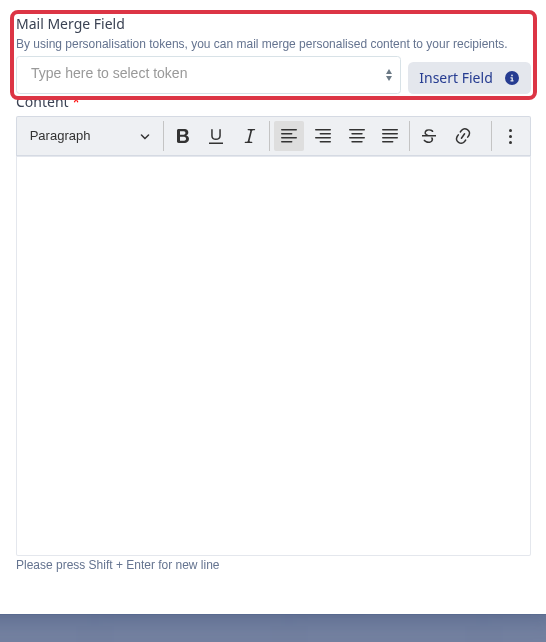
For blank gaps in the email, go to the "Email Template" step and check the merge fields. Pick a field from the "Mail Merge Field" list and click "Insert Field" rather than typing a token by hand, so you only ever insert fields that your target audience actually provides - then "Save".
Why one recipient's email still has a blank gap
A field can be perfectly valid for your target audience and still arrive blank for one recipient, because the value comes from that person's own record, not from the template. "Title" is the most common example: it only shows in the email when that parent's own record has a title set. A parent who never chose one from their profile sends that gap blank for every email that uses the Title field, no matter which template you pick.
Admissions+ doesn't show a count or a warning for how many recipients are missing a field before you send - there's no pre-send check for this. To see whether a specific parent has a title set, open the student's profile, select the "Family" tab, and look at the "Title" row on their parent card.
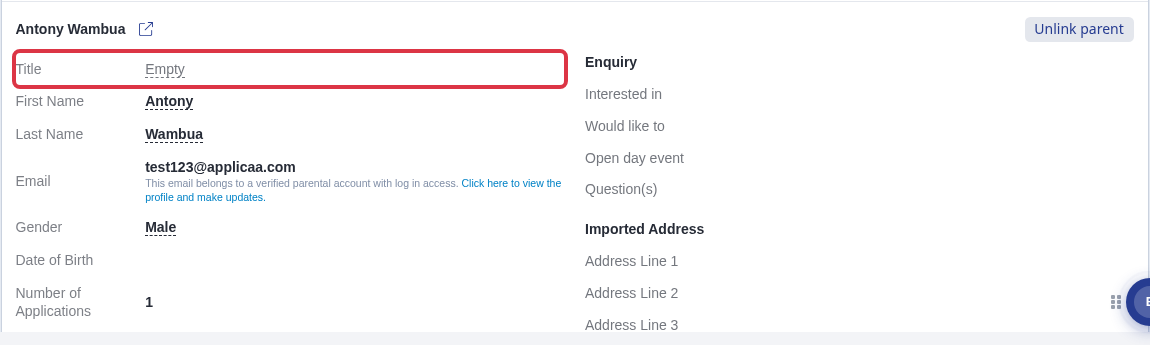
- A token you type by hand that doesn't match a real merge field is removed from the email before it sends, the same as a blank value - another reason to always use "Insert Field" rather than typing "{{...}}" yourself.
- Updating the Title field on the parent's own profile fixes it for every future email; it does not resend anything that already went out blank.
Adding a merge field when you email students directly
You don't have to open a template to send a personalised email. Select one or more students from a list, then choose "Communications" > "Send Email".
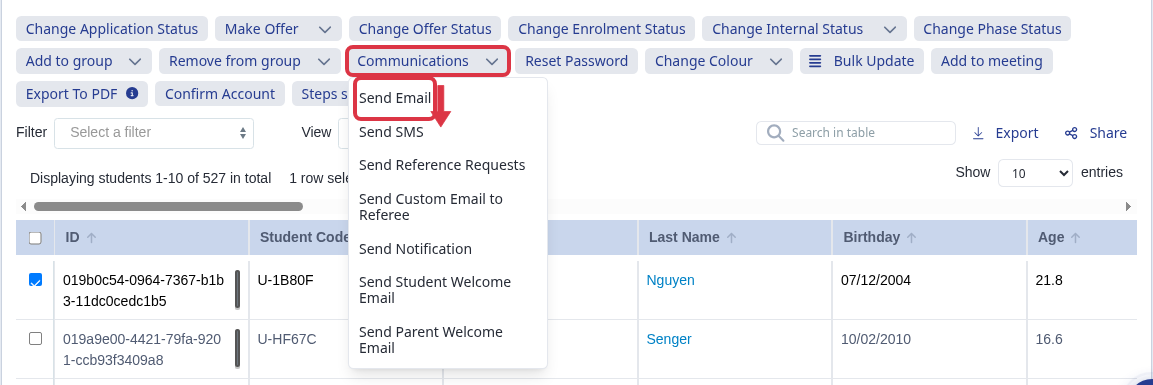
This opens the same compose window used elsewhere in Admissions+. If you see a "Mail Merge Field" list with an "Insert Field" button, use it exactly as described above: pick a field and click "Insert Field" to drop it into your message.
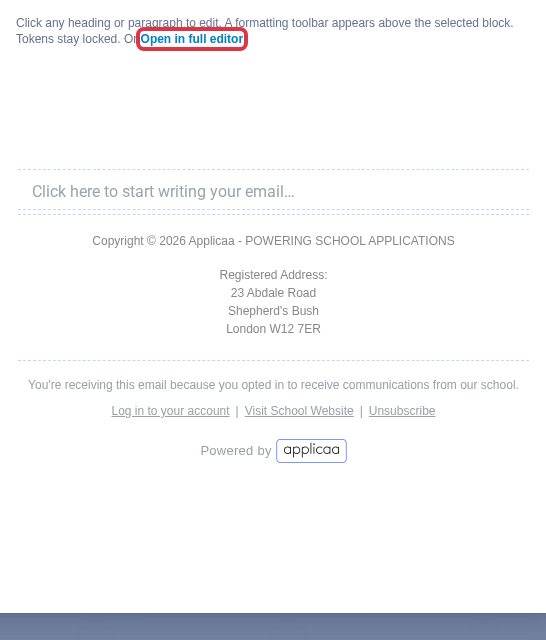
If your school has the Communication Hub switched on, this same compose window opens a block-based email builder instead, and that "Mail Merge Field" list isn't shown here. A note above the message reads "Tokens stay locked" - a merge field already in a chosen template is protected from accidental deletion, but you can't add a new one from this view. Select "Open in full editor" to insert one.
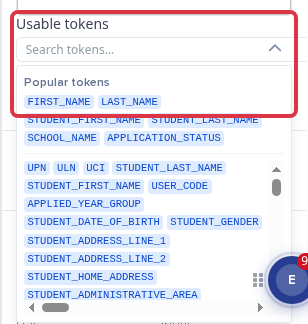
In the full editor, click the paragraph or heading you want to personalise. A "Usable tokens" panel opens on the right with a search box and a "Popular tokens" row ("FIRST_NAME", "LAST_NAME"). Click any token to insert it at your cursor, or type it directly as "{{FIRST_NAME}}" and it turns into a token on its own.
To see what actually happened to a send, open the "Messages Summary" tab and look at "All Activity". The "Status" column shows the last event received, and the "Dropped", "Delivered", "Bounce" and "Open" columns show the counts behind it.
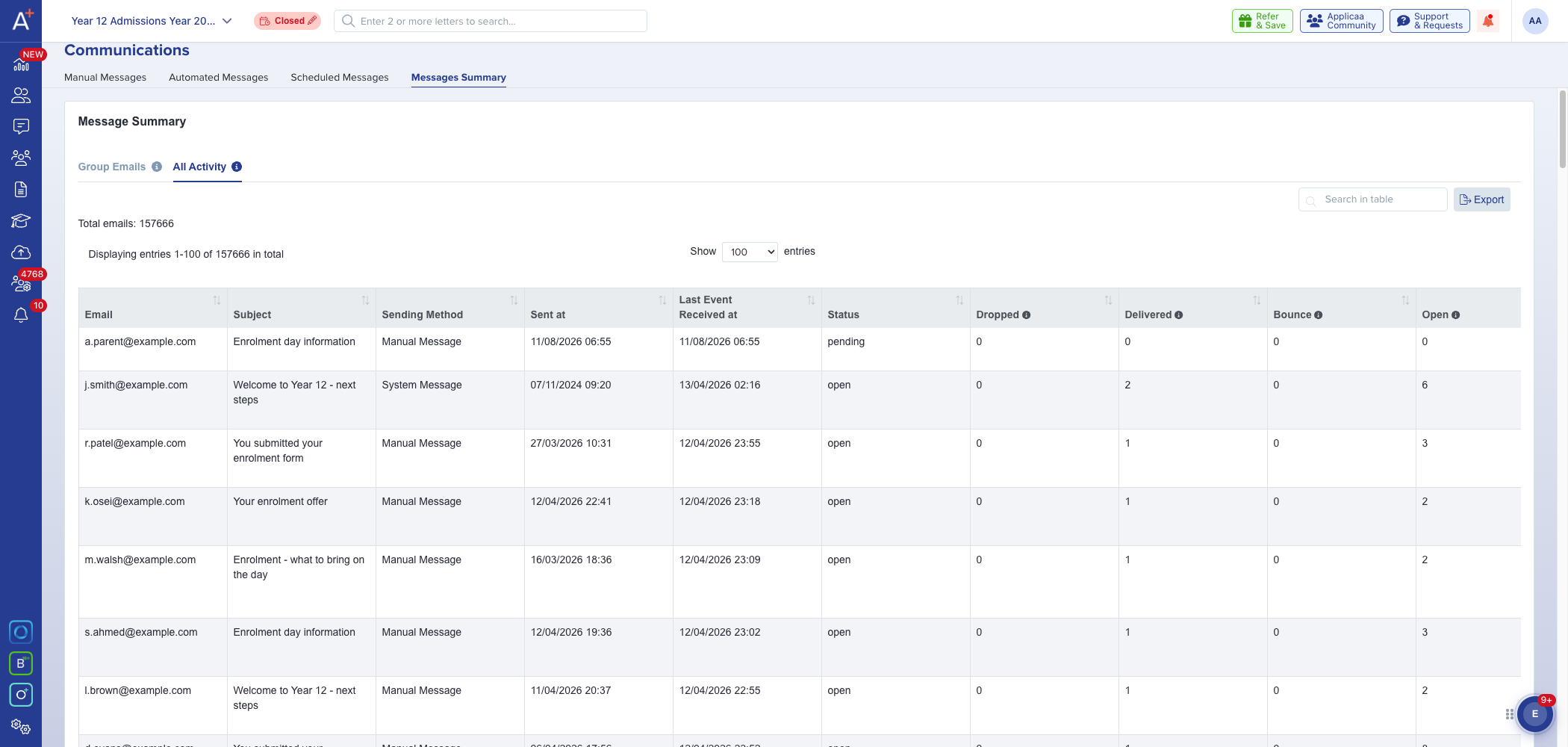
- A merge field that your chosen target audience doesn't provide is stripped out of the email before it sends, leaving an empty space rather than an error - this is the usual cause of "the email arrived blank".
- A recipient with no email address on record is skipped silently, so no row appears for them in the activity list.
- Recipients who have unsubscribed, or who never gave consent to be contacted, are removed from the send and logged as skipped.
- Emails to Hotmail, Outlook and Live addresses are always sent from the Applicaa address rather than your school address, because those providers reject mail sent on another domain's behalf.
- To send from your own school address at all, your DNS records need to be set up first. Ask Applicaa Support for the DNS request form, and your IT manager will be sent the instructions to apply.
- A send counts as failed when nothing was delivered and the log shows a bounce, a drop or a block. A bounce means the recipient's mail server refused it - check the address for typos before resending.
If a message is switched on, the sender details are complete, and the activity list still shows no attempt at all, contact Applicaa Support with the template name and the recipient's email address so the send can be traced.
Why an enrolment message can miss students who are already enrolled
- An automated enrolment message sends once, at the exact moment a student's enrolment is confirmed in the app - either a teacher confirming it directly, or a parent's or student's own enrolment request being approved. If the message was still switched off at that moment, it never sends for that student; switching it on later doesn't resend it to students who were already enrolled.
- A student enrolled through a bulk data import, or matched in through Applicaa One from another school, shows as "enrolled" the same as anyone else, but no automated enrolment message fires for them - only a teacher confirming the enrolment in the app, or an approved self-service enrolment request, triggers the send. Contact Applicaa Support if you need to check how a specific student was enrolled.
- The message is scoped to the application form it was set up on. A student on a different application form never matches it, even when another enrolment message with the same name and settings exists elsewhere.