
- First Media: The local authority's central application portal for tracking student destinations
- Applicaa Admissions+: Your school's application management system
PART 1: INTERNAL APPLICANTS (Current Year 11 Students)
Key Point to Remember
✓ Internal students DO NOT apply through First Media for your sixth form
✓ They are added directly to Applicaa
✓ They only use First Media if applying to other sixth forms
Step-by-Step Process
Step 1: Import Students into Applicaa
What you need to do:
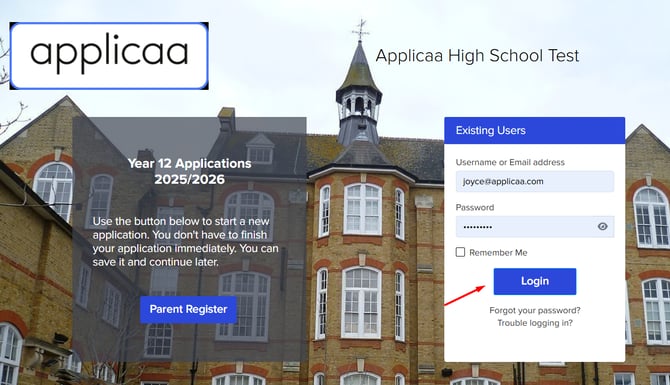
- Log into Applicaa using your school credentials
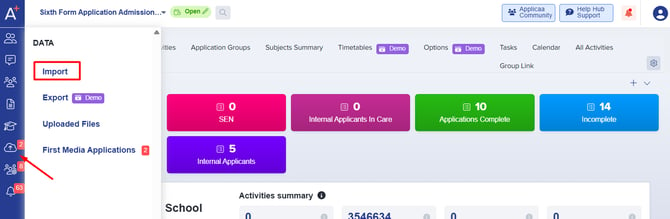
- Navigate to the 'Import Students' section
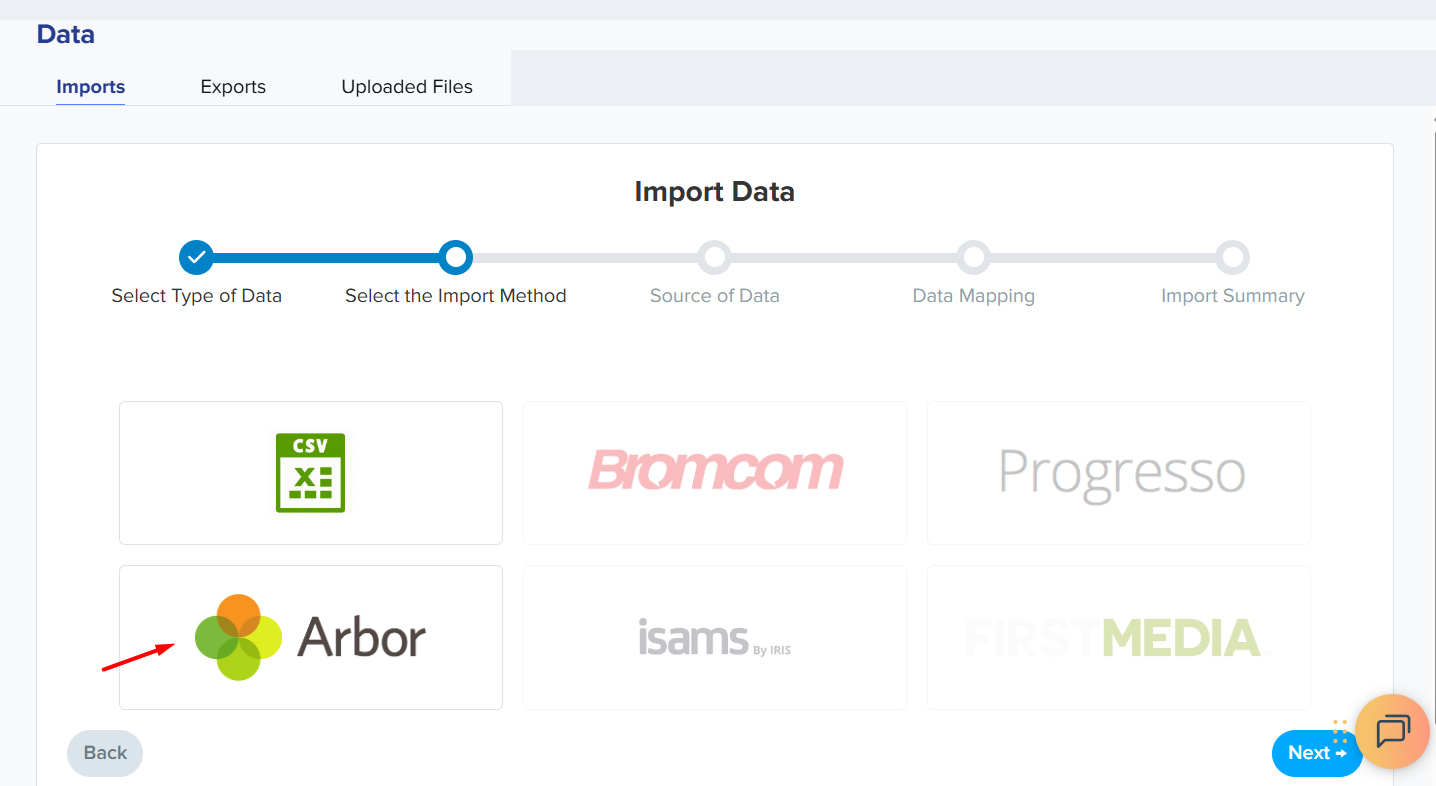
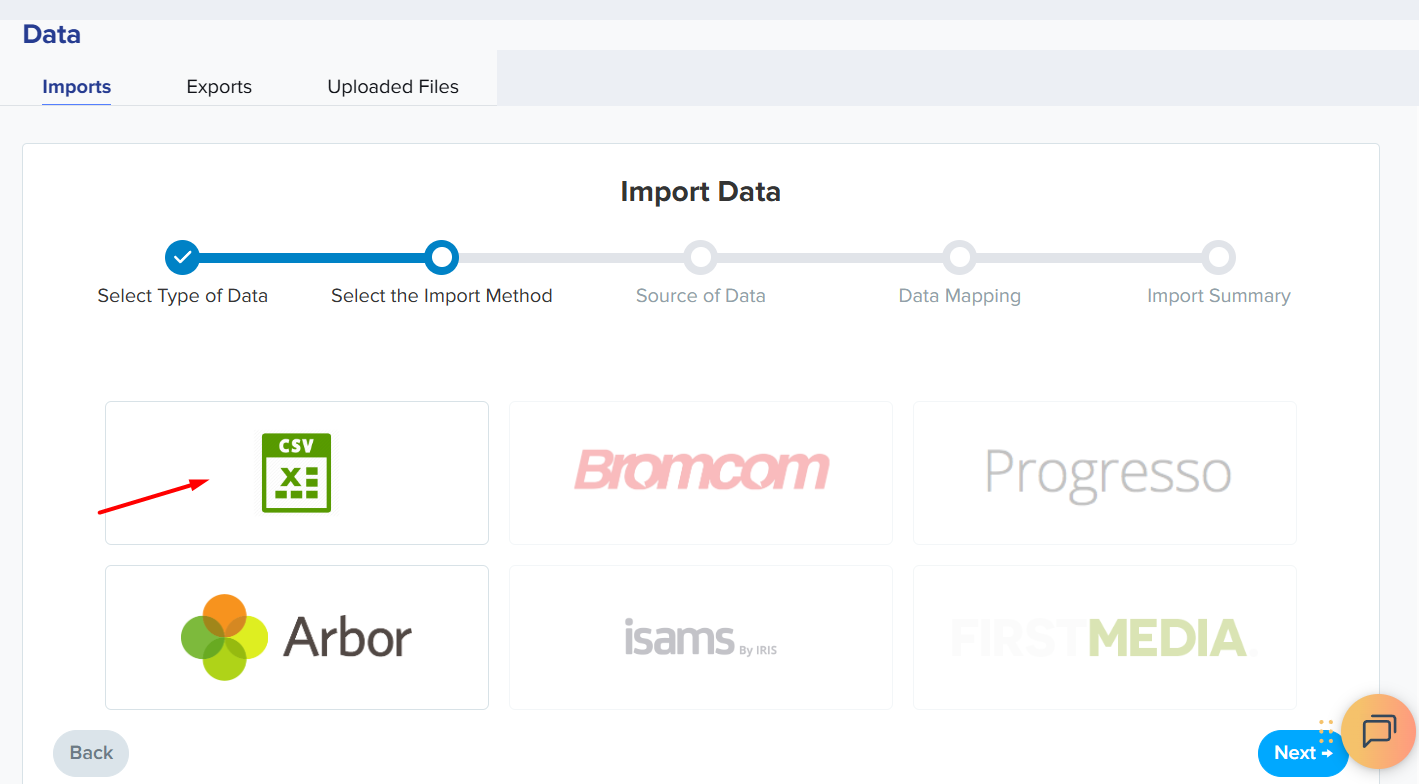
- Choose one of two methods:
- Automatic Import: Use your MIS (Management Information System) integration - this automatically pulls student data including their Unique Learner Numbers (ULNs)
- Manual Import: Upload a CSV file containing student details if MIS integration isn't available. You must ensure to also include the student ULN numbers.
What information is imported:
- Student names
- Contact details
- Parental Contacts
- ULN (Unique Learner Number)
- Other background data as defined by the export
Step 2: Send Welcome Emails
What you need to do:
- Once you have imported the students, in Applicaa, select all newly imported internal students
- Click 'Send Welcome Emails'
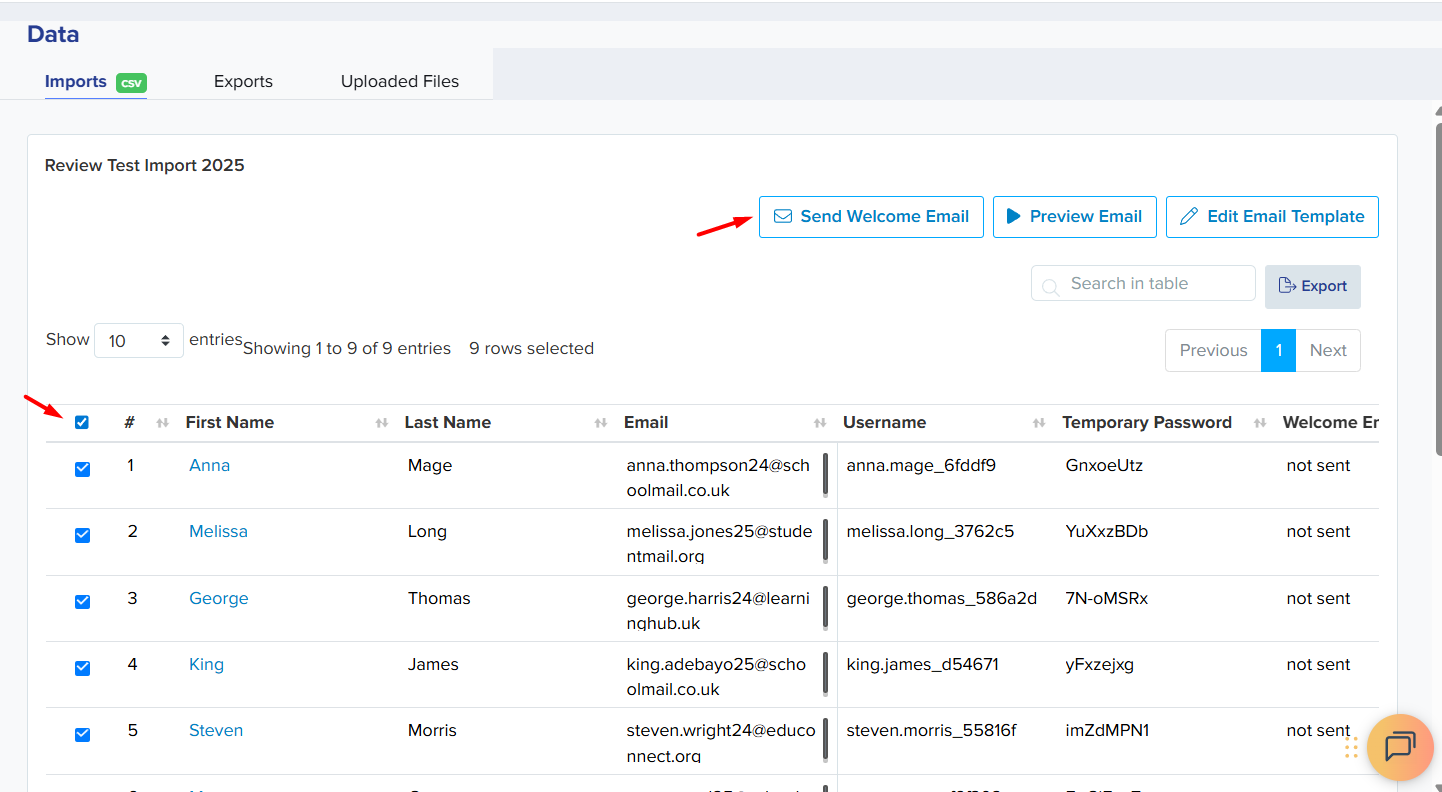
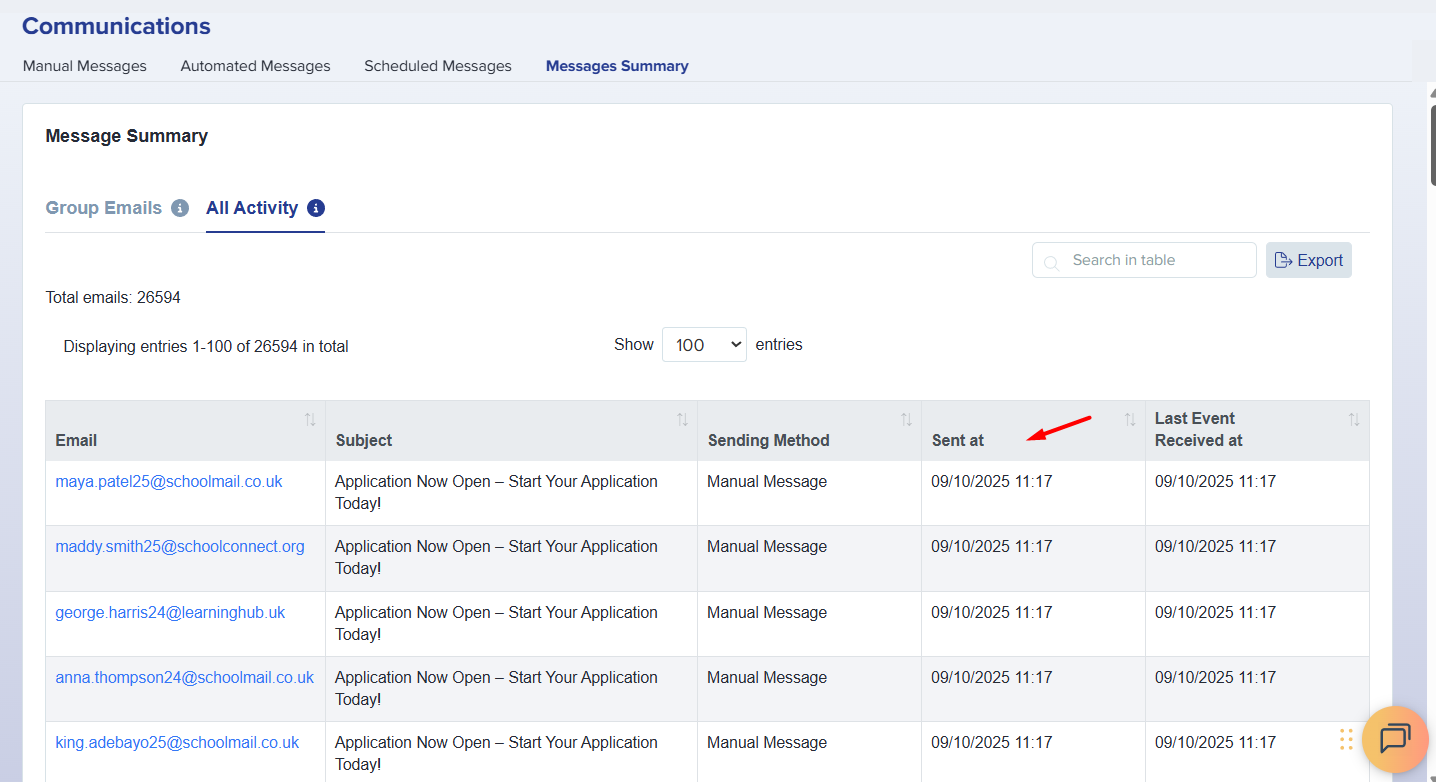
- Monitor the 'Email Status' dashboard to ensure delivery
Sending welcome emails to a specific group, for example all current Year 11 students:
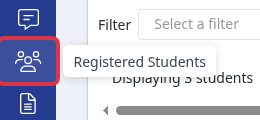
Open "Registered Students" from the left-hand rail.
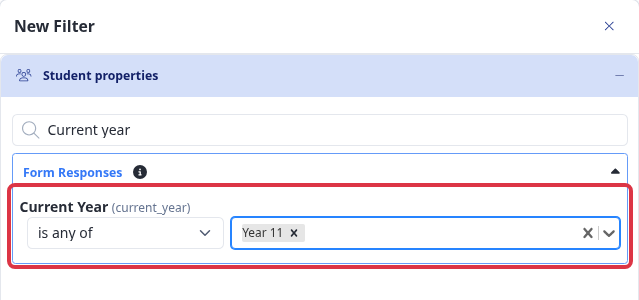
Click the "Filter" dropdown, choose "Add New", then under "Student properties" open "Form Responses" and pick "Current Year". Set it to "is any of" and add "Year 11" (or whichever group you need), then apply the filter.
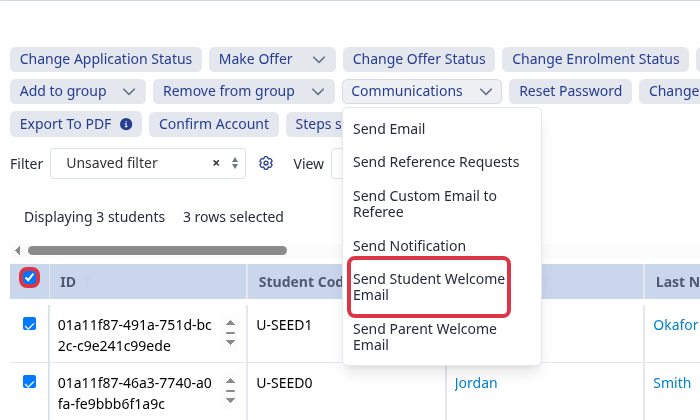
Tick the checkbox in the table header to select every student the filter returns, open the "Communications" actions dropdown, and click "Send Student Welcome Email".
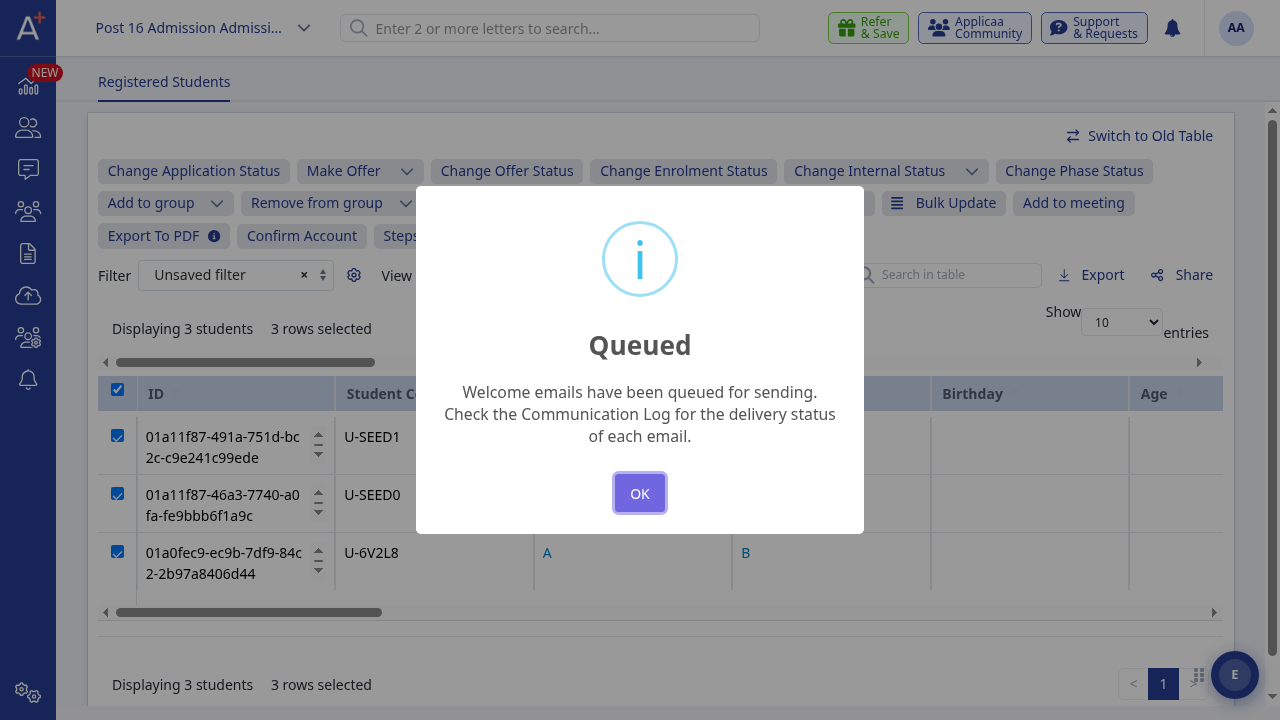
This also works for students you imported, and emailed, earlier. Applicaa asks you to type "YES" to confirm, because sending again resets that student's temporary password, then queues the emails for sending.
What happens next:
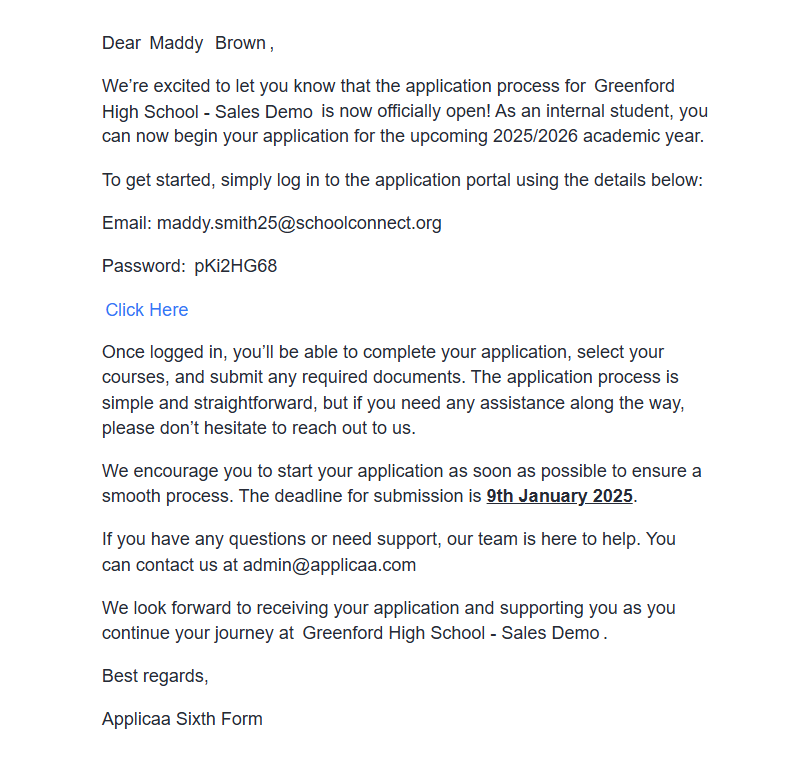
- Students receive login credentials via email
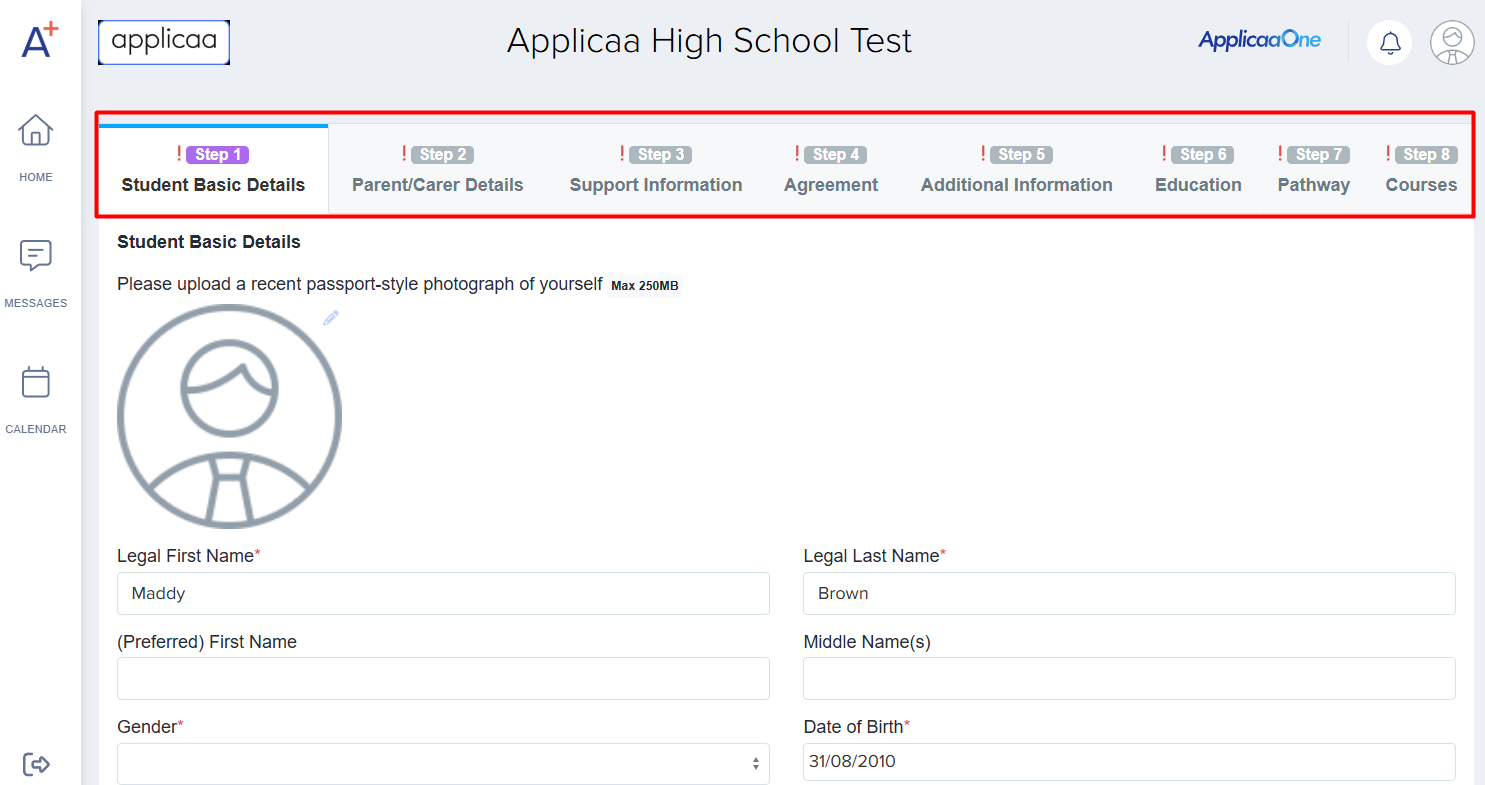
- They access Applicaa to complete their application
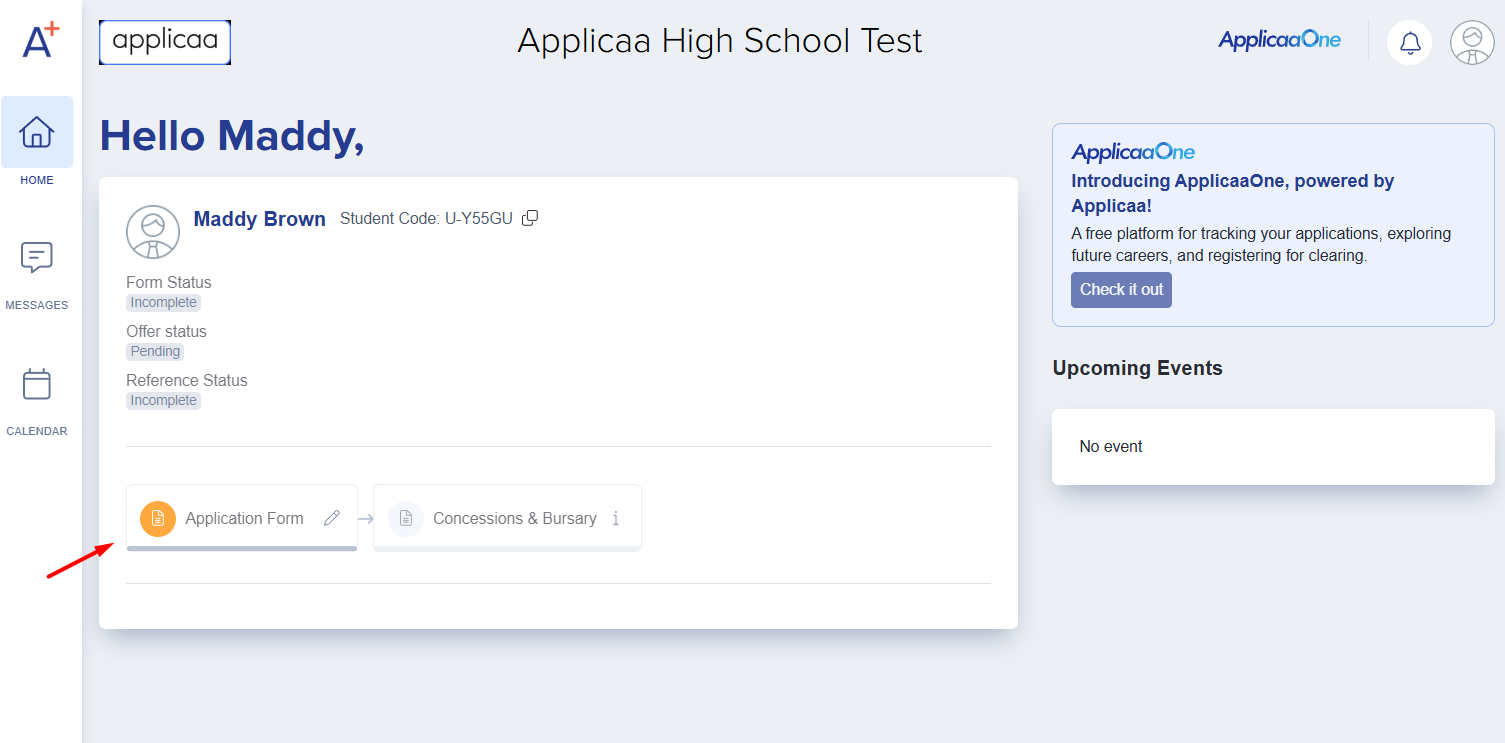
- They fill in subject choices, personal statements, and other required information as per your admissions process
Coming soon (automatic status updates back to First Media):
- Applicaa will automatically sync status updates for internal applicants with First Media via the student ULN number.
- No manual updating required of application statuses back to the local authority once this feature launches
PART 2: EXTERNAL APPLICANTS (Students from Other Schools)
Key Point to Remember
✓ External students SHOULD start their application on First Media
✓ They do NOT apply directly through Applicaa initially
✓ Direct all external applicants to the First Media website first
Step-by-Step Process
Stage 1: Initial Application via First Media
What the student does:
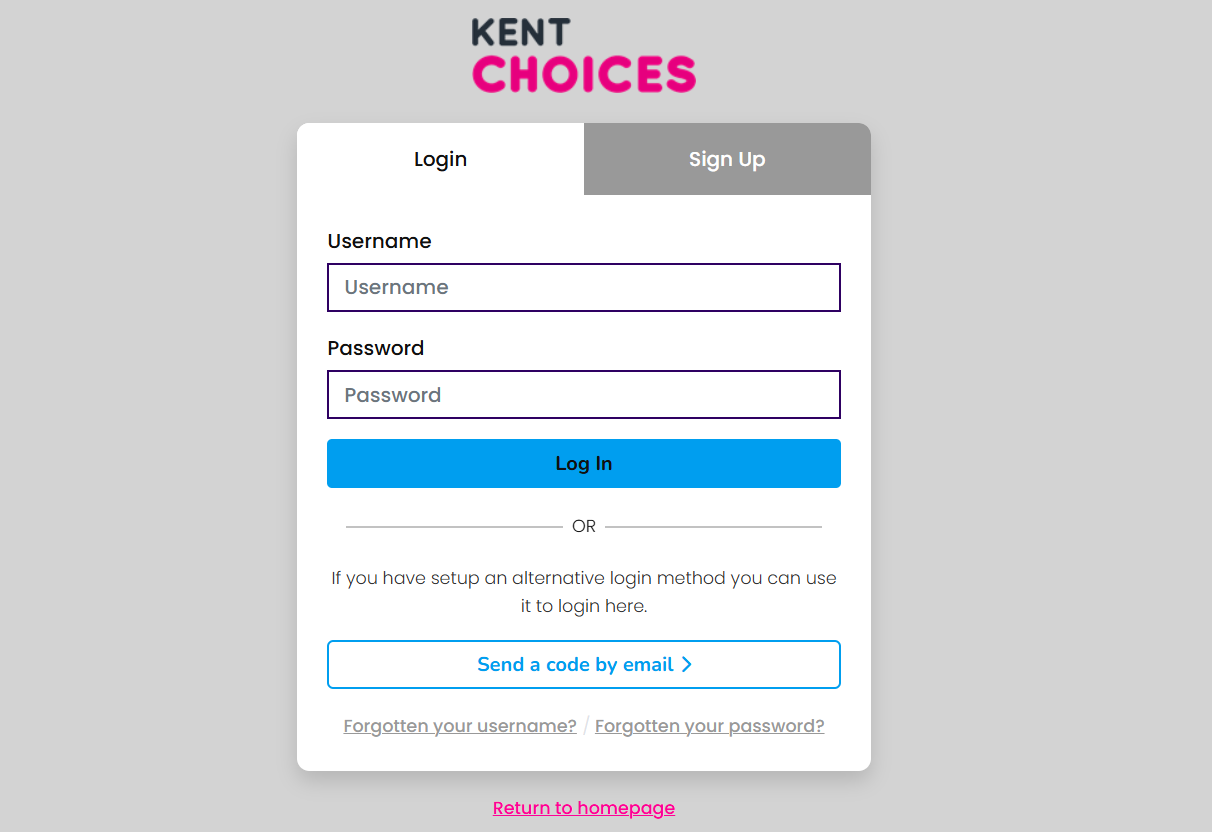
- Visits First Media website
- Logs into existing account (provided by school) or creates an account (if they are an out of borough applicant)
- Completes basic application information:
- Personal details
- Current school
- Schools/colleges they're applying to
- Selects your sixth form as one of their choices
Sample First Media portal:
What you need to know:
- Students only complete basic information at this stage
- The detailed application process happens later in Applicaa
- This step is crucial for local authority tracking
Stage 2: Notification and Import
What happens automatically:
- First Media sends notification to Applicaa when new external applicants select your school
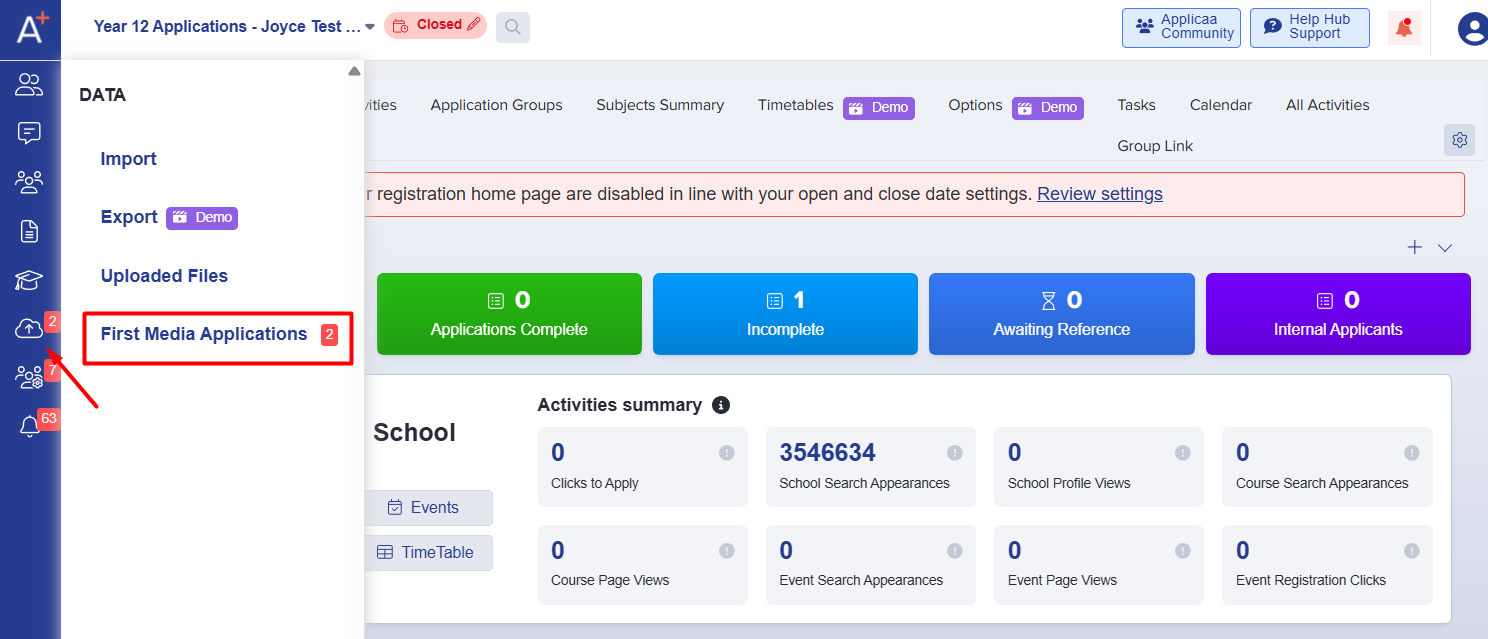
- You'll see an alert on your Applicaa dashboard showing "New First Media Applicants"
What you need to do:
- Log into Applicaa
- Check the dashboard for new applicant notifications
- Click on "Import from First Media"
- Select the applicants you want to import
- Click "Confirm Import"
- The system will pull their basic information from First Media
Stage 3: Welcome and Full Application
What you need to do:
- After importing, select the new external applicants in Applicaa
- Click "Send Welcome Emails"
- Monitor email delivery status
What the student does:
- Receives email with Applicaa login details
- Logs into Applicaa
- Completes the detailed application process:
- Subject choices with alternatives
- Personal statement
- Additional qualifications
- Support needs
- Reference details
Stage 4: Application Management
Your ongoing tasks:
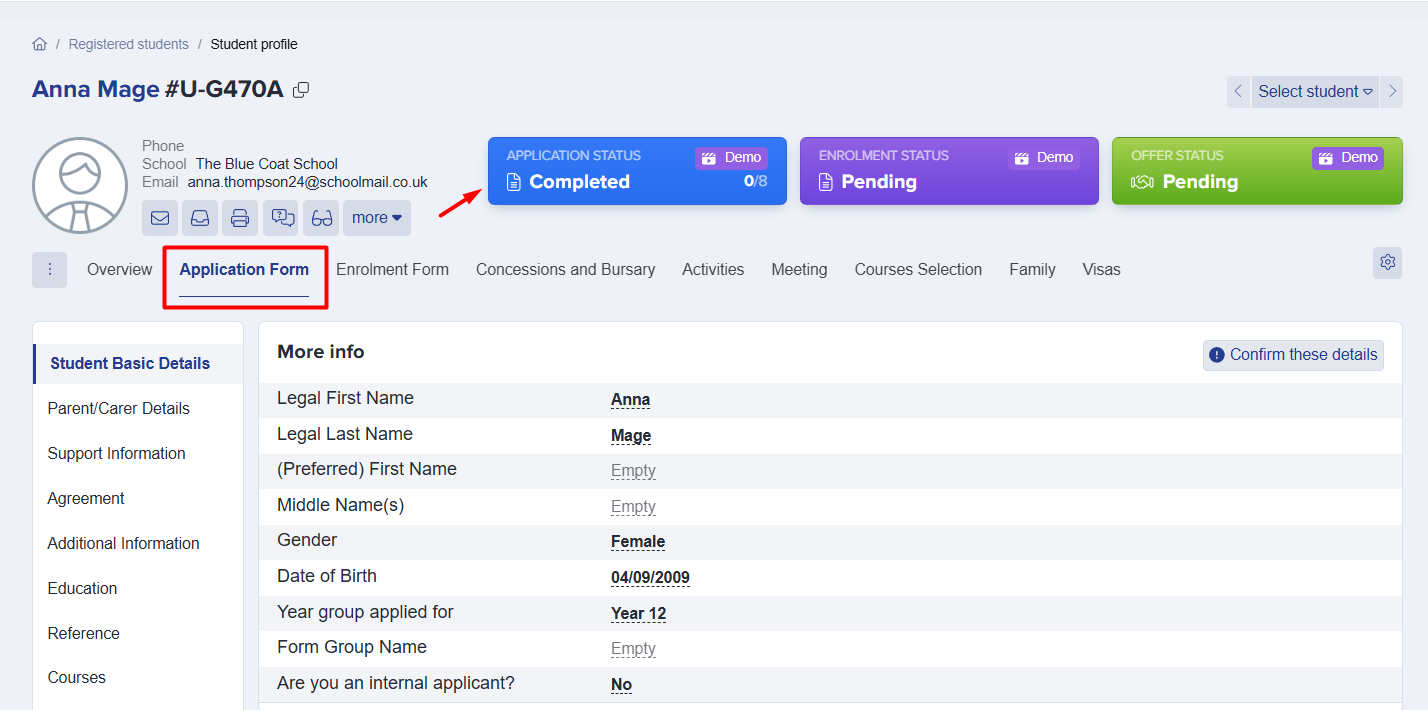
- Review completed applications in Applicaa
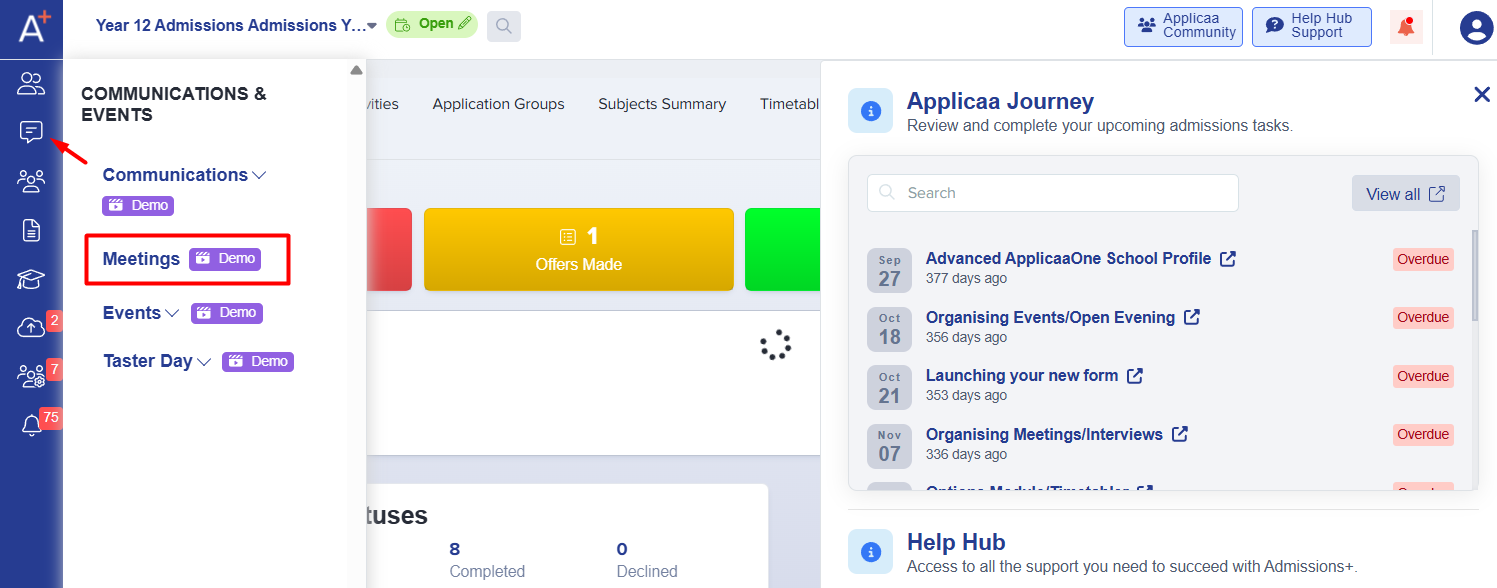
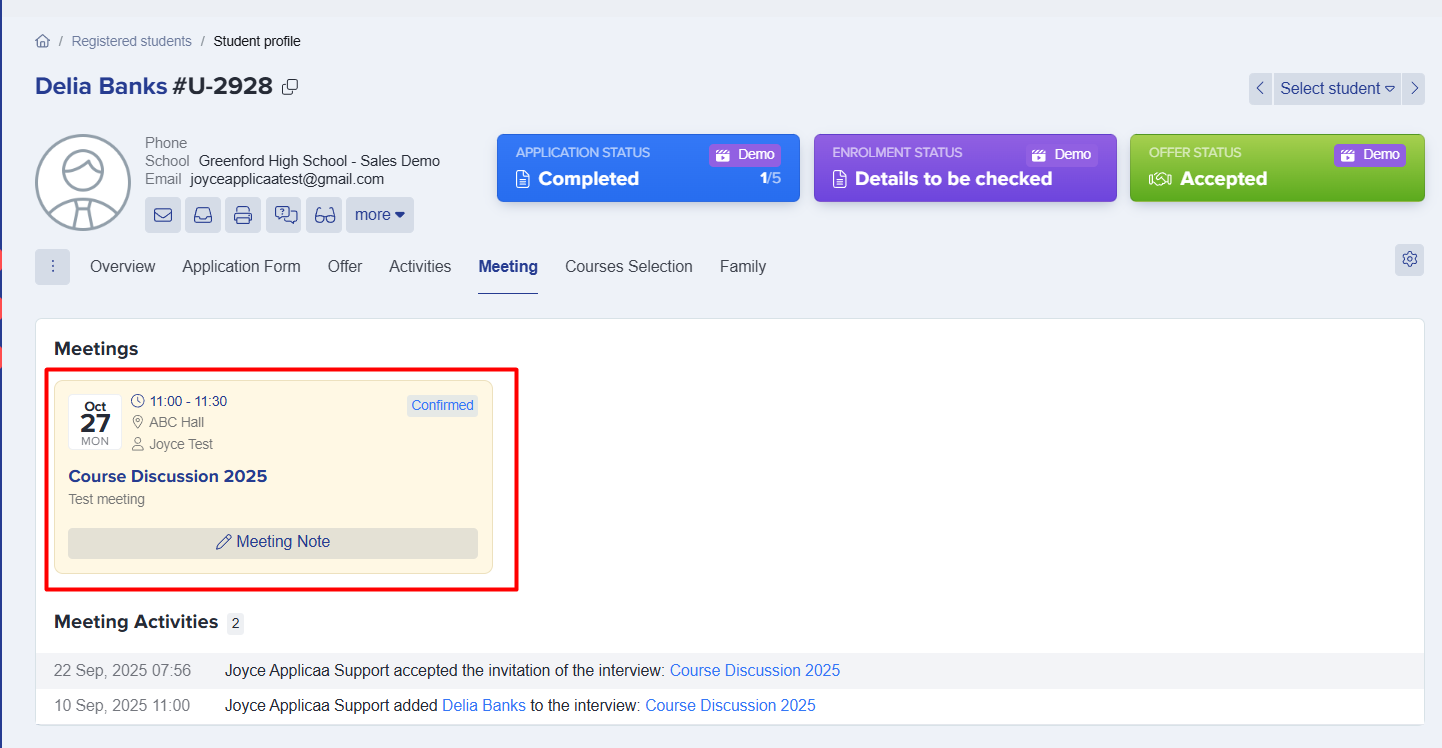
- Schedule meetings
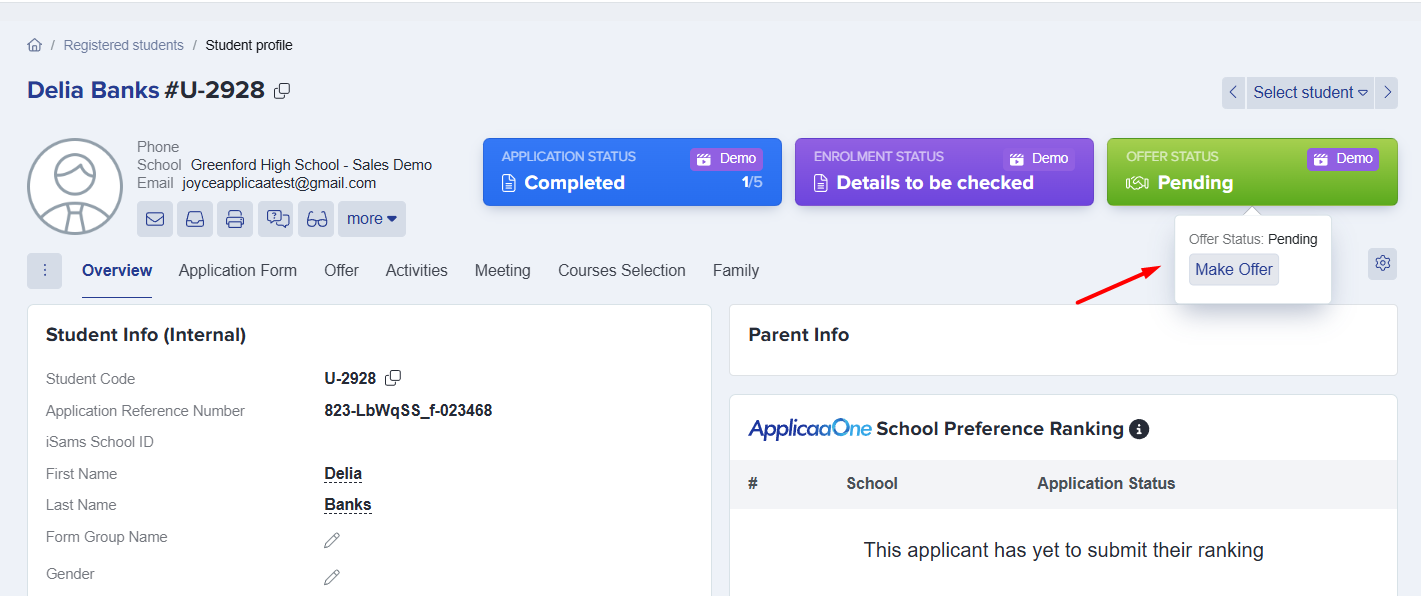
- Make offers
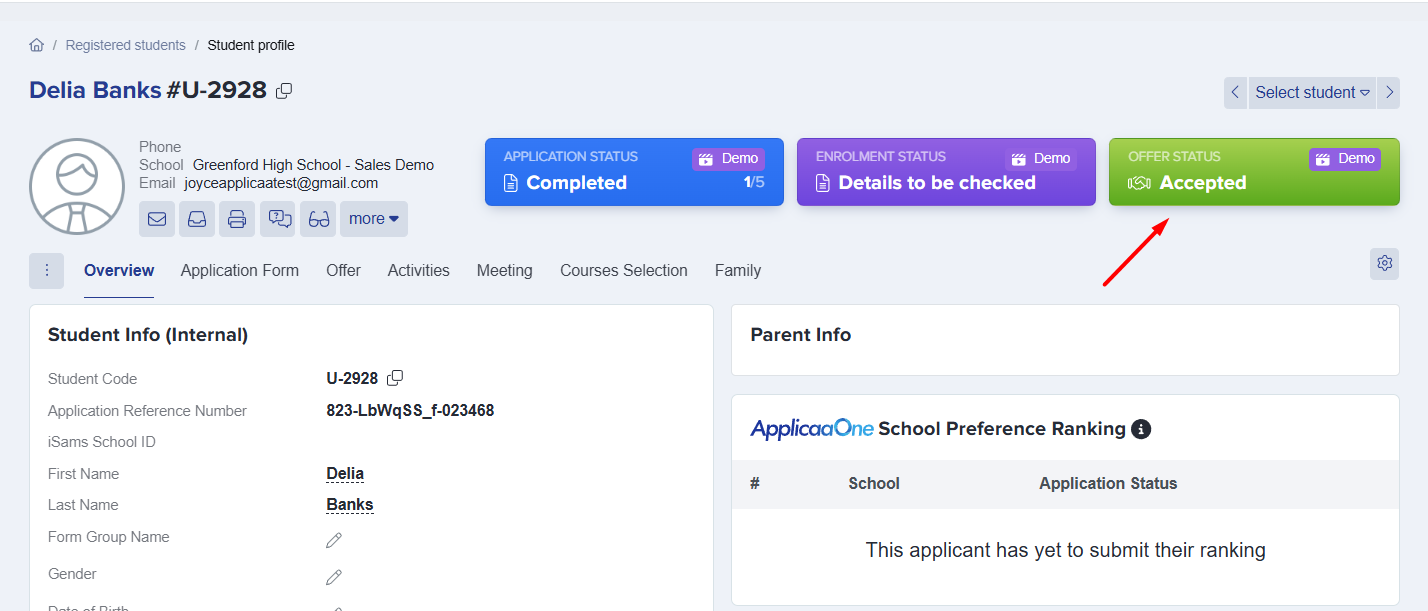
- Track acceptance status
- Update enrollment status
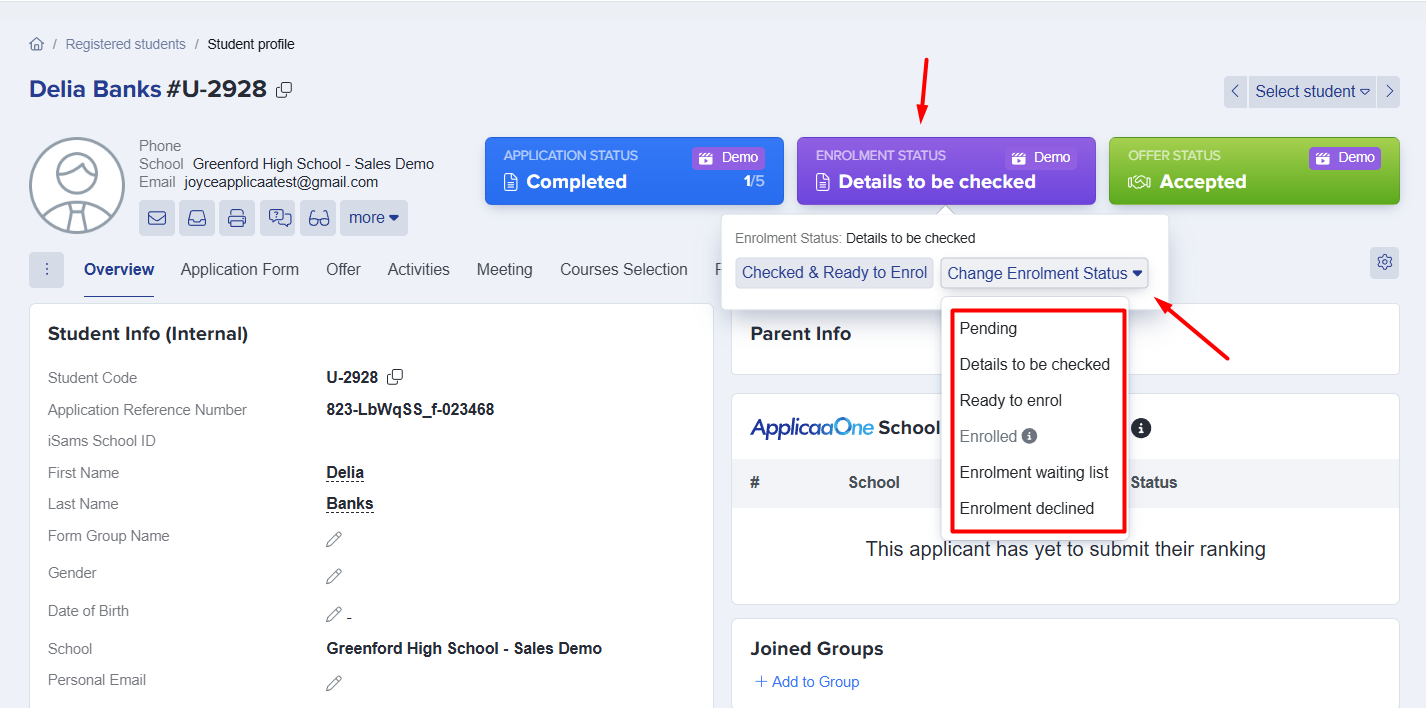
Status synchronisation back to First Media (coming soon):
- Applicaa will automatically update First Media with Application statuses:
- Conditional Offer
- Offer Accepted
- Offer Declined
- Application Withdrawn
- Unsuccessful
- Enrolled
- This eliminates manual status updates
Checking Email Delivery Status
After you send welcome emails, whether to internal or external applicants, go to "Communications & Events" > "Communications", then open the "Messages Summary" tab and its "All Activity" sub-tab.
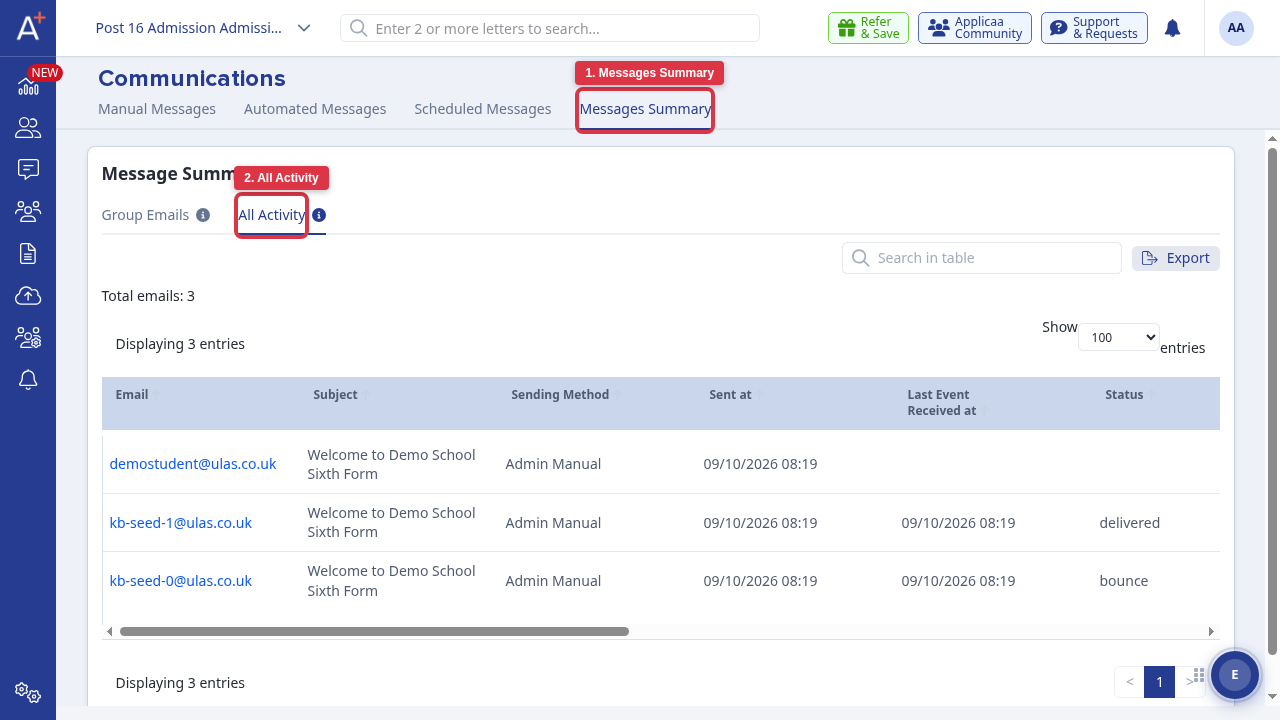
Every email you have sent is listed here with a "Status". A blank status means Applicaa has queued the email but has not yet received a delivery event back from SendGrid - this is normal for the first few minutes after sending.
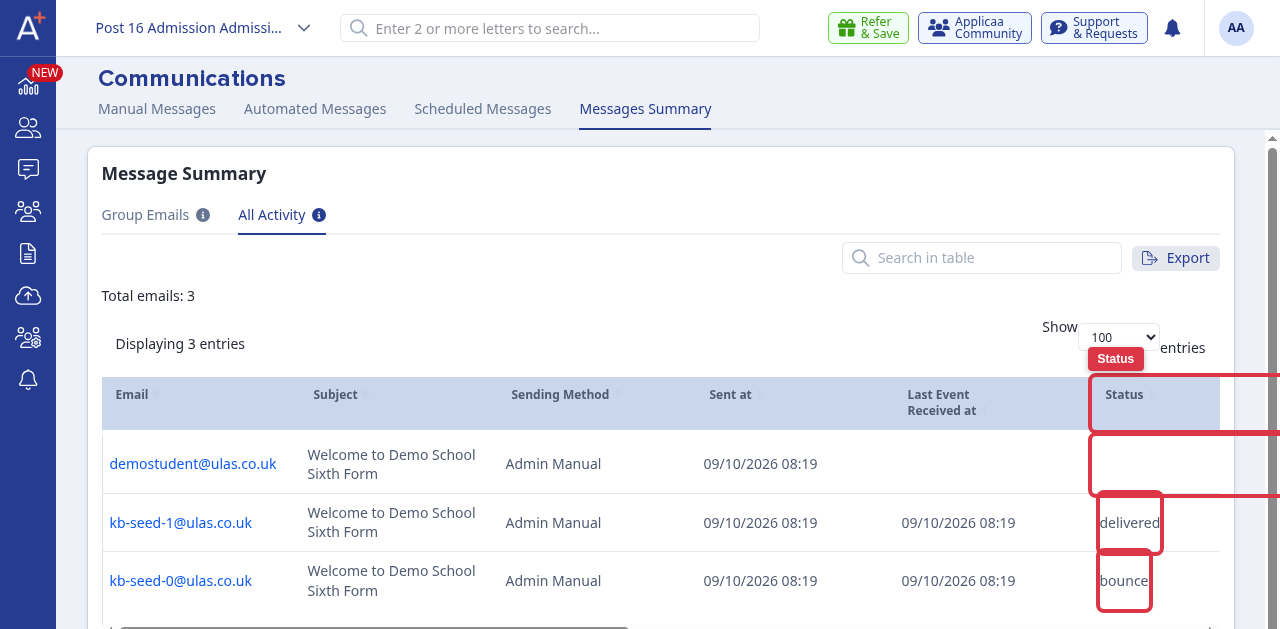
- Delivered: the accepted response generated by the recipient's mail server. The email reached the inbox.
- Bounce: the recipient's mail server could not or would not deliver the message, often because the address is outdated or was entered incorrectly. Correct the student's email address and send the welcome email again.
- Dropped: SendGrid did not attempt delivery, because the address is in a suppression group, previously bounced, or the recipient had marked a previous email as spam.
- Blocked: the receiving ISP blocked the message. This is less severe than a bounce and is not permanent - a later send to the same address is not automatically suppressed.
- Open / Click: the recipient opened the email, or clicked a tracked link in it. Both confirm the email reached the inbox.
If a family reports that a welcome email "appears to have been sent" but a status other than "Delivered", "Open" or "Click" shows against their row, the status itself explains what happened: a bounce or a drop means the email never reached the inbox, and correcting the address and sending again is the fix.
FREQUENTLY ASKED QUESTIONS
Q: What if an internal student accidentally applies through First Media?
A: Contact them immediately and advise them they don't need to use First Media for your sixth form. Ensure they're imported directly into Applicaa following the internal process.
Q: Can external students skip First Media and apply directly to us?
A: No, they must start with First Media. This is essential for local authority tracking. Always redirect them to First Media first.
Q: What's a First Media ID?
A: It's a unique identifier generated by First Media for each student, used to track their applications and final destinations across all First Media schools and colleges.
Q: When will automatic status updates be available?
A: This feature is coming soon this autumn. Check for system updates regularly. Until then, no further action is required as status changes back to First Media are not critical during this initial application phase.
Q: What if our MIS integration isn't working?
A: Use the CSV import option as a backup. Contact Applicaa support if integration issues persist.
QUICK REFERENCE CHECKLIST
For Internal Applicants:
- [ ] Import from MIS/CSV to Applicaa
- [ ] Send Applicaa welcome emails
- [ ] Import to First Media (no emails)
- [ ] Update statuses as needed
For External Applicants:
- [ ] Check dashboard for First Media notifications
- [ ] Import new applicants to Applicaa
- [ ] Send Applicaa welcome emails
- [ ] Process applications and update statuses
SUPPORT CONTACTS
Applicaa Support:
You are able to use the live chat assistant which will route you to speaking with an agent if your query is not resolved.
You can also call 0204 538 1630.