
You can create an Event for something like an Open Evening, add several named, timed sessions to it (for example separate talks at different times), and publish it so applicants can register their own details online.
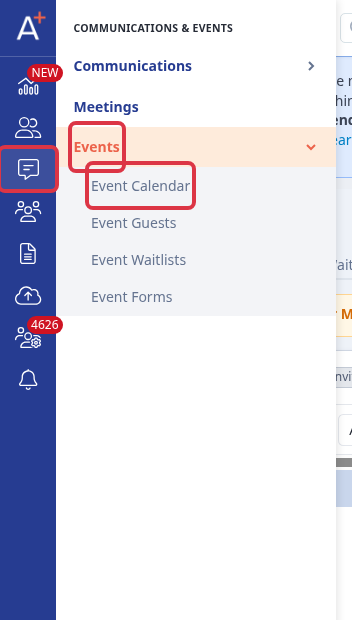
Go to "Communications & Events" > "Events", then open "Event Calendar" and click "New Event".
Fill in the "Event details" tab: the event name, the "Event type" (for example "Open Evening"), the start and end date, the start and end time, and a description. The start and end time set the outer window for the whole event - any session you add afterwards must fall inside it.
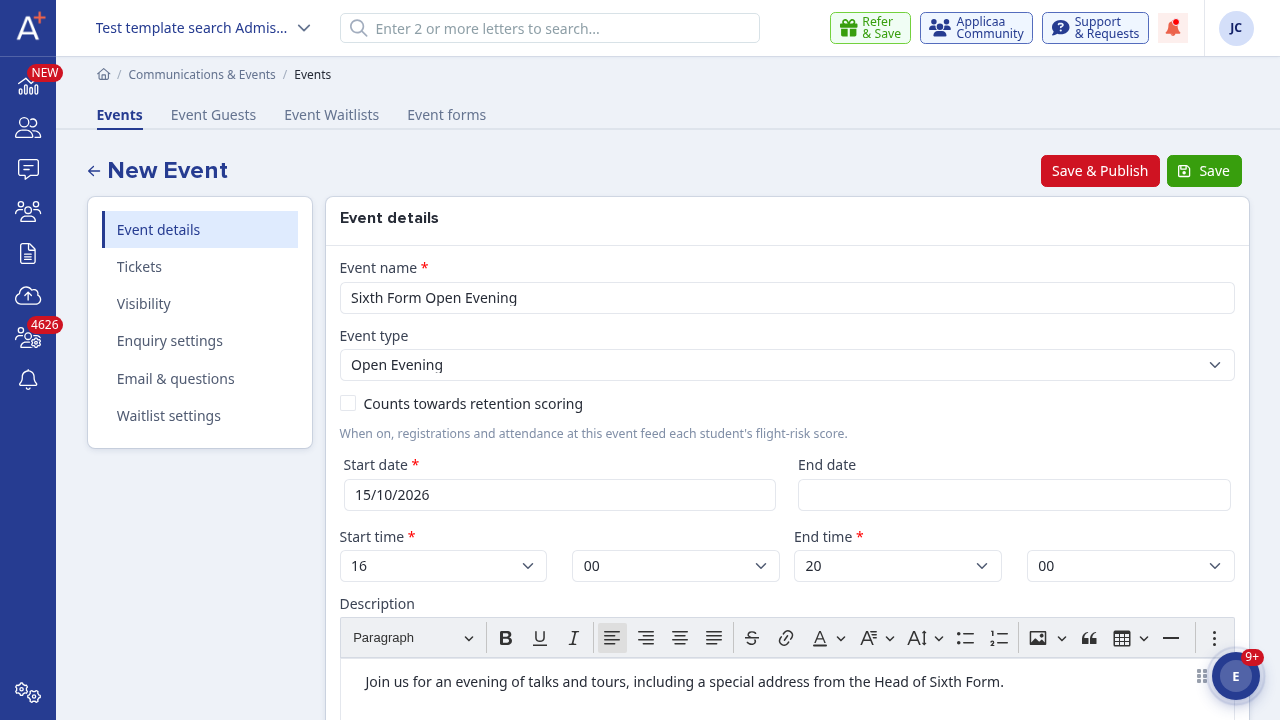
- If you leave "End date" blank, it is filled in automatically to match the start date.
- "Counts towards retention scoring" feeds registration and attendance at this event into each student's flight-risk score.
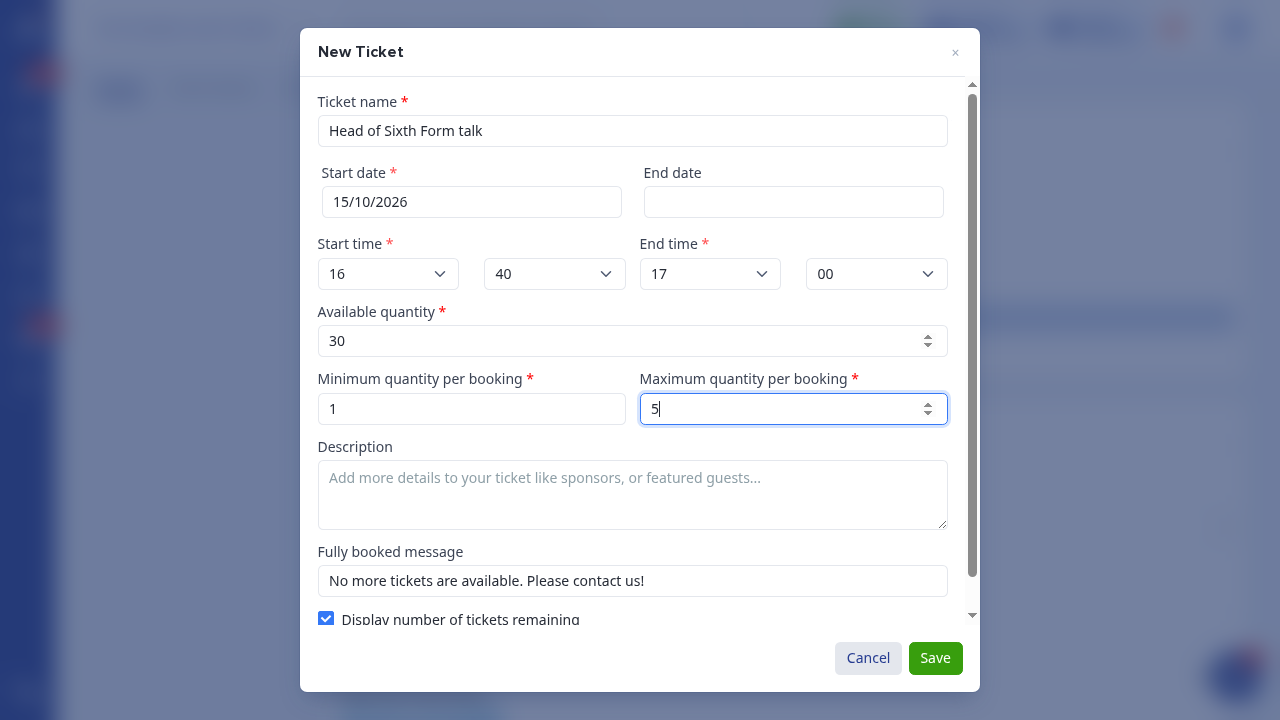
Open the "Tickets" section of the form. Tick "Event has multiple tickets" and "Tickets have their own date & time", then click "Add ticket" to create your first session. Give it a name (for example "Head of Sixth Form talk"), and set its own start and end time.
Click "Add ticket" again for each further session, using the same event but a different time - for example the same talk repeated at 16:40 and 17:40. Each one appears as its own row, with its own name, date and time.
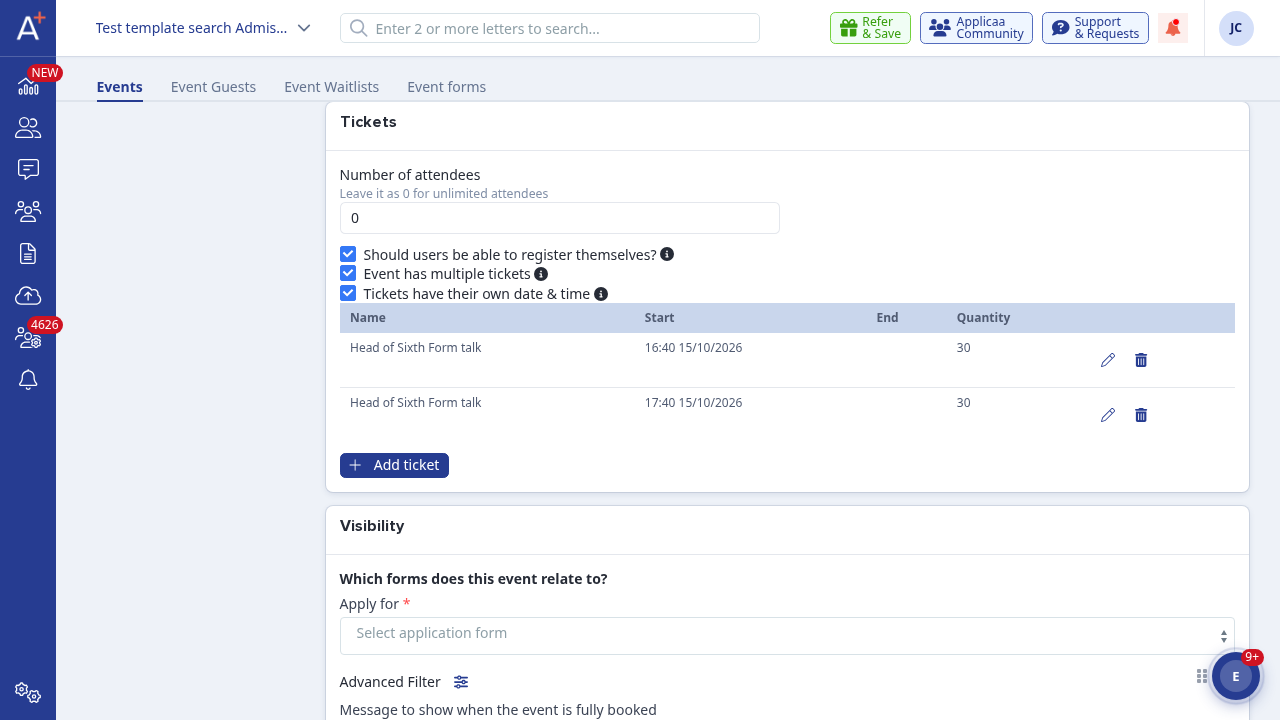
- "Should users be able to register themselves?" is ticked by default - it lets known users register themselves using the event's public URL link, without a staff member registering them.
- Each ticket/session also has its own "Available quantity", "Minimum quantity per booking", "Maximum quantity per booking", "Description" and "Fully booked message".
- A session's start and end time must fall within the event's own start and end time - widen the event's own time window first if a session falls outside it.
Reuse a previous event
In "Event Calendar", find last year's event, select "More actions", then select "Duplicate".
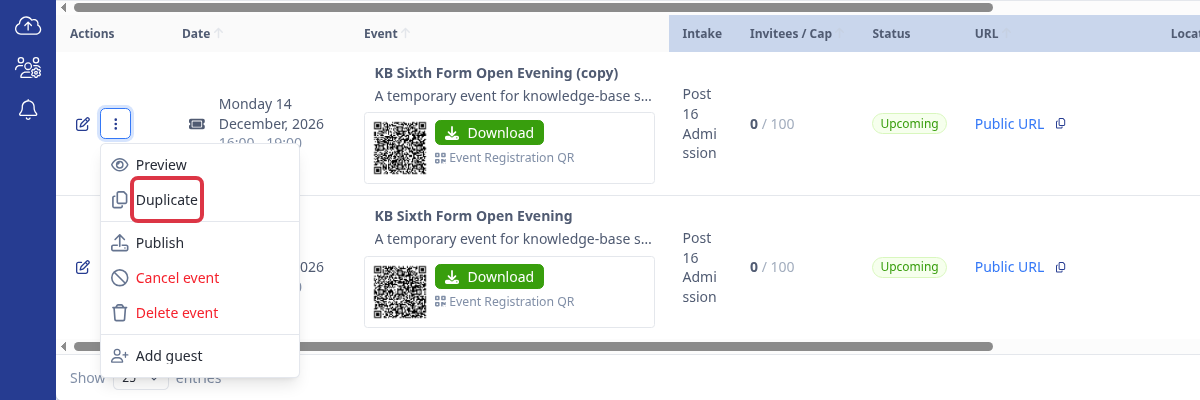
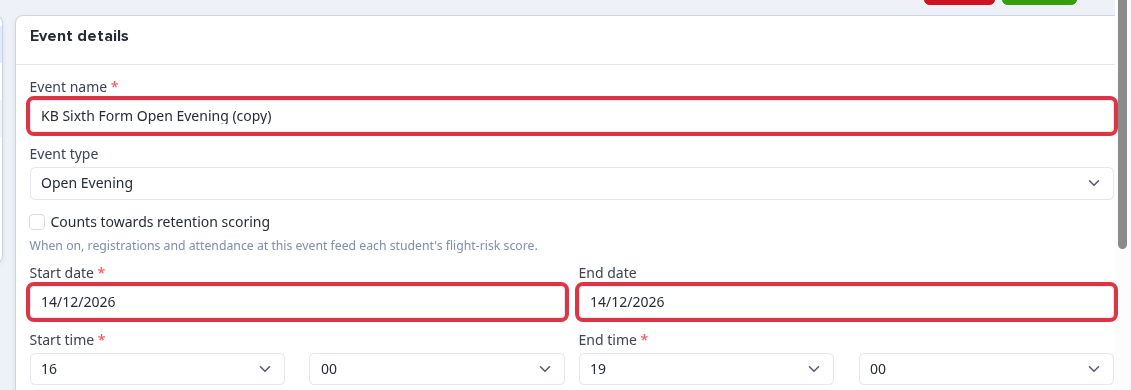
The system creates an unpublished event with "(copy)" after its name. It copies the event details and its tickets/sessions.
Open the copied event and review its name, start date, end date, and times. Change every old date and time before you publish the new event.
Test an event booking before publication
While you are signed in as staff, find the unpublished copy in "Event Calendar" and select "Public URL".

Select a timed session and check the event details, available places, and registration choices that a visitor will see.
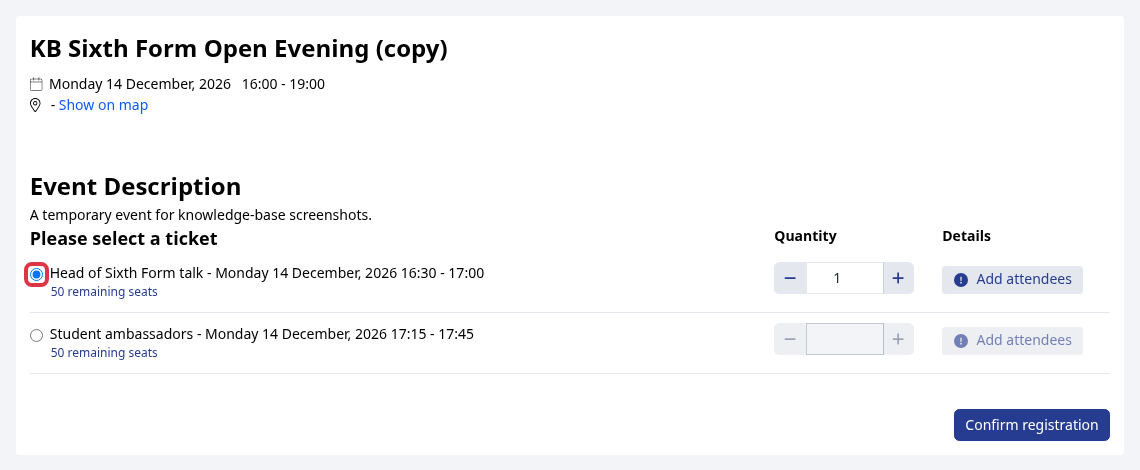
- The staff session lets you open the booking page while the event is unpublished.
- A visitor who is not staff cannot open an unpublished event. They see: "This event is not published".
- The "Preview" action shows an event summary. It does not test the booking form.
- Do not complete a registration unless you want the system to create a test registration and send its normal notifications.
When the details and booking page are ready, use the publication steps below to make the event available to visitors.
On the "Visibility" tab, choose which application form(s) the event applies to under "Apply for", then click "Save & Publish" at the top of the page.
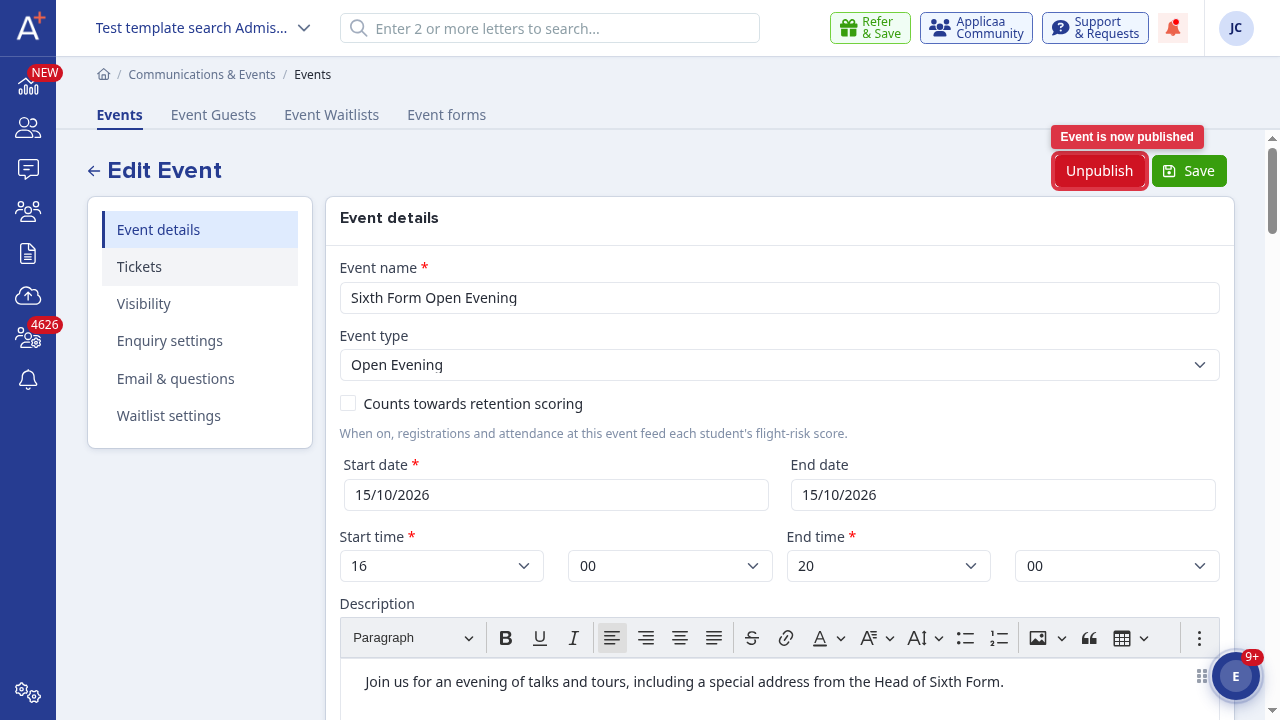
Publishing makes the event live: applicants can now open its public registration page and register themselves for a specific session, with no login required. You can unpublish an event at any time from the same button, which now reads "Unpublish".
Questions staff ask
Can one event have more than one named talk or session, each at a different time?
Yes. Tick "Event has multiple tickets" and "Tickets have their own date & time", then add one ticket per session with its own name and time - for example "Head of Sixth Form talk" at both 16:40 and 17:40 on the same day.
How do I reuse last year's Open Evening?
Find the old event in "Event Calendar" and use "More actions" > "Duplicate". The copy is unpublished, so you can change its old name, dates, times, and session details before visitors can book it.
How can I test an event booking before publishing it?
Stay signed in as staff and open the unpublished copy through its "Public URL". Select a session and check the booking page. Other visitors cannot open it until you publish the event.
How do applicants register themselves for an Open Evening?
Once the event is published and "Should users be able to register themselves?" is ticked, applicants use the event's public registration link to sign up without needing an account or to log in.