
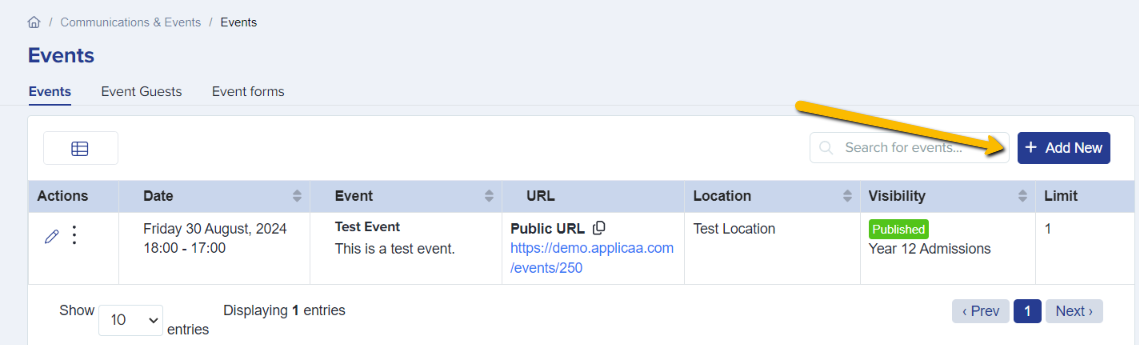
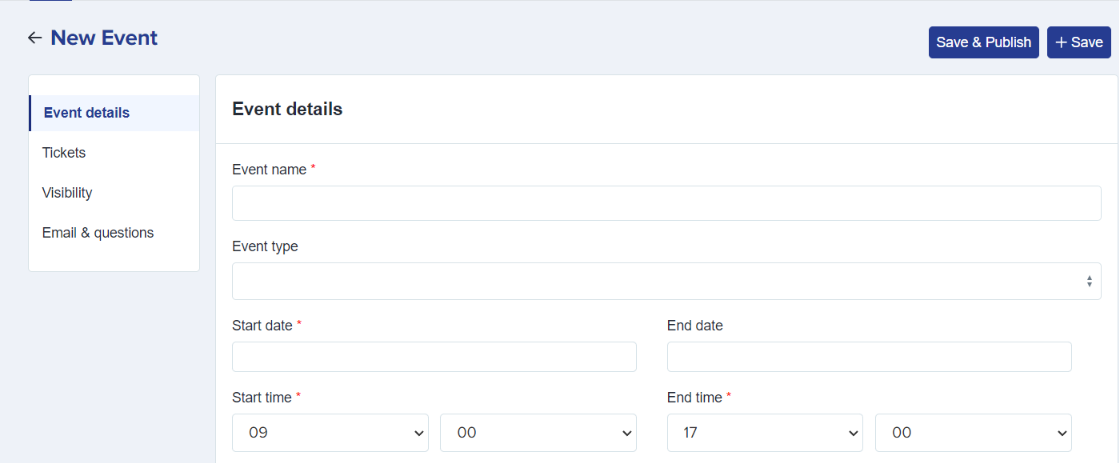
It is important to note that the process for creating events and issuing tickets remains unchanged.
You do not have to scan a QR code to record attendance. To mark one or more guests as attended by hand, see Marking guests as attended without a QR code below.
QR Code Token
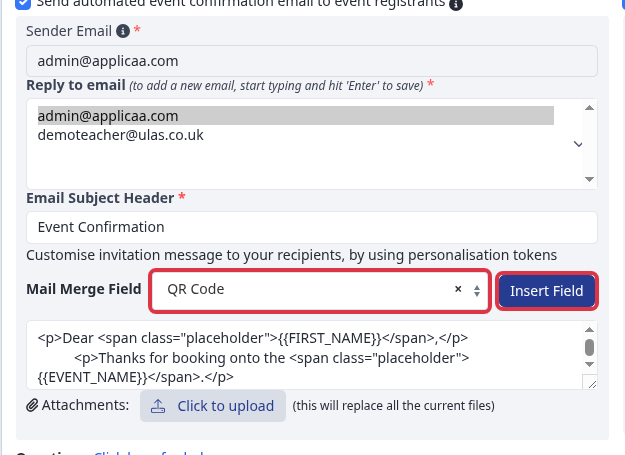
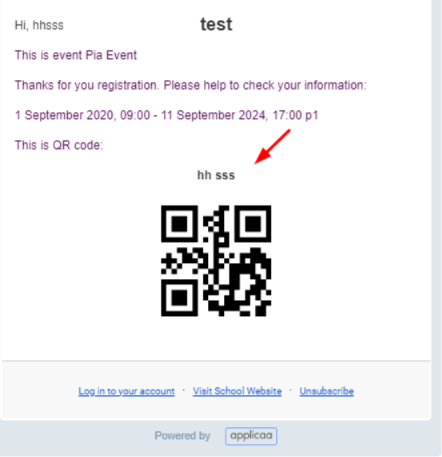
Staff should add the QR code token to the event email template and send it to guests. This ensures guests receive their QR code, which they should present at the event.
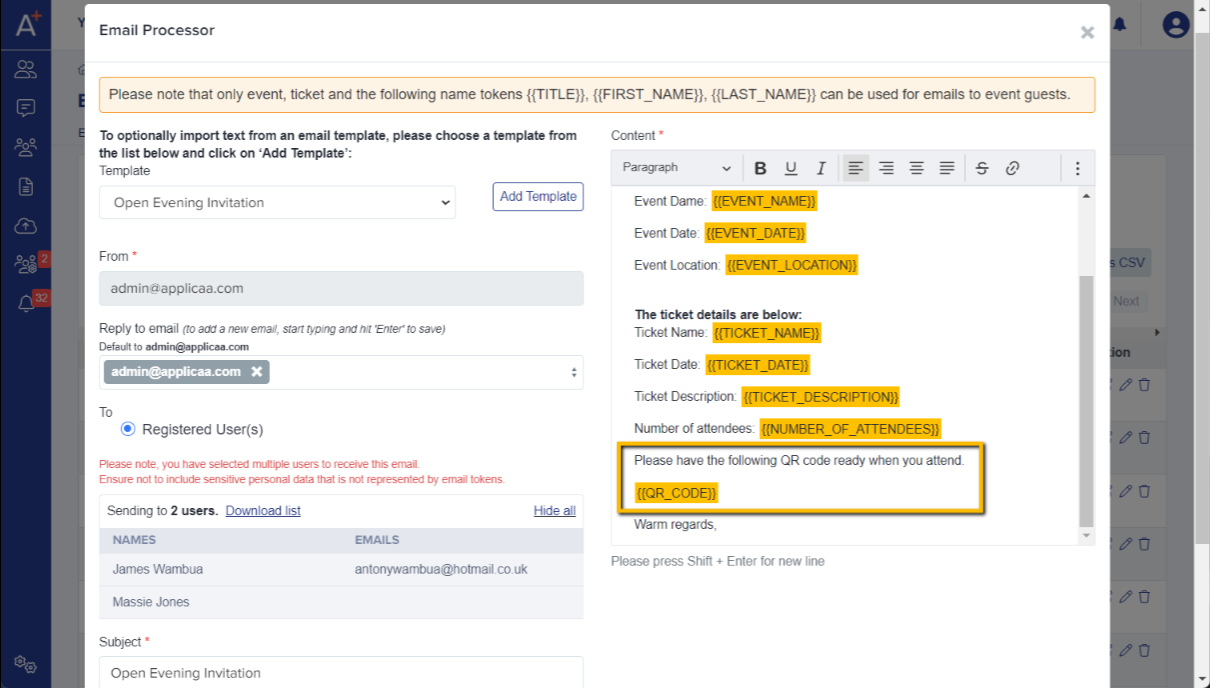
To add it, open the event, go to its Email & questions section, and find the automated confirmation email. Next to the message box, open the Mail Merge Field dropdown, select QR Code, and click Insert Field. This adds a {{QR_CODE}} token to the message, which Admissions+ replaces with each guest’s own scannable QR code image when the email sends.
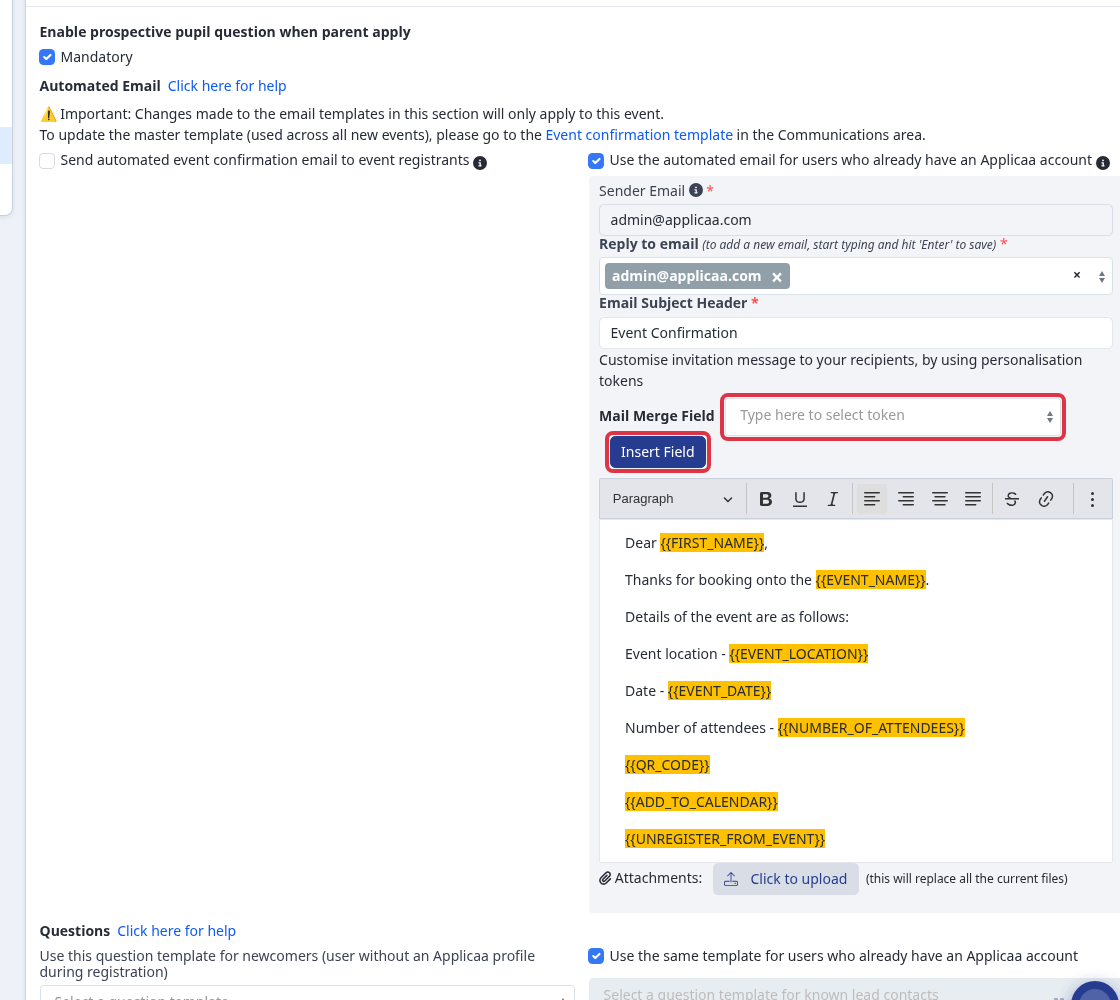
Guests receive a QR code when the event has an automated confirmation email and its confirmation template includes the QR Code field.
Show the ticket type in the email
When you want to show the guest's ticket type, select Ticket Name from Mail Merge Field and select Insert Field. Admissions+ adds {{TICKET_NAME}} and replaces it with that guest's ticket name when it sends the email.
Send guests a new ticket email
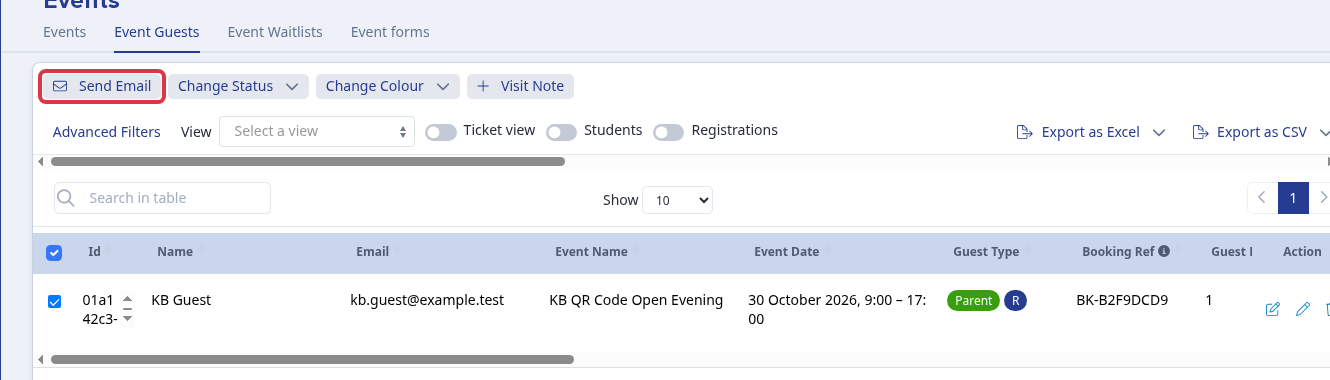
Admissions+ does not resend the original automated confirmation email in bulk. Select the registered guests in Event Guests and select Send Email to create a new email for them. Add the QR Code and Ticket Name mail merge fields when the guests need their ticket details again.
Event Ticket & PDF Download
Event guests can easily access their QR code by viewing their ticket. For added convenience, they also have the option to download it as a PDF.
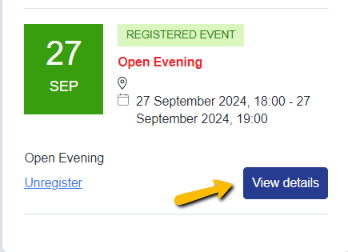
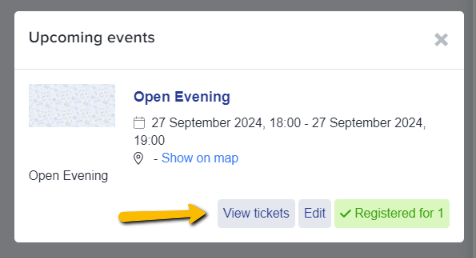
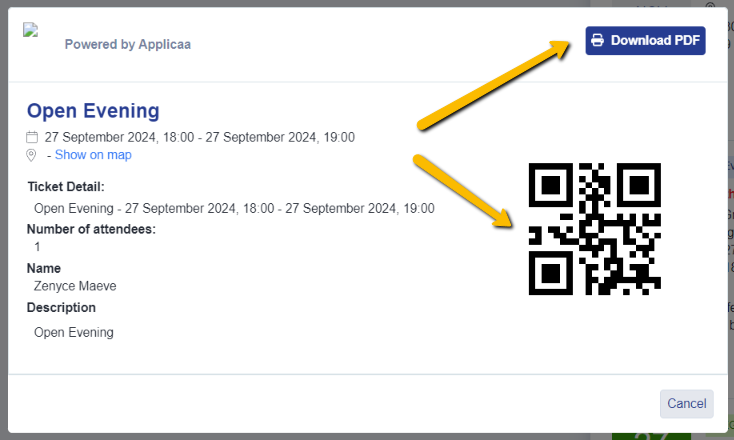
With this update, each ticket generated will now include a unique QR code for enhanced tracking and convenience.
Staff users should see the 'Scan QR' button on the event page.
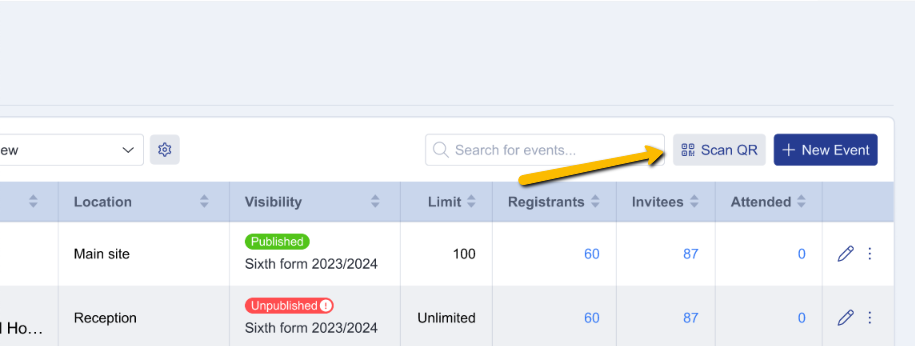
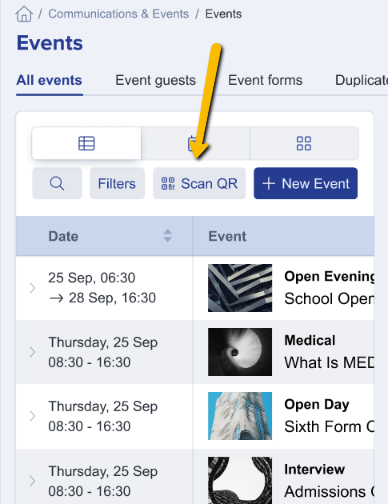
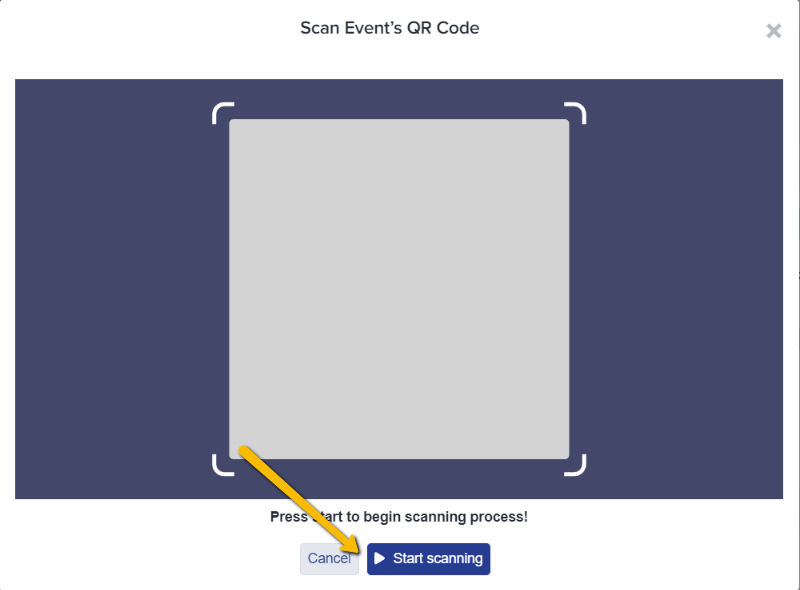
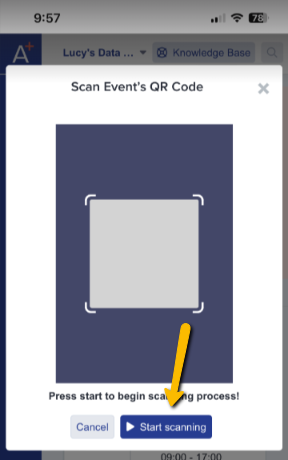
Staff users should click on 'Start Scanning' to begin the scanning process.
Camera Permission
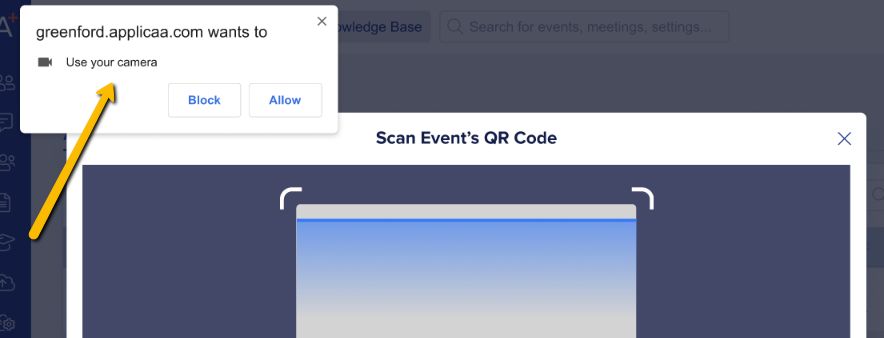
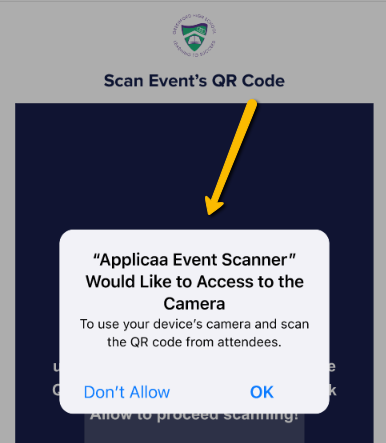
The system will request camera permission.
Note: If no camera is available, a message will be displayed indicating the absence of a camera, and provide an option to cancel.
If multiple cameras are available, the default camera will show, and an option to select an alternative camera will be provided.
Upon granting permission, the camera will activate, enabling QR code scanning.
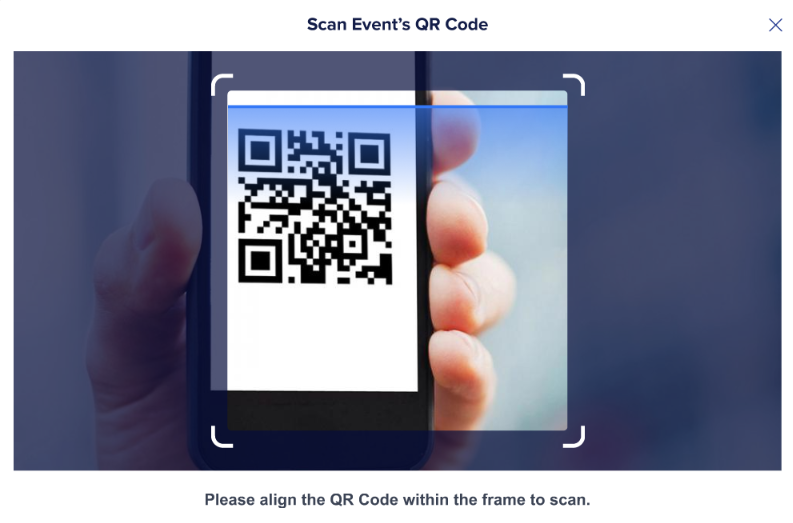
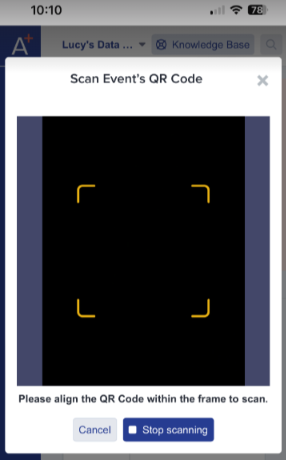
Note: If permission is denied, the system will return to the event page.
For events that collect details for all attendees, scanning a QR code will show each attendee's name and provide an option to confirm their attendance.
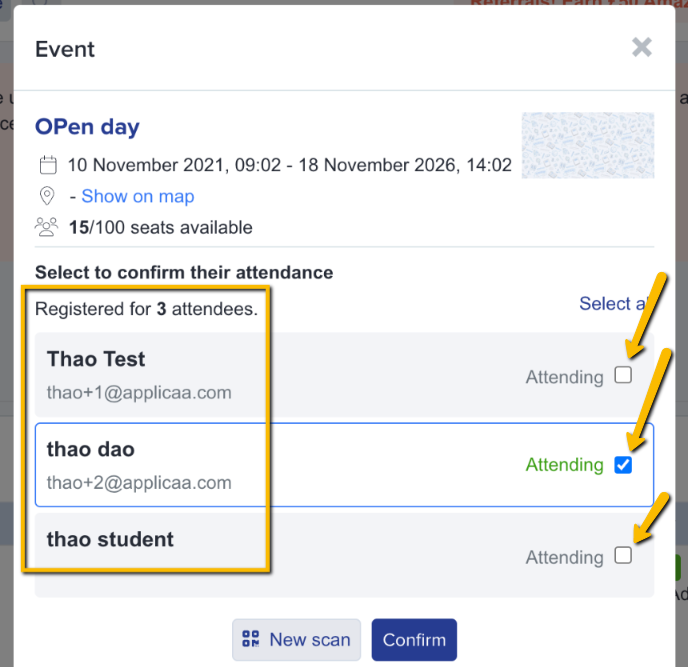
Confirming updates the event's attendee numbers and records attendance. If attendees are not confirmed, the system will assume they are not attending and will free up their slots for others.
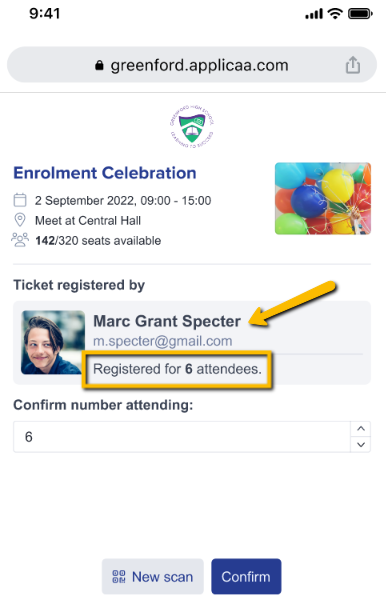
For events that collect details for the lead attendee only, scanning a QR code will show the lead person’s name, the number of attendees, and provide an option to adjust the number of attendees.
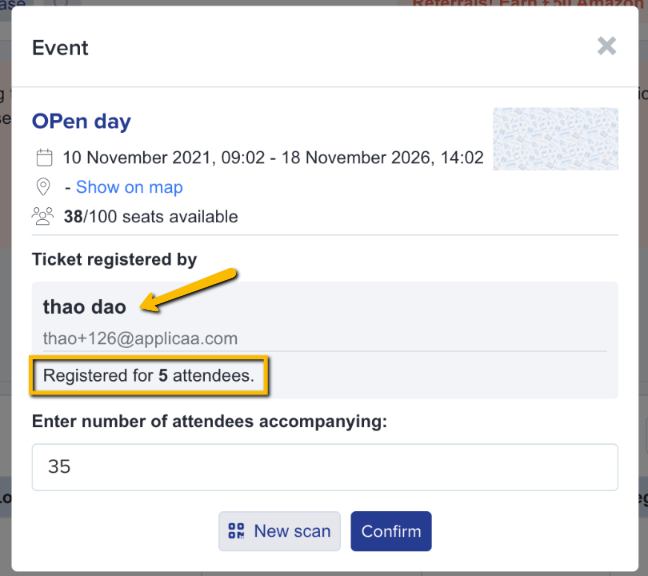
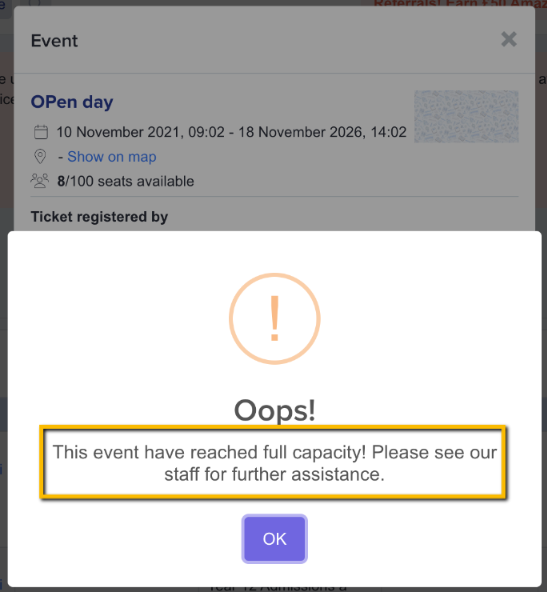
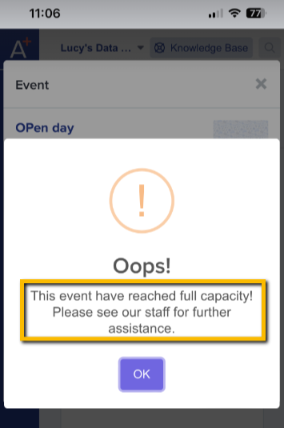
Note: If you enter a number of attendees that exceeds the available seats, an error message will appear, notifying you that the event is at full capacity.
Note: Entering invalid values on number of attendees will trigger an error message indicating that the number of attendees is invalid.
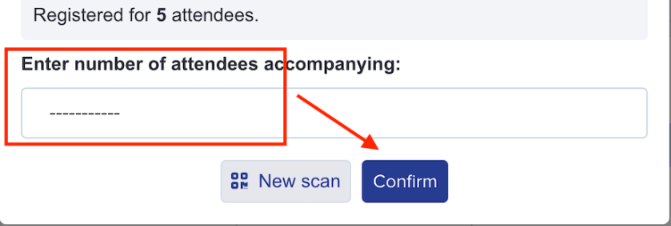
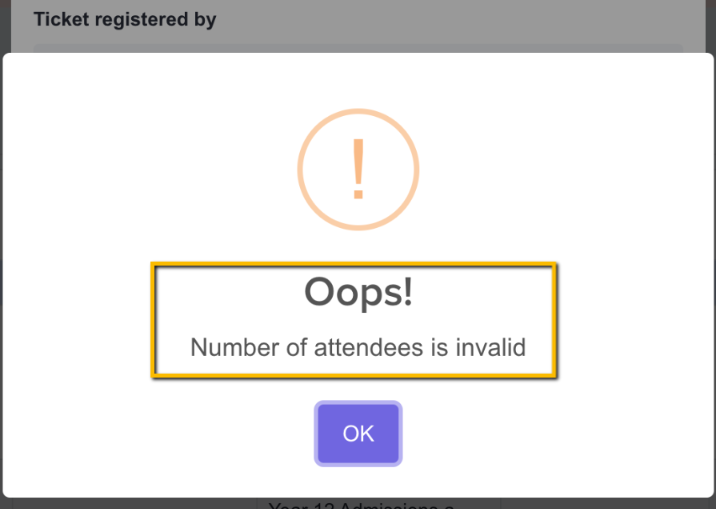
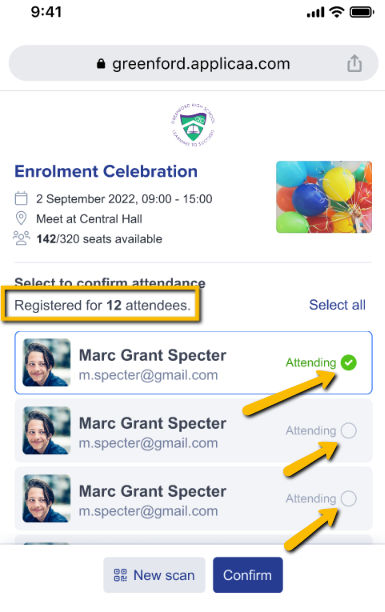
(Mobile View)
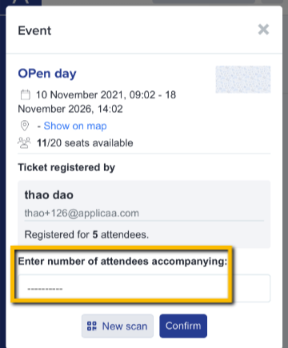
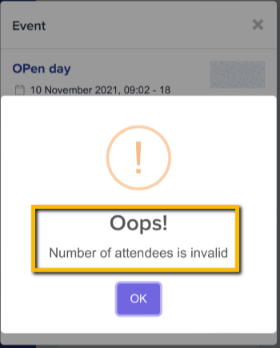
Confirming attendance will display the event details and the registered attendee/s.
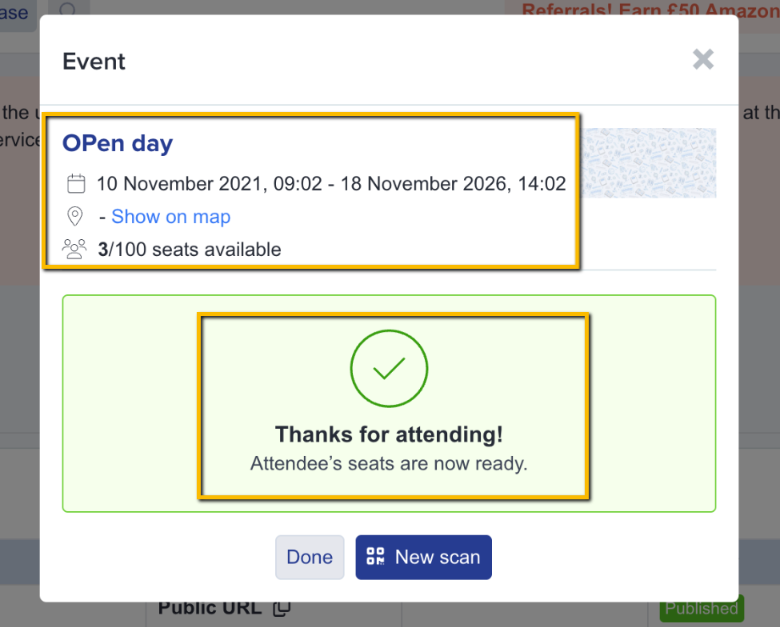
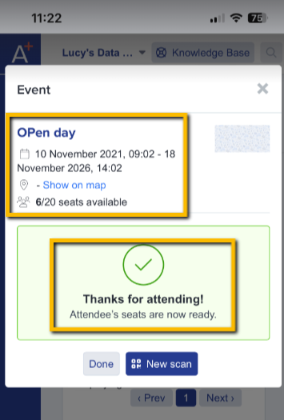
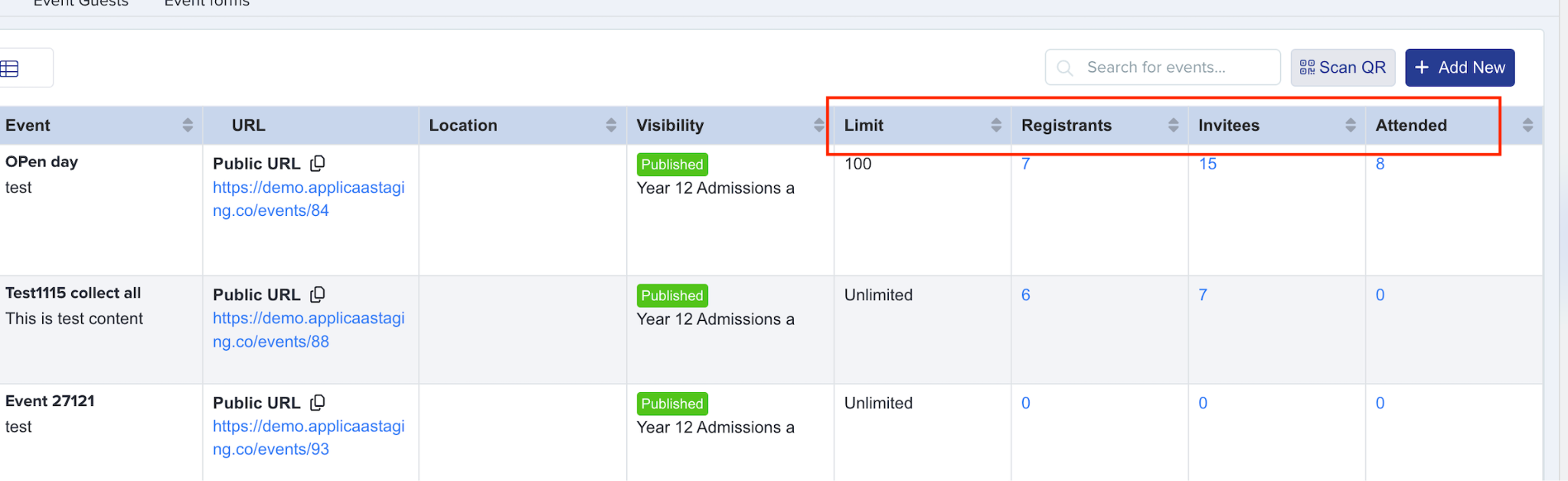
After scanning and confirming attendance, the confirmed attendees can be seen through the hyperlinked number in the Attended column.
Scanning with a Mobile Device
Staff can turn a phone into a second scanner without signing in to Admissions+ on it. On the Events page, click Mobile Scan.

A window opens with a QR code on screen. Scan this code with the phone’s camera to open the same scanning screen used on a computer, ready to scan guests’ QR codes.
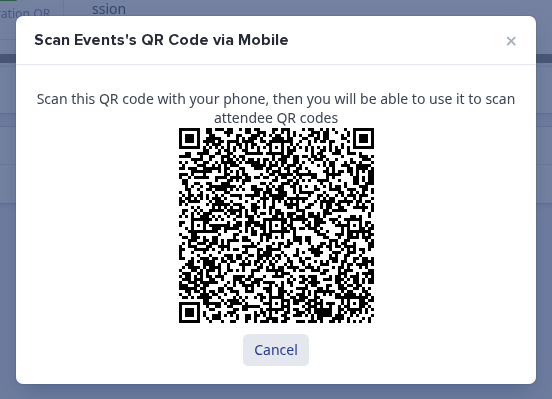
This QR code is valid for 24 hours from when the Events page was loaded, and reloading the page generates a new one. If a phone scans the code after it expires, it is sent to the school’s dashboard instead, with the message QR code has expired. Reload the Events page and click Mobile Scan again to get a working code.

Marking guests as attended without a QR code
You can mark guests as attended from the Event Guests list without scanning a QR code. This is useful when a guest forgets their ticket, when you do not have a camera, or when you record attendance after the event. You can update one guest or several guests at once.
This also covers a guest who arrives without a QR code - for example, a walk-in who was never sent one, or someone who forgot their ticket. You do not need to generate a new code for them; mark them as attended by hand using the steps below.
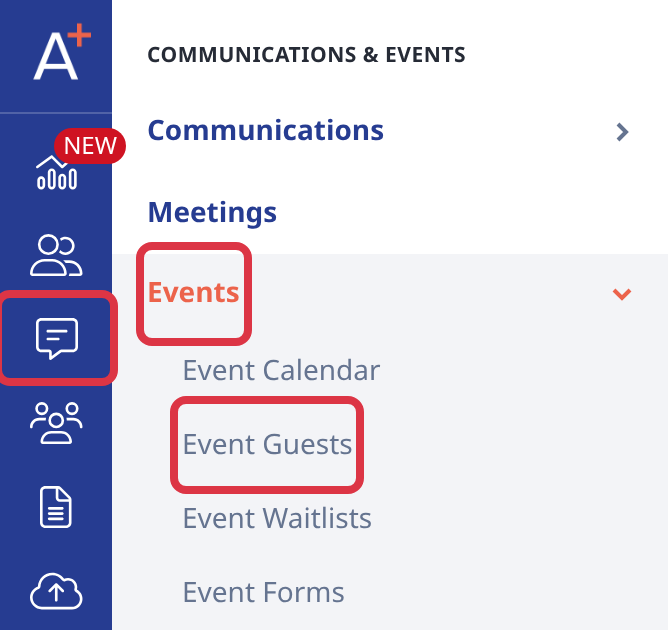
Go to Communications & Events > Events > Event Guests.
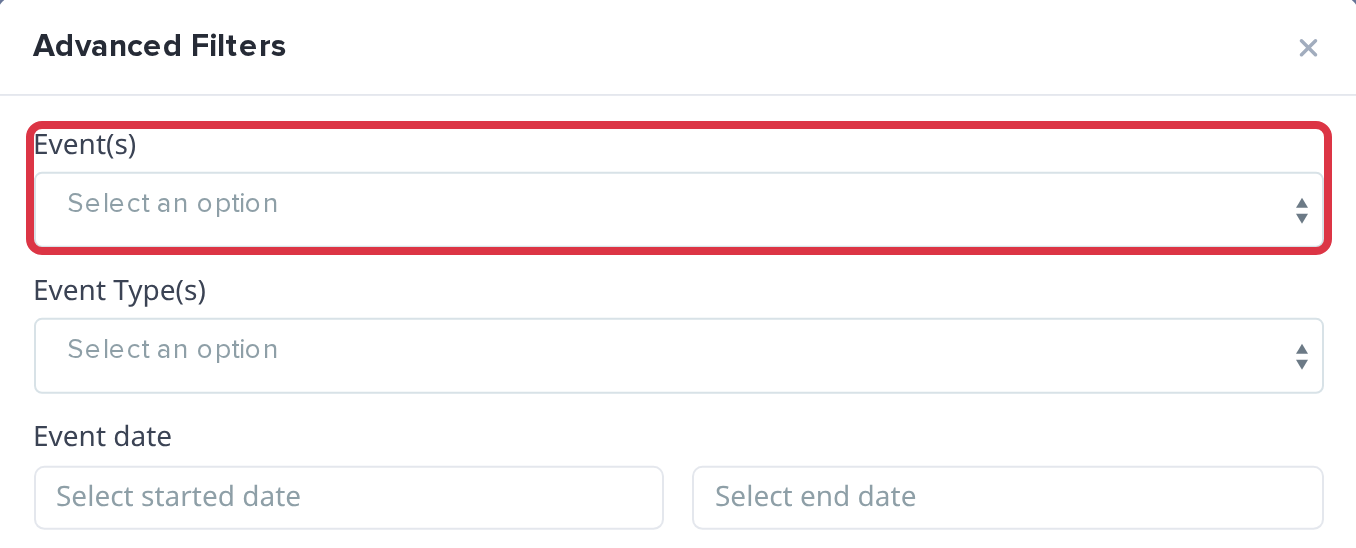
To show only the guests of one event, click 'Advanced Filters', choose your event in 'Event(s)', and click 'Apply'.
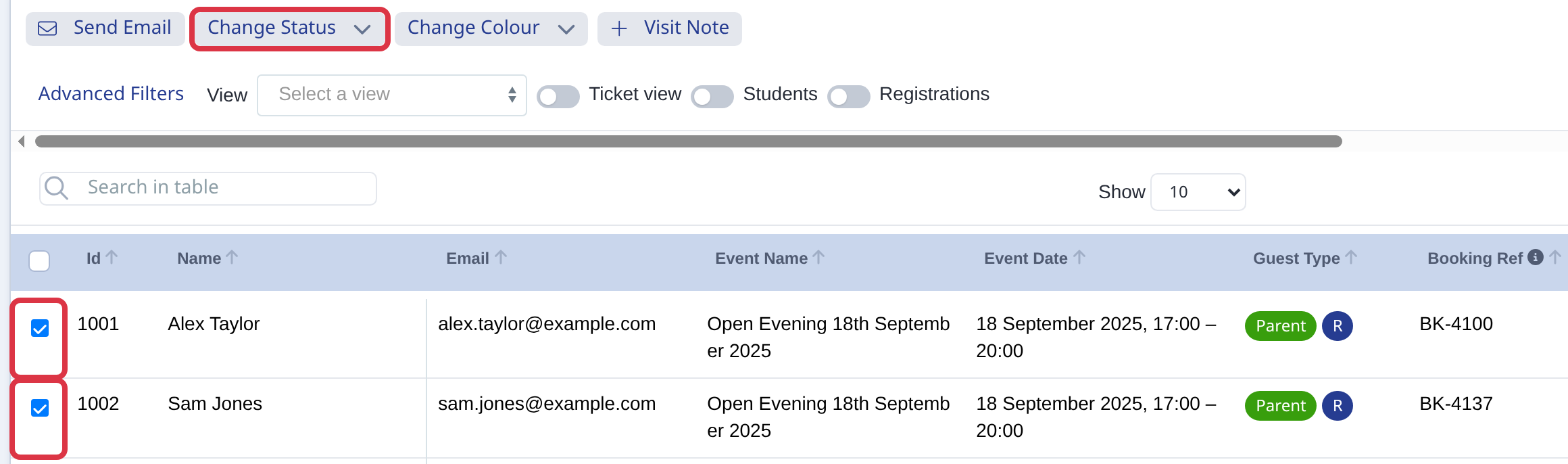
Tick the box next to each guest who attended. When you tick at least one guest, a row of buttons appears above the list. Click 'Change Status'. To select every guest on the list, tick the box in the header row.
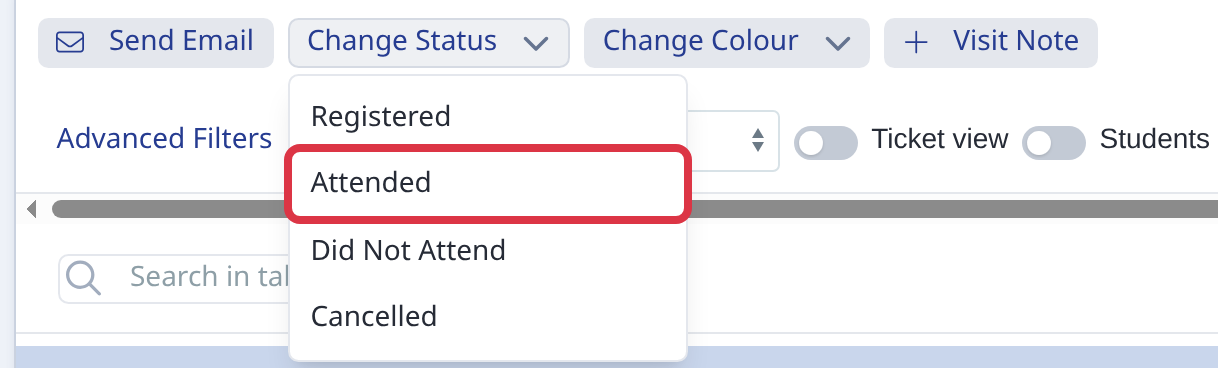
Select 'Attended'.
A confirmation box shows how many guests you are about to change. Type that number and click 'Change status'.
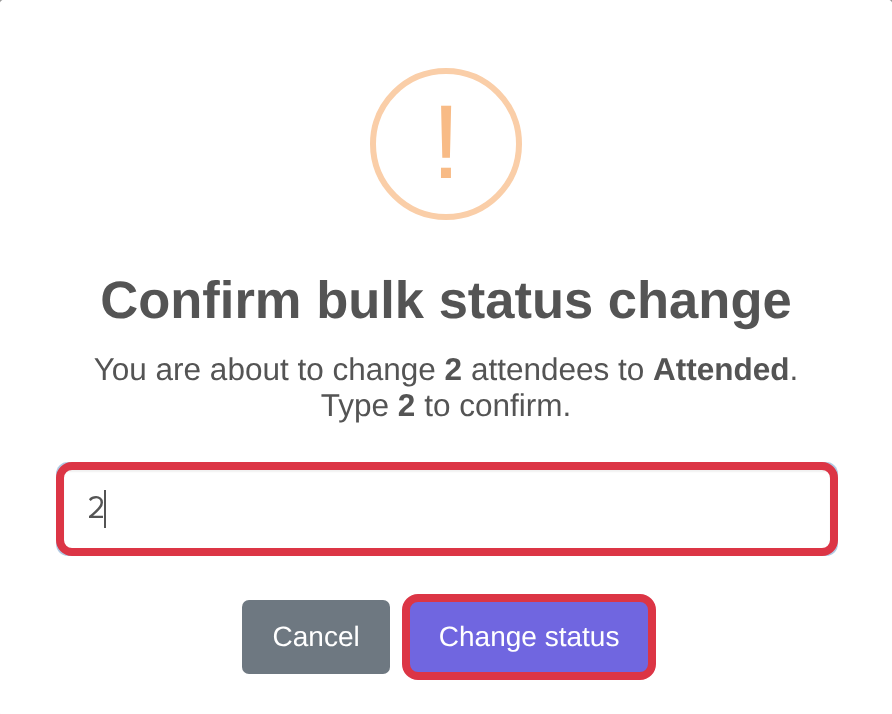
What happens when you mark a guest as attended:
- The guest's status changes to Attended.
- The Attended column shows all the places the guest booked. For example, a booking for 3 places shows 3 attended.
- If you marked the wrong guest, select them again and use 'Change Status' to choose 'Registered' or 'Did Not Attend'.
When QR scanning does not work
Admissions+ does not provide a print-ready event attendance checklist. Use the manual attendance steps above to mark guests as attended when a guest has no QR code, a camera is unavailable, or you record attendance after the event.
Removing event and ticket capacity limits
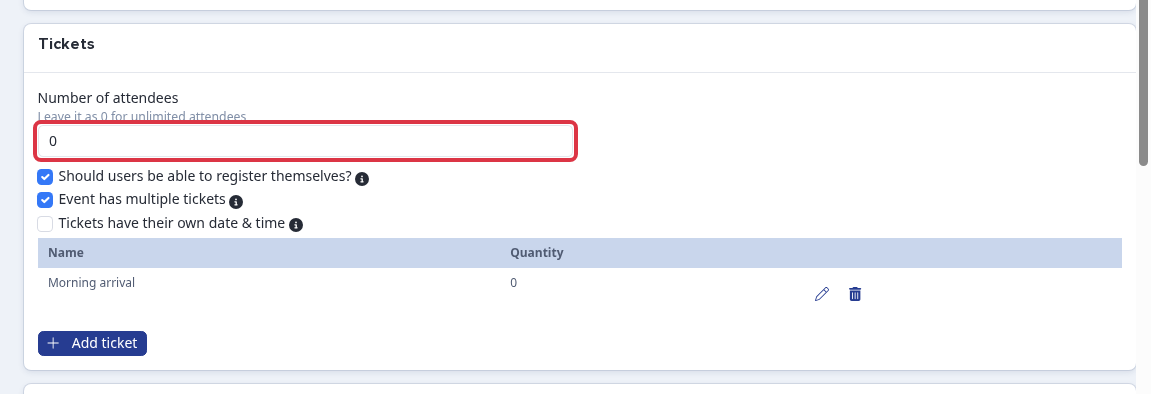
When you edit an event, open the Tickets card. Enter 0 in Number of attendees to remove the event capacity limit. Select Event has multiple tickets when each ticket needs its own capacity.
For each ticket, select its edit icon. Enter 0 in Available quantity and select Save. This removes the capacity limit for that ticket.
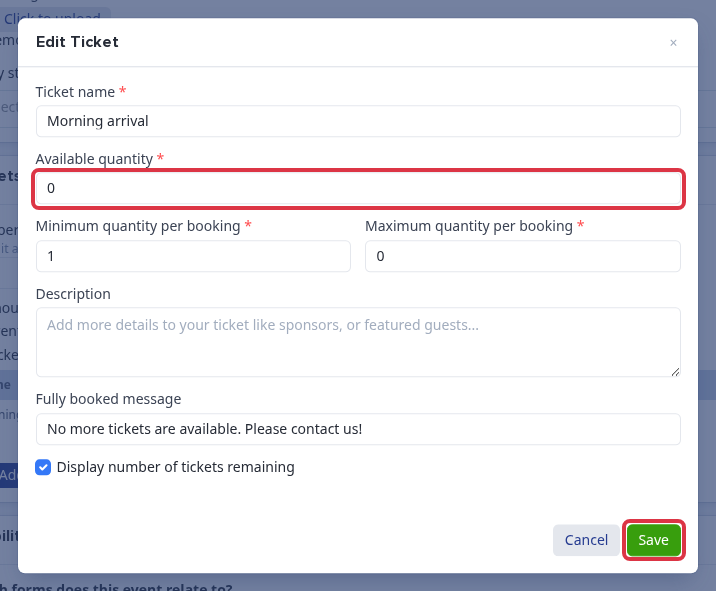
- Set both values to 0 when you use multiple tickets and want no limit on the event or its individual tickets.
- If Number of attendees has a value above 0, the combined ticket quantities cannot exceed it. Admissions+ shows: The number of tickets you're adding exceeds the total quantity available for this event. Please decrease your ticket quantity or consider increasing the overall number of tickets allotted for the event.
Related articles
- How to Manually Add Guests to an Event
- How to create a view and add columns to your Event Guests table
If you have a question about attendance, ask Emma in Admissions+ or visit the helpdesk.
Thank you for using our guide. We hope you found it helpful.
If you have any questions or need further assistance, please feel free to contact our Support Team at 0203 667 0764. For schools in their first cycle, your Customer Success Manager is also available to help.