
Every admissions cycle in Admissions+ is its own application form, so "updating your application process for a new year" means checking the form for that year. This guide shows you where your new form is, what to check on it, and how to confirm it is open to applicants before your cycle starts.
Start in your Forms Area, the page that lists every form on your platform. The admissions year is shown after the form name, so "Year 12 2026/2027" is the Year 12 cycle for 2026/27. Find the form for your new year before you change anything.

Applicaa creates your new-cycle forms in advance of the next academic year, so you do not build them yourself. The "New Application Form" button is greyed out and tells you this. If the form for your new year is not in your Forms Area, contact Support and they will set it up for you.

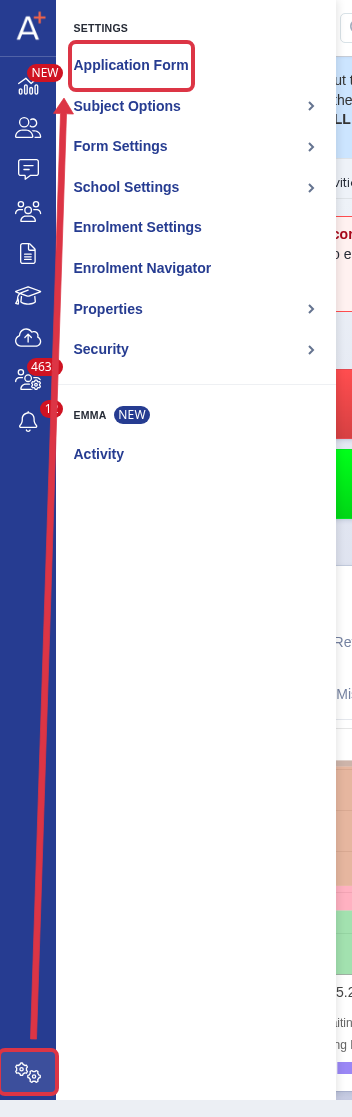
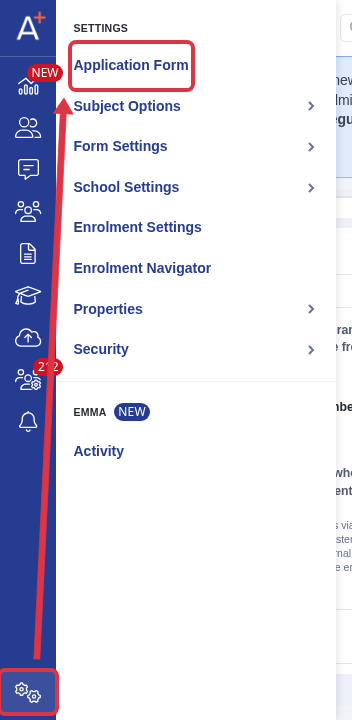
Open the new form, then go to "Settings" > "Application Form".
This is the "Customise Application Journey" page. It lists the phases the applicant moves through, with the steps in each one. Use the "Visible to Student" switch on a phase to control whether applicants see it. A phase that is switched off is not visible to the applicant when they log in to their profile.
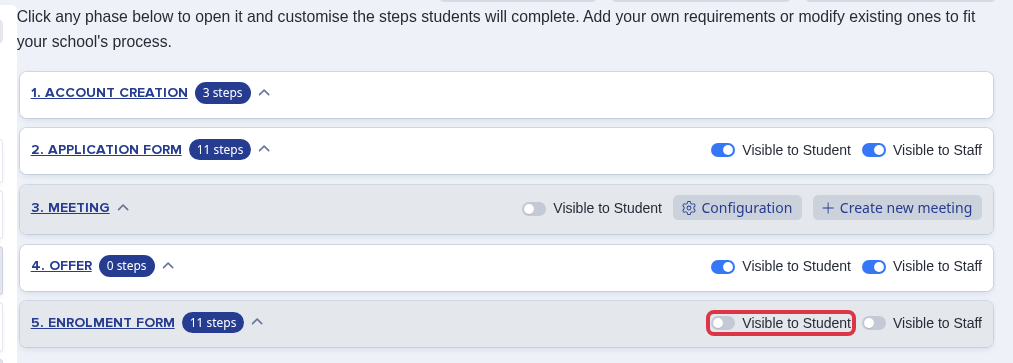
The same switch is how you open the "Enrolment Form" phase for enrolment. Leave it off until you are ready, then switch it on for enrolment day. Use the Enrolment Checklist below for the other results-day checks.
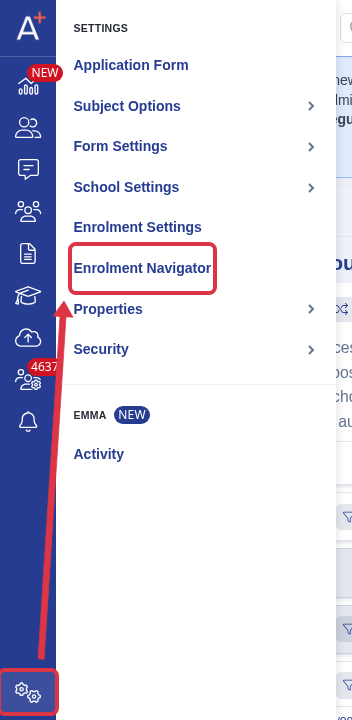
Switching a phase on is not the only check. Go to "Settings" > "Enrolment Navigator" for a full readiness check before the day.
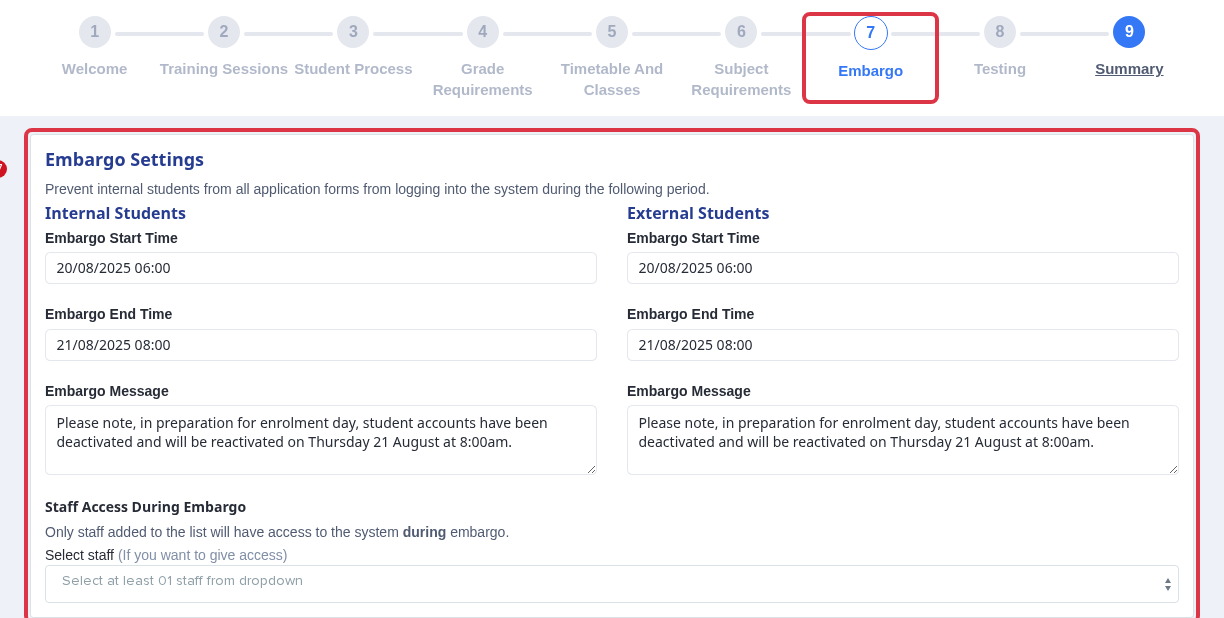
Open step 7, "Embargo". Schools use this to lock student logins before enrolment day, so accounts do not look half-finished while you prepare. The "Embargo Start Time" and "Embargo End Time" under "Internal Students" set this lock window. If the end time is after your enrolment day, students cannot log in that day. Check these dates, or clear them, before you open enrolment. "External Students" has its own separate window. Staff added under "Staff Access During Embargo" can still log in during the lock. Only a Super Admin or MAT Admin can change these dates.
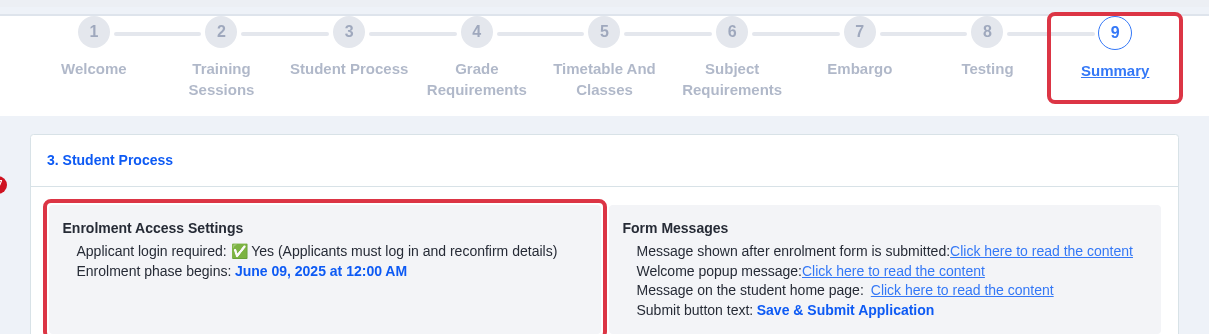
Open step 9, "Summary", for a live readiness check. "Applicant login required" confirms the Enrolment Form phase is switched on. "Enrolment phase begins" shows the date and time it opens to applicants.
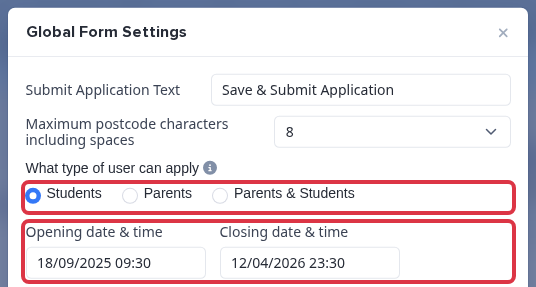
Now click "Global Form Settings" at the top of the same page. Check "What type of user can apply" matches your process for this cycle: "Students" lets only the applicant register, "Parents" lets only a parent or carer register on their behalf, and "Parents & Students" allows either. On a Sixth Form application form you also set "Opening date & time" and "Closing date & time" here, so make sure they cover your new cycle and not last year's.
- The switch on each card in your Forms Area marks the form as active. Parents only see active forms in the list when they add a new application.
- On a form that is not a Sixth Form application form, "Global Form Settings" shows "Turn off registration button on landing page." instead of the dates. Leave it off so new applicants can register.
- "Create Test Application" on the "Customise Application Journey" page creates test applicants, so you can walk your new form before you send the link to parents and students.
- Close last year's form as well as opening the new one, so no one applies on the old cycle.
Check who can create an account
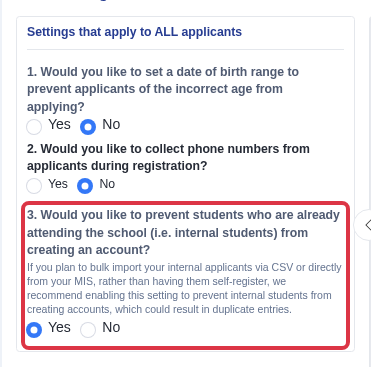
"What type of user can apply" controls parents against students. There is a separate check for internal against external students - whether students already attending your school are blocked from self-registering, so your MIS import or CSV import is the only way they get an account. Go to "Settings" > "Application Form", then open the "Student Registration" step inside the "Account Creation" phase.
The third question on this step asks "Would you like to prevent students who are already attending the school (i.e. internal students) from creating an account?" Leave this on "No" to let internal students self-register like any other applicant. Switch it to "Yes" if you plan to bulk-import your internal applicants from your MIS or a CSV instead, so they cannot create a second, duplicate account. With it switched on, a student who starts to register is first asked whether they already attend the school: answering yes sends them to log in with the account the school already created for them, and answering no lets them carry on registering as a new, external applicant.
Moving a taster day group to a new cycle
A Taster Day belongs to the form it was created on, so a Year 10 taster day form does not automatically turn into, or feed into, next year's Year 12 entry form - even when it was built for the same students. If your new cycle's form is not in your Forms Area yet, contact Support as above first.
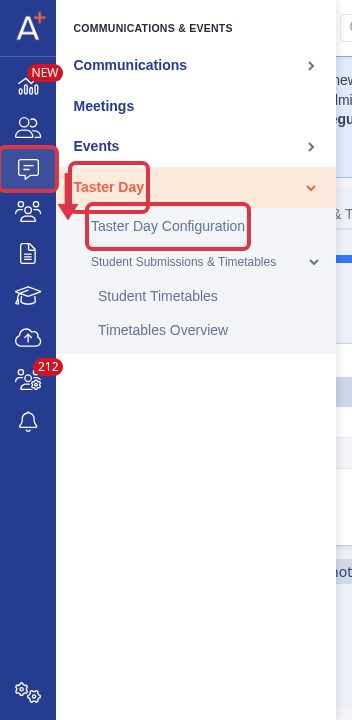
Once the new form exists, go to "Communications & Events" > "Taster Day" > "Taster Day Configuration".
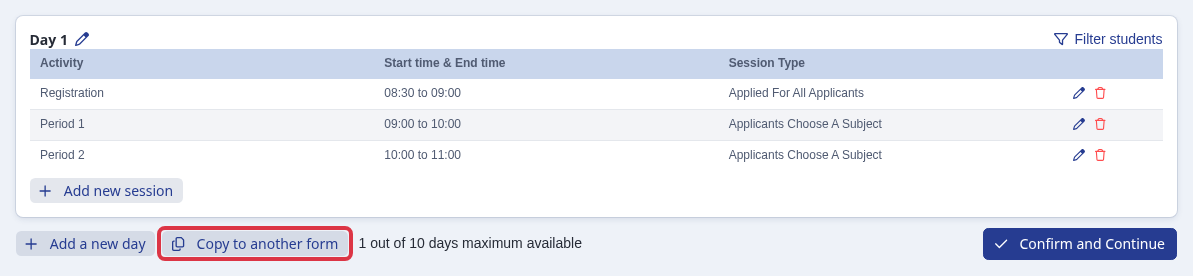
On the "Sessions" page, use "Copy to another form" to copy a taster day across to a different application form.
Choose the target form and the days to copy, then select "Copy setup". This only copies the taster day's own setup: its sessions, subjects and timetable. It does not copy the students who registered for it or their attendance records.
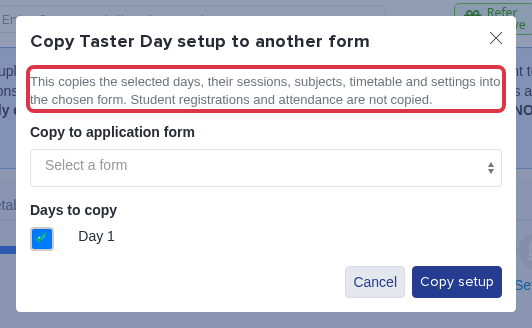
So a taster-day group does not move itself onto the new cycle's form. To bring those students onto the new form as applicants, add them the same way as any other new intake: self-registration, a CSV import, or your MIS sync.
If a check here does not match what you see, ask Emma in the bottom right of your platform, or contact Support on 0203 667 0764.