
Use the Candidate Sheet "Import Test Details" tool to bulk-update exam and test-day details - test date, session, exam room, seat number, arrival time and more - on students who already have an application on this form. The "Student Code/UPN" column that leads the CSV does not require a Unique Pupil Number: the import matches on Student Code first and only falls back to UPN, so students who have not yet been issued a UPN import correctly as long as their Student Code is in the file.
Go to Settings, then Form Settings, then Candidate Sheet.
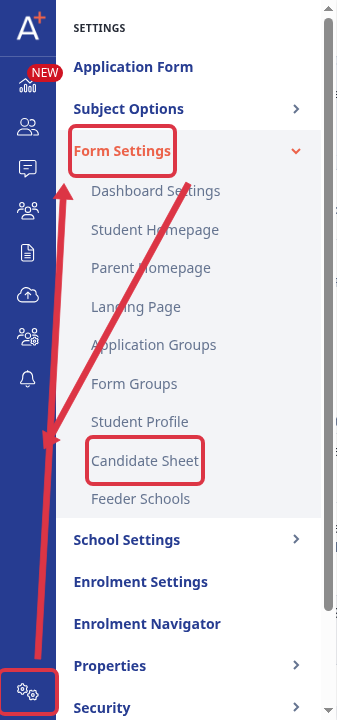
On the Candidate Sheet page, select "Import Test Details".

Select "Download sample CSV" to get a template with every field currently enabled on this form's Candidate Sheet, in the required column order. Keep the header row exactly as downloaded, including the "Student Code/UPN" column name.
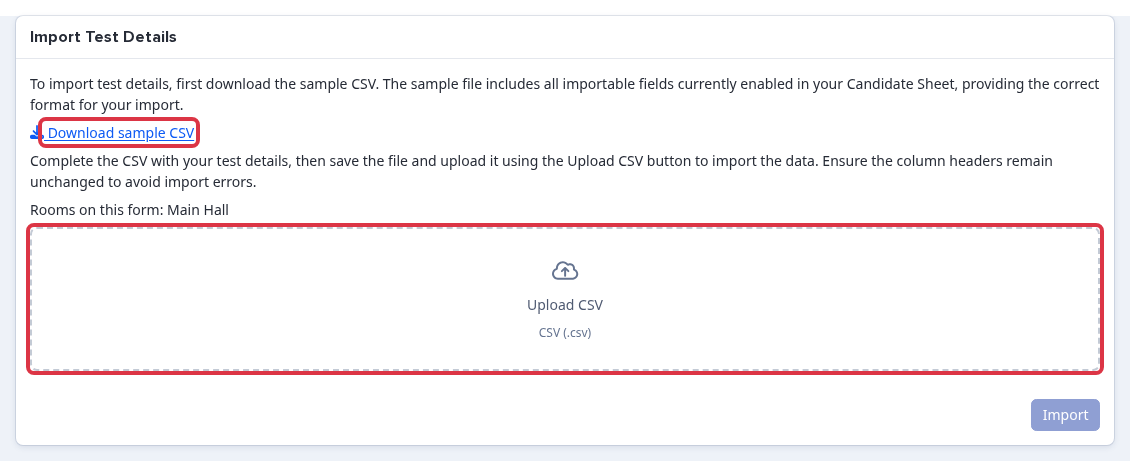
- Fill in "Student Code/UPN" with either value for each student. Every student has a Student Code, generated automatically when their account is created, so this column never has to stay blank.
- If a row's "Student Code/UPN" value does not match any Student Code on the form, the import tries it against Unique Pupil Number before treating the row as not found.
- Fill in only the other columns you want to update: Candidate Date of Birth, Candidate Gender, Candidate Number, Address, Test Dates, Session, Test Centre, Arrival Time, Exam Room, Seat Number, Collection Time and Collection Area are all optional per row.
- An Exam Room value must match a room name already set up for this form. Set up rooms under Settings, Form Settings, Candidate Sheet, Room Assignment before you import Exam Room data, or those rows fail with a room-not-found error.
Drag your completed CSV onto the upload area, or select it, then select "Import".
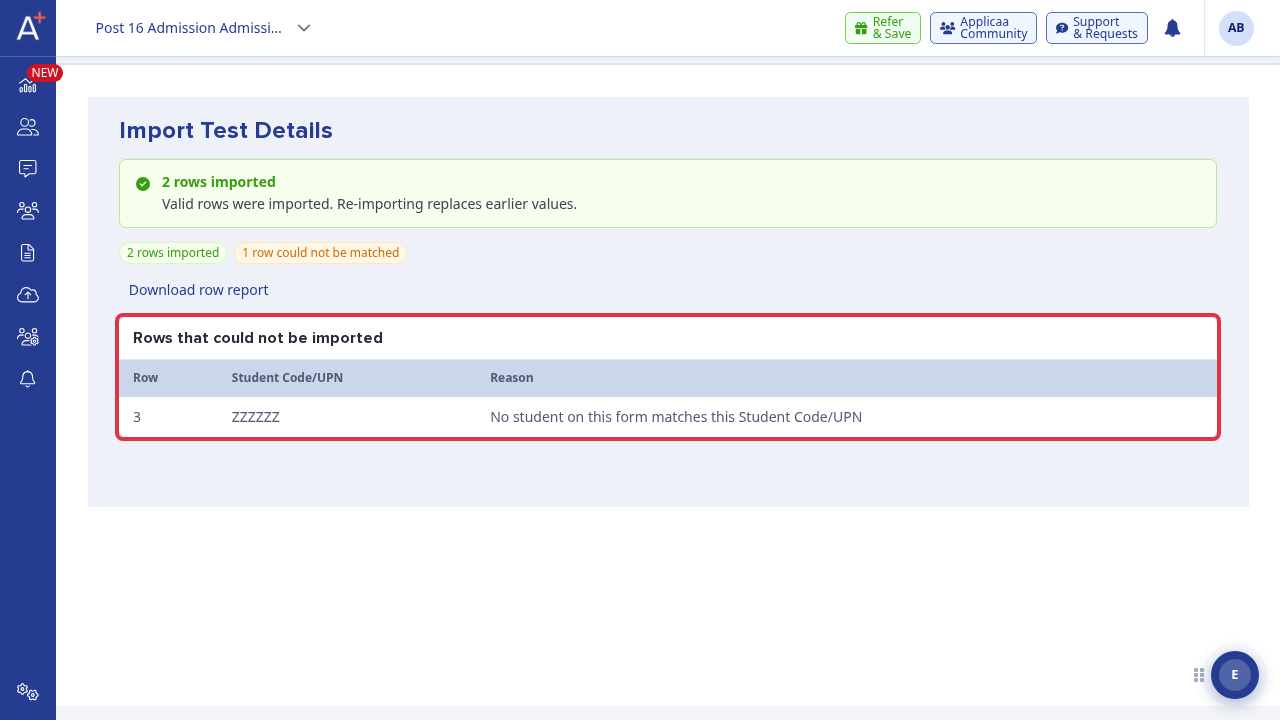
When the import finishes, the report shows how many rows were imported and lists any row that could not be matched, together with the reason. Re-importing a student replaces their previously imported test details with the new values.
What it does not do
- It never creates a new student or a new application. It only updates test details on students who already appear on this form.
- A row whose "Student Code/UPN" does not match any student on the form is skipped and reported as not found; it does not create one.
Related articles
- How to Update Existing Applications Using a CSV Import
- How to Import Students Into Your Platform From a CSV