
The Communication Log shows the email history for one student or parent. Use it to read the sent content and to check the latest delivery event.
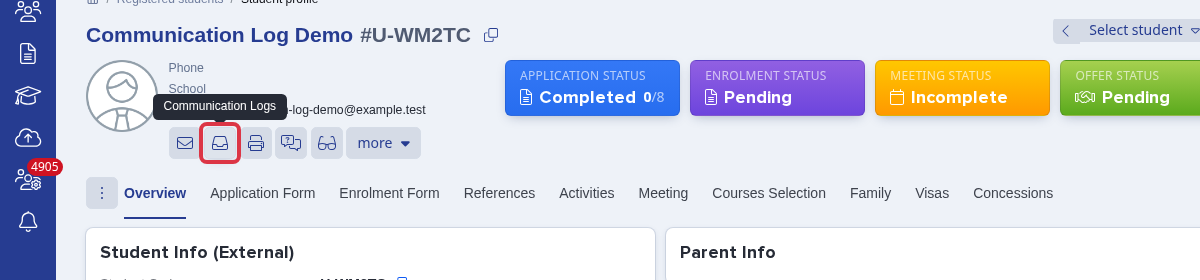
Open a student profile and select the inbox icon, "Communication Logs".
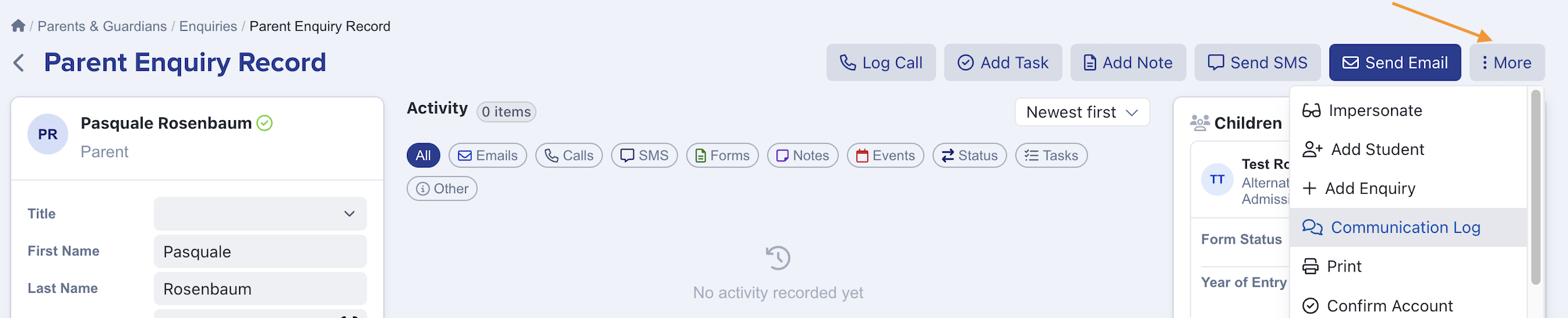
On a parent profile, select "more" and then "communication log".
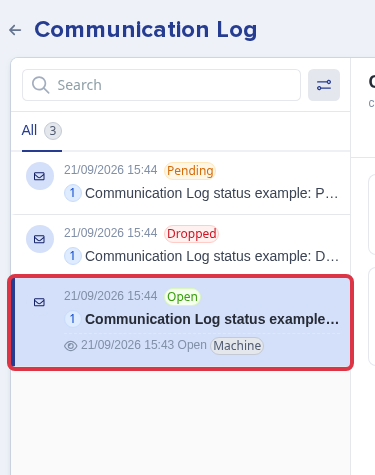
Select an email in the list to view its content and status (open, click, etc).
"Machine" beside an "Open" event means that a mail scanner or image proxy opened the email, not the recipient.
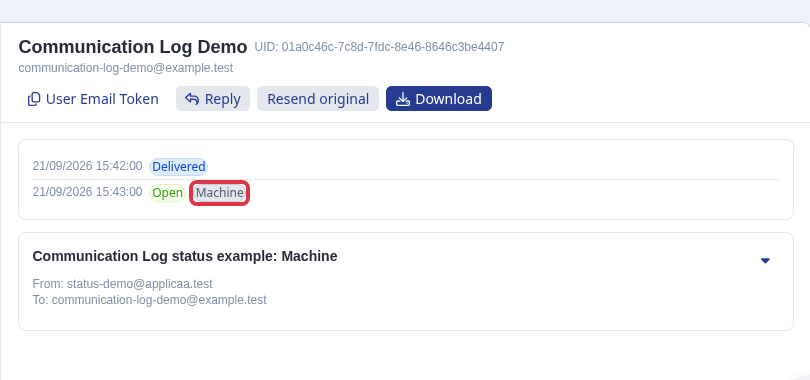
The log shows the latest available delivery status.
"Pending" means the email is still being processed.
"Sent" records the send.
"Delivered" records delivery to the recipient.
"Deferred" records a delayed delivery attempt.
"Open" and "Click" record email activity - the recipient has opened the message/clicked a link within the message.
"Bounce", "Dropped", "Blocked", "Spam report", and "Unsubscribe" record a non-delivery or recipient-protection status. "Dropped" means the provider did not send the email to that recipient (this often occurs following a prior email having bounced).
Bulk and manual emails require background processing. Refresh the recipient's Communication Log after processing finishes. If the email is still absent, check the recipient profile and ask Emma for help.