
If "New Application Form" is active in your Forms Area, you can clone an existing form yourself and have its questions, steps, phases, groups, courses and email templates carried over to the new one. This is the quickest way to set up a form for a new intake, such as "Year 12 Admissions 2027 Entry", when you already have a similar form to copy from.
Open the form switcher in the top-left of any form's dashboard and select "Forms Area" (or "Multiple Form" if your school uses that label).
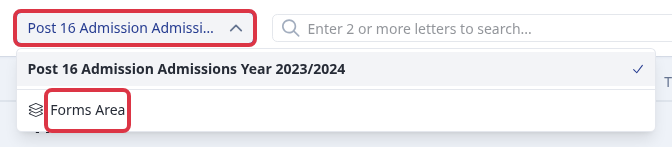
In the Forms Area, look for "New Application Form" in the top-right. If this button is active, you can clone a form yourself using the steps below. If it is greyed out, your account does not have self-service cloning switched on - hover over the button to see why, and see "Copying an existing form for a new intake" under Related articles for how to request a copy from Applicaa instead.

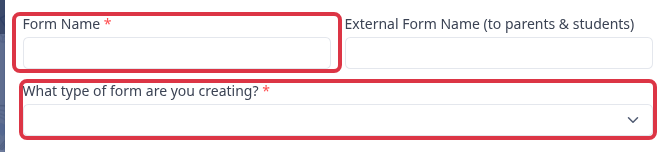
Select "New Application Form" to open the form builder. Give the new form a "Form Name" and, if needed, an "External Form Name" that parents and students see. Choose "What type of form are you creating?" for the new form's entry point.
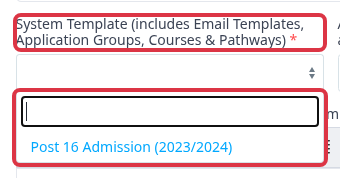
Under "System Template", pick the existing form whose email templates, application groups, courses and pathways you want to copy.
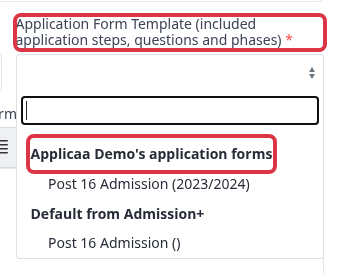
Under "Application Form Template", pick the existing form whose application steps, questions and phases you want to copy. Your own forms are listed under your school's name; you can also copy from a form listed under "Default from Admission+". The two template pickers do not have to point at the same form - choose different forms in each if you want to mix settings from one form with the question set from another.
Fill in the remaining required fields - "Admissions Year", the URL ending, and "Years of Form" - then select "Create Application Form" to finish.

- The "System Template" copies email templates, application groups, feeder school settings, courses and pathways onto the new form.
- The "Application Form Template" copies application steps, questions, phases, form settings and dashboard settings onto the new form.
- The new form is a separate record from its template - changes you make afterwards on one form never affect the other.
What it does not do
- Cloning does not copy the policies shown on a form's "Agreement" step. Add policies to the new form yourself.
- Renaming a form after it is created does not re-run the copy, and there is no later option to pull in more settings from another form.
- This does not merge two forms together - it is always a one-way copy into a brand new form.
Questions staff ask
Can I clone a form myself, or do I need to ask Applicaa?
It depends on your account. Most schools have self-service cloning switched off, and see a greyed-out "New Application Form" button with a tooltip explaining this - on those accounts, ask Emma or Applicaa support to copy the form for you, as covered in "Copying an existing form for a new intake" under Related articles. If the button is active on your account, use the steps above to clone it yourself at any time, for any admissions year.