
When you import predicted or achieved grades from a CSV, Admissions+ checks your file twice: once on the review step before anything is saved, and again while the import runs. This article lists the messages you can see at each point, what causes them, and how to fix them.
Grades are only ever matched to applicants who already exist in your platform. A grade import never creates new students, so start by confirming the applicants are already on the form you are importing into.
Start with the right target and the right sample file
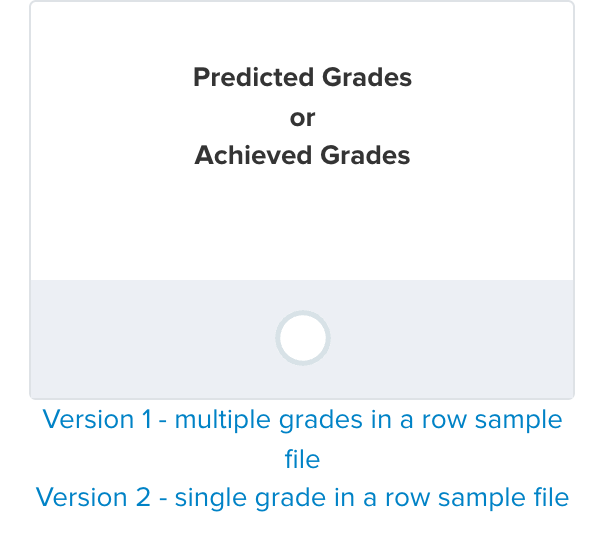
On the first step of the import, choose "Predicted Grades" or "Achieved Grades", then download the sample file that matches how your data is laid out. "Version 1" puts several grades on one row, one column per subject. "Version 2" puts one grade on each row, with named columns such as "Qualification Title" and "Grade". Building your file from the wrong sample is the most common reason an import maps nothing.
The file itself must be a real CSV. If you pick a spreadsheet saved as .xlsx or .xls, the upload area rejects it straight away with "The import file is not a .csv format. Please ensure the file is a .csv and try again." Use "Save as" in your spreadsheet program and choose CSV before uploading.
Check the mapping step
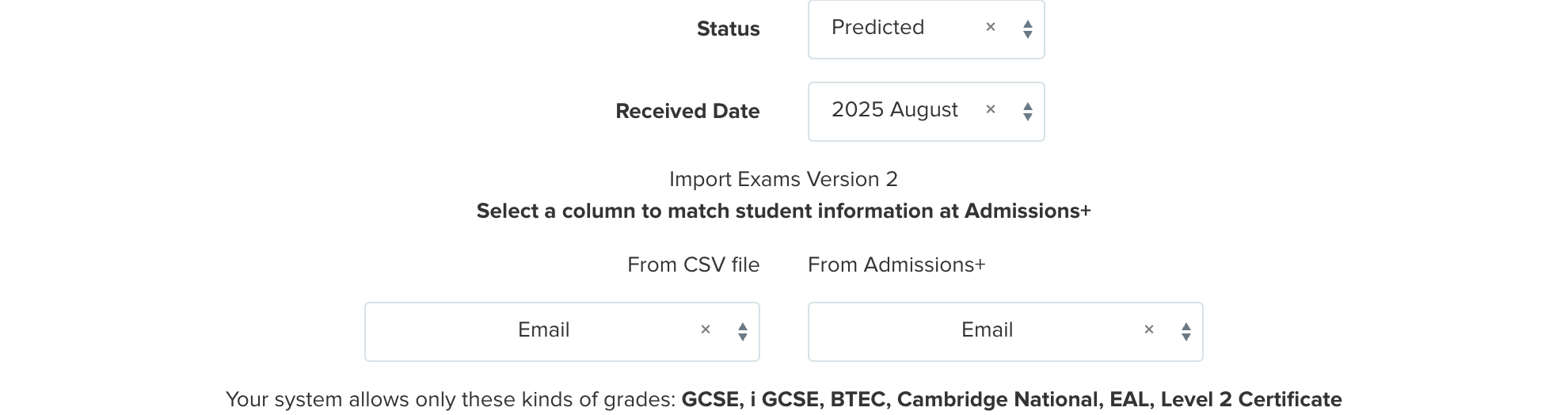
On the mapping step you set the grade "Status" and "Received Date", then use "Select a column to match student information at Admissions+" to say which column identifies the applicant and which field in Admissions+ it should be compared against. You can match on Email, Unique Pupil Number, Unique Learner Number, Unique Candidate Identifier, SIMS Admission Number or Username. Whatever you pick here must hold exactly the same values as the column in your file, or no applicant will be found.
This step also tells you which qualification types your platform accepts, on the line beginning "Your system allows only these kinds of grades:". A qualification type that is not on that list cannot be mapped, so either change the type in your file or ask an administrator to add it in your settings.
If anything on this step is left unset, Admissions+ refuses to continue and shows the message in red at the top of the page:
- "Please select a version" - you have not told Admissions+ whether the file is Version 1 or Version 2.
- "Status cannot be blank" and "Received date cannot be blank" - set whether these are predicted or achieved grades. A received date is required for achieved grades.
- "From CSV file cannot be blank" and "From Admissions+ cannot be blank" - pick both halves of the matching pair, the column in your file and the field it is compared against.
- "Please select qualification level for all BTEC subject(s)" - every BTEC subject needs a level, such as Extended Certificate or Diploma, chosen next to it.
- "Please select qualification level for all Art and Design (Fine Art, Photography, Graphics, Craft) subject" - Art and Design and Religious Studies (Philosophy & Ethics) also need a level chosen, because each covers several separate qualifications.
"There are invalid grades in your file."
If any grade value is not valid for its qualification, the review step shows a red notice reading "There are invalid grades in your file." and the "Next" button is locked until you fix them.

Underneath the notice, every rejected value is listed with its line number, the qualification it was entered against, and the grade that was rejected. Use that table to find the exact cells to correct in your spreadsheet.

Grades are usually rejected for one of these reasons:
- The grade does not belong to that qualification's grade scale. A letter grade such as "B" against a GCSE that is marked 9 to 1 is rejected, and the reverse is true for qualifications still graded A* to G.
- The grade is in the wrong case. Grades are compared exactly as written, so "u" is rejected where "U" is accepted.
- A double award is written with a dash. Combined Science and other double awards must be entered as "99", "98" or "55" with no dash. Welsh (WJEC) double grades follow the same rule, so "AB" rather than "A-B".
- The cell contains extra text, a comment or a predicted/achieved marker alongside the grade. Only the grade itself belongs in the grade column.
To fix them, correct the values in your spreadsheet, save it as CSV again, and drag the corrected file onto the upload area shown on the same step. The page reloads with the new file, so you do not have to start the import again from the beginning. Once no invalid grades remain, "Next" becomes available.

One more message can appear as soon as the file is read: "There are 2 columns with the same title: Grade." Your file has repeated header names, and Admissions+ sends you back to the upload step. Rename or remove the duplicate columns so every header is unique, then upload the file again.
Errors reported after the import runs
Once you confirm the import, any row that could not be saved is listed under "Import Errors" on the import report, with the line number, the message, and the data from that row.

- "Student not found" - the value in your matching column does not match any applicant on the field you chose on the mapping step. Check for typos, spare spaces, an old email address, or a UPN or admission number recorded differently in Admissions+.
- "Row blank" - an empty row inside or below your data. Spreadsheets often leave several of these at the bottom of a file after you delete rows. Select the empty rows, delete them properly, then save and re-import.
- "Required fields are blank" - the row has an applicant on it but every mapped grade column is empty. Either fill the grades in or remove the row.
- "Matching qualification title not found" - the value in the "Qualification Title" column was not matched to a qualification on the mapping step. Go back to the mapping step and map that title, or correct the spelling in your file.
Things to know before you import
- Importing grades replaces the grades already held for every applicant named in your file, so always import a complete set of grades for each applicant rather than one subject at a time.
- Grades that came from a verified exam board result are protected and are not overwritten by an import. If a subject keeps its old grade after a successful import, that is why.
- Applicants who are not already on the form are skipped. Import the applicants first, then import their grades.
- Very large files can make the review step take a long time or show an error page. If that happens, split the file into smaller batches of a few hundred rows and import them one after another.
If you hit a message that is not listed here, copy the line number and message from the import report and ask Emma in your platform, or send them to the Admissions+ helpdesk so we can check the file with you.