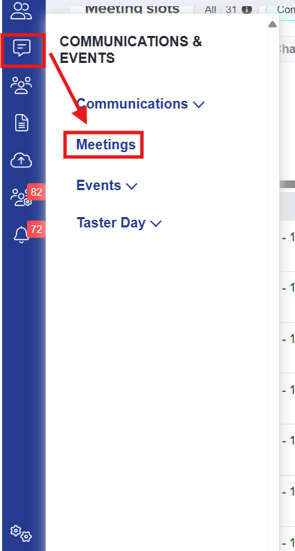
From the dashboard, click on Communications & Events and select Meetings (NEW).
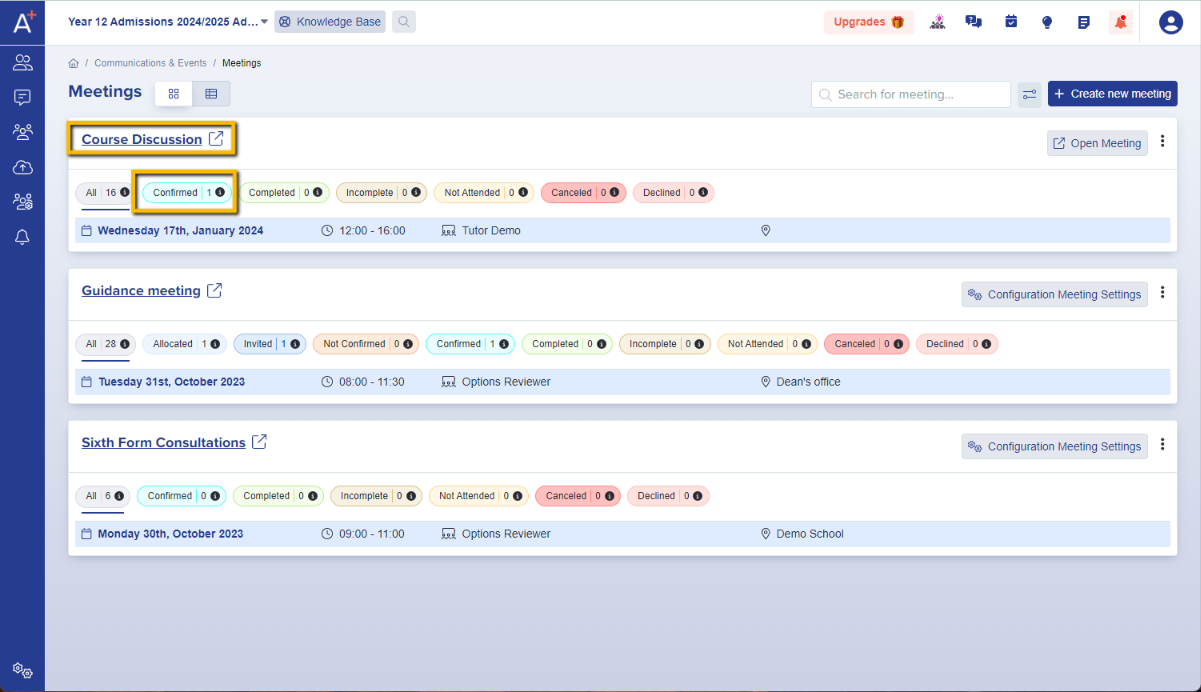
In the Meetings area, select the meeting you will be conducting and click on the Confirmed tab. This will show you the list of students who have accepted the meeting invitation.
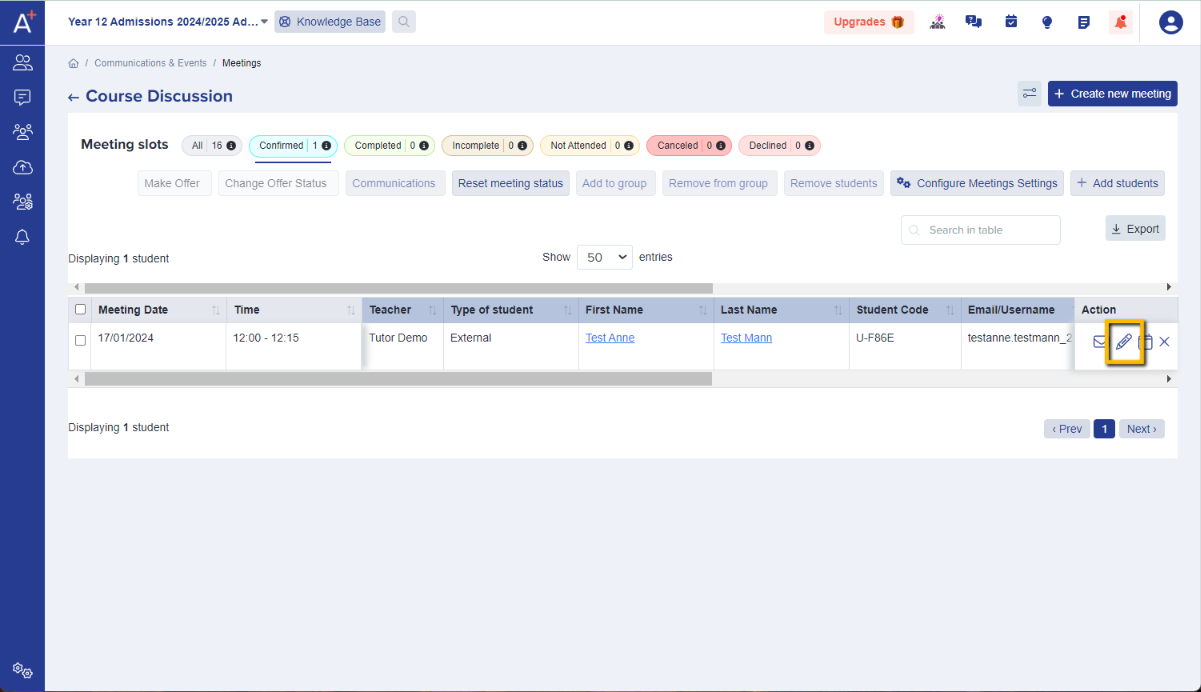
Click on the pencil button under in Actions section.
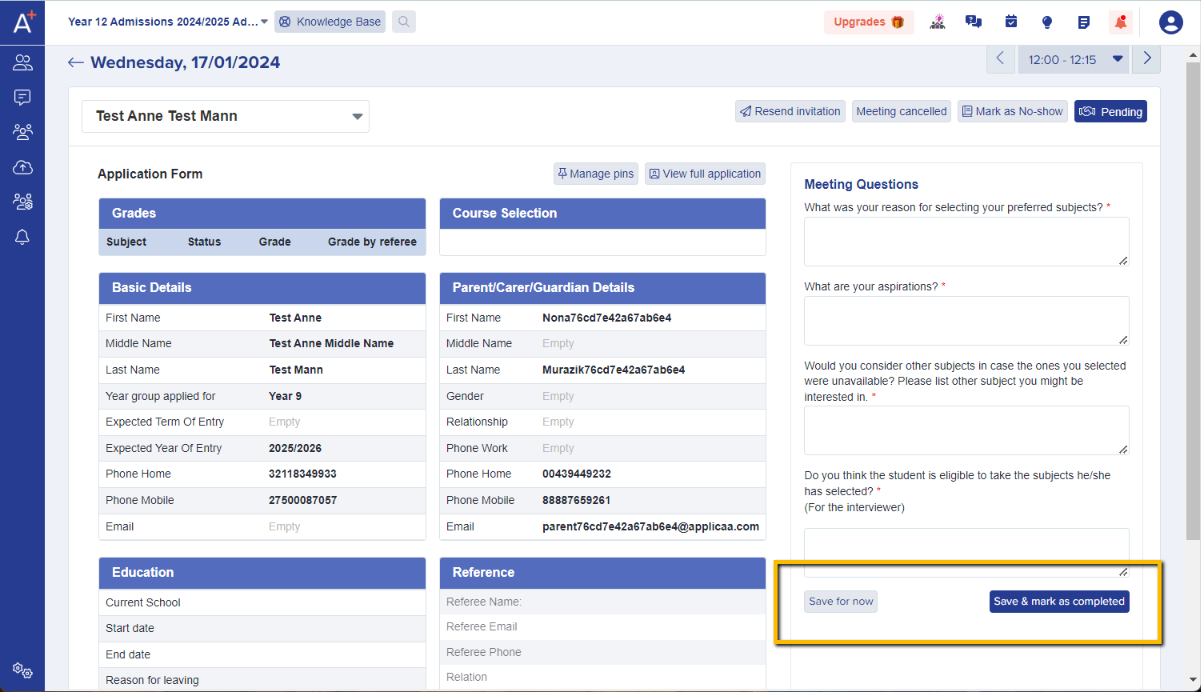
You will see the student details collected through the application form on the left side of the page, and on the right is the Meeting Questions section where you can record the student's meeting responses.
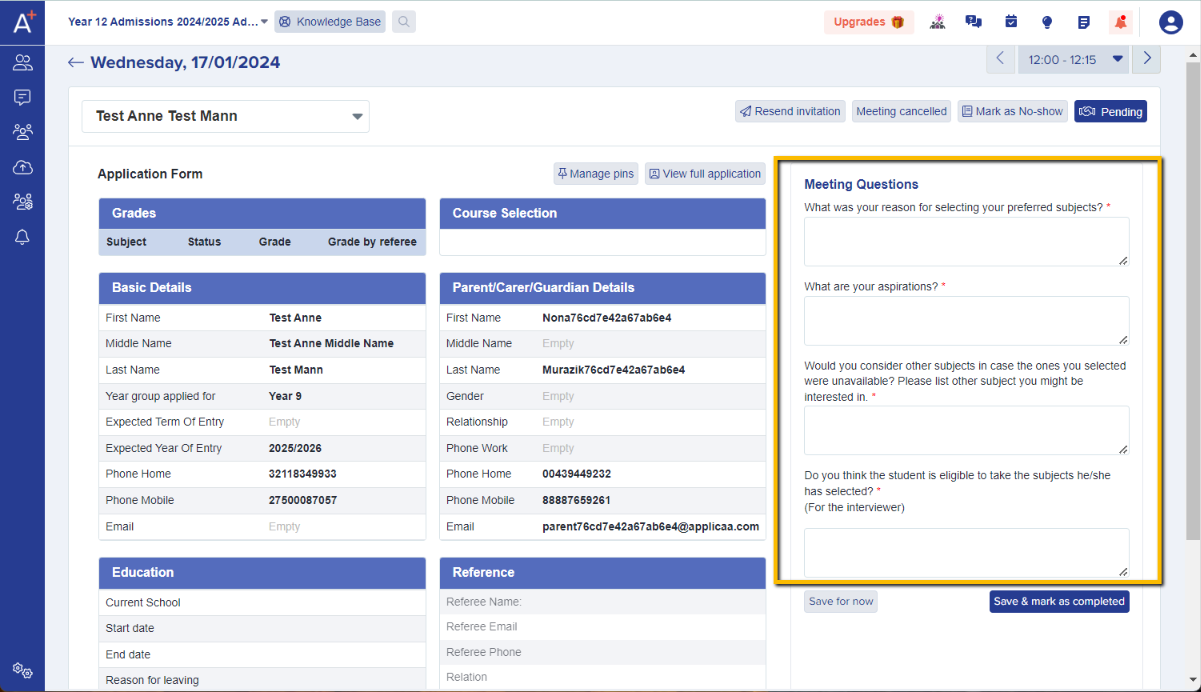
Once you have filled out the fields, you may either save it first (Save for now button), or save and mark the meeting complete (Save & mark as completed button).