
How to renew a student (Bursary renewable)
This article will show you how to make the students bursary renewable and how students are then able to renew their bursary application for next cycle.
When a student has been eligible for the bursary during Year 12, as per the DFE guidance they will need to reapply to access the funds again in Year 13. For them to do this, you must make their status ‘Bursary Renewable’.
Renewing a student’s bursary ends their current bursary cycle - they will be unable to submit any requests for the current year.
Only renew your students once you have finished with their bursaries for the current year.
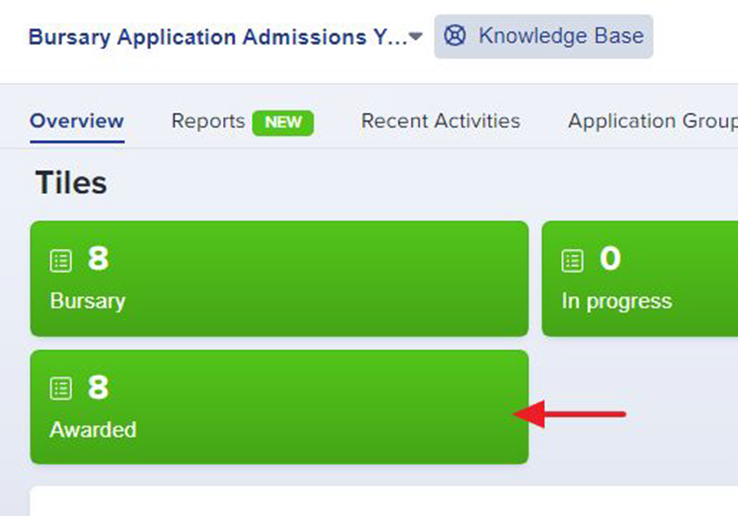
To do this, navigate to your previous year's Awarded Tile, or any list of students, select your students, and then click Bulk Update.
A pop-up window will then display for you. Choose "Is Bursary Renewable" in the Property Field and "Yes" in the Value, then Save.

You are in control of your renewal settings:
Do you need every applicant to re-complete the application?
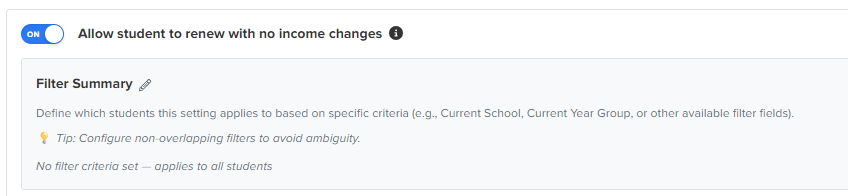
Are you happy to allow students whose details have not changed to carry last year’s information over?
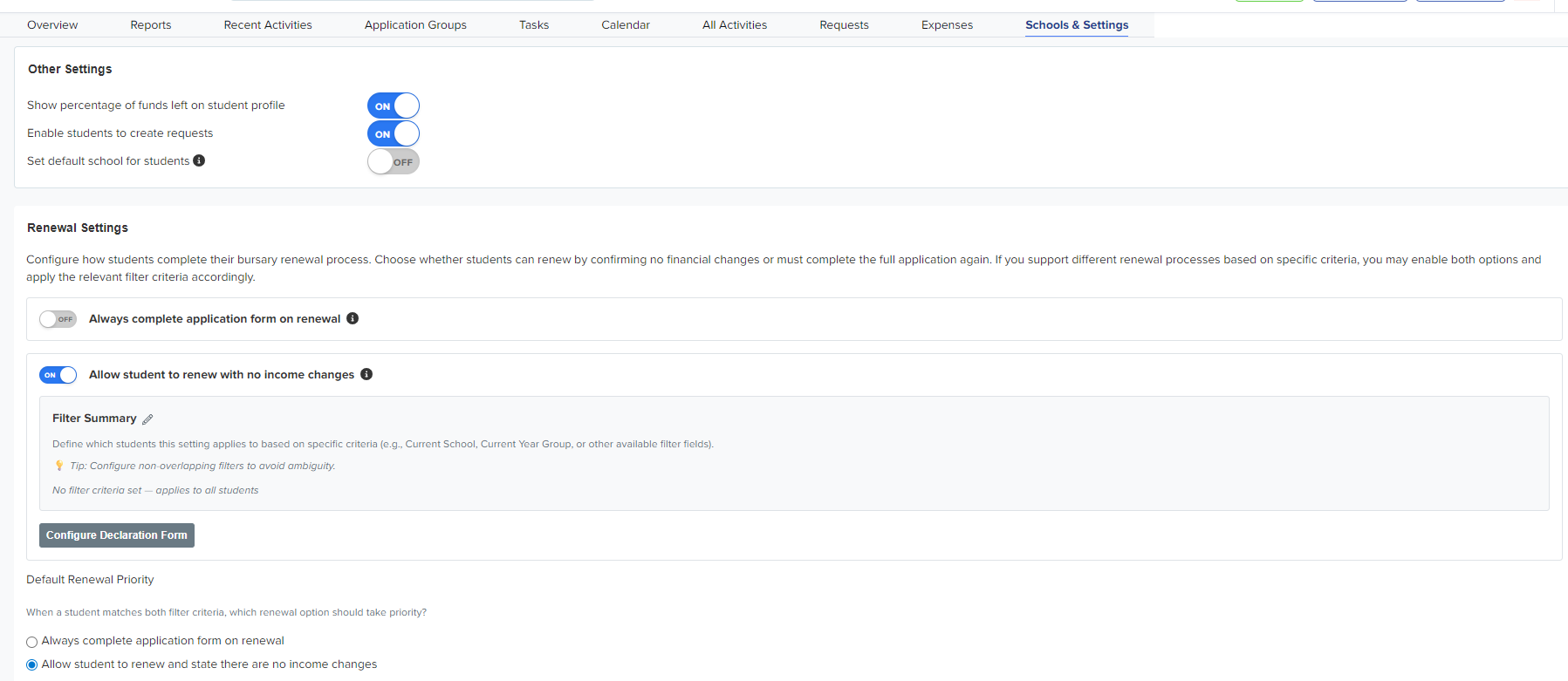
Navigate to Schools & Settings to check your settings and apply filters, if applicable.
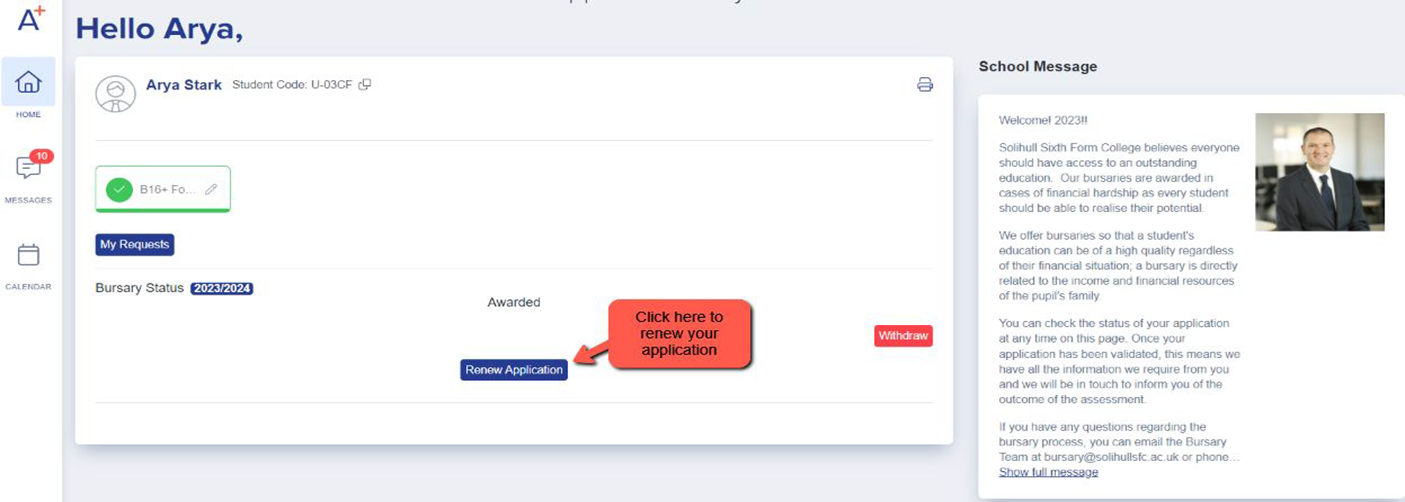
Once you've made a student's application renewable, they should log in and a "renew application" option will appear, allowing them to fill out a new form or sign a declaration that nothing has changed, and retain all their financial information for the next form, depending on the renewal settings you have applied.
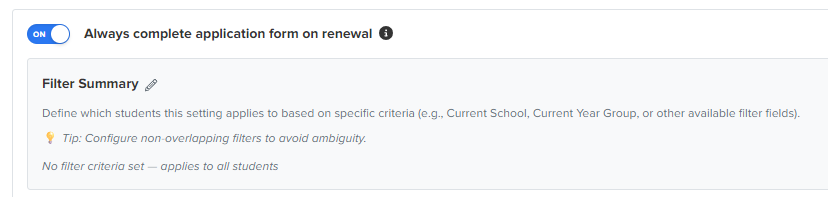
If you specified that all renewing students need to re-complete their application, they would click to renew their application and would confirm this, before being directed to complete the application again.

If you specified that all renewing students are allowed to renew with no income changes, the students will see a pop up preview which shows them a review of their previous Financial Information.

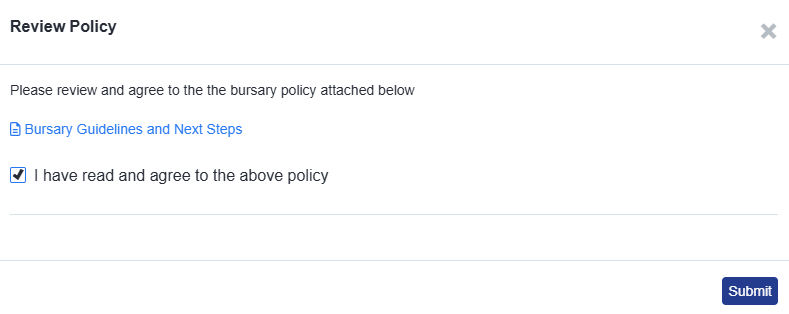
They will also have to review the policy again and agree to it by clicking the ‘Review policy’ button.

Declaration of Financial Information
Once the policies have been reviewed and agreed, the buttons below will become active for the students.
‘There are no changes’
OR
‘My Financial Information has changed’

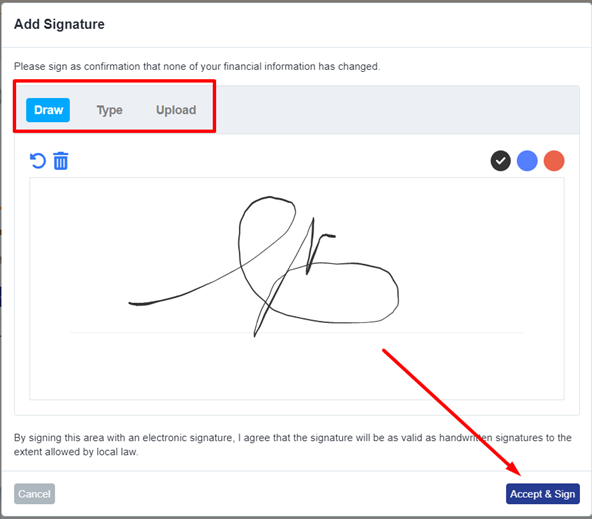
If they click on ‘There are no changes’ - it will ask them for a signature to declare that there are no changes to their financial information and it will be copied over to the next cycle.
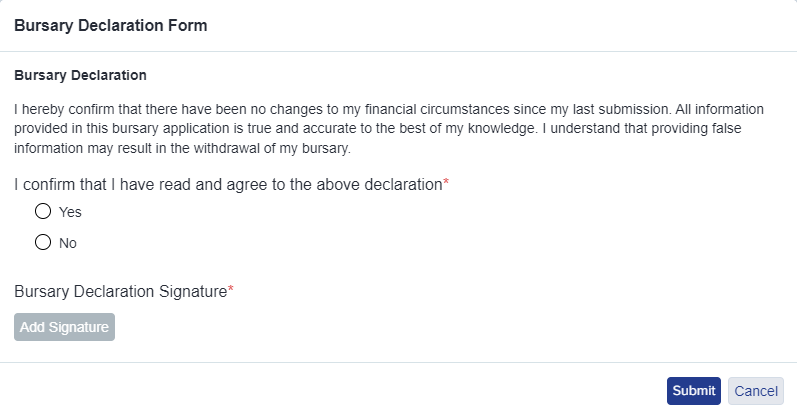
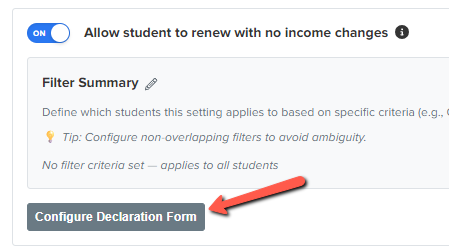
You can control what is included on your declaration form, within the Renewal Settings area.
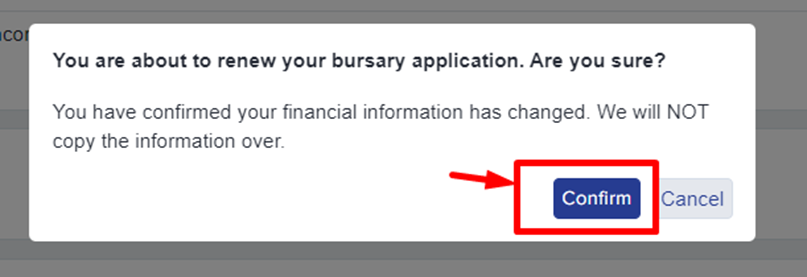
If there will be changes to their information they’ll select ‘My Financial Information has changed’ and a pop up will appear:
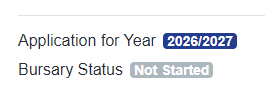
Once confirmed, it will show on their homepage that their current status is ‘Not Started’.
The renewal information on the student's profile overview will also instantly update to "Yes" once the student has renewed their bursary via the student profile. Their applied year group will increase by the value of 1 (for example from Year 12 to Year 13).

A fresh Bursary fund will be calculated for the students after their Bursary has been renewed, regardless of whether they still have any bursary funds left over from previous year (funds do not carry over).

Additional information: Any transaction records from the previous year will also be removed on the student profile. But you may still view these past transactions on the Bursary request area of the student by going to your system’s request area to view your last year's transactions, or by viewing the history on their profile.
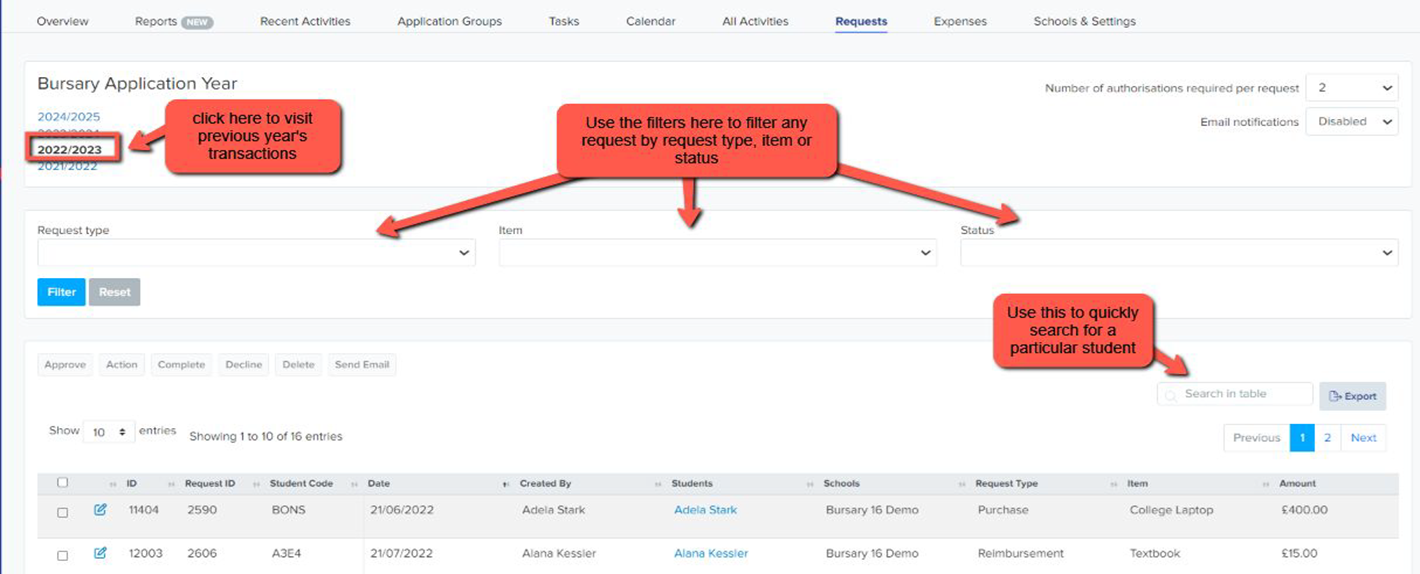
Another option is to view the student’s Bursary History on the student profile. This will then allow you to access the student's prior year profile, as well as their previous year's transactions, band assignments, and household income information.

Should you need further assistance, please contact your Customer Success Manager if you're still in your first cycle otherwise call our Support Team on 0203 667 0764.
Was this article helpful?