
Required fields for a successful import:
Child First Name
Child Last Name
Child Date of Birth
Parent First Name
Parent Last Name
Parent Email Address
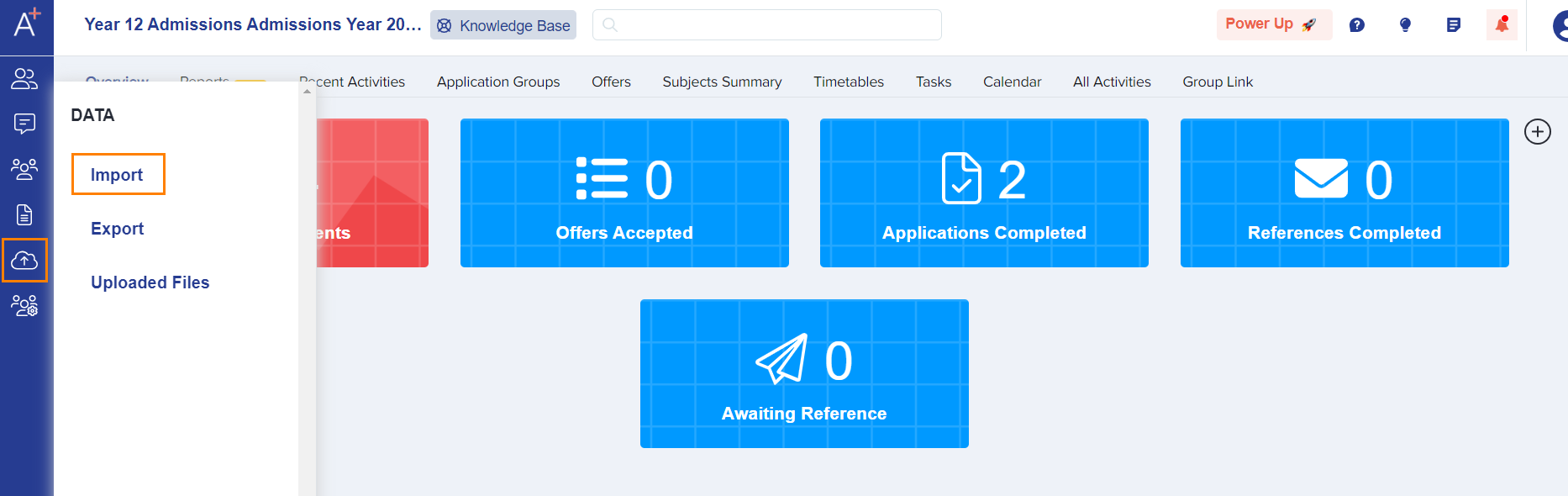
From your dashboard you will see the 'Data' tab on the left of your screen (as per the screenshot below). When you click onto this, it then shows the 'Import' and 'Export' fields for you to select from. Please select Import.
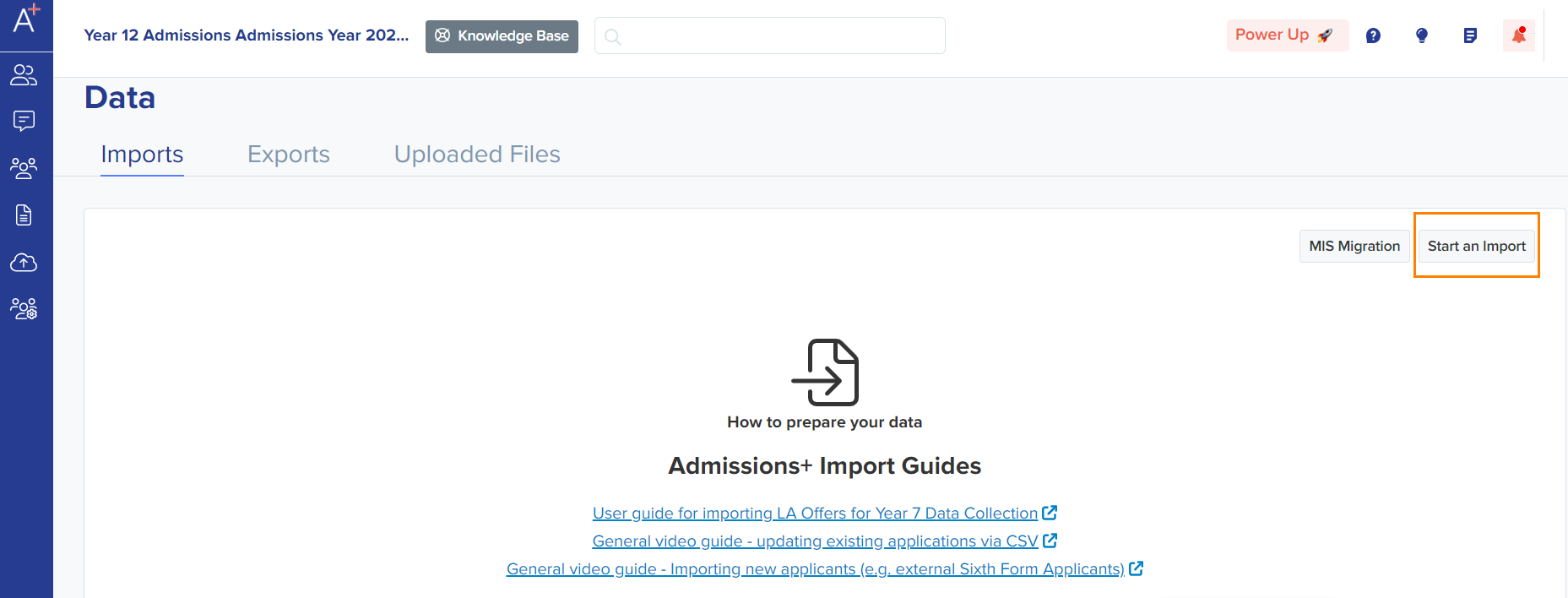
Click on the 'Start an Import' button.
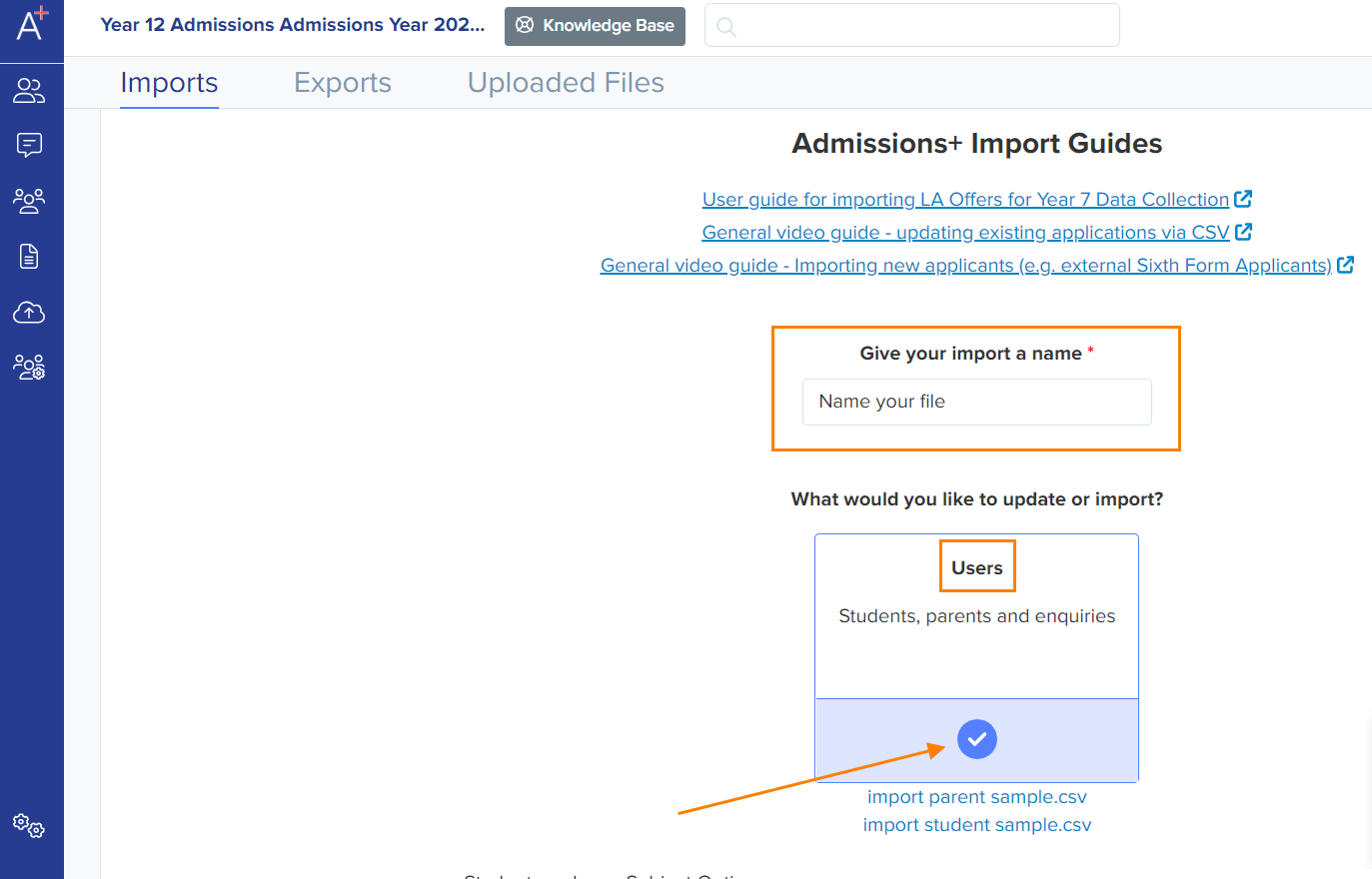
Name your file, select "Users" and hit Next.
Note: There is a sample file below that you may download. You will need to make sure your file matches it.
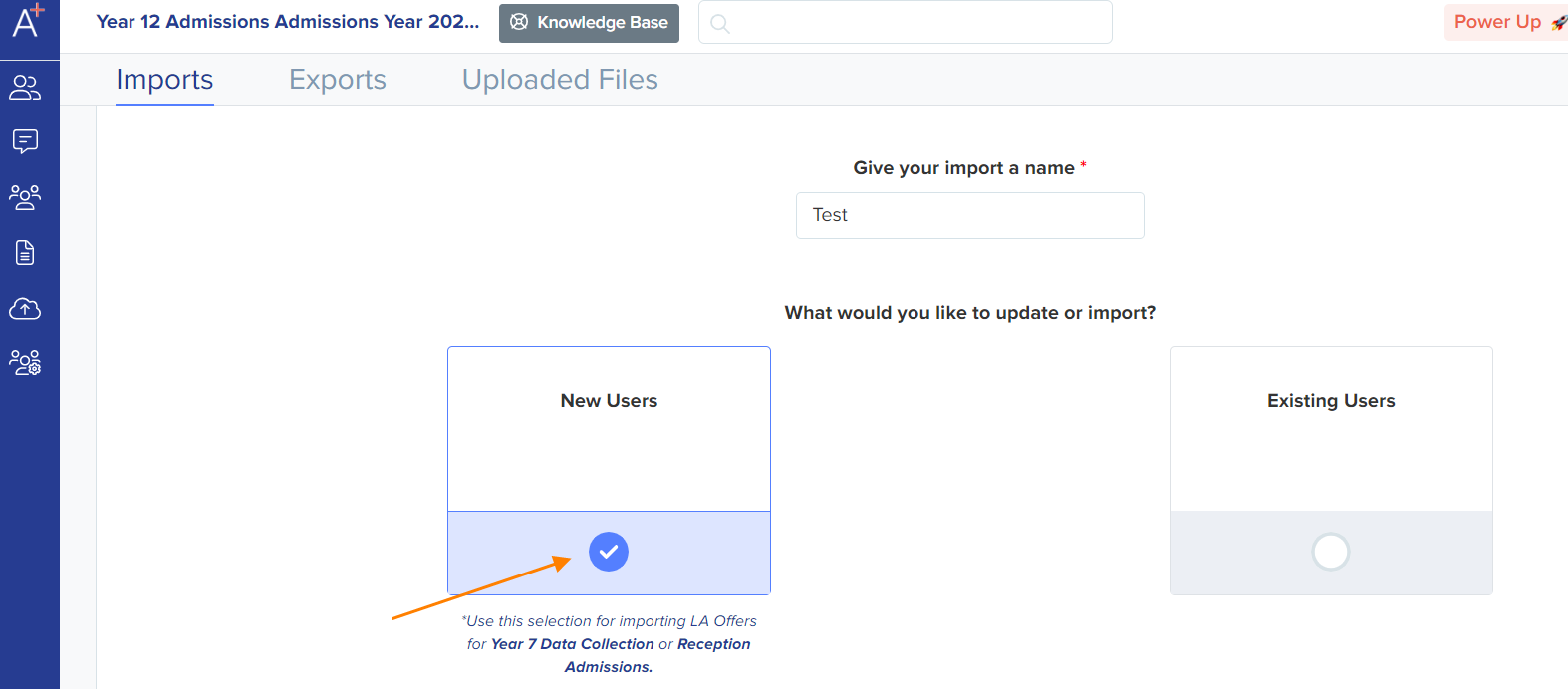
Select New Users and hit Next.
Select Parents and hit Next.
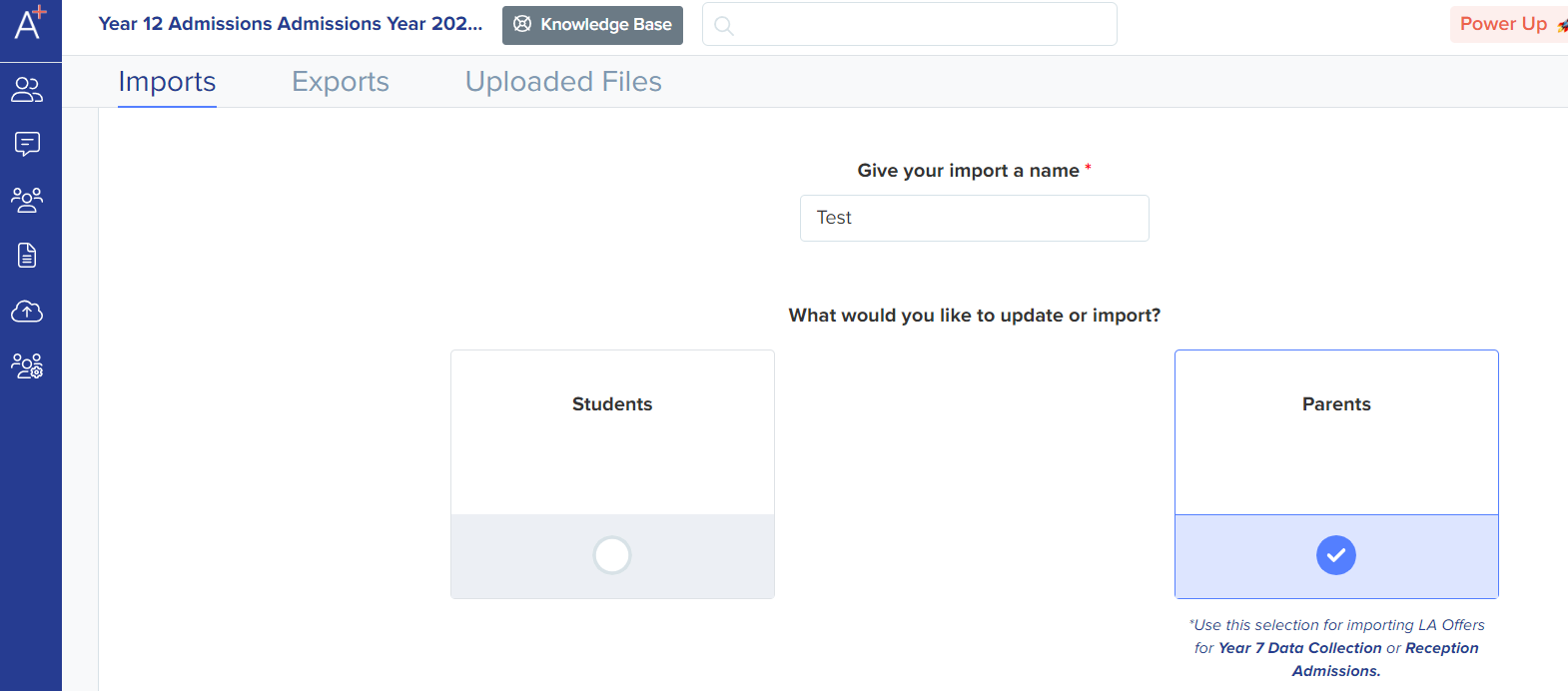
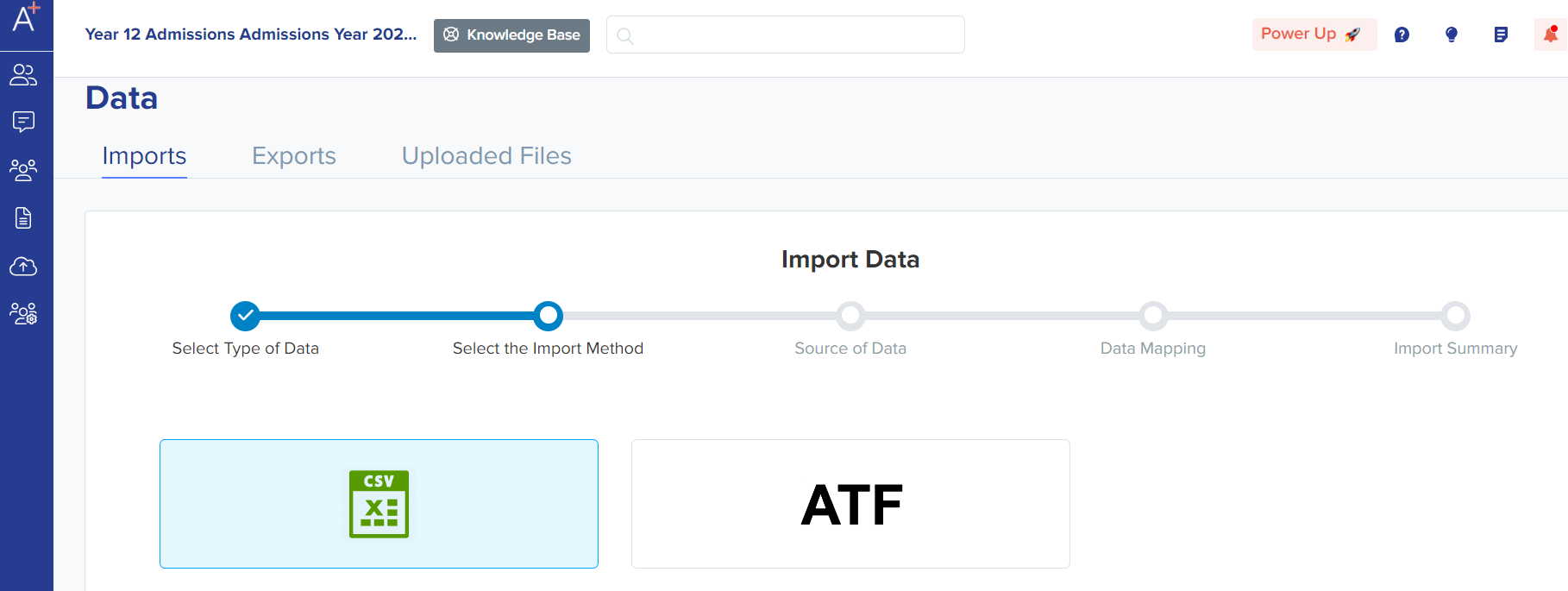
Select CSV and hit Next.
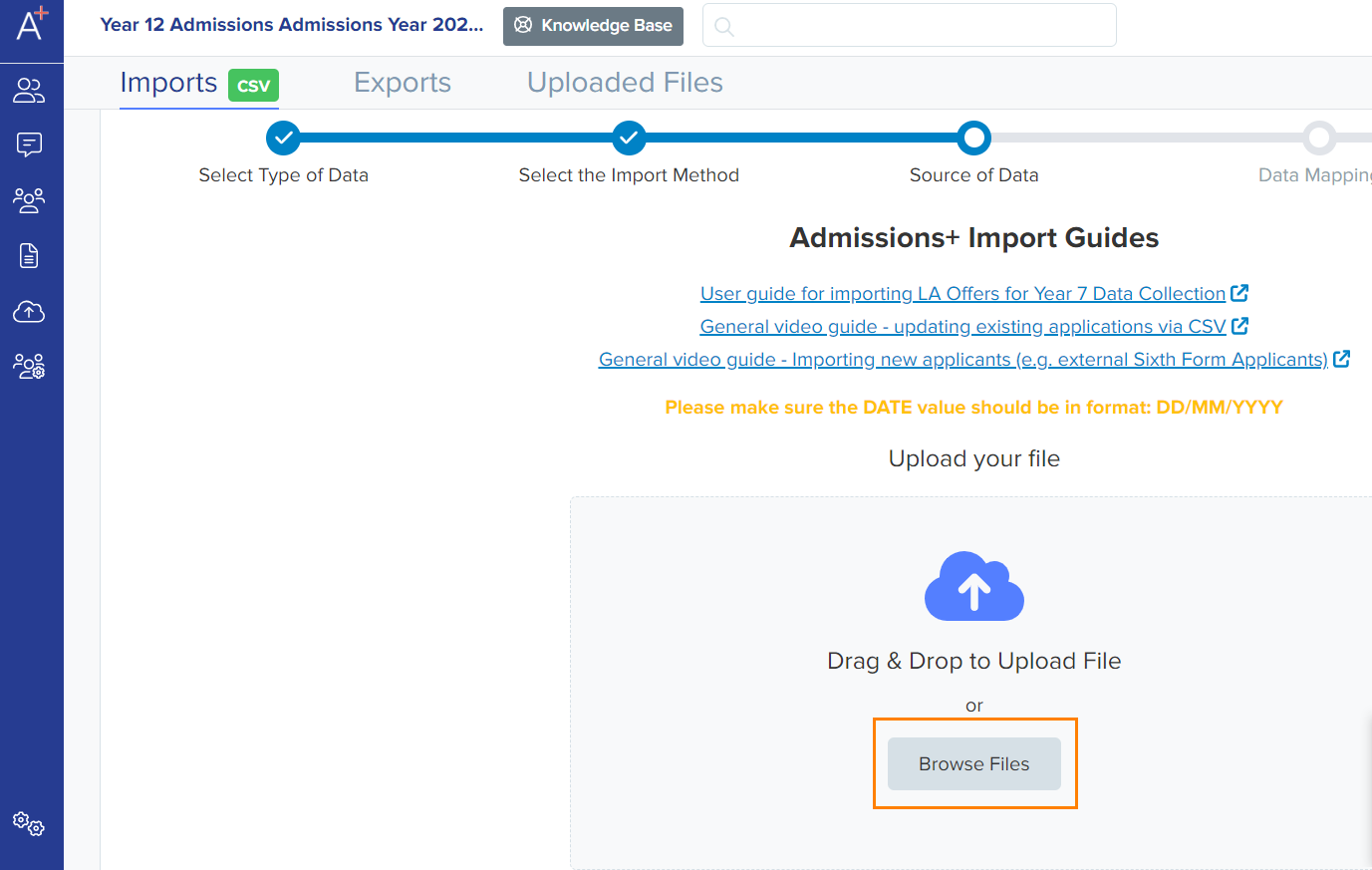
Click on the Browse Files button, find & upload your file and hit Next.
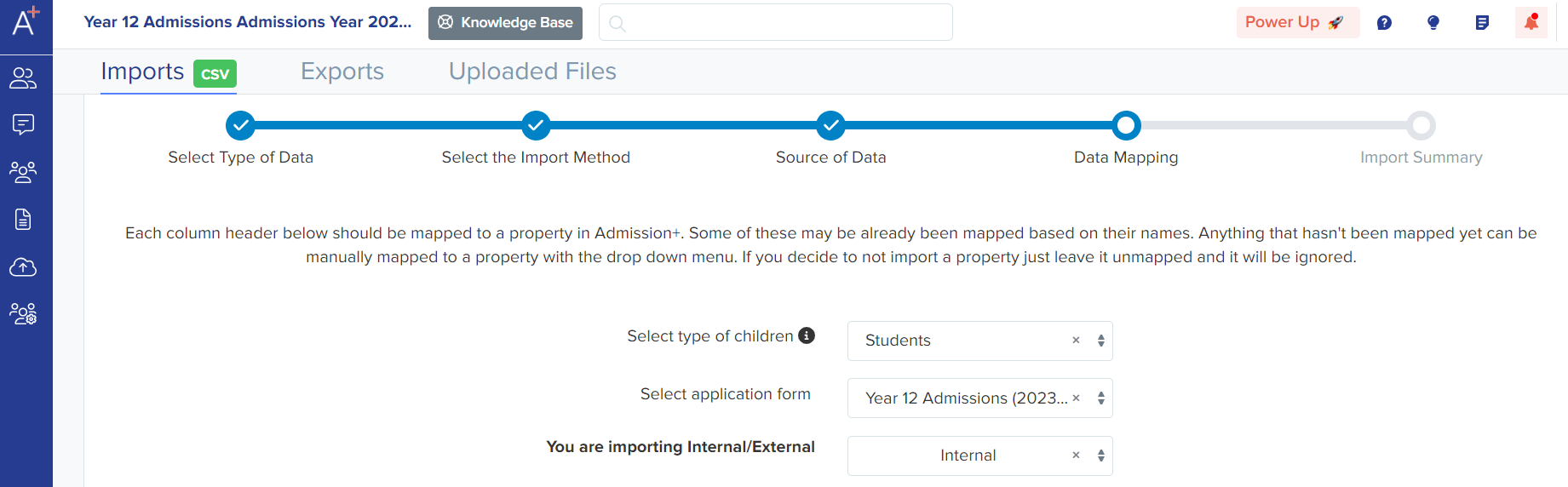
Make sure you select the type of children as 'Students'. Select the application form the students will be imported into, and specify whether they are internal or external.
Internal students are those already in your MIS, externals are new students - please DO NOT import your students into your MIS at this point; if you have already done so, please contact 0203 667 0764 now so we can help you avoid duplication later on.
Match data from your CSV to Admissions+ in the columns. Most of the time, they are pre-matched.
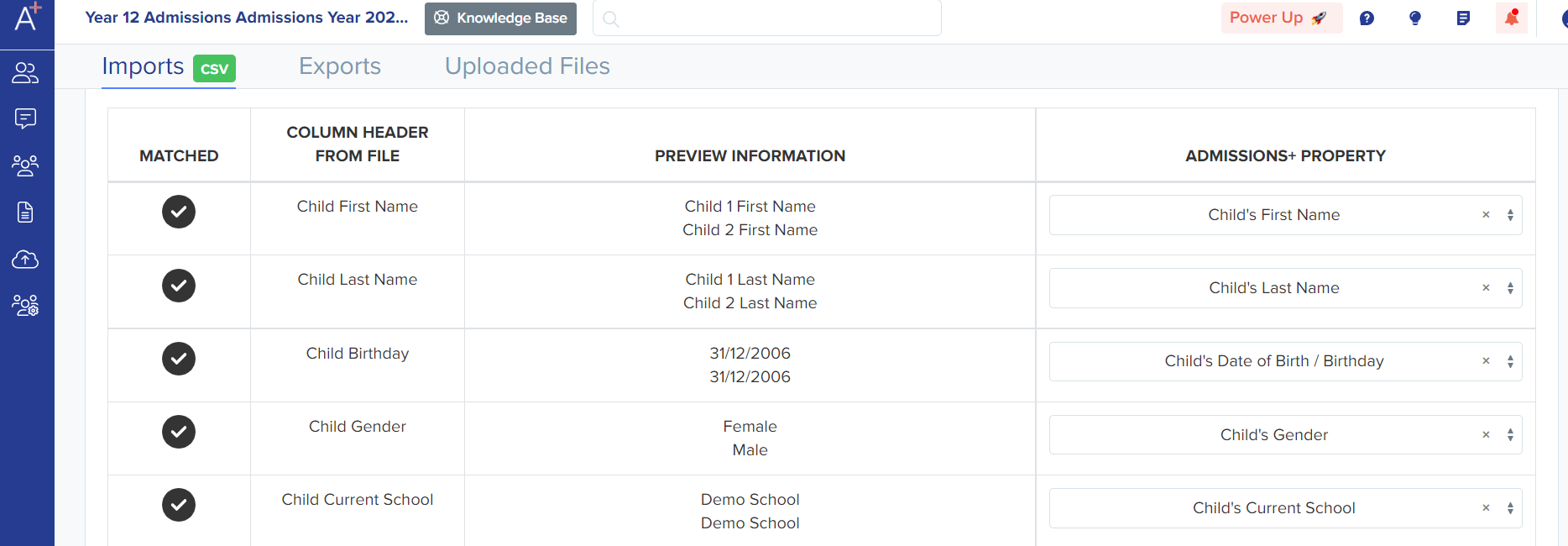
Once you have clicked Next, the import will be initiated, and once done, you will be able to 'View Successful Import'.
Note: You may then send all parents a 'Welcome Email' with their login details. You may also click on 'Edit Email Template' before sending the Welcome Email.
Parents will show up in the Parents area, and the students will be added to the Registered Students area.
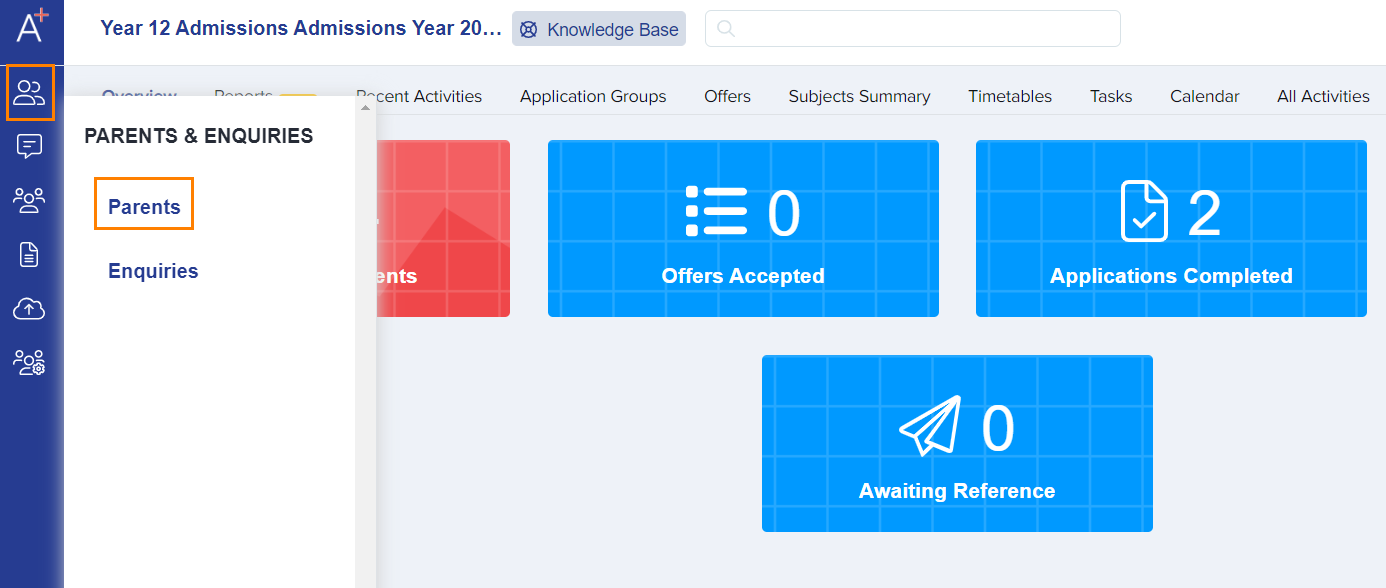
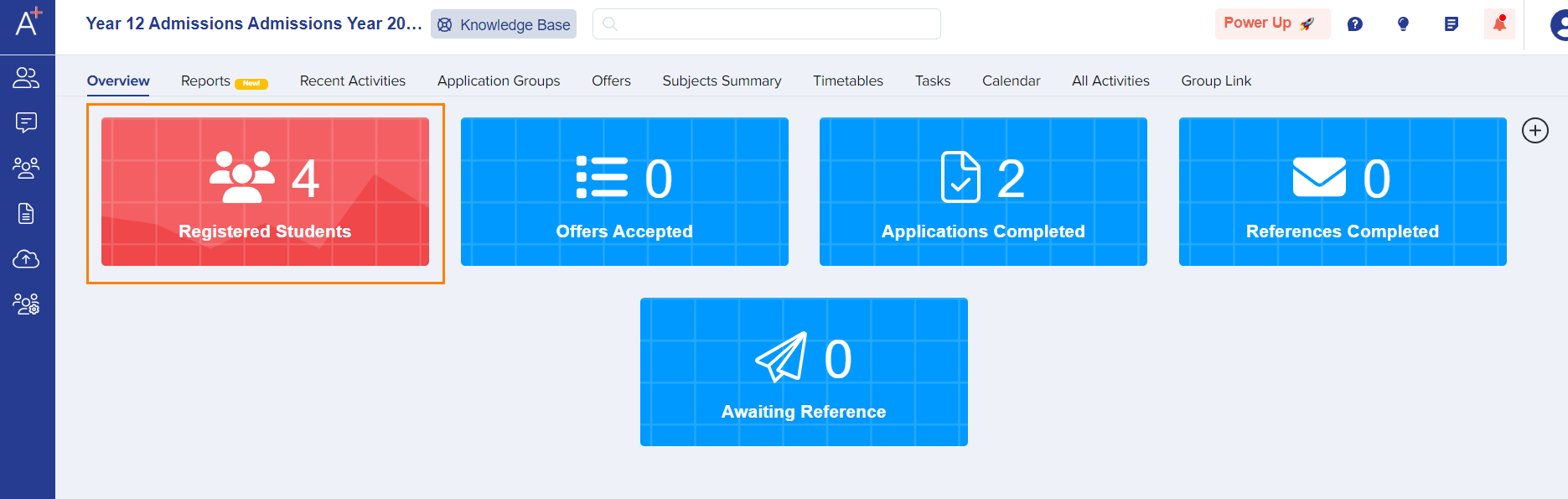
If the import flags a possible duplicate
Select "Existing Users" at the first import step. Admissions+ then checks each row in your file against your existing student records.
When a row's name is close to an existing student's name, but another field does not agree, Admissions+ shows a "Potential mismatched students!" banner on the Import Summary step.
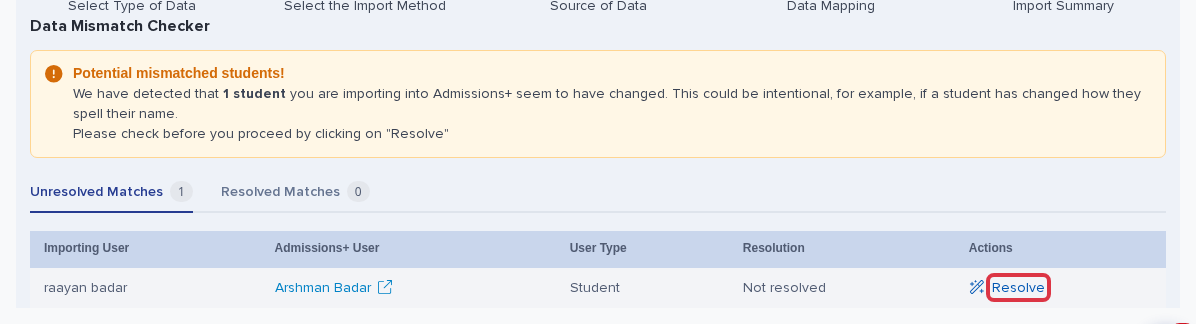
This can flag two different children, for example two siblings with a similar first name. The import matches each row to an existing student by the identifier you mapped, such as email or Unique Pupil Number, not by name. A blank, wrong, or duplicated identifier in your file makes the import match the row to the wrong student, and it then flags the mismatch because the name, gender, or date of birth does not agree.
Click "Resolve" next to a flagged row. This opens the "Resolve Potential Mismatch" window, which shows the Admissions+ record next to your file's row, with each field that does not agree marked in red.
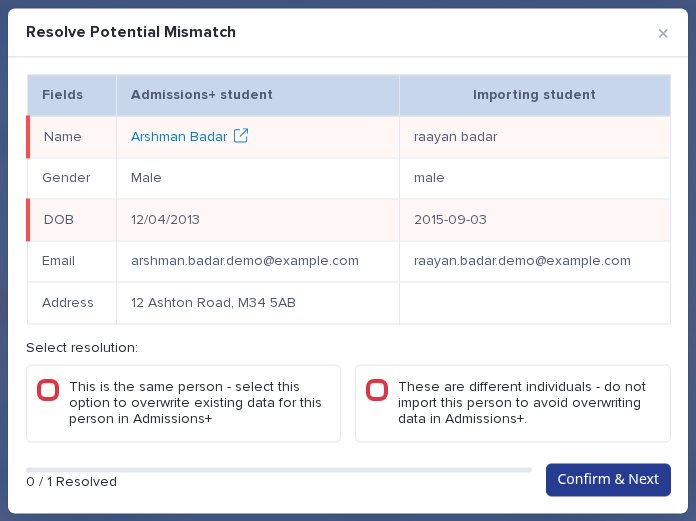
- Select "This is the same person" only when the two records are the same child. Admissions+ overwrites the existing record with the data from your file.
- Select "These are different individuals" when the row belongs to a different child. Admissions+ does not import that row, so the existing student's record stays as it is.
Do not use "These are different individuals" to fix two siblings flagged as one person: this skips the second child's row completely. Instead, correct that child's identifier in your CSV file so it is unique to them, then import the file again.
Keep school history out of the Arbor export
The "School History" step on the application form collects this data from the parent. Collecting it here does not by itself send it to Arbor.
Admissions+ sends data to Arbor through a separate export. Go to Data, then Export, and start an export with "My School MIS" as the source.
On the Data Mapping step, find the "SCHOOL MAPPING" card. Its "Details" section lists the school-history fields: La Code, Establishment Number, Educational Institution Name, Start Date, End Date, and Leaving Reason.
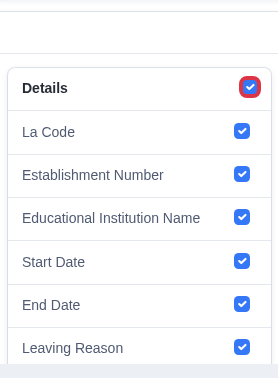
Untick the fields you do not want to send to Arbor. Admissions+ still collects that data on the application form; unticking a field only stops it going into this export.