
How does the Timetables area work and what can you do here?
The Timetable Overview shows your subjects in option-block format, and it is here that you can change or add the option blocks, class titles, class codes (from your MIS) and set the class size limits if applicable for your setting.
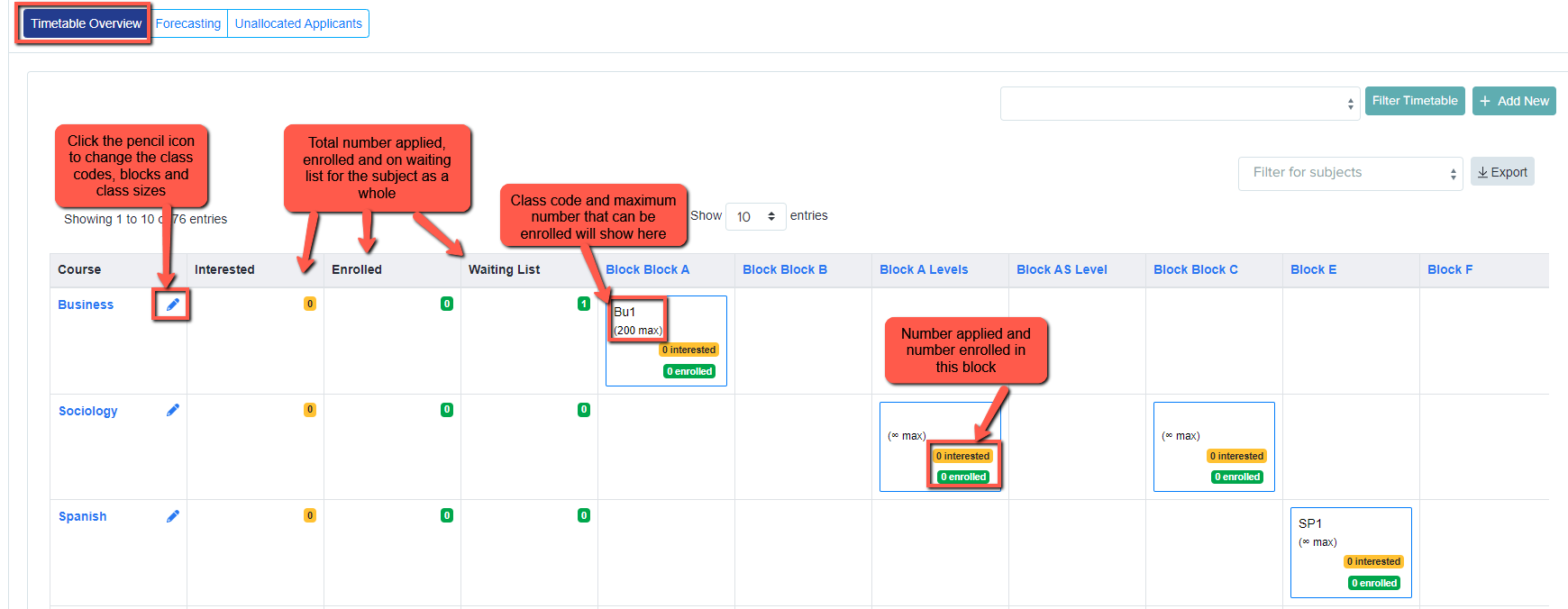
Video of Timetable Manager
Who can see the Timetables area?
The Timetables area only appears for staff whose permission group has the Timetable functionality switched on. If a colleague opens an application form and cannot see the Timetable menu, it is almost always because their permission group does not have this turned on.
To change this, a Super Admin goes to Settings, opens the Permissions tab, selects the staff member's permission group and switches on View for the Timetable functionality. You can type "Timetable" into the "Search for functionality" box to jump straight to the row.
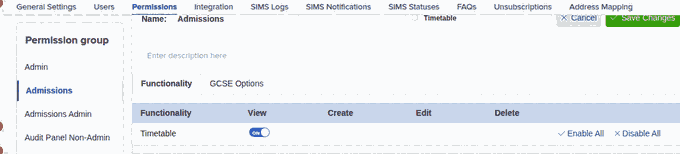
A couple of other things affect whether the menu shows:
- The permission group must have Timetable > View enabled.
- The Timetables area is not available on Bursary+ settings.
The tabs inside the Timetables area
When you open the Timetables area you will see four tabs across the top: Timetable (the Timetable Overview shown above), Enrolled Classes Management, Enrolment Report Page and Student Submissions & Timetables.
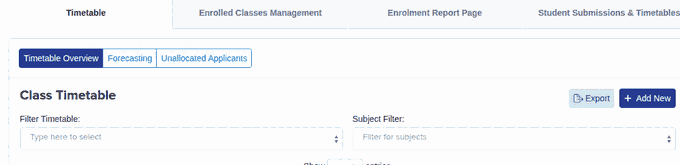
Why can't I see the Timetable Overview for a Taster Day?
The first Timetable tab shows your main option-block subjects, not your Taster Day. Taster Day sign-ups and their timetables live under the Student Submissions & Timetables tab instead.
To see a Taster Day timetable, open the Student Submissions & Timetables tab, select the Taster Day you want at the top, then switch to the Timetables Overview sub-tab. This shows each subject, its classes and periods, and how many applicants are registered for each class.
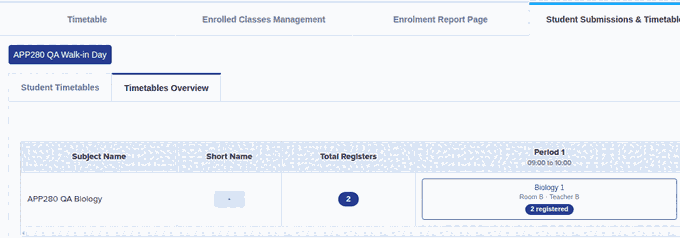
If this tab shows the message "No Taster Day sessions have been created" even though applicants have signed up, it means a Taster Day has not been built on this application form yet. Create and publish the Taster Day timetable first (in the Taster Day wizard: sessions, subjects and timetable); the registrations and the Timetables Overview then appear here. The Student Submissions & Timetables tab is not shown on ApplicaaOne Starter forms.