
Use the Taster Day Manager to choose the subjects applicants can select, build the timetable, and make the Taster Day available on their application journey.
Choose subjects and build the timetable
Open the application form, select "Taster Day" and then "Taster Day Configuration". In the Taster Day Manager, select "Publish" when the setup is complete.

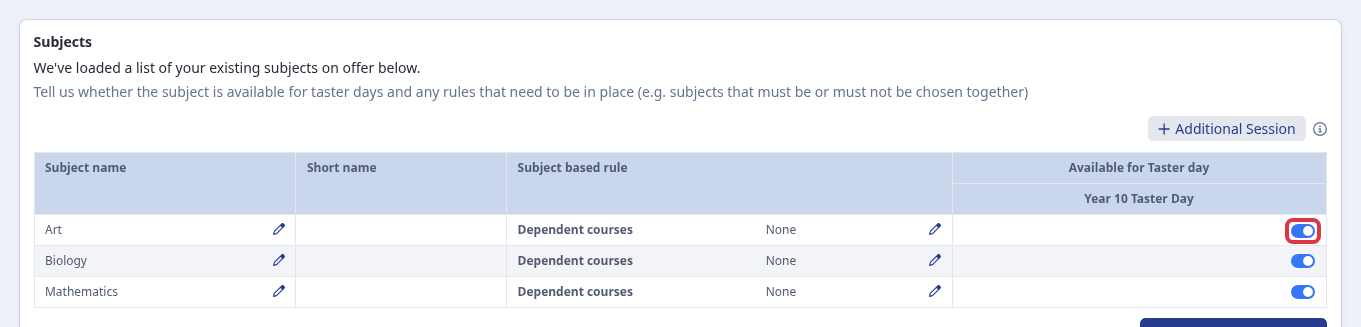
Select "Subjects". Turn on "Available for Taster day" for each subject that applicants can select for this Taster Day.
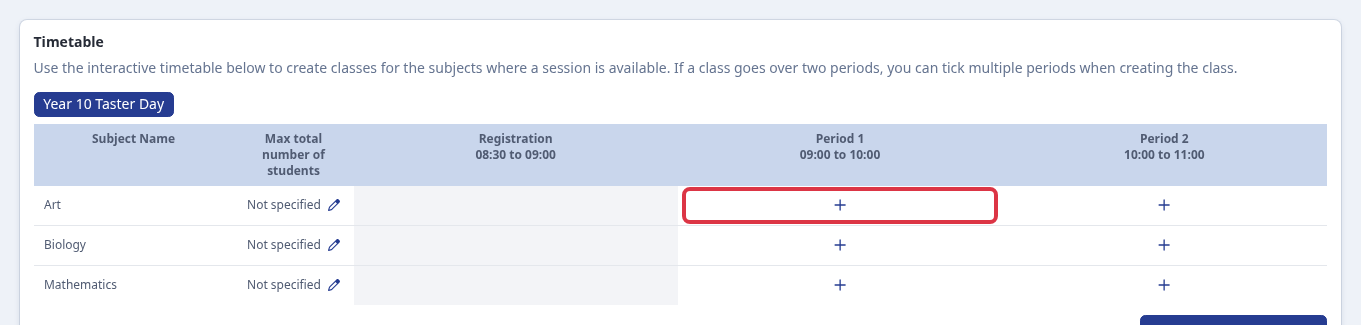
Select "Timetable". Select the "+" in the required subject and session column to add a class.
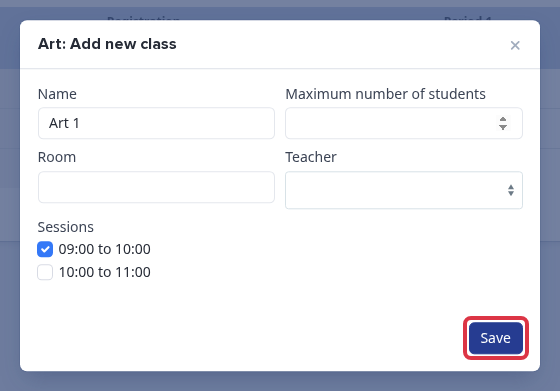
Enter the class "Name", set "Maximum number of students", select every session that the class runs in, and select "Save". Select "Confirm and Continue" after you add a class for each selected subject.
If you select "Confirm and Continue" before every selected subject has a class, you see: "There must be at least 1 class for every subject!"
Make the Taster Day live
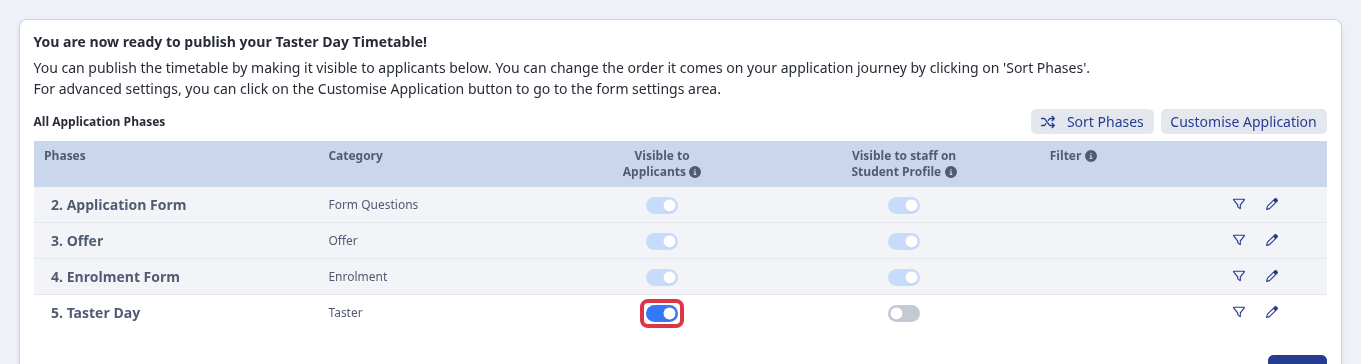
Select "Publish". In "All Application Phases", turn on "Visible to Applicants" for the "Taster Day" row. Applicants can then open the Taster Day in their application journey.
What it does not do
A Taster Day is separate from an Event. Turning on "Visible to Applicants" does not publish an Event or link one to the Taster Day.