
Dashboard tiles, applicant lists, and the Enrolment Report can show different counts because each view uses its own record criteria. Compare the active filter and the count label before you investigate a difference.
From the dashboard, select the tile that you want to check. The tile count uses that tile's saved criteria.

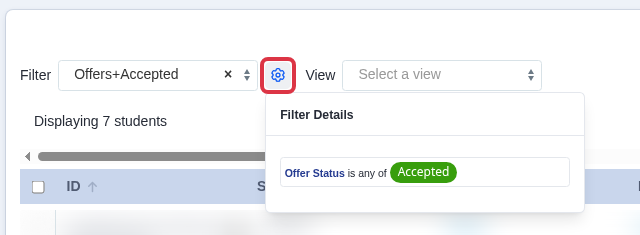
In the applicant list, select the Filter Details button. Check that the selected filter has the same criteria as the tile before you compare the two counts. Sorting the list does not replace its selected filter.
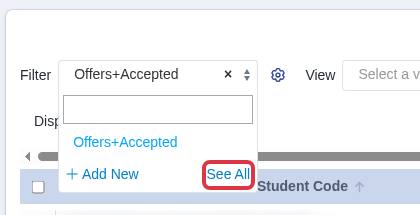
To remove a saved filter that you own, open the Filter list and select See All.
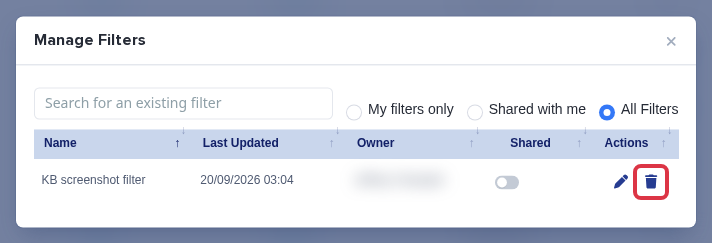
In Manage Filters, select the bin icon for the filter that you want to remove, then confirm the prompt.
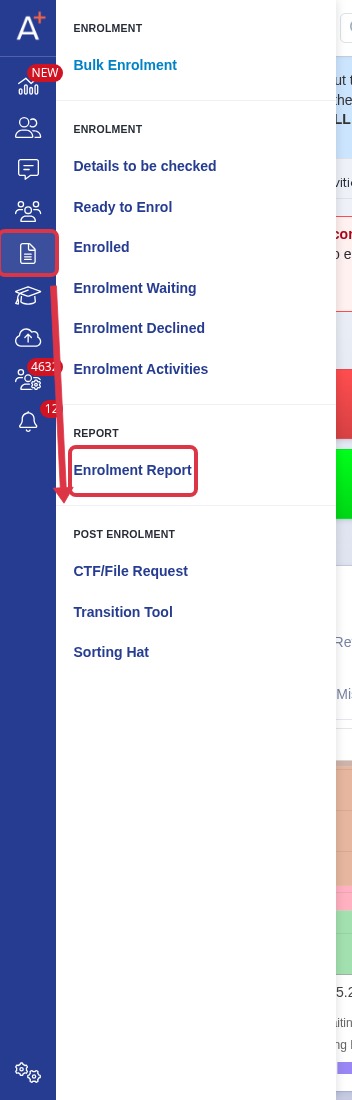
To compare an enrolment total, go to Enrolment > Enrolment Report.
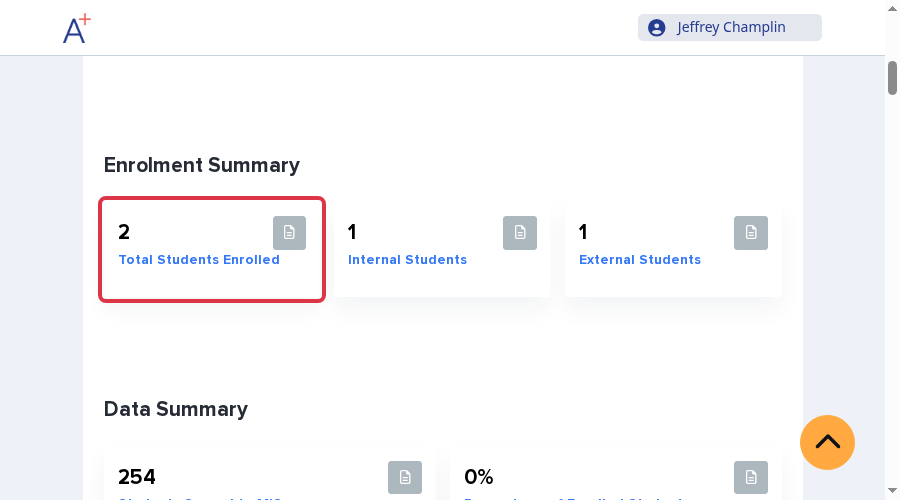
Use the Total Students Enrolled card for the report total. This count uses enrolled records that meet the report's application-status rules, so it can differ from a dashboard tile or filtered applicant list.
- A tile can include its saved criteria and the current admissions or bursary year.
- An applicant list count changes when you select, clear, or replace its filter.
- Delete only filters that you own. Shared filters remain available to their owner and other users.
If the same criteria still give different counts, ask Emma in Admissions+ and include the tile name, filter name, application form, and the counts you see.