
The From address will default to the current user as logged in at present. This can be replaced with another email address instead. This will allow the use of group addresses e.g. admissions@school.net rather than an address belonging to a specific staff member.
Similarly, the Reply-To address can be set. Here, multiple addresses can be entered. This will be useful to allow more than one individual to be copied into the reply.


Note: In each case, addresses must be Staff email addresses for users who already exist on the system. You can access your list of staff users and add new users by following the steps in this guide.
Replying when a message was forwarded into your inbox
If an applicant or parent emails a staff member directly instead of your shared admissions address, and that staff member forwards the email into a connected inbox, Admissions+ reads the "From" address as the staff member who forwarded it, not the original applicant. Replying from the Inbox sends your reply back to the forwarder, and the conversation will not link to the applicant automatically.
Go to "Communications & Events" > "Communications".
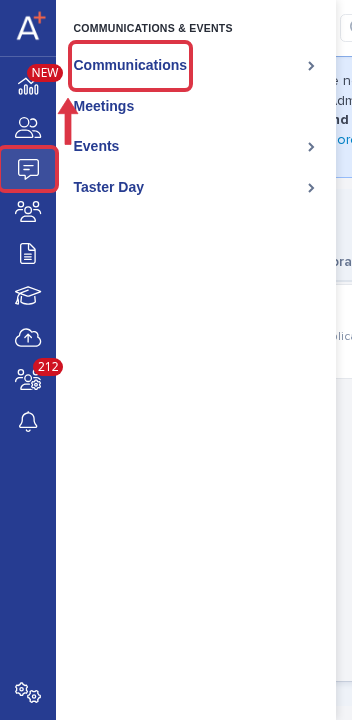
Open the "Inbox" tab.

Open the forwarded message. When the sender is an internal or staff address rather than the applicant's own address, the conversation panel shows "Not Linked to Applicant", and the Sender Details confirm the address the message actually came from.
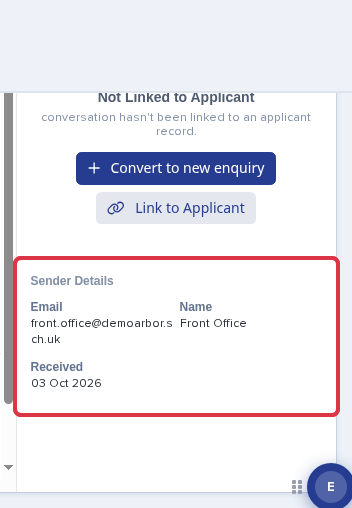
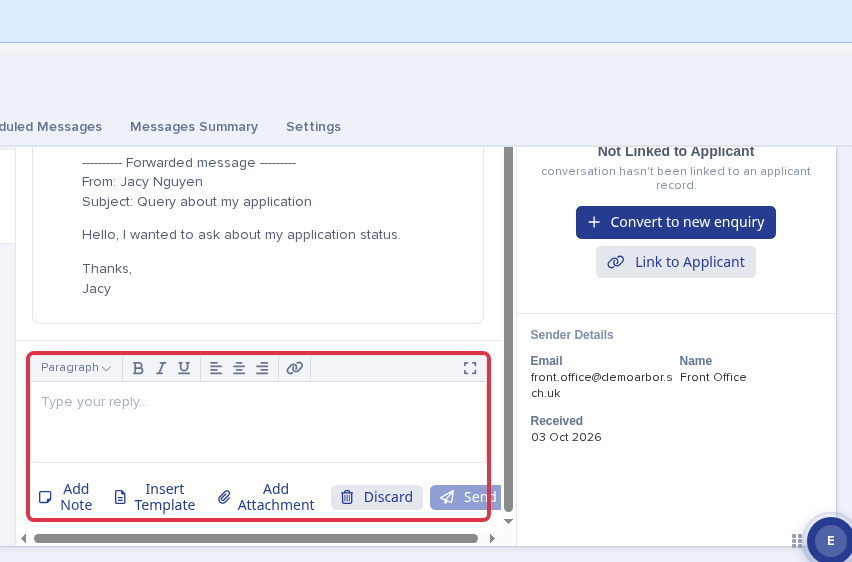
The reply box has no separate "To" field. Selecting "Send" on a reply always sends to the address shown in Sender Details - the person who forwarded the email - not the applicant. There is no "Forward" option on an Inbox message, and using "Link to Applicant" to link the conversation to the applicant's record does not change who a reply is sent to.
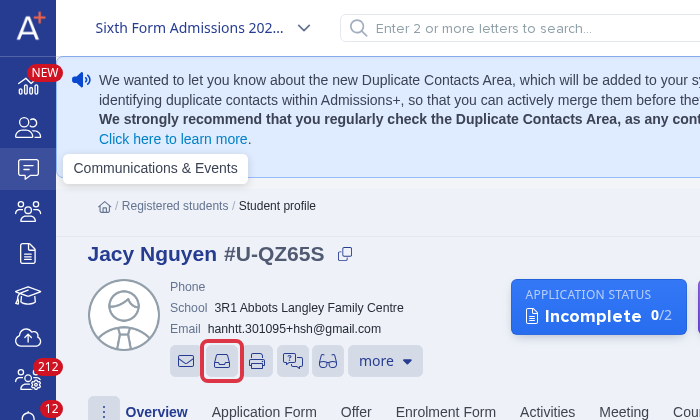
To email the applicant directly instead, go to "Registered Students", open their profile, and select the "Communication Logs" icon.
Select an earlier email that was sent to the applicant. Their own email address is shown at the top of the conversation.

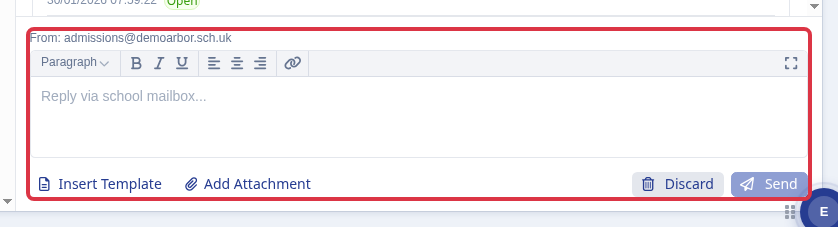
Use the "Reply via school mailbox..." box under that conversation and select "Send". This starts a new message addressed to the applicant's own email address from your connected school mailbox, separate from the forwarded thread in the Inbox.
- This only works when the applicant already has an earlier outbound email logged against them. If they do not, there is no in-app way to start a new conversation addressed to them from the Inbox area.
- Linking a forwarded conversation to the applicant with "Link to Applicant" links the record for your reporting and search, but it does not redirect future replies on that conversation to the applicant's address.
Check why an email is missing
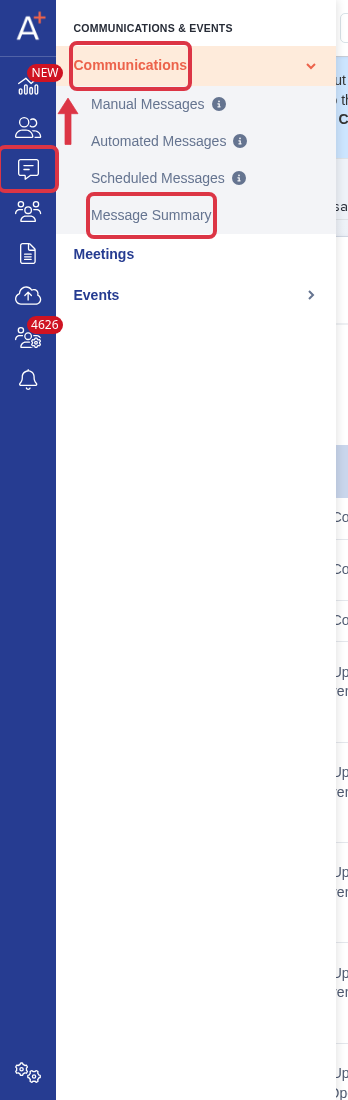
Go to "Communications & Events" > "Communications" > "Message Summary".
Find the message and check its "Status", "Dropped", "Delivered", and "Bounce" results.
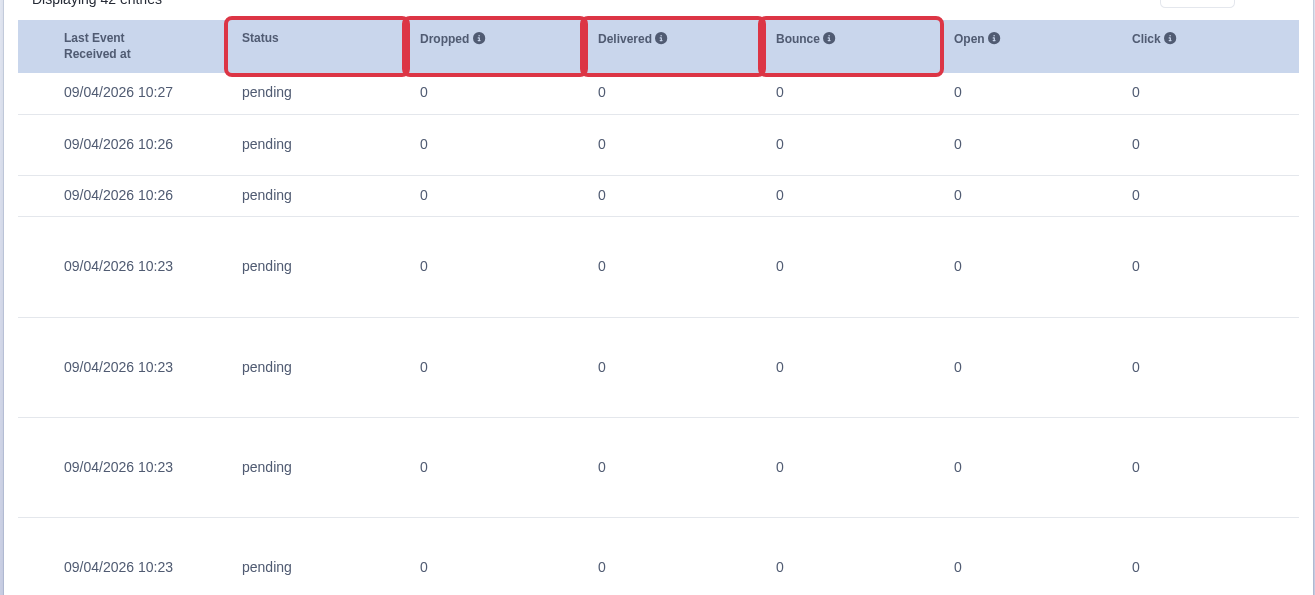
- "Delivered" means that the recipient mail server accepted the message. Ask the recipient to check their junk or spam folder and add the sending address to their safe-sender list.
- "Dropped" can occur when the recipient is in a suppression group, the address previously bounced, or the recipient marked an email as spam. A "Bounce" means that the recipient server could not or would not deliver the message. Check the recipient address before you send another message.
If an applicant still cannot find a verification email, ask Emma in Admissions+ or contact the helpdesk with the recipient address, subject, and sent time.