
Manually adding a student will happen on the Manage Users area.
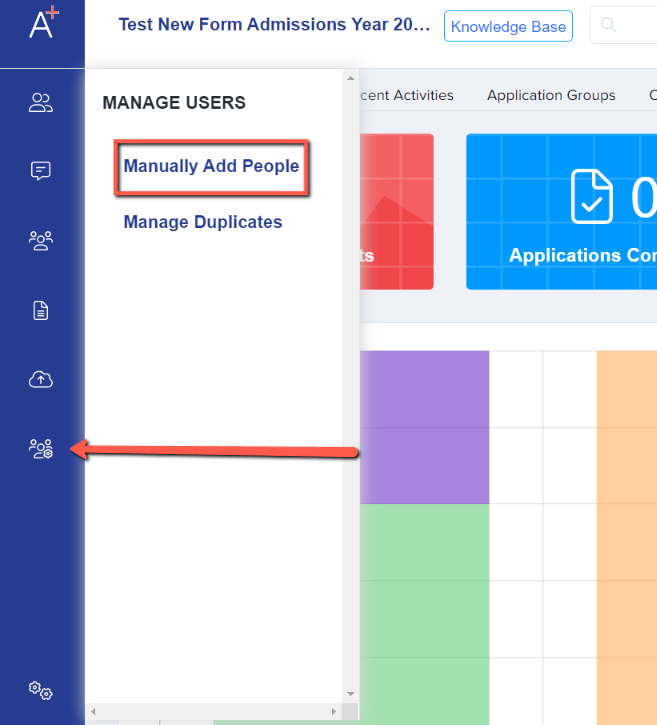
To manually add an account, click on the "manage users" button and then click on "Manually add people."
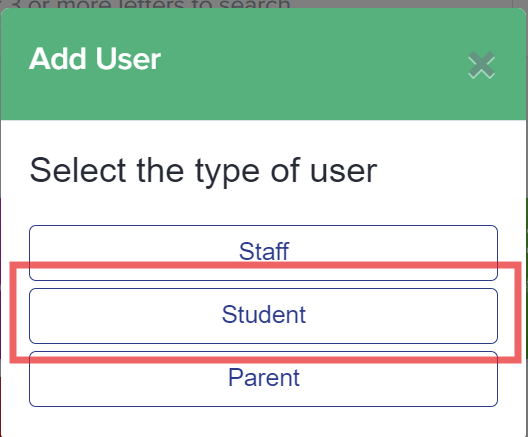
You will then be asked if you would like to manually add a parent, a student or a staff.
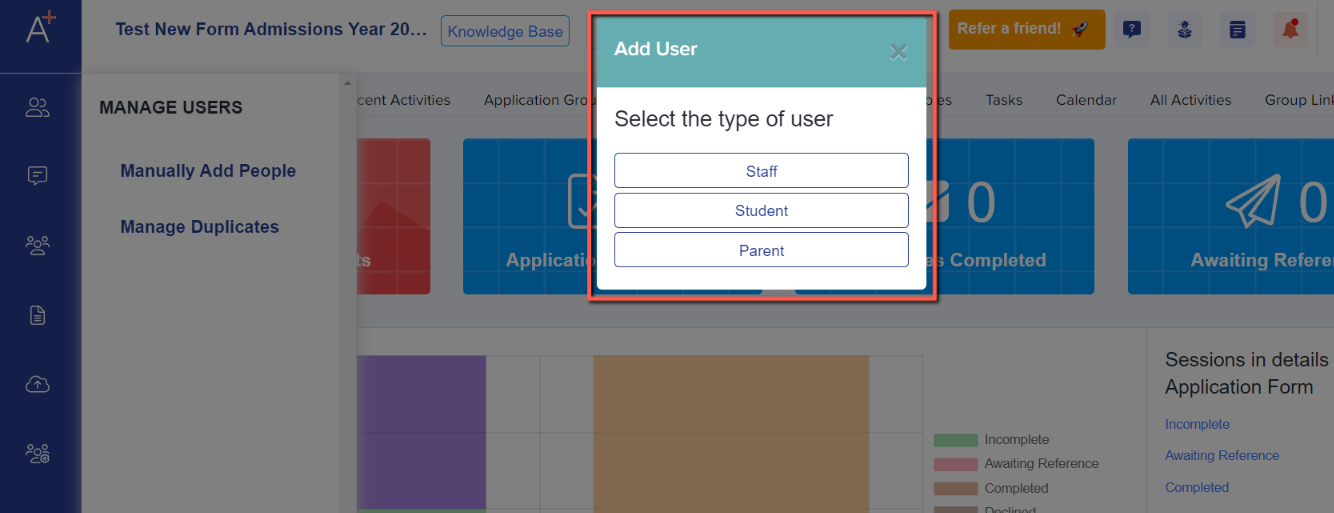
If you are creating a reception or Yr 7 student profile that also needs a parent profile attached, you need to manually add the parent first. This is so you can easily link or add the student's information under the parent's profile.
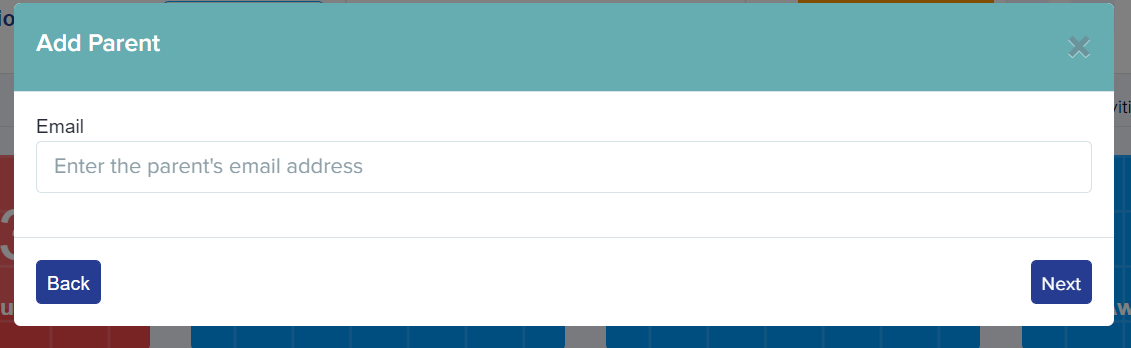
Once you click on "Add Parent" you will be asked to enter the parent's email and a few basic details.
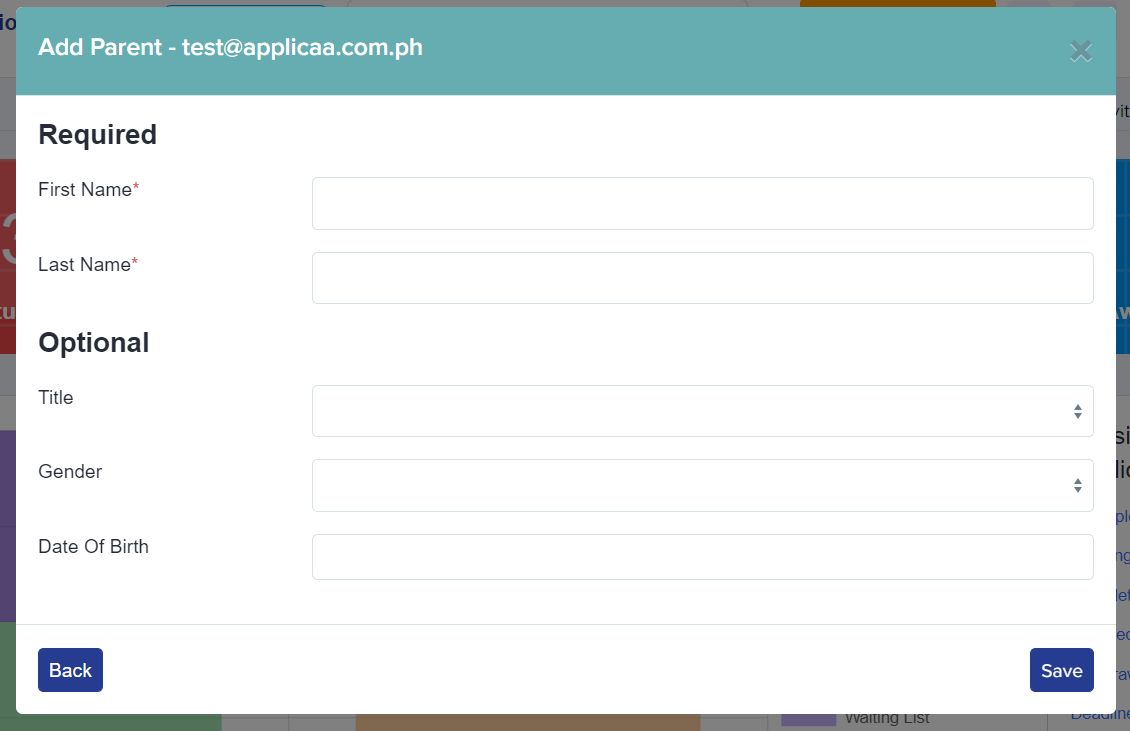
An option to send the "Welcome Email" will pop up right after you have created the parent's account.
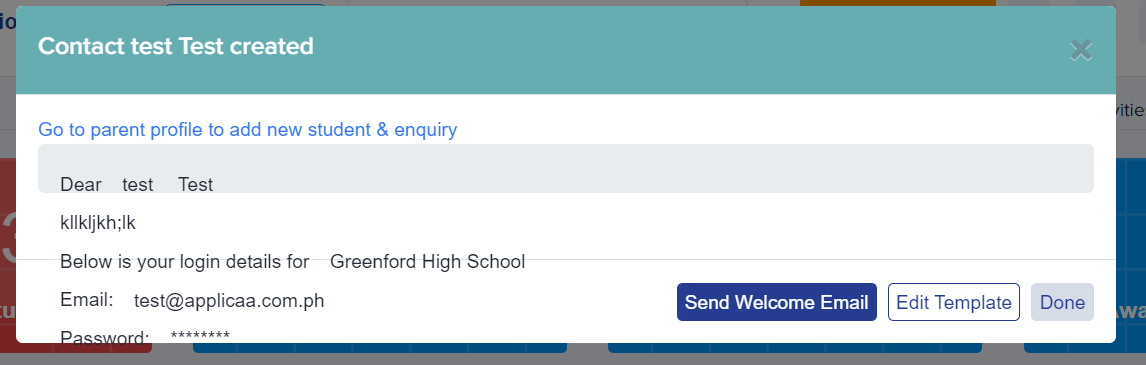
After creating the parent's account, you can go back to manage users setting then select to Add student.
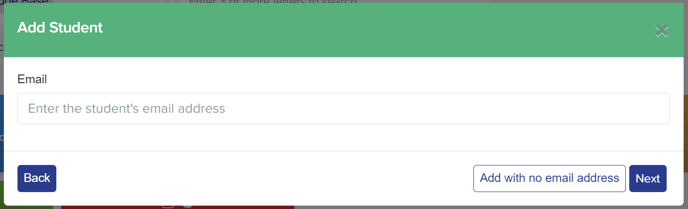
Nursery to Year 7 students do not need an email address, you may click the "Add with no email address" button to proceed adding the student basic information.
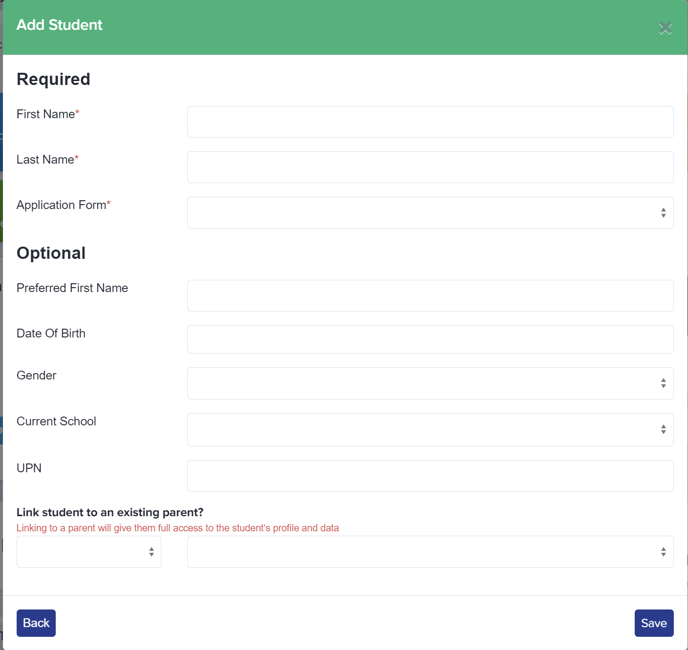
After providing at least the Required student info, you will be then asked to Link student to an existing parent. You can search for the Parent by their name or email address then provide their relationship.
Alternatively, you may add a student directly from the Parent's profile.
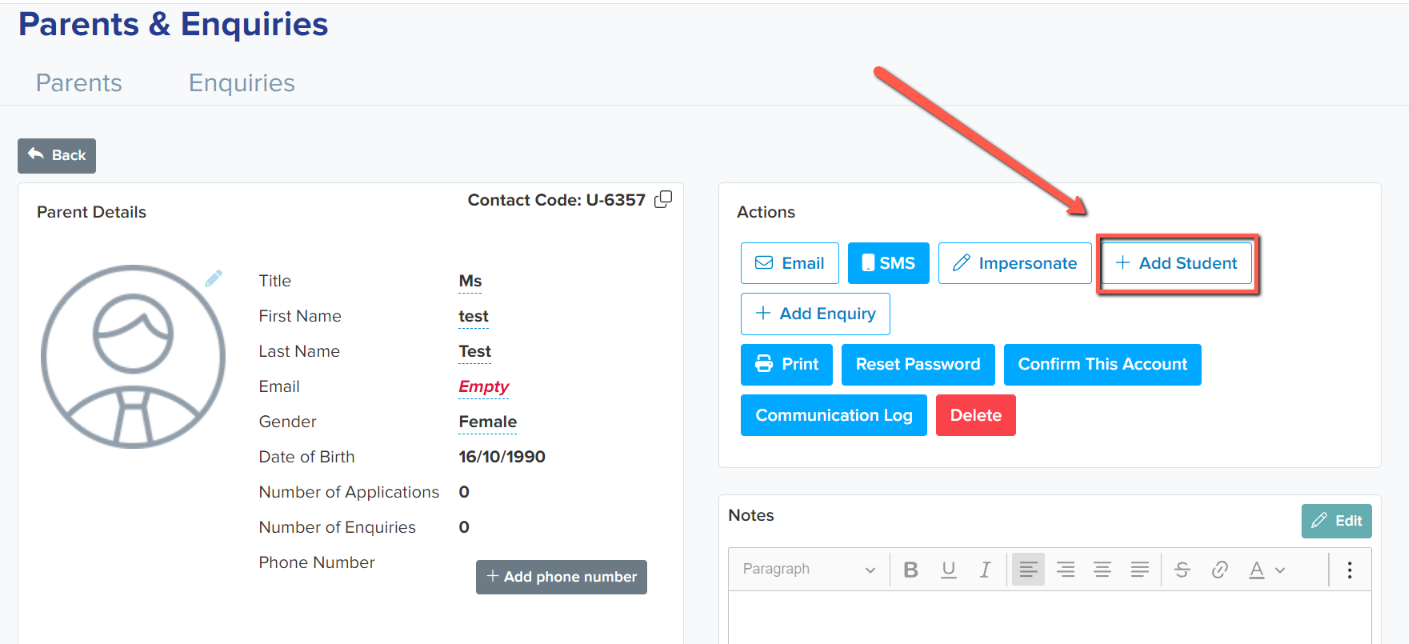
Note: Check that the application form you are adding a student to is active and toggled on otherwise it may not appear in the drop down option.
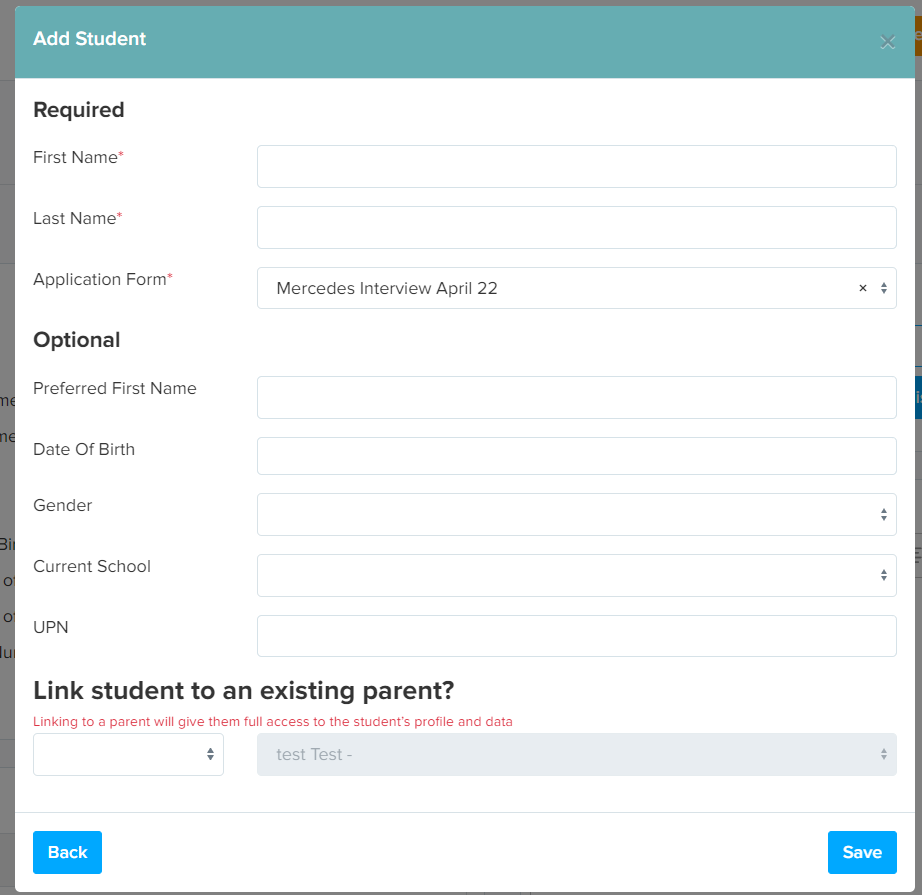
Once the student has been added, the parent should be able to log in and start an application form right away for the student.
For Y12 students, you can follow the above process but select student in the first instance; a welcome email must be sent to the email address that you use to create their account.
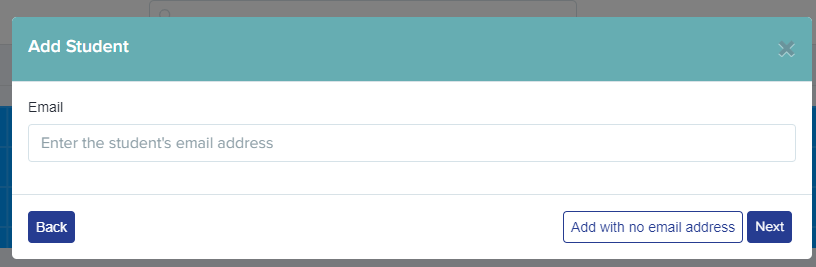
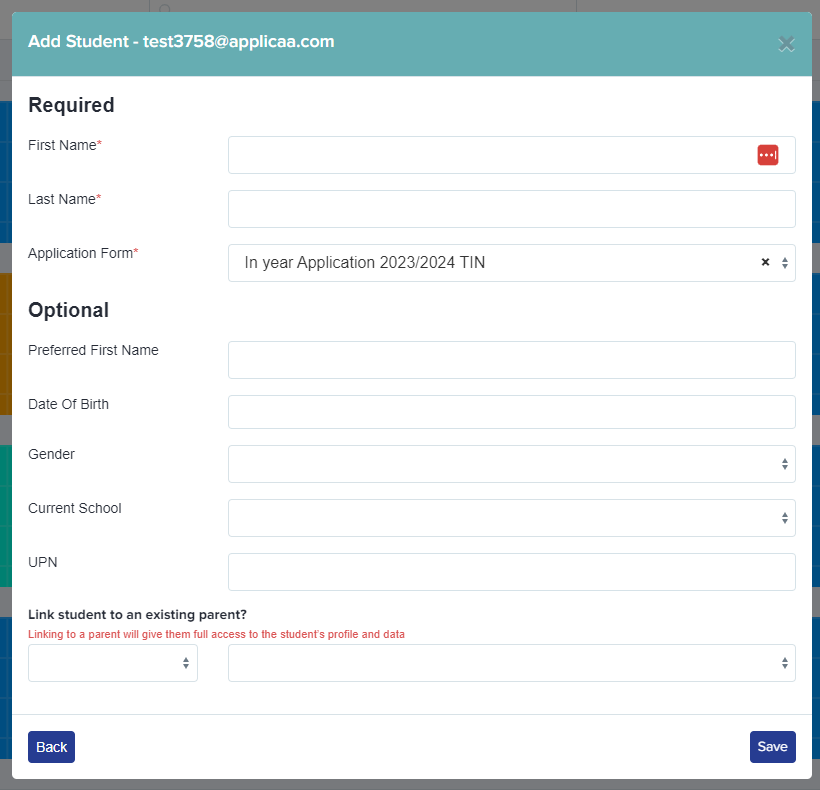
Add a parent to an existing student
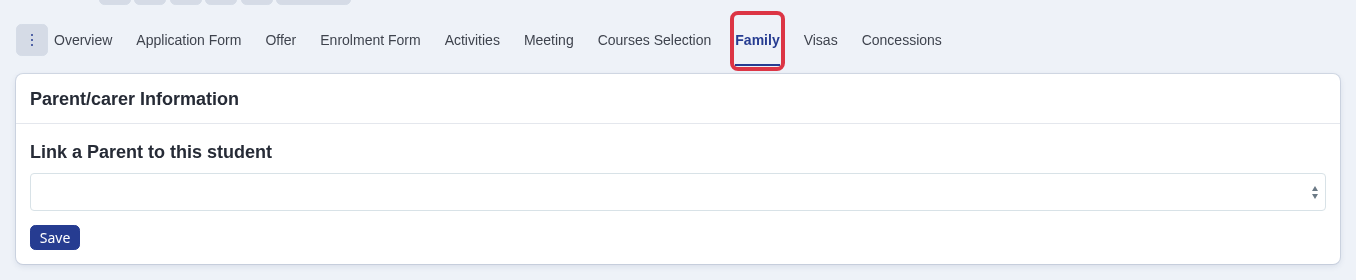
If the student profile already exists, use the parent steps above to create the parent. Then open the student profile and select "Family".
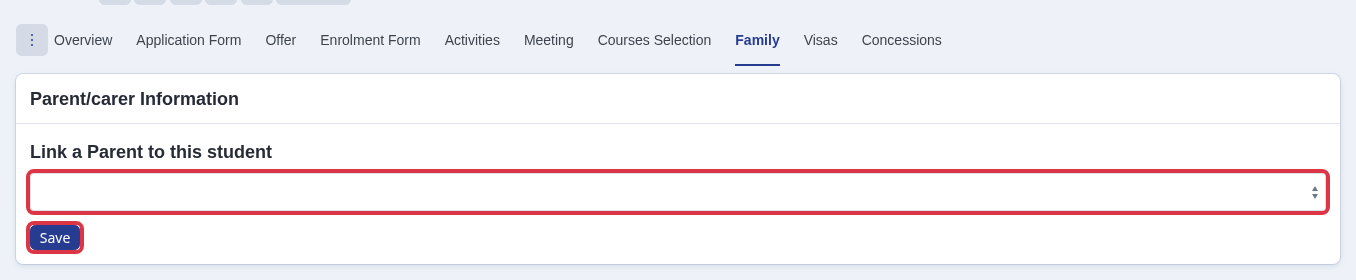
Under "Link a Parent to this student", select the new parent and click "Save".
To let the parent view and edit the application form, follow How to grant parents permission to view and edit an application form.