
Navigate to enrolment > details to be checked
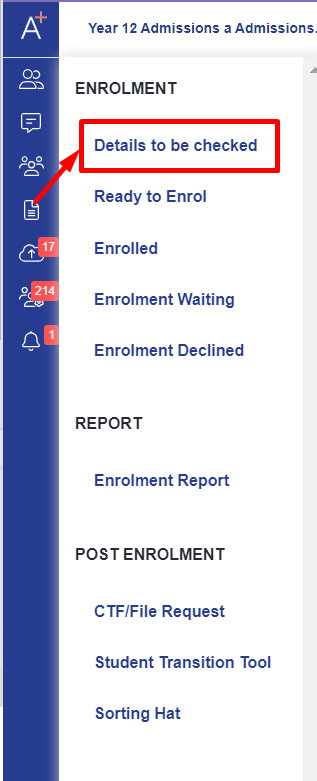
From the list on the left hand side, select a student who is not going to be joining you - perhaps you have made this decision, or they have changed their mind and have notified you they will be going elsewhere.
Rather than completely withdrawing or deleting their application, you can just click the "decline enrolment" button which appears once you have clicked on their name.
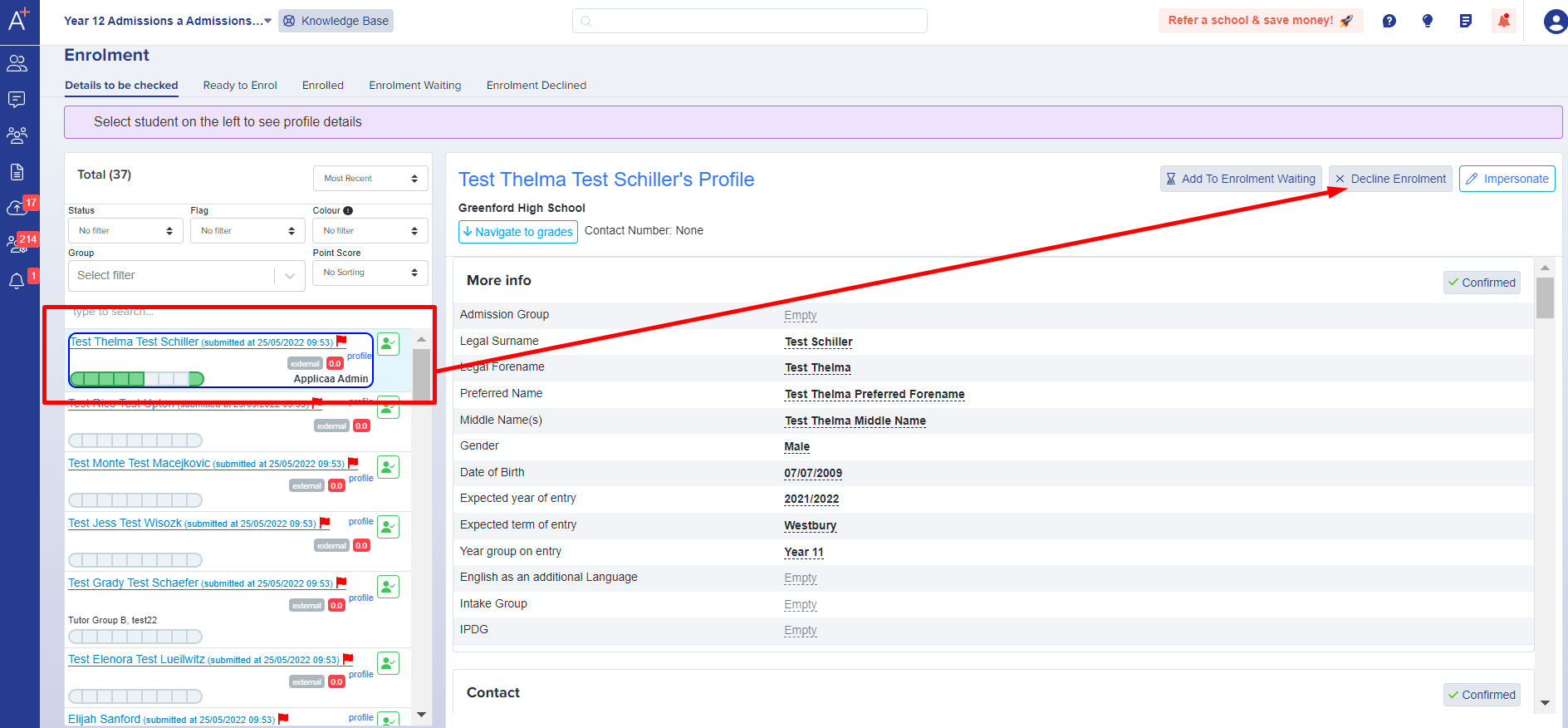
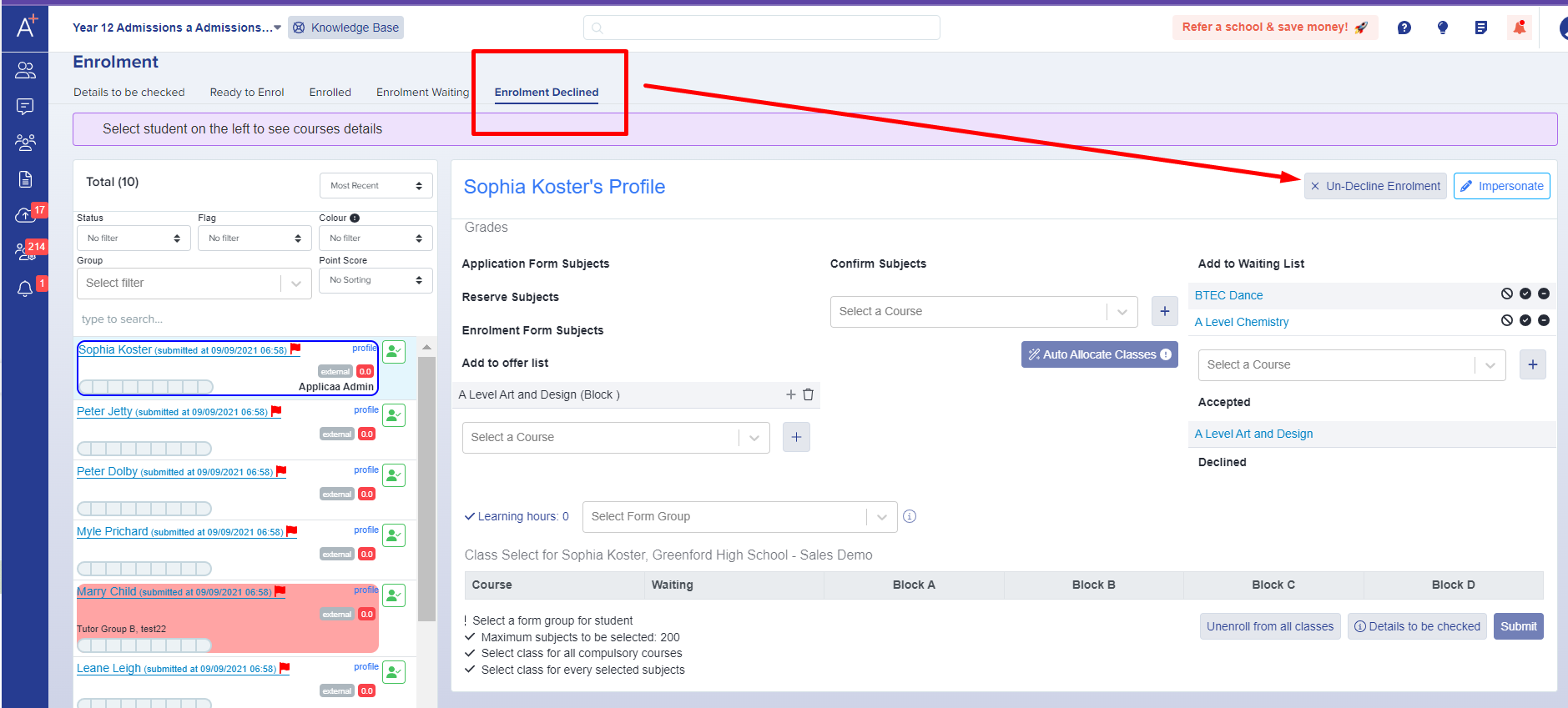
This will add them to the Enrolment Declined bucket, so you can easily access that group and see which students have been added to it.
From here, you can still change your mind and revert the changes - you can click "un-decline enrolment" to push them back into the Details to be Checked area again, or click to "add to enrolment waiting" if a decision is pending. Here is a guide to the enrolment waiting functionality.
Decline a place for a student who is already enrolled
Use this process when an enrolled student decides not to take their place. Remove the class and course allocations first, so another student can use the places.
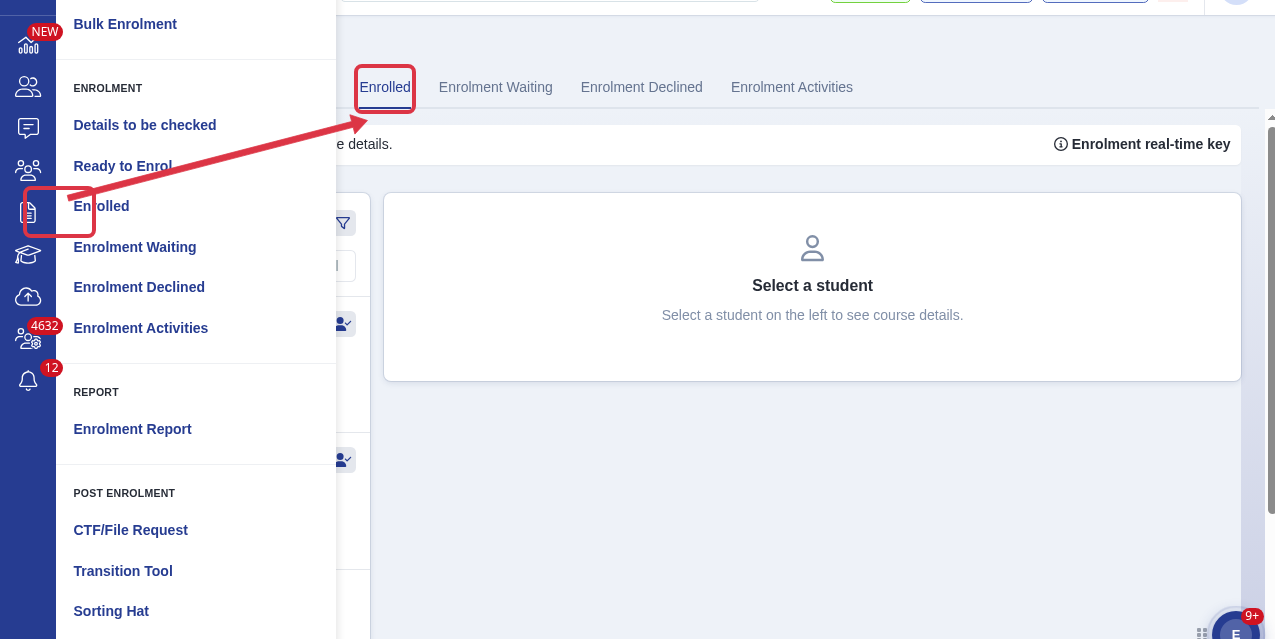
Go to Enrolment > Enrolled and select the student.
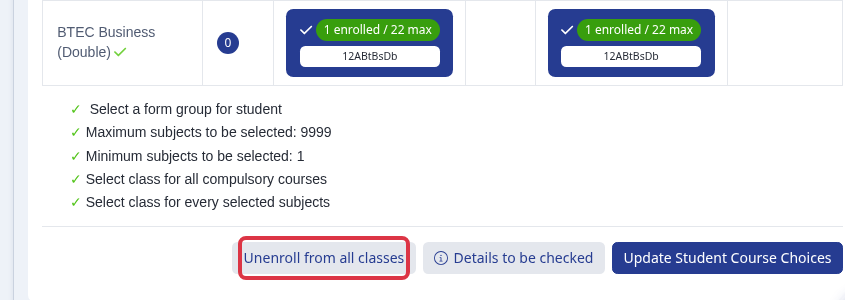
Select Unenroll from all classes and confirm the prompt. The student moves to Ready to Enrol.
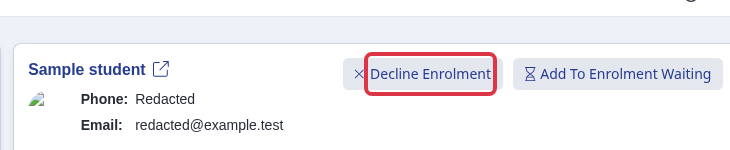
Select the student in Ready to Enrol. Select Decline Enrolment and confirm the prompt.
- Unenroll from all classes removes the enrolled courses and classes of the student. This frees the class places.
- Decline Enrolment moves the student to Enrolment Declined. It does not remove courses or classes by itself.
- This process does not send an email automatically. Send the applicant a separate email about the decision.
If the enrolment phase is closed, ask an authorised staff member to do this process. Applicants do not have this staff action.
Complete the course selection after you un-decline
Open Enrolment > Enrolment Declined, select the student, then select Un-Decline Enrolment.
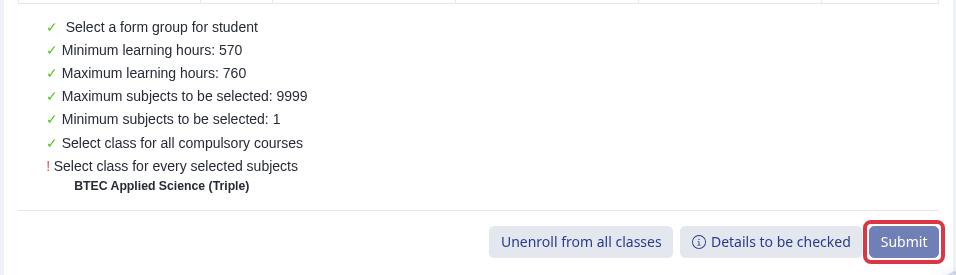
In the course selection table, select a class in every required block.

Complete each item in the checklist. Select Submit to save the classes and to enrol the student.
- This screen uses the Enrolment permission of the role. It does not have a separate Submit permission.
- Un-Decline Enrolment does not remove an Enrolled elsewhere alert. For a student with that alert, use the Multi-Enrolment Prevention process. Your school cannot clear that network alert from this screen.