
Use these checks when staff cannot change an event, or applicants cannot choose an interview date and time from an invitation email.
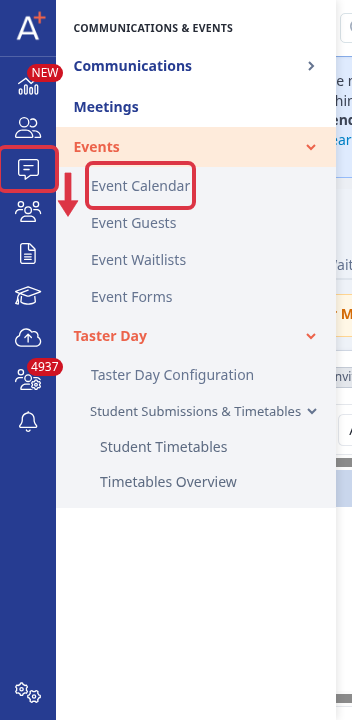
Go to Communications & Events > Events > Event Calendar.
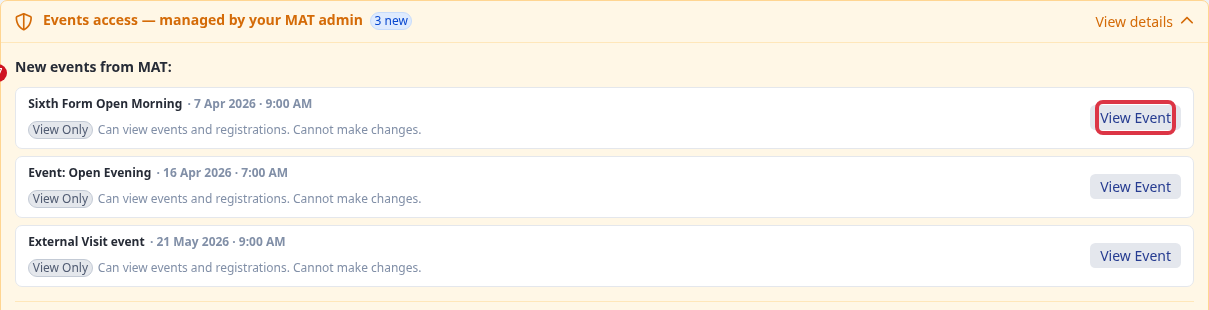
Open Events access - managed by your MAT admin when the event came from your MAT. A View Only badge lets staff view events and registrations, but it does not let them change the event. Ask the MAT admin for Edit access when staff must change event details, reschedule, or cancel an event.
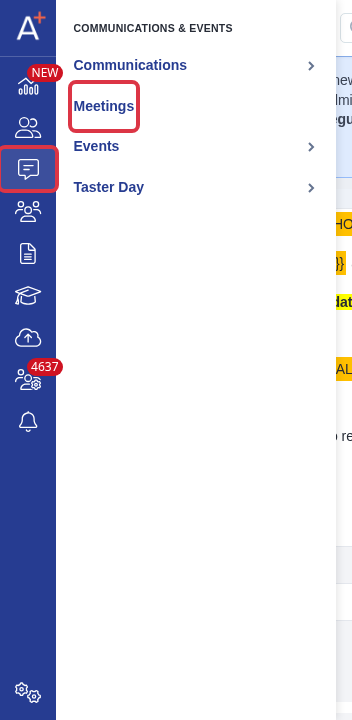
Go to Communications & Events > Meetings and open the affected meeting.
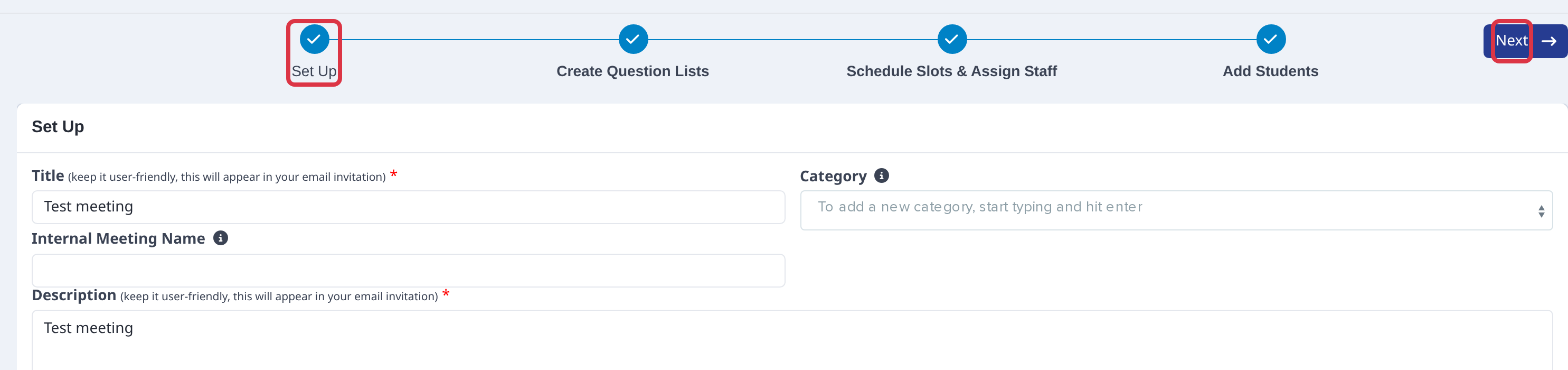
On Set Up, select Applicants will be invited to choose their own meeting slots. This makes the invitation use the self-selection booking flow.

Select Next to keep the meeting setup and continue to the next part of the meeting wizard.
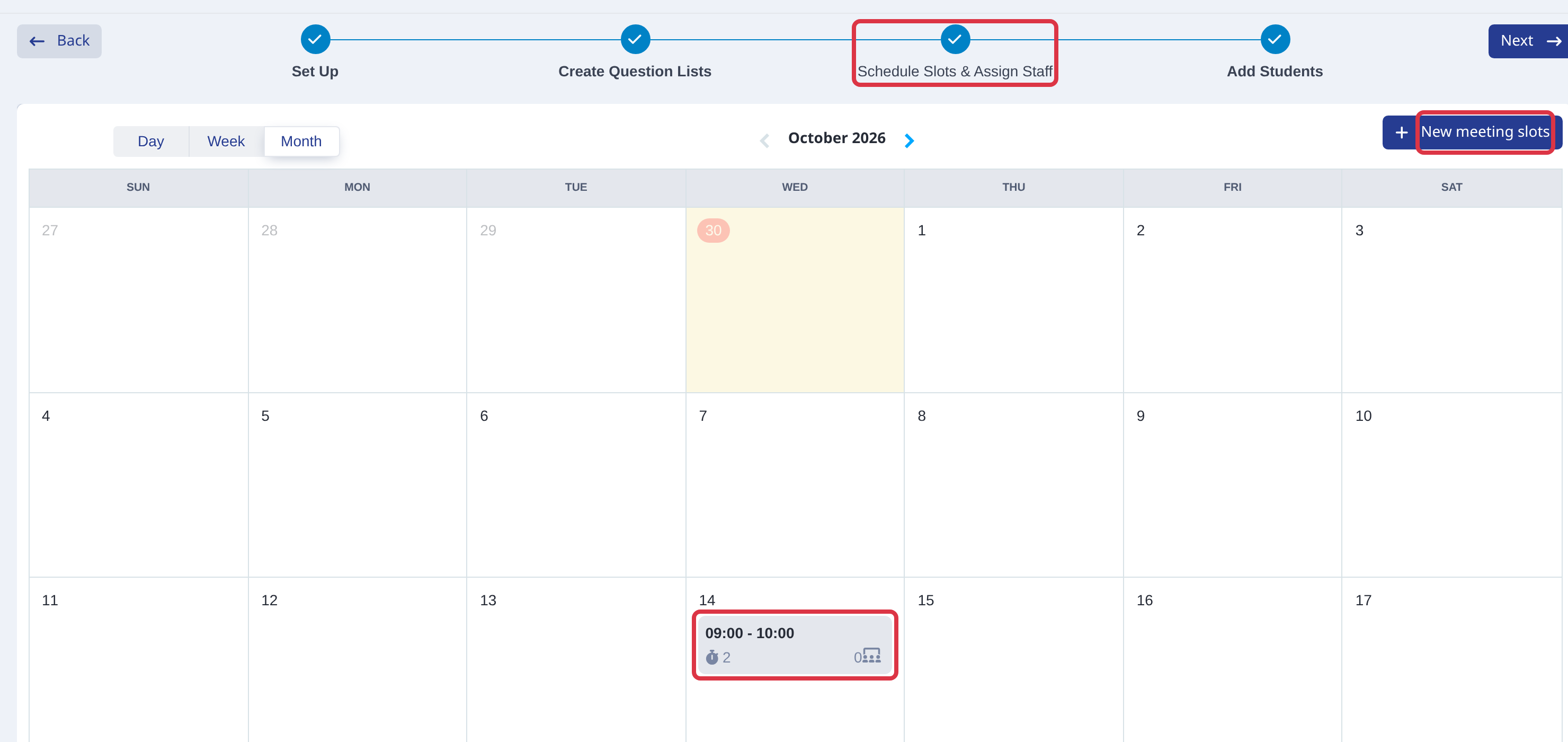
Open Schedule Slots & Assign Staff. Check that the meeting has a future session with an available place. Select New meeting slots when it has no future session or no available place.
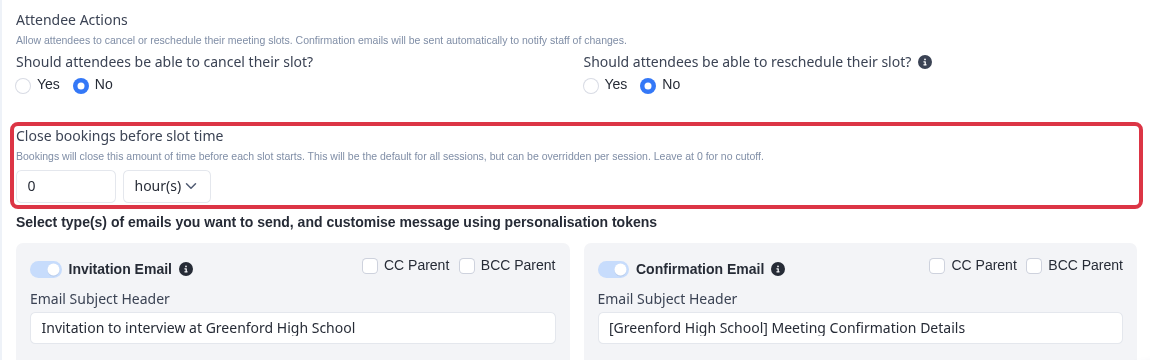
Set Close bookings before slot time to the time that suits your school. Leave the value at 0 when you do not want a booking cutoff. A booking after the cutoff shows: Bookings for this slot have closed.
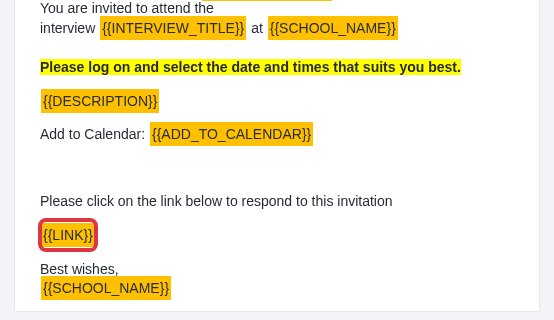
In the invitation email, keep the {{LINK}} token. Admissions+ replaces this token with the applicant booking link when it sends the invitation. Do not replace the token with plain text.
Questions staff ask
- If another applicant takes the selected place first, the applicant sees: Time slot is not available, please refresh the page and try again.
- If the selected place is no longer available, the applicant sees: Time slot is not available. Please select a suitable date & time for you.
- If the applicant selects no place, they see: Please select a suitable date & time for you.
If these checks do not solve the problem, ask Emma in Admissions+ for help with the event or meeting.