
When a student tells you a subject - for example Punjabi GCSE - is missing from their options and they cannot select it, it is almost always because that subject has not been made available to the student's band in your options model. A subject only appears on a student's options form when it is ticked as available to the band that student sits in.
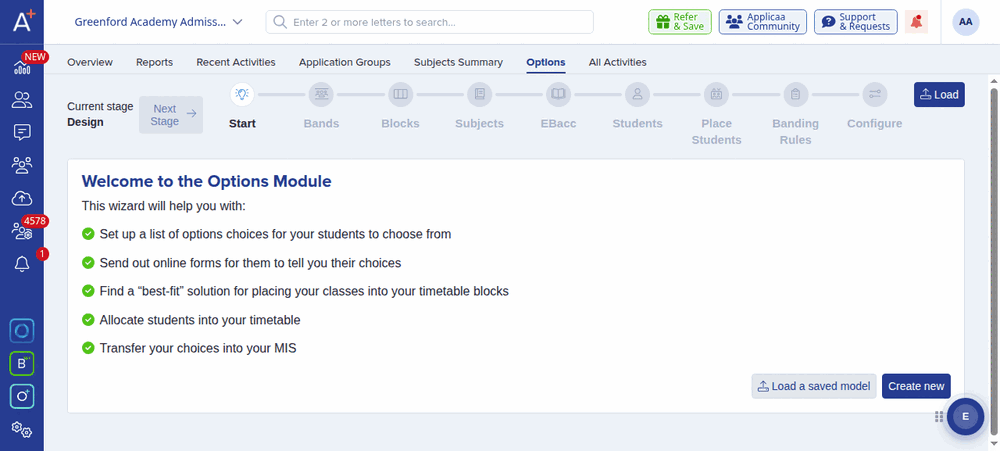
From your application form, open the "Options" tab to go to the Options Module, then load the saved model your students are selecting from (or the one you are preparing for them). The step strip along the top shows where the "Subjects" step sits in the model.
Go to the "Subjects" step. Every subject has an "Available to bands" column with a checkbox for each band you have set up - in this example the bands are "x" and "y".
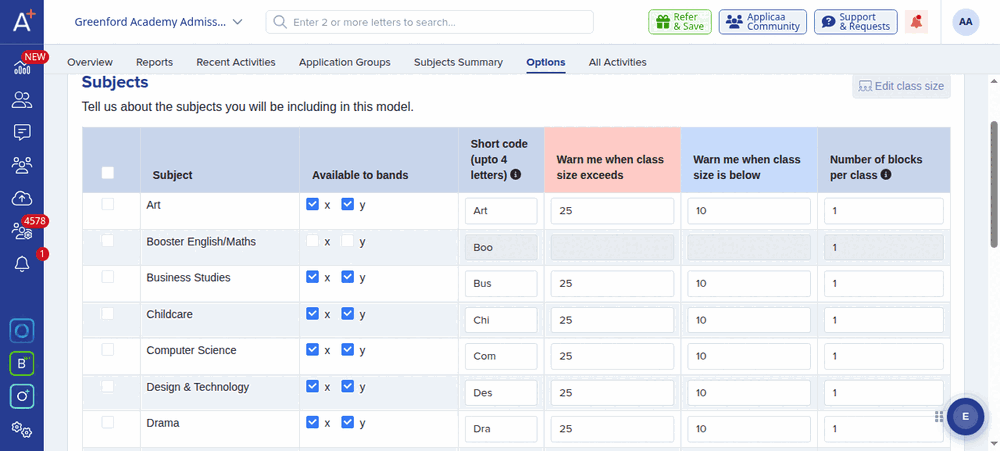
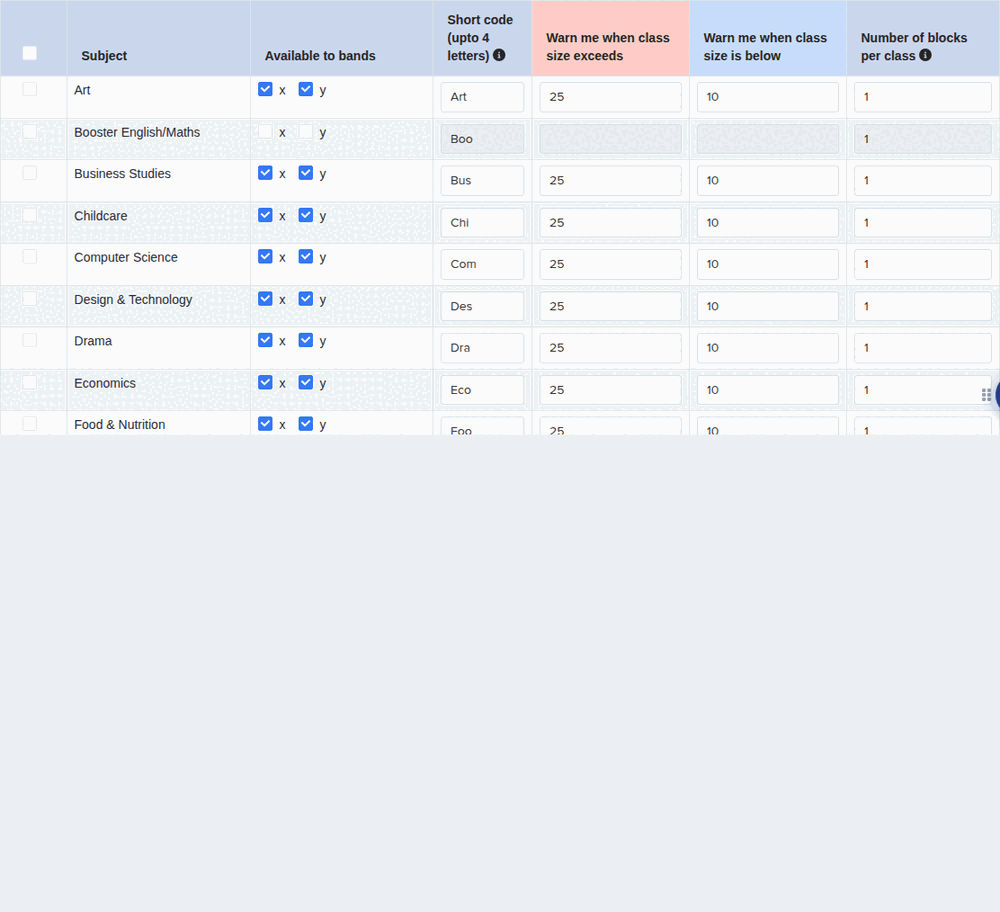
A subject with no bands ticked will not appear for any student. In the example below, "Booster English/Maths" has both bands unticked, so no student can see it, while every other subject is available to both bands. Tick the band checkboxes for the subject the student is missing so it becomes available to that band, then click "Confirm and continue" to save.
If the subject you need is not listed at all, use "Add new subject" on the "Subjects" step to add it first, then tick its bands.
If the subject is ticked for the right band but the student still cannot see it, check the following:
- The student is placed in a band in this model. A student who has not been added to a band cannot see any options.
- The model is the one shared with students. Only a model that has been moved to the "Choices" stage is open for students to make their selections.
- The band you ticked matches the band the student is placed in. A subject ticked only for band "x" will not show to a student placed in band "y".
Other checks on the "Subjects" step
The Options Model configures the timetable model only. Use these facts when you work on the step.
- A timetable needs a minimum of one subject for every band.
- To remove a course from the form course list, use the course settings. The Options Model does not remove a course from the form.
- A red Minimum learning hours check means that the selected courses do not meet the form learning-hours rule. Check the rule and the hours on each course.
- Interested means a course that a student selected. Reserve means a backup course selection. A value of 1 reserved shows one reserve choice. It does not show a timetable error.