
Automated communications in Admissions+ are not managed from one central "Automations" screen. Instead, they live alongside your other messages in the Templates list - this article shows you where to find them, how to turn one on or off, how to set what triggers it, and how to check what is queued to send.
Where automated templates live
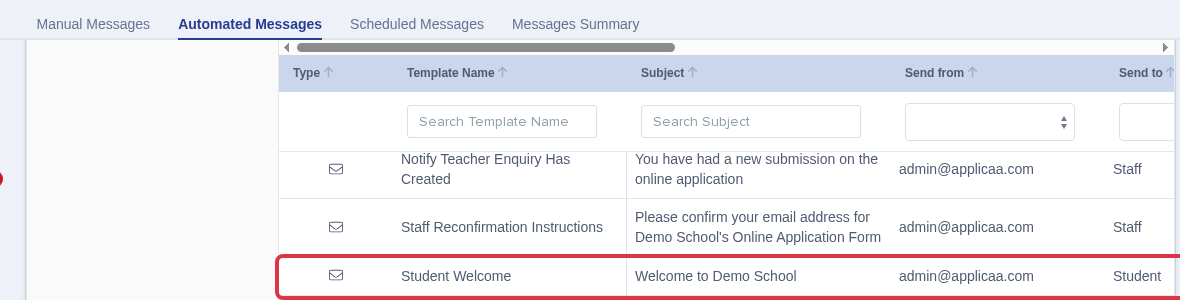
From the left-hand sidebar, open "Communications" and select "Automated Messages" (if your school has the new Templates area instead, automated templates simply appear alongside your other templates in that list).
Every automated template in the list has an "Enable" toggle in its row. Switch it on to let the template send, and off to stop it.
- The toggle only appears for templates that support being switched off. Your account also needs permission to edit email templates - if you can't edit templates, the toggle shows but is disabled.
- Turning a template off stops it from sending without deleting it, so you can switch it back on later.
System automations
Some automated communications are built into Admissions+ by default - for example welcome emails and offer emails - and can't be switched off. These rows show an info icon instead of a toggle; hover over it to see why.
You can still edit the content of a system automation like any other template. Only the toggle to disable it is unavailable, because these communications are required for the system to work properly.
Setting the trigger for an Enhanced automation
To create your own automation, build an Enhanced template and choose its "Trigger Type" in "Advanced Settings":
- Applicant Trigger- sends automatically when a family completes an admissions action.
- Staff Trigger- lets staff launch the message from an application or inbox workflow.
- Scheduled Send- queues the message for a chosen date, cohort, and delivery window.
Viewing scheduled sends
To see what's queued or has already gone out for a template, use the "Show schedulers" icon in its row.
Checking what was sent
To see the detail behind one message that already sent, go to Communications, then "Messages Summary", and open the row for that message.
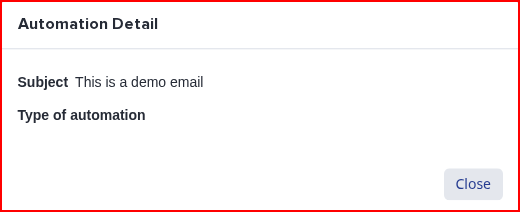
The popup shows the subject that was sent, the type of automation, and trigger-specific detail - for example the send date and time for a scheduled message, or the phase and repeat settings for an applicant trigger.
What it does not do
- There is no single view that lists every automation together with a visual trigger-to-action journey. Automated templates are managed from the same Templates list as your other messages, as shown above.
- This article does not cover Scheduled Messages or the full Enhanced template builder - see the related articles below for those.
Questions staff ask
Can I turn off a system automation?
No. System automations are provided by default so that key admissions communications go out reliably. You can edit their content, but not disable them.
How do I create a new automated communication?
Build an Enhanced template, set its "Trigger Type" to "Applicant Trigger", "Staff Trigger", or "Scheduled Send", and save it. It will appear with an "Enable" toggle in the Templates list.
How do I check what's about to send?
Open the template's row and use the "Show schedulers" icon to see its queued and sent instances.
Where is the registration email sent to internal students?
It is the "Student Welcome" template. If your school uses the "Automated Messages" tab, find it under the "Registration" category; if you use the newer Templates list, search for "Student Welcome". It is a system automation, so you can edit its content but not disable it.
Can I use a plain editor instead of the Enhanced one for an automated template?
No. Automated and system templates always open in the Enhanced builder - there is no plain/basic view for them. Only templates that are not automated use the simpler editor.
