
Use this to bring your school's existing Year 11 students from SIMS into Admissions+ as internal students, so they can complete an internal application (for example, a Sixth Form transition) and receive a login account.
Admissions+ has no live connection to SIMS for this task. Export your Year 11 students from SIMS as a CSV file first. Include a column for email address, and a column for either the student's Unique Pupil Number (UPN) or Unique Learner Number (ULN).
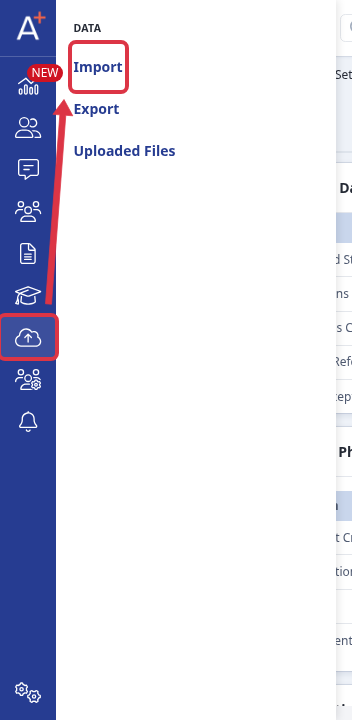
Open the application form the students are applying to, then go to "Data" in the left-hand rail and select "Import".
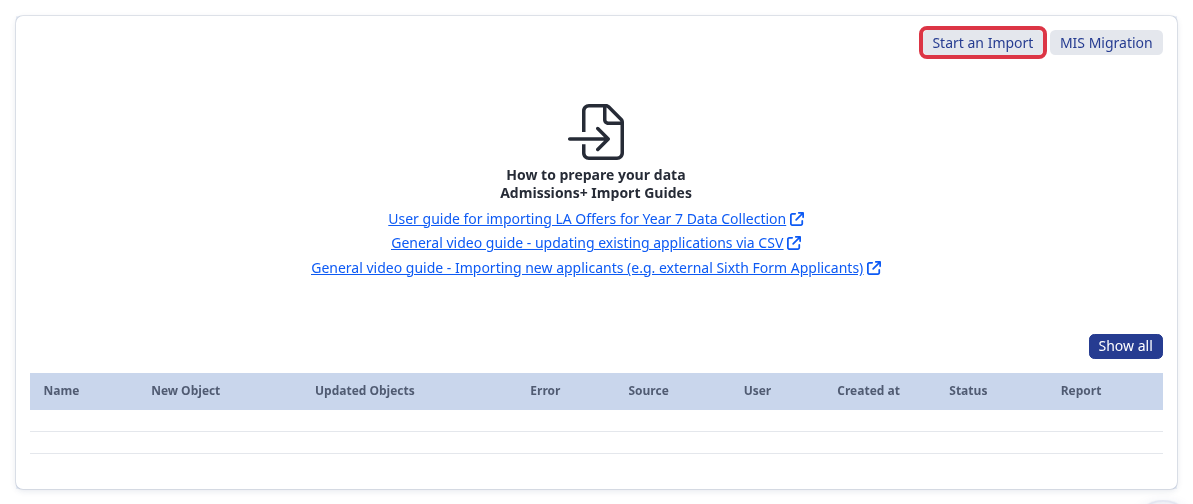
On the Imports page, select "Start an Import".
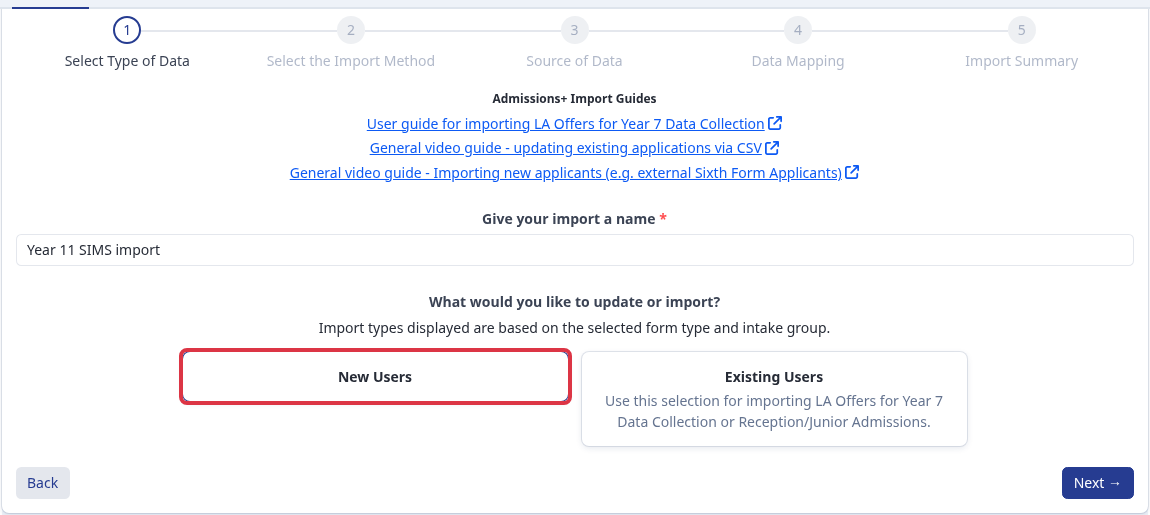
Under "Select Type of Data", choose "New Users".
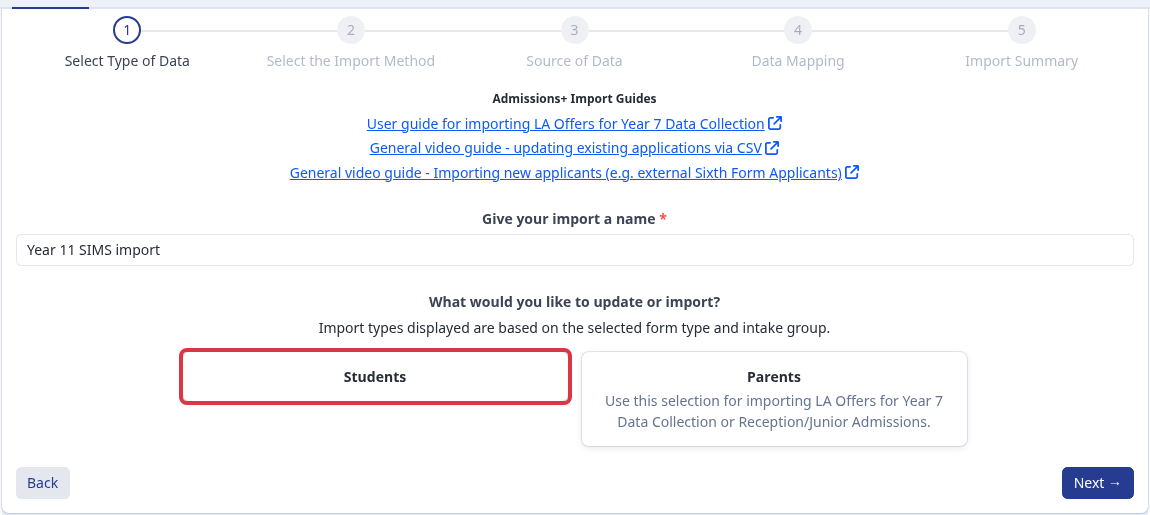
Then choose "Students" as the type of user you are importing.
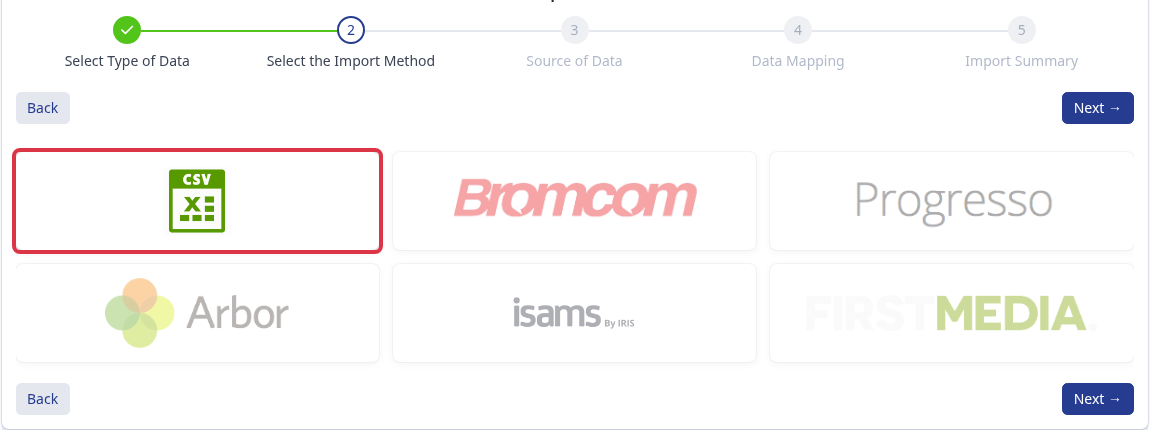
Under "Select the Import Method", choose "CSV". There is no "SIMS" option here, because the import always reads a CSV file, whichever MIS it came from.
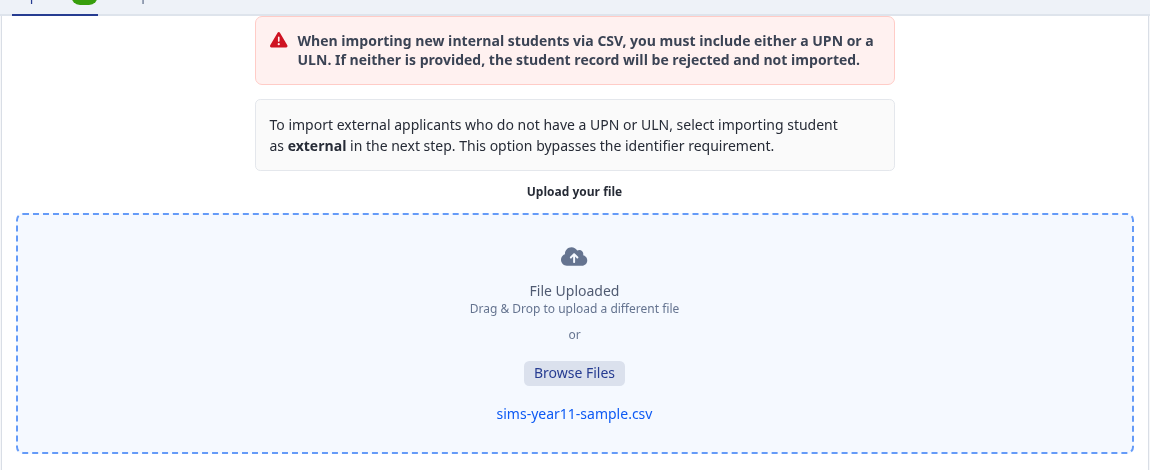
Upload your CSV file. If the application form's entry point is "Sixth Form Application", a banner reminds you that each internal student row needs a UPN or a ULN. A row with neither is rejected and not imported.
On the Data Mapping step, set "You are importing Internal/External" to "Internal". This marks each imported student as already on roll at your school, rather than as a new external applicant.

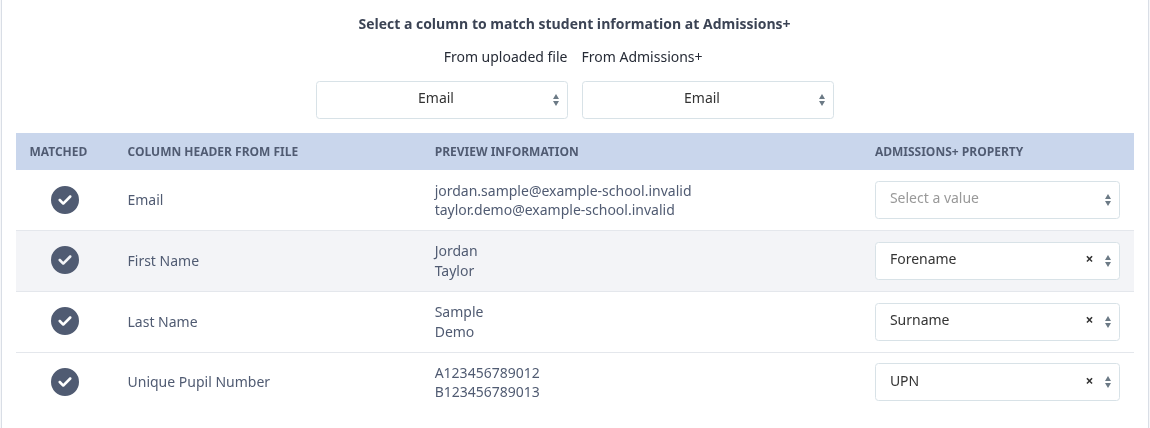
Map each column in your CSV file to the matching student field, for example email, first name, last name, and UPN or ULN.
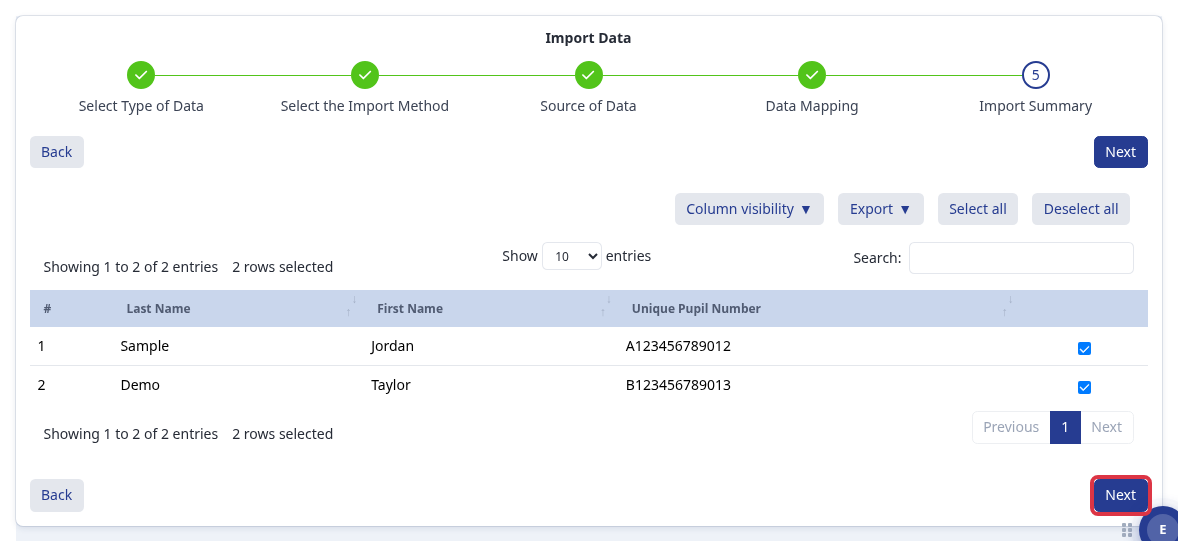
On the Import Summary step, select the rows you want to import, then select "Next" to run the import.
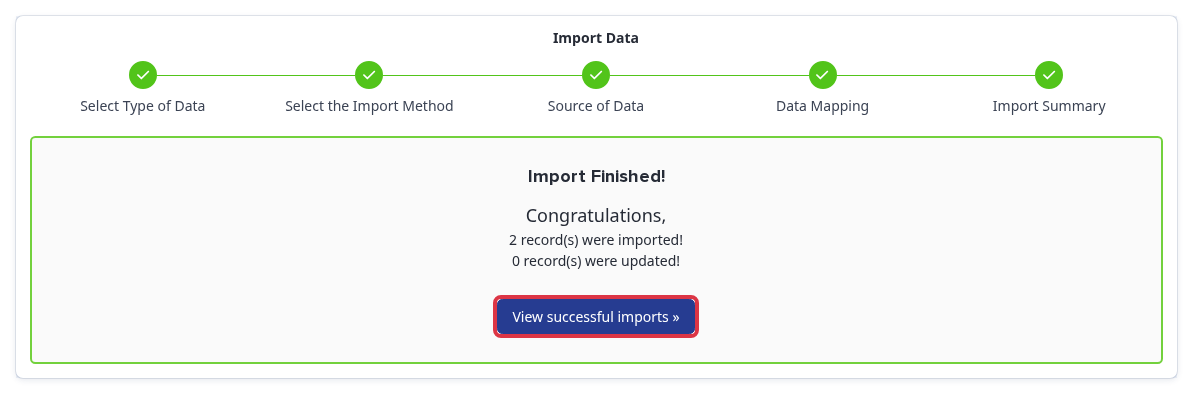
When the import finishes, select "View successful imports" to open the import report.
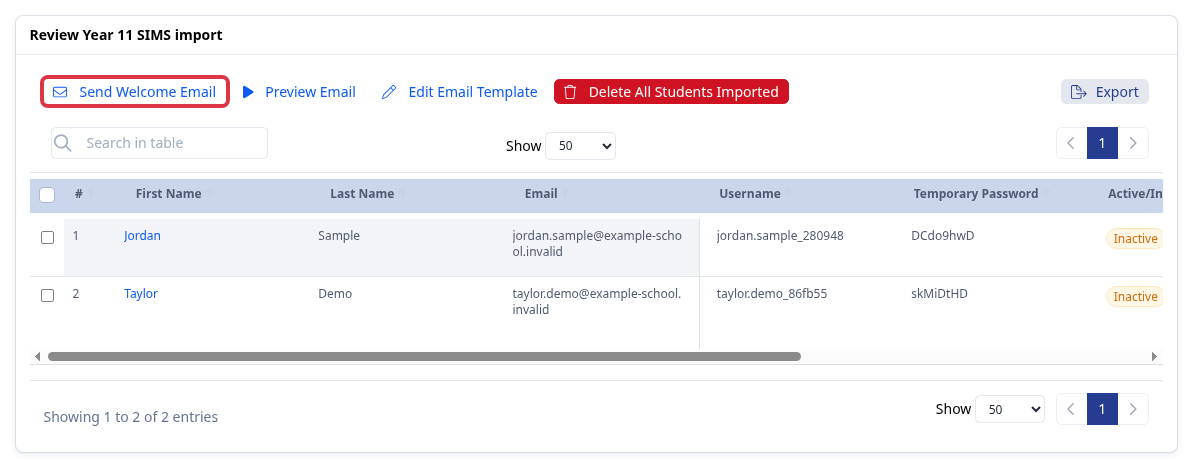
The report lists each student created, with a generated username and temporary password. Select "Send Welcome Email" to email each student their login details.
- Internal marks the student as already on roll at your school. This is what lets them complete an internal application.
- External marks the student as a new applicant, with no existing record at your school.
- A UPN or ULN is required for every row only when both the student is marked "Internal" and the application form's entry point is "Sixth Form Application". Any other combination does not require one.
- Each imported student gets a generated username and a temporary password, shown on the report page.
- "Active/Inactive" on the report shows whether the student has signed in yet. A student stays "Inactive" until they use their temporary password to log in.
What it does not do
Admissions+ does not read SIMS directly for this import. Export your Year 11 data from SIMS as a CSV file, then upload that file here. A separate feature, the Admissions+ SIMS App, keeps a live daily sync with SIMS for other data; it is not used by this CSV import.
Related articles
- Importing your internal Year 11 students from your MIS into Admissions+