
Use these settings to let staff confirm an ineligible course, choose offered courses as the preselected enrolment choices, and check why the Course change icon shows.
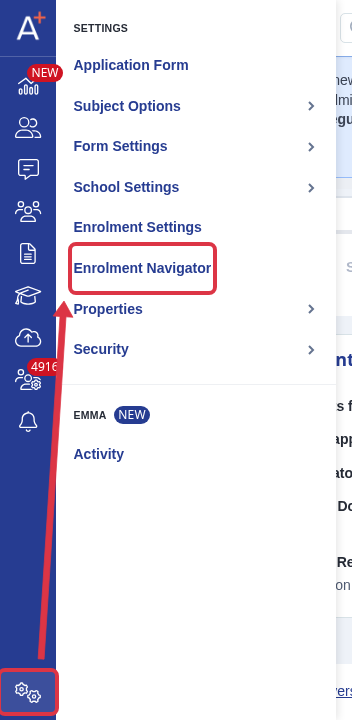
Go to Settings > Enrolment Navigator.
Under Grade Requirements, select "No" for the Internal or External students that you want staff to enrol on a course when they do not meet its requirements.

Open step 5, "Timetable And Classes".
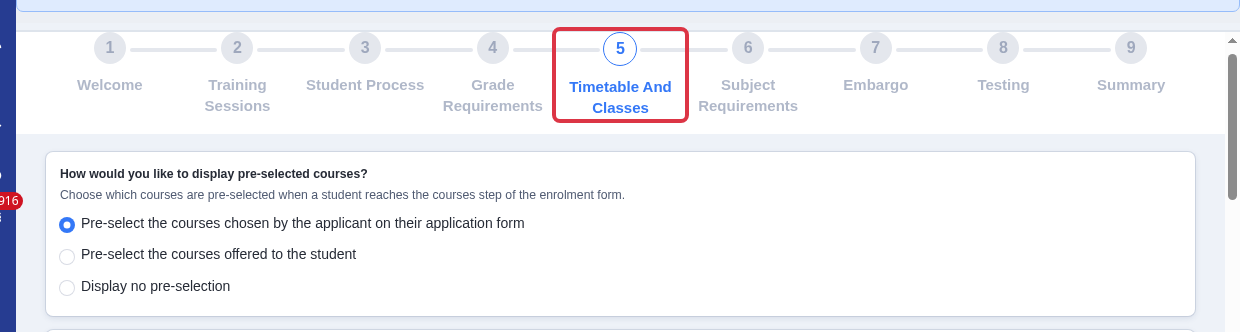
Under "How would you like to display pre-selected courses?", select "Pre-select the courses offered to the student". This uses each student's offered courses as their initial enrolment selection. It does not apply an eligibility check to that preselection.

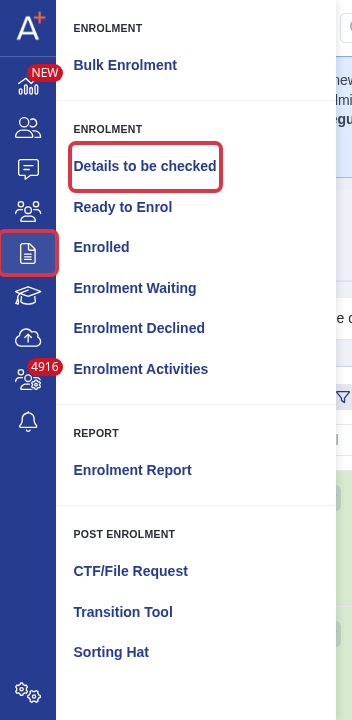
Go to Enrolment > Details to be checked.
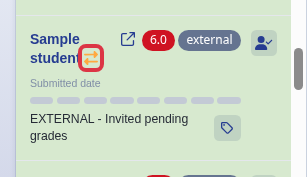
The yellow Course change icon is an indicator, not a button. It shows only when Offer Courses is enabled, the student has offered courses, and their offered courses differ from their enrolment courses. If it is missing, check these three conditions.
Things to know
- Select the Internal or External restriction that matches the student type.
- The offered-course preselection setting chooses the initial courses. It does not reorder the course list.
- Use the related article to change the student's applied or offered courses and inform the student.