
First, you will have to check if the student's bursary status is already showing as 'Awarded' as the system will only allow students to submit requests if they have been awarded to a bursary band.
You may also access this Troubleshooting guide: Bursary bands are not showing in student profile for your reference.
Here's also the guide on How to change the student's Bursary Status.
If the student's bursary status is showing as 'Awarded', they will now have to login to their accounts and from there, they will see under additional phases there is a 'My Requests' button.


When they click the 'My Requests' button, they will be redirected to a new page which shows them a table of their request history.

To submit a bursary request, the students will click on the 'Add Request' button to start filling in the necessary fields.

From here, they will indicate, Request type (Purchase Item or Reimbursement) and populate the other fields based on the request type and lastly upload evidences/receipt; They can even upload a link if needed. Once done, they can just click 'Save' button.

The evidence and receipt field is named 'Supported Files'. Students add more than one file to it. Each file must be under 250MB. They click 'Browse files' or drag a file into the box, for both a Purchase request and a Reimbursement request.

Once they have submitted, the students will be able to see the status of their bursary requests by the 'status' column; They can also 'Edit' or 'Delete' a request.
Note that once a request has been marked 'approved' by you, it will no longer be editable.

If you wish to update the options under Bursary Request form, please refer to this guide otherwise, contact your Designated Customer Success Manager if needed.
Guides you can send to students
Send the Student guide to applying for a bursary and making requests to a student. It shows the full application and request process from the student's side.
Send the How to submit a Bursary Request (Student Guide) to a student. It uses editable slides and a PDF. You can copy it and add your own school details.
Understand the Request ID
Bursary16+ now shows each bursary request with a UUID rather than a short number. The long string is the request's unique system identifier.
This change is expected. A platform update changed record IDs from numbers to UUIDs. It does not mean that the request is damaged.
From your Bursary16+ dashboard, select Requests.

Find the complete value in the Request ID column.
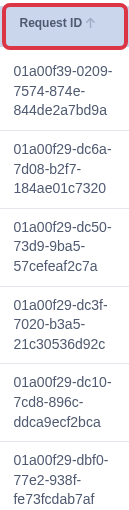
- The ID identifies one bursary request. It does not describe the student, item, or status.
- Use the other columns to recognise the request.
- Give the complete ID, with all hyphens, when Applicaa Support asks for it.
Why "My Requests" can still be missing after Awarded
The "My Requests" button needs more than an Awarded bursary status. It only appears once every one of these is also true for that student:
- Their Bursary Status reads exactly Awarded for the current bursary application year. A status from an earlier year does not count.
- They are not set up as a bursary renewal case. A student marked Bursary Renewable sees a Renew button instead of "My Requests" until that renewal is processed.
- Your school's bursary request feature is switched on (see below). If this is off, no student sees "My Requests", however their status reads.
- The "Bursary Request" phase still exists in the application journey. If it was removed, the button has nowhere to link to.
Check the student's Bursary Status and Bursary Renewable flag on their profile first. If the button is missing for every Awarded student, not just one, check the "Enable students to create requests" setting next.
Open the application form and select the Schools & Settings tab.

Under Other Settings, confirm "Enable students to create requests" is switched on. When it is off, every student loses the "My Requests" button, regardless of their Bursary Status.

Show fewer tabs under "Additional phases"
"Additional phases" lists every phase in the application journey that is marked stand-alone and "Visible to Student" - except the "Bursary Request" phase itself, which always gets its own "My Requests" button instead of a tab there. To show fewer tabs, turn "Visible to Student" off for the phase you want to hide, rather than looking for a bursary-specific setting.
Open the application form and select the Application Form tab.

Find the phase you want to hide and switch its "Visible to Student" toggle off. Leave "Visible to Staff" as it is - that toggle only controls whether teachers see the phase on the student's profile, not whether the student sees a tab for it.

The change applies as soon as the student next loads their profile: the phase drops out of "Additional phases", and turning "Visible to Student" back on makes the tab reappear.
The "Number of authorisations required per request" setting on the Requests screen does not affect this. It only controls how many staff approvals a bursary request needs before it is marked Approved.