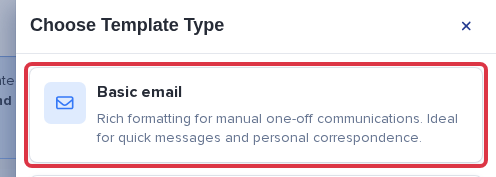
You can use AI to write or rewrite an email in the Basic email template builder. Open "Edit with AI" to generate a whole email from a short prompt, or select one block and use "Edit this block with AI" to rewrite just that block.
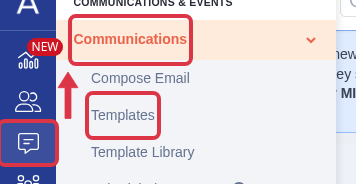
Go to "Communications" > "Templates", then open a "Basic email" template (or create a new one).
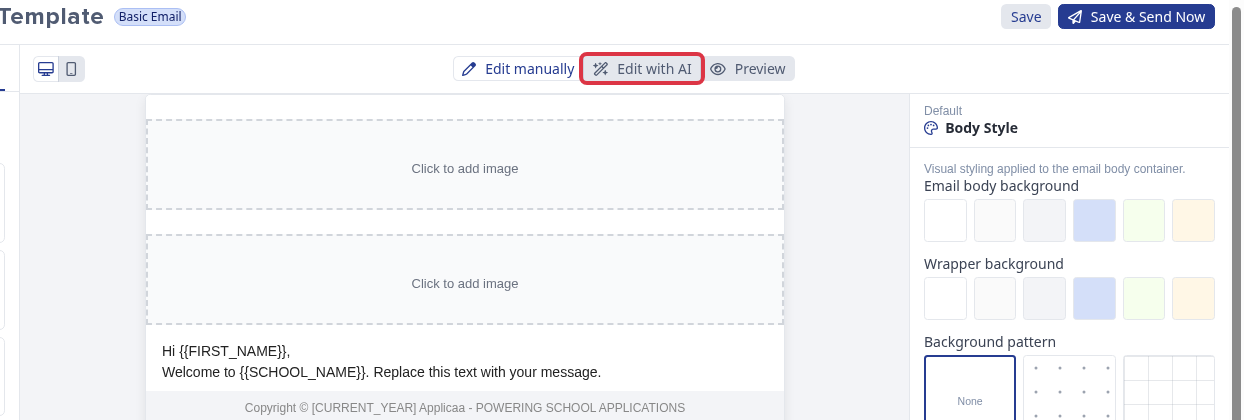
On the "Content" tab, select "Edit with AI".
Type what you want the email to say - for example, "An open evening invitation for parents with an RSVP button" - then select "Generate".

- AI writes the whole email again from your prompt. It replaces the current draft - there is no confirm step, so save your work first if you want to keep it.
- AI writes only allowed blocks (heading, rich text, image, button, divider, spacer, columns, social, video) and keeps merge tokens such as
{{FIRST_NAME}}and{{SCHOOL_NAME}}. - Write a good prompt by naming the audience, the purpose, and any call to action - for example "a reminder to Year 11 parents about the exam timetable, with a link to the portal."
To change one block instead of the whole email, select the block on the canvas, then select "Edit this block with AI" and describe the change.
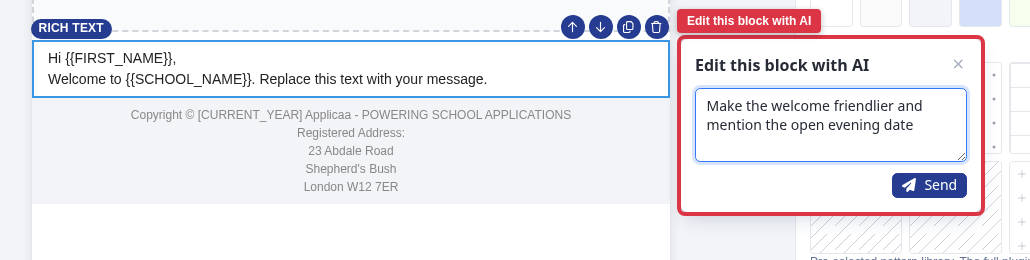
- This rewrites only the selected block and keeps its merge tokens.
- You cannot edit an image, spacer, divider, video, or social block this way - select a text block (heading or rich text) instead.
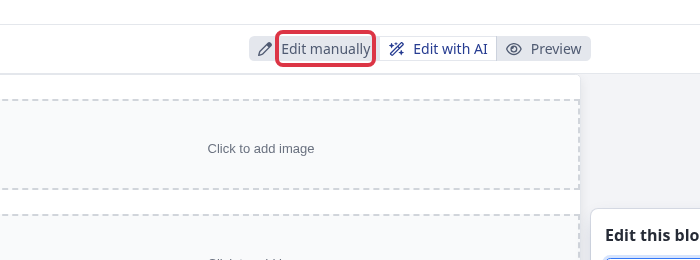
Select "Edit manually" at any time to go back to editing the email by hand.
What it does not do
- AI only writes email content. A prompt that asks for something else - for example a question about your account or a task unrelated to the email - gets a refusal message instead of a result.
- AI email generation works in the Basic email builder only. It is not available in the Enhanced builder.
- The per-block "Edit this block with AI" option is not available in Compose Email - only the whole-email "Edit with AI" generate bar is.
Why it behaves this way
Generating a whole email with AI replaces the entire draft immediately, with no confirmation prompt. Save your template, or note down anything you want to keep, before you select "Generate".
Related articles