
Step 1: Obtain the Form URL
First, you need to retrieve the URL or application form link from Admissions+.
Please note that each form has a unique URL. If you have multiple forms, ensure you copy the correct URL for the specific form you intend to use.
To access the forms, click the dropdown that shows your current application form’s name at the top left of the screen, then select Forms Area (this reads Multiple Form if you have more than one live application form).
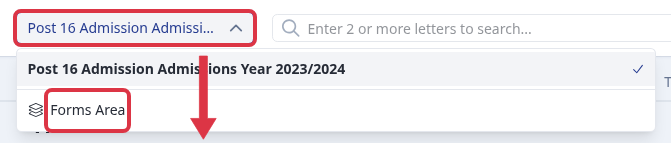
This opens the list of your application forms, where each form’s unique URL is shown.

If you don’t see a link/URL displayed in the Forms Area, you can update it by clicking the Kebab menu (three vertical dots) next to the toggle bar for each form, then select Edit.


In the pop-up view, scroll down to find the field labeled ‘Customize the ending of the URL for this form (e.g., demo.applicaa.com/Year12)’. To add a new URL, start typing and hit enter. If you’re satisfied with the new URL, click the Save Application Form button.

Step 2: Copy the Form Link
Click the overlapping paper icon to copy the link.

Step 3: Open the Link in a New Browser Window
For Google Chrome:
- You can either open a new incognito window or log out of the A+ platform and use a new browser window. Then, paste the copied link into the address bar.


For Microsoft Edge:
- If you're logged into your school platform, log out first, then open a new browser and paste the link. Alternatively, you can open a new InPrivate window and paste the copied link into the address bar.


Related articles
- How to Link Your Form to Your School Website
- How to Add a QR Code or Other Images to an Email Template
- QR Codes for Event Attendance
If you run into any trouble generating or scanning a QR code, ask Emma in the app or raise it with the Applicaa support team.