
Use the student list to target a bulk email. You can also check how parent copies change the recipient total.
Open the application form and select "Registered Students".

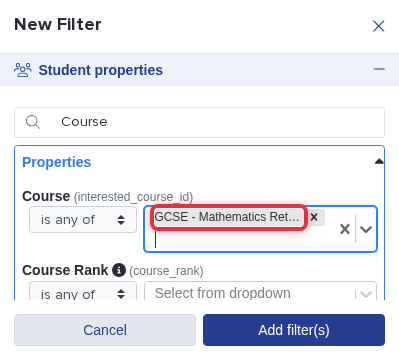
Select "Filter", then select "Add New". Search for "Course", and select the required subject or course.
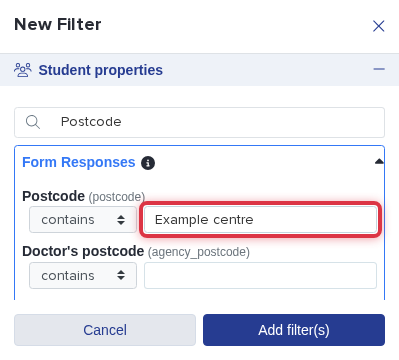
For a school field such as test centre, search for its name under "Form Responses". Enter or select the required value.
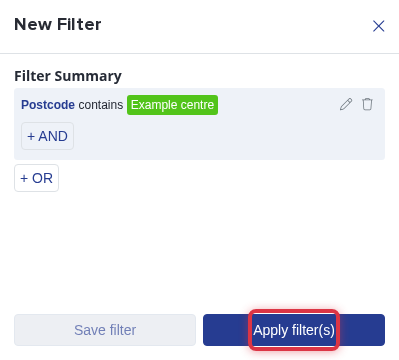
Select "Add filter(s)", then select "Apply filter(s)". Select the students in the filtered results.
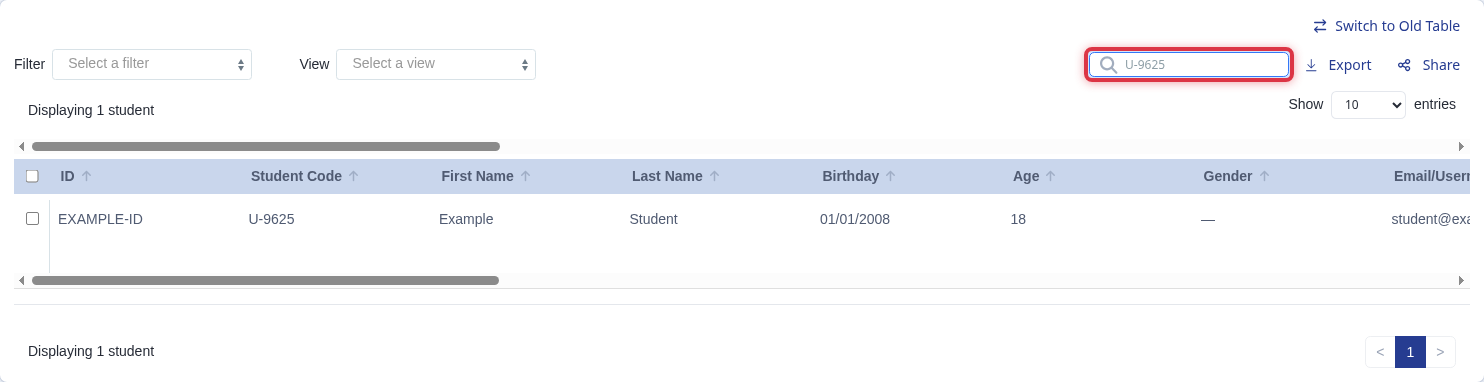
For one Applicaa code, enter it in "Search in table" and select the matching "Student Code" row. The screen does not accept a pasted code list, so send to one code at a time.
After you select the students, select "Communications", then select "Send Email".
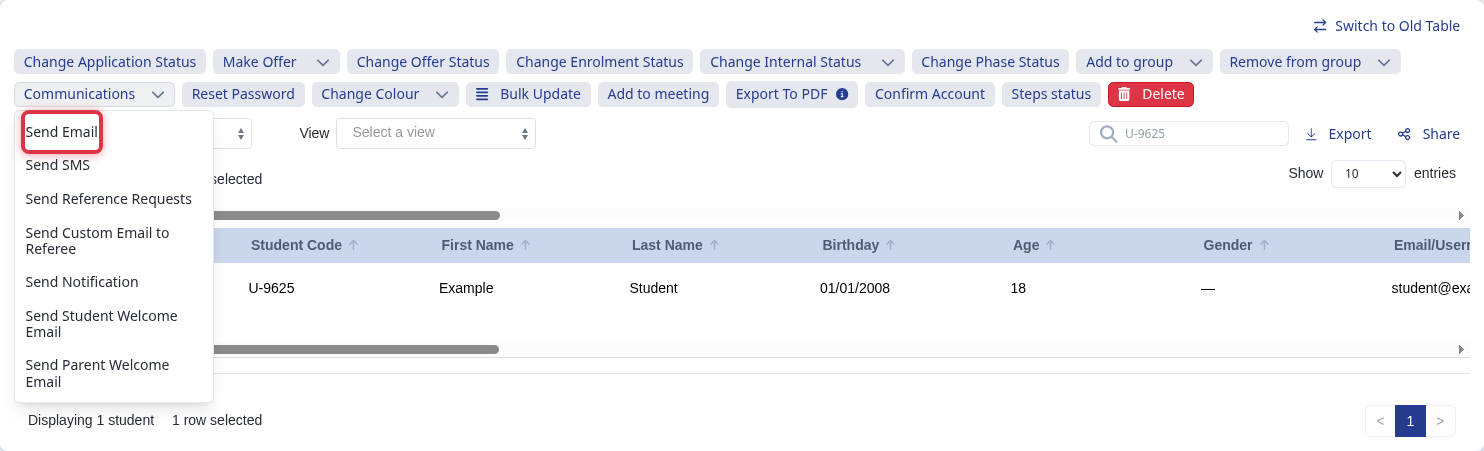
Select "Parent(s)" to email eligible parental contacts only. To include students, select "Student(s)" and choose "CC parental contact(s)" or "BCC parental contact(s)".
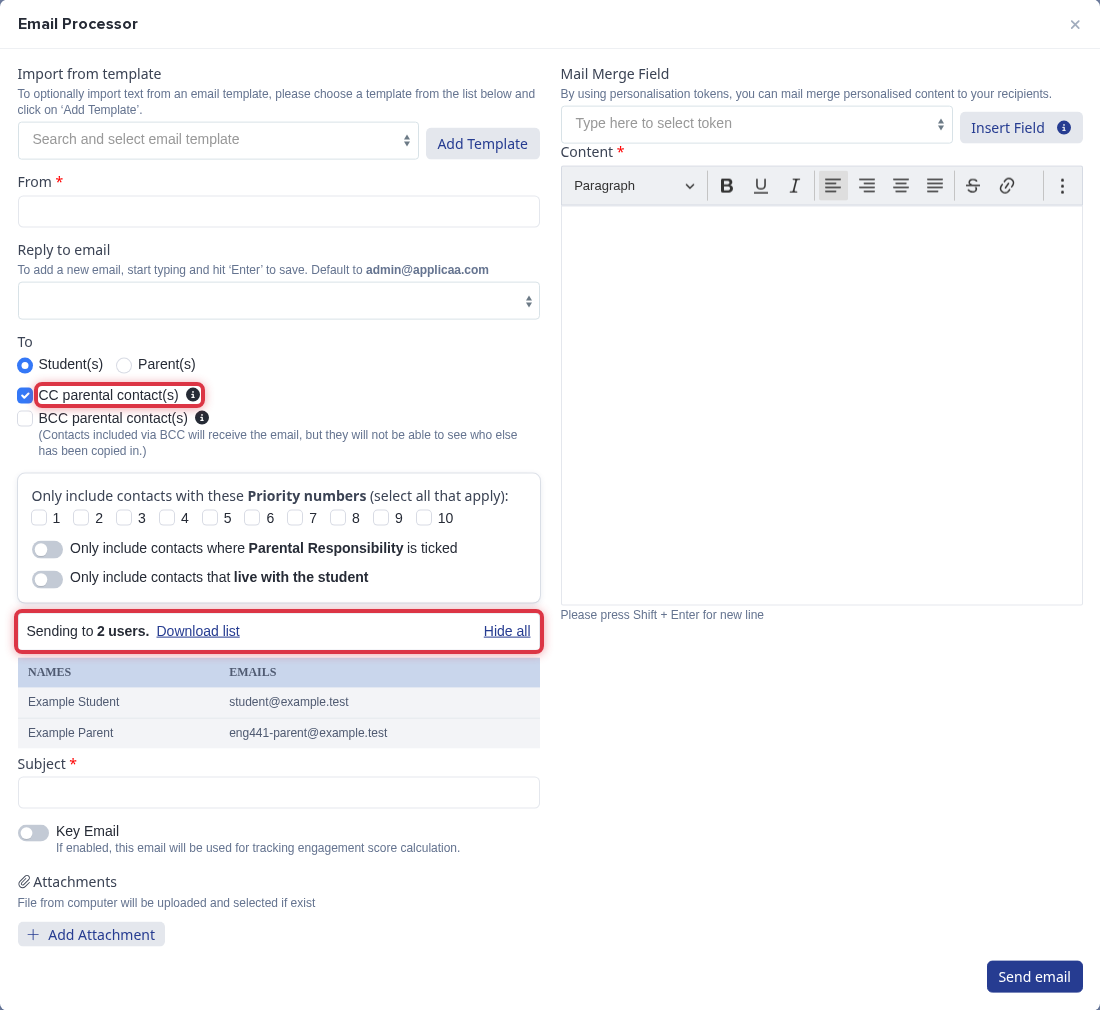
- The "Sending to" total counts recipient rows, not selected students.
- Parent copies include contacts who receive parental communications and match your contact filters.
- For 194 students with one eligible parent each, a student email with parent copies shows 388 recipients.
- The total does not always double because each student can have no eligible contacts or several eligible contacts.
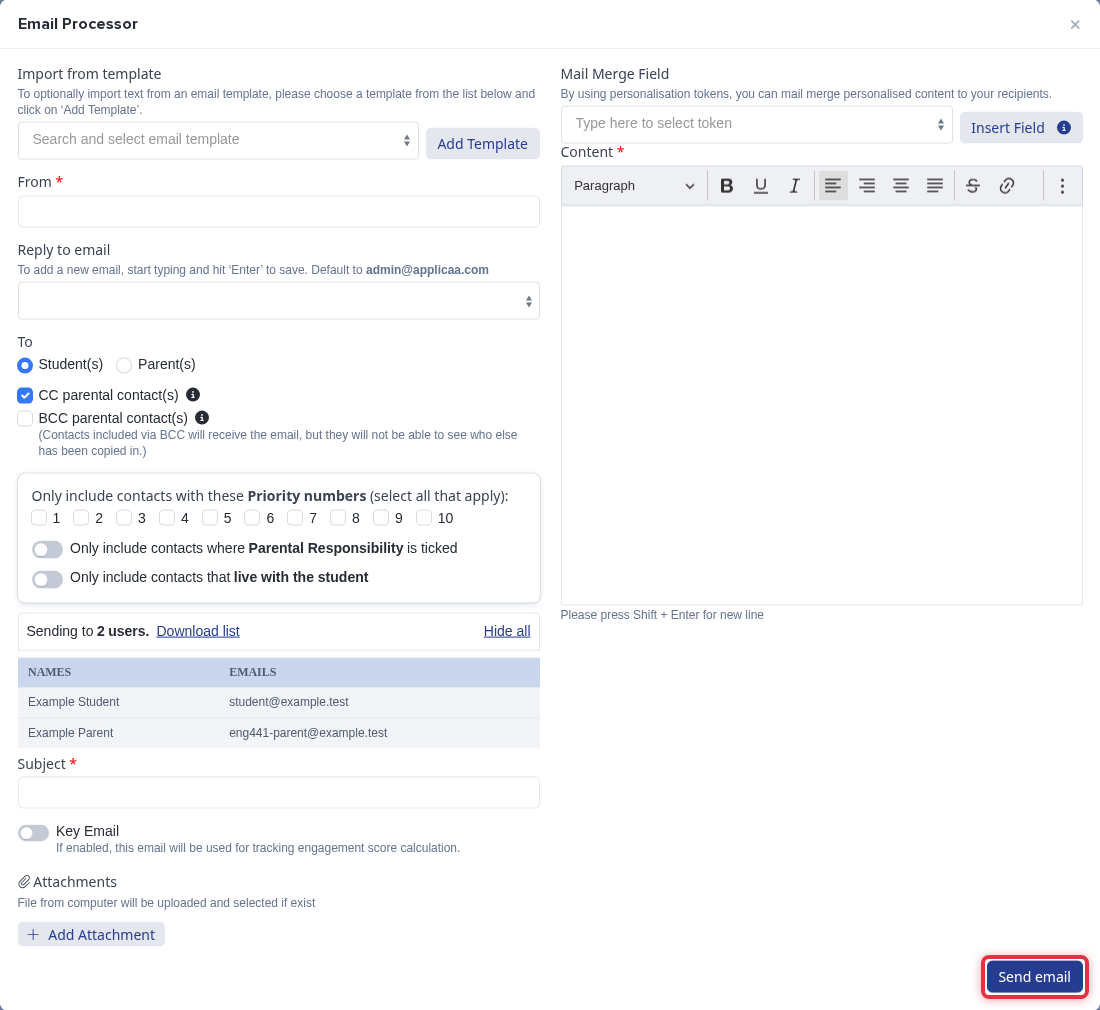
Complete "From", "Reply to email", "Subject", and "Content". Check the recipient list, then select "Send email".
If the total is unexpected, ask Emma how to check a contact's parental communication settings.