
You can change the wording of any question on your Application Form at any time, not only when you first add it. This includes screening questions on an early step, for example a question that asks applicants if they attend your school already.
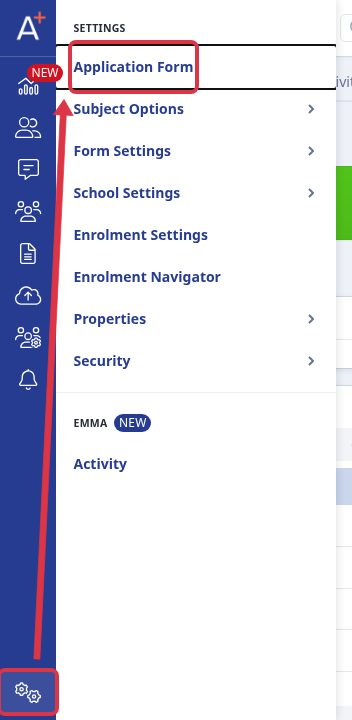
Go to "Settings" on the left rail, then open your "Application Form" from the drawer.
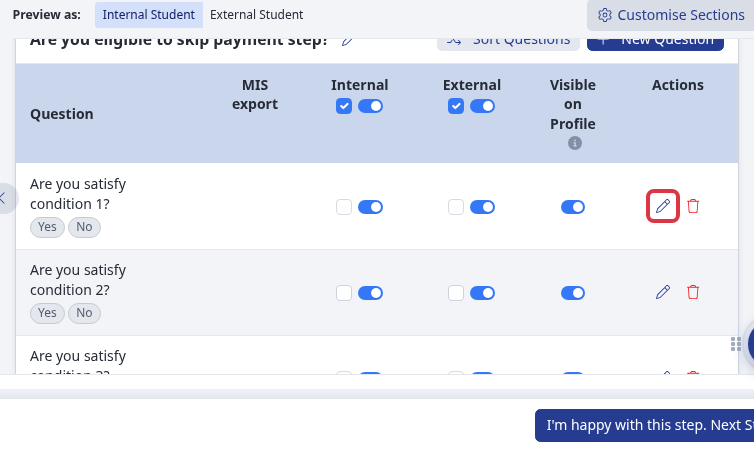
Open the phase and step that holds the question. The step shows a live preview of the form first. Click "I want to make more changes" above the preview, then click the pencil icon next to the question you want to reword.
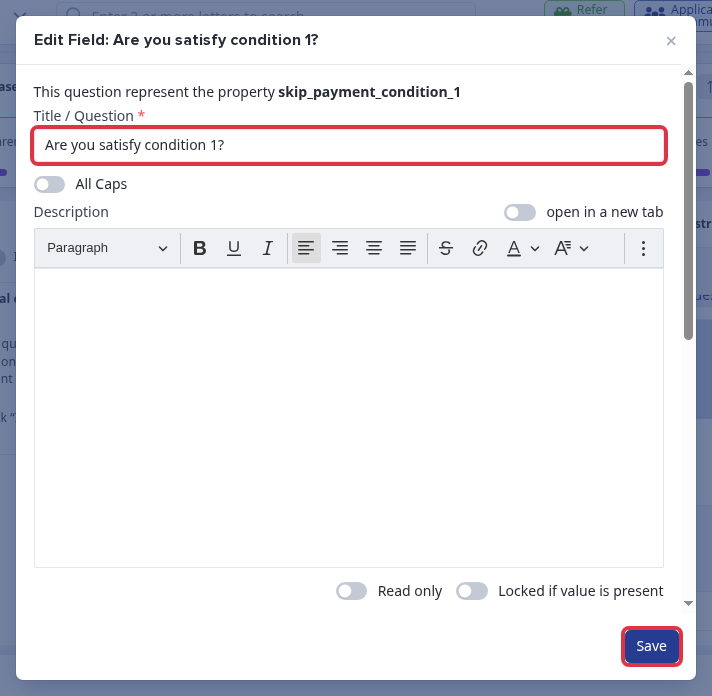
Change the text in the "Title / Question" field to the new wording, then click "Save".
- The new wording shows to applicants straight away, on this Application Form only.
- This works for any question type: yes/no, free text, dropdown, and so on.
- You can add or remove whole questions and steps from the same screen. The full guide on sections, steps, and questions is linked below.
What it does not do
- Changing the wording only changes the label applicants see. It does not change the question's underlying field, so reports and data mapping stay the same.
Questions staff ask
How do I amend a question on the page that asks "Are you a [school] student?"
Open the step that holds the question, click "I want to make more changes", then click the pencil icon next to that question. Change the text in the "Title / Question" field and click "Save".