
Use this guide to update a form group capacity, remove a student from a group, or set a group for one student during Course Confirmation/Selection.
Change a form group capacity
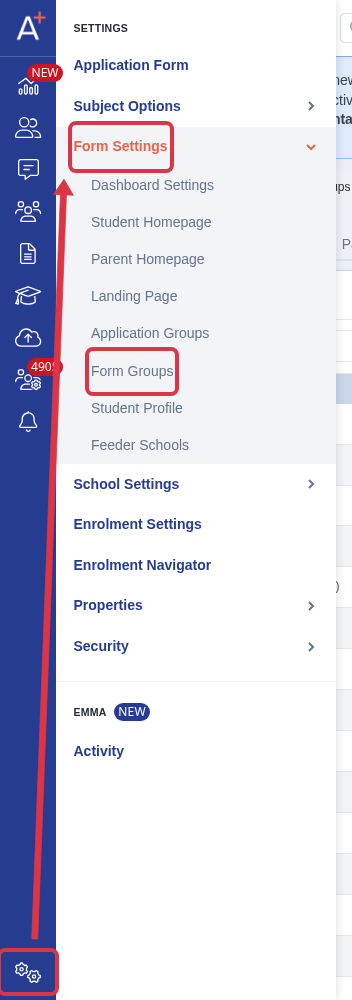
Go to "Settings > Form Settings > Form Groups".
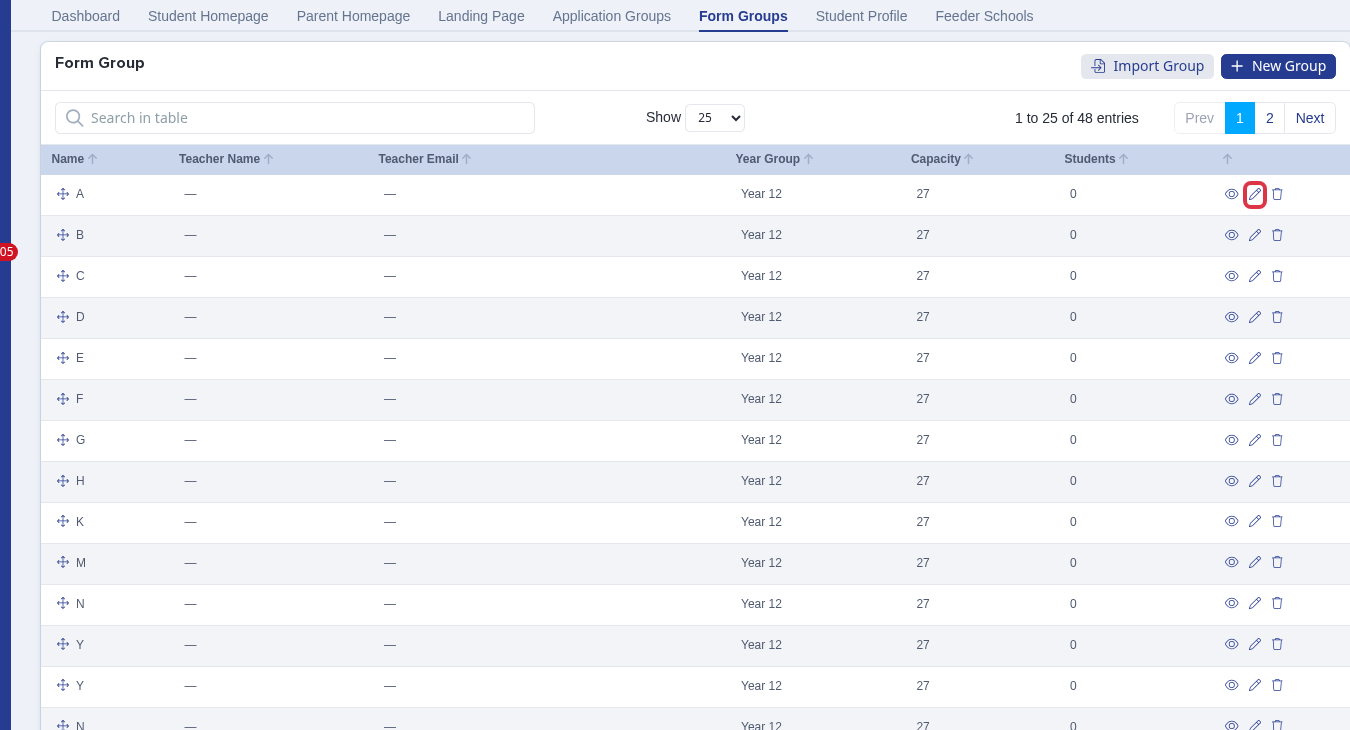
Find the group, then select its edit icon. The table shows its current capacity and number of students.
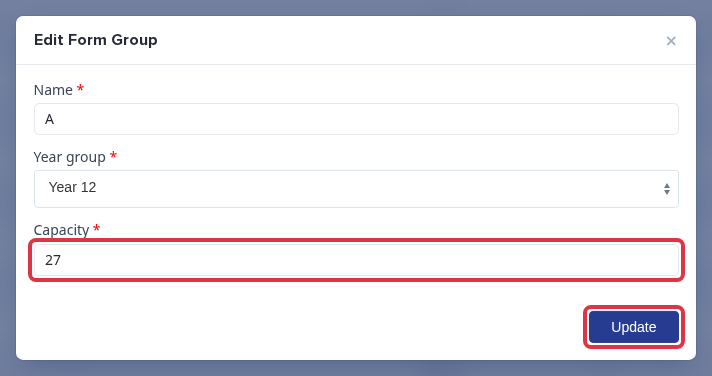
Change "Capacity", then select "Update". The new capacity appears in the Form Groups table. You see "Capacity can't be blank" if you remove this value. You see "Name can't be blank" if you remove the group name.
Remove a student from a form group
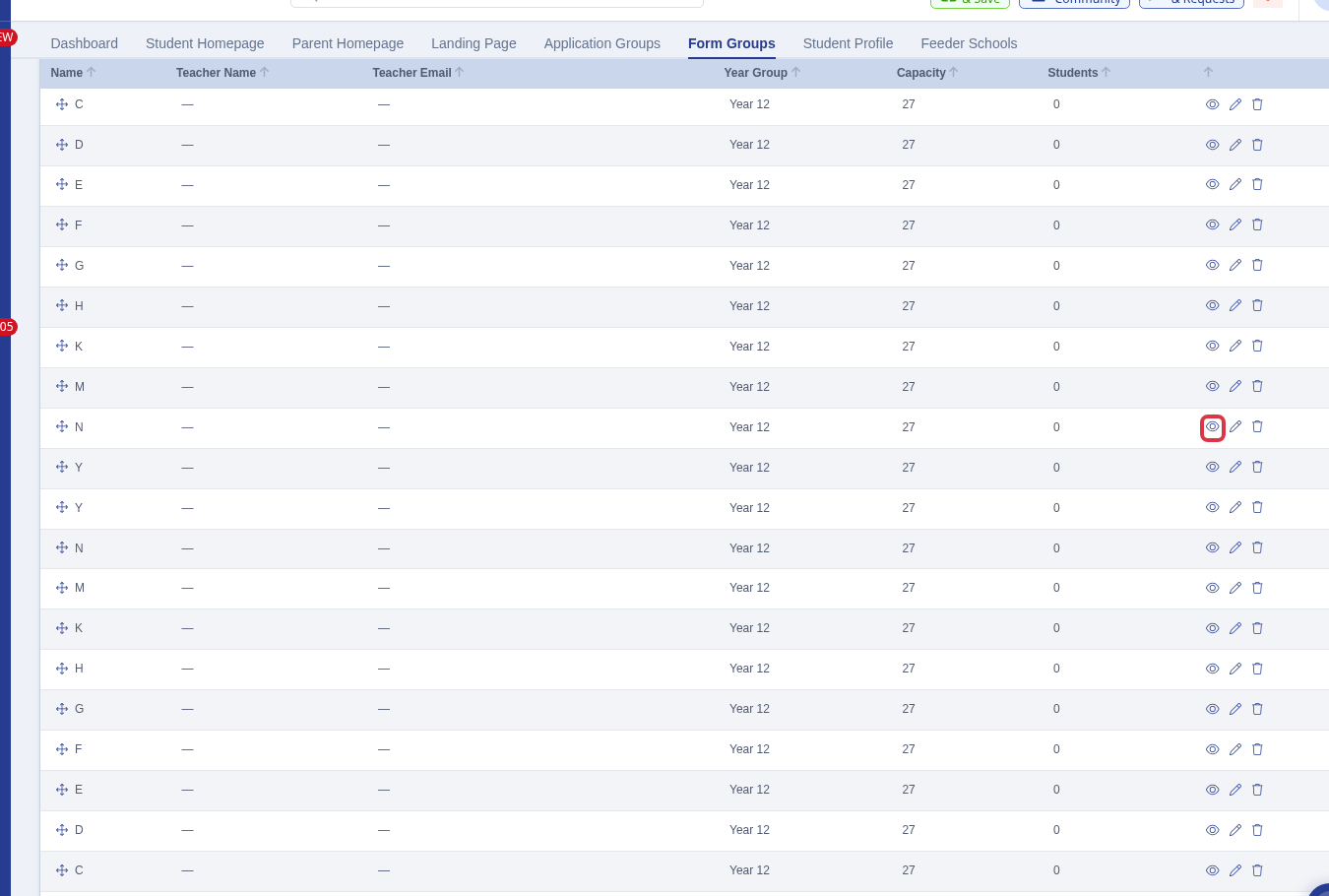
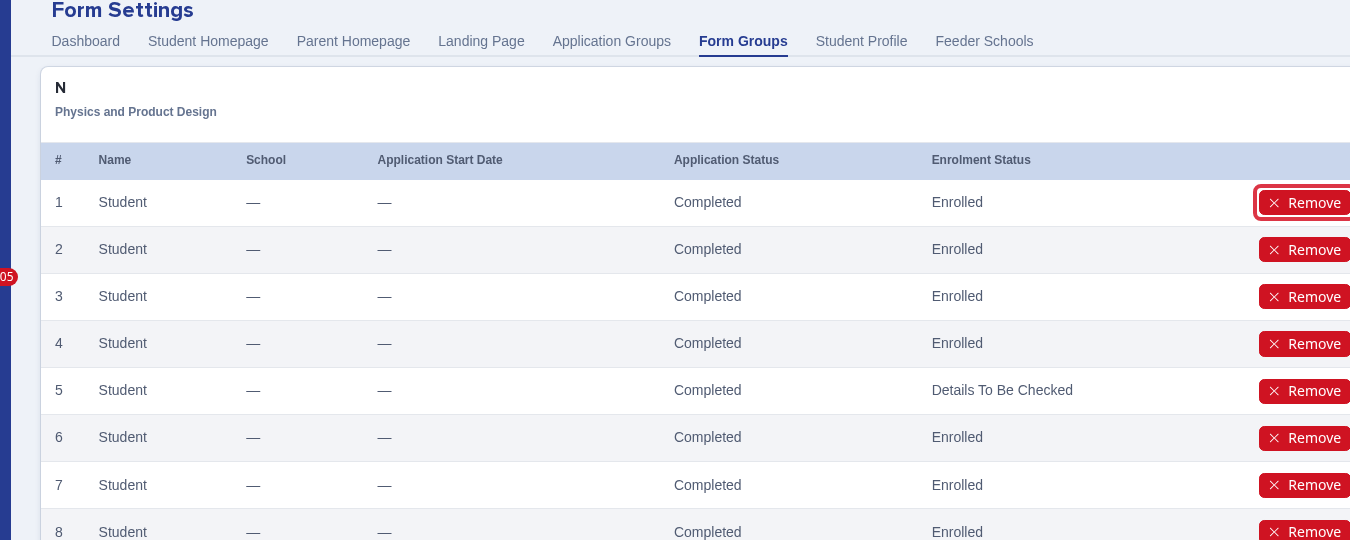
In "Form Groups", select the view icon for the group that contains the student.
Find the student and select "Remove". Confirm the message, "You are about to remove <student name> from group <group name>. Are you sure?" The student no longer appears in that group.
Add or change one student's form group
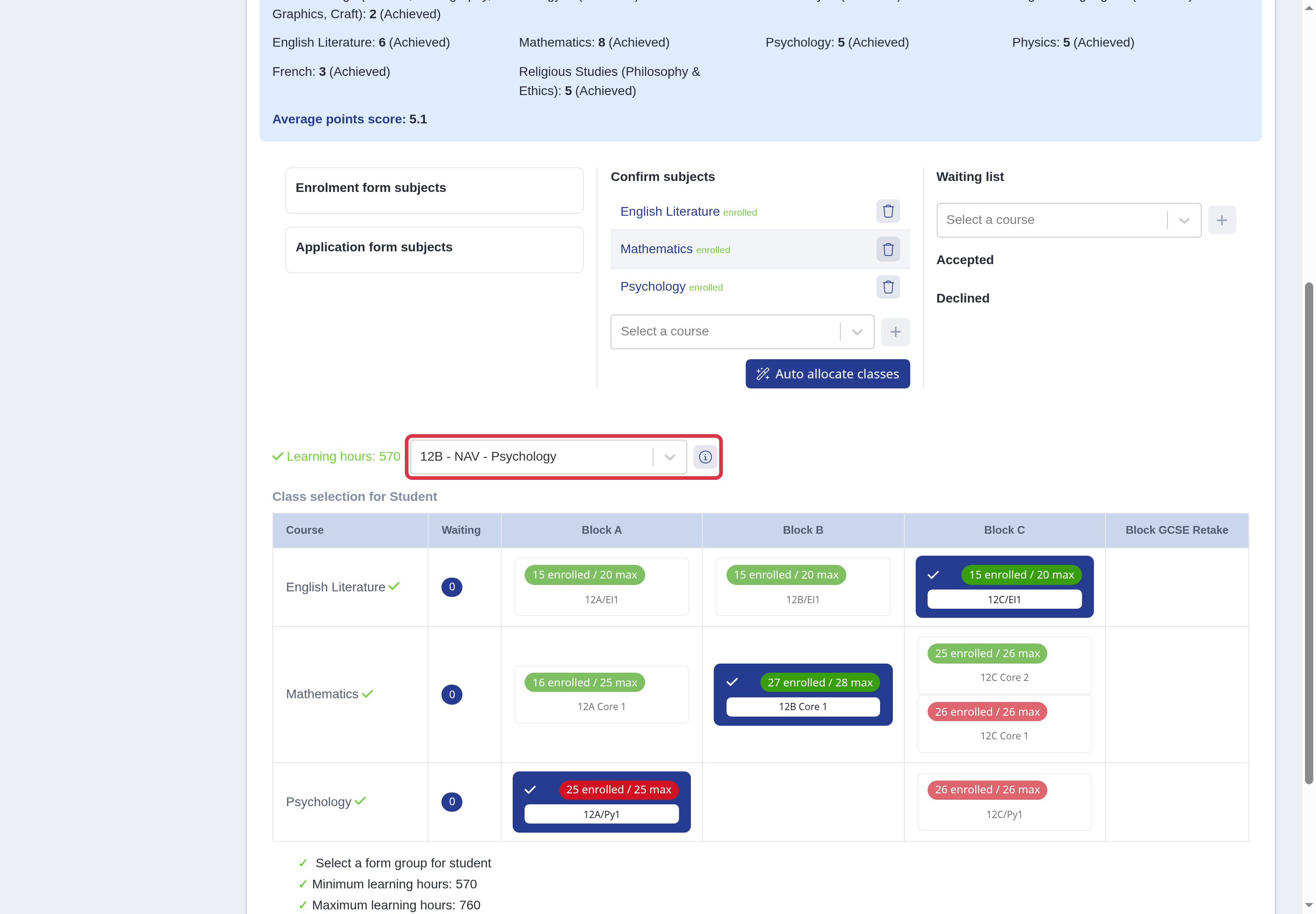
Use the student's Course Confirmation/Selection screen. Select the form group. Select a different group to change the assignment.
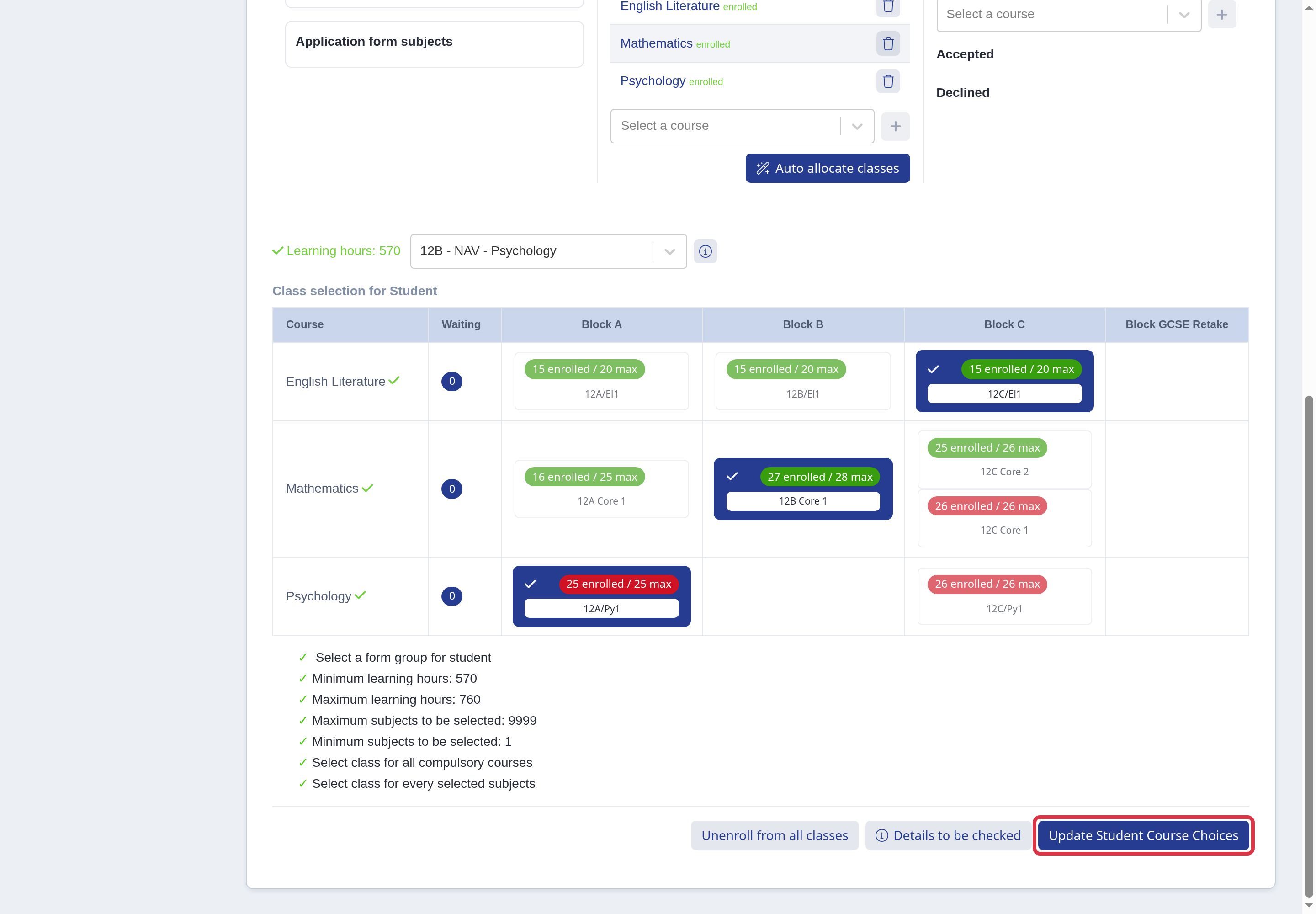
Select "Submit" for a student who is not enrolled, or "Update Student Course Choices" for an enrolled student. The system saves the selected form group and marks the student as enrolled.
Questions staff ask
Can I assign a form group before the student enrols?
No. Course Confirmation/Selection is the final enrolment step. Set the student to "ready to enrol" before you use it.