
Scheduled Messages let you queue an email, notification or SMS to go out to applicants or parents at a future date and time, then track and manage every queued send from one place.
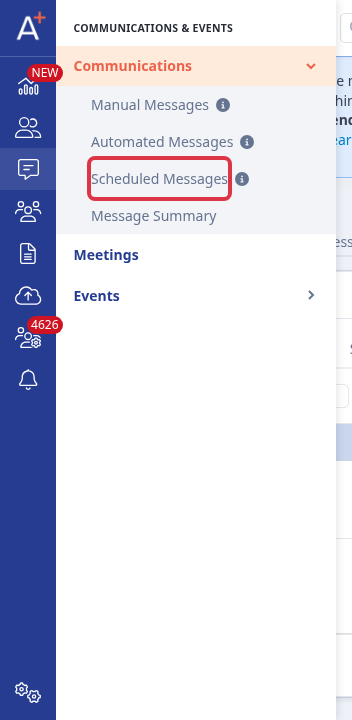
Open an application form, select the "Communications & Events" icon in the left sidebar, expand "Communications", then select "Scheduled Messages".
On the "Scheduled Messages" tab, click "New Scheduler" to start a new scheduled send.

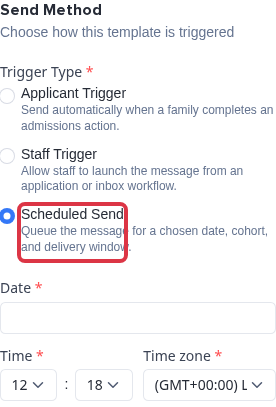
In the template builder's "Advanced Settings" tab, under "Send Method", choose the "Scheduled Send" trigger, then set the "Date", "Time" and "Time zone" for when the message goes out.
- Choose who receives the message: "Send to all applicants", an individual applicant, a group, or a saved filter.
- Add parents or guardians as CC or BCC on the message.
Once a send is queued, use the tabs above the table to switch between "All scheduled", "Scheduled Emails", "Scheduled Notifications" and "Scheduled SMS".

Each row shows the message type, a status badge, and - once the message has gone out - how many recipients it was delivered to, how many opened it, and how many clicked a link in it.
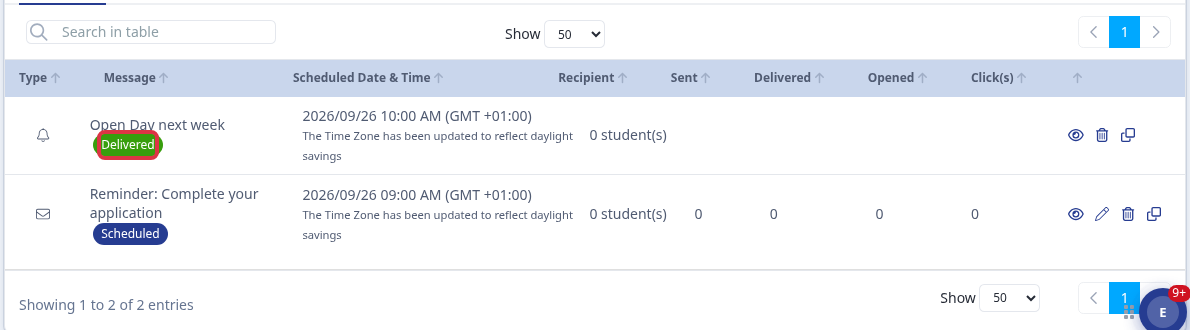
- Type- an envelope icon for a scheduled email, a bell for a scheduled notification.
- Message- the template name.
- Scheduled Date & Time- when the message is due to send, in the time zone you chose. If daylight saving time has shifted since you scheduled it, a note under the date tells you the displayed time has been adjusted to keep the original local time.
- Recipient- how many students the message is queued for.
- Sent, Delivered, Opened, Click(s)- running counts once the message has gone out.
- Status badge- "Pending", "Scheduled" or "Delivered".
Use the icons on the right of a row to view its delivery status, edit the scheduled message, clone it, or delete it.

Once a message has been delivered, you can no longer edit it - you can still view its delivery status, delete it, or clone it to set up a new scheduled send with the same content.
Questions staff ask
Why can't I find my scheduled SMS message on the "All scheduled" tab?
"All scheduled" only lists scheduled emails and scheduled notifications. Scheduled SMS messages appear only on the "Scheduled SMS" tab.
Why it behaves this way
Deleting a scheduled email or scheduled notification removes the whole message template, not just its schedule - the template exists only to hold that one scheduled send, so deleting the row deletes the template and its schedule together. Scheduled SMS messages don't work this way: deleting an SMS row removes only that scheduled send.