
Find applicant's with Awaiting Reference Status
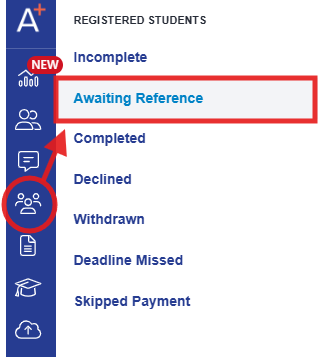
From your main dashboard, navigate to your Awaiting Reference group to see a list of all applicants with that status.
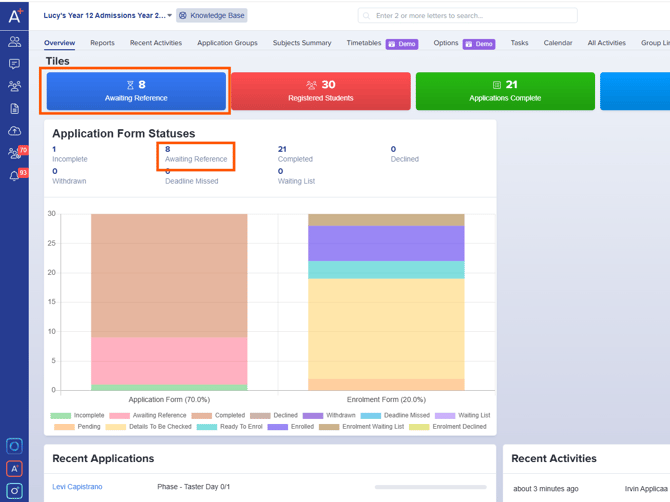
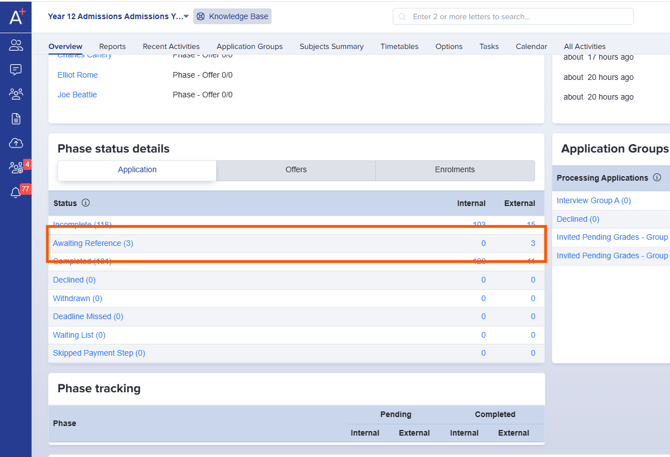
You can view the list of students awaiting references on the Dashboard. This can be accessed through the Application Form Statuses Graph, the Phase Status Details Table, or the Dashboard Tiles if you have created one.
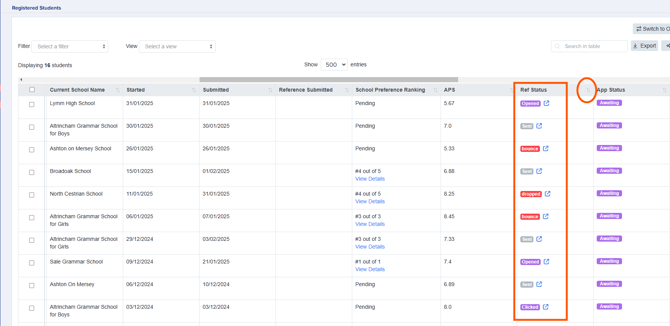
Load the profile of the individual applicant you want to update.
Navigating to the References tab
In the student profile navigation, click the References tab. This tab shows all reference types configured for this applicant, with a progress summary at the top.
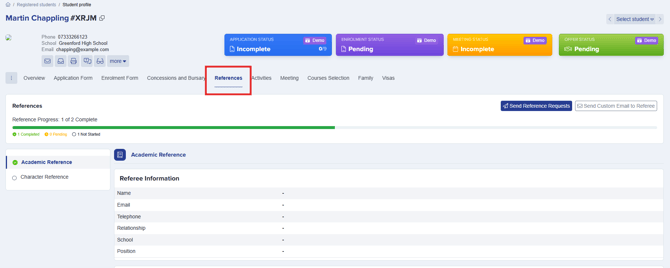
Note: If your school uses multiple reference types, you will see a separate card for each one. Make sure you are adding the reference information to the correct card.
Adding the reference
Click and open the relevant reference card and select the reference section. You have two options:
- Upload a document — attach the reference file directly to the record.
- Answer fields individually — enter the referee's responses by completing each question field manually.
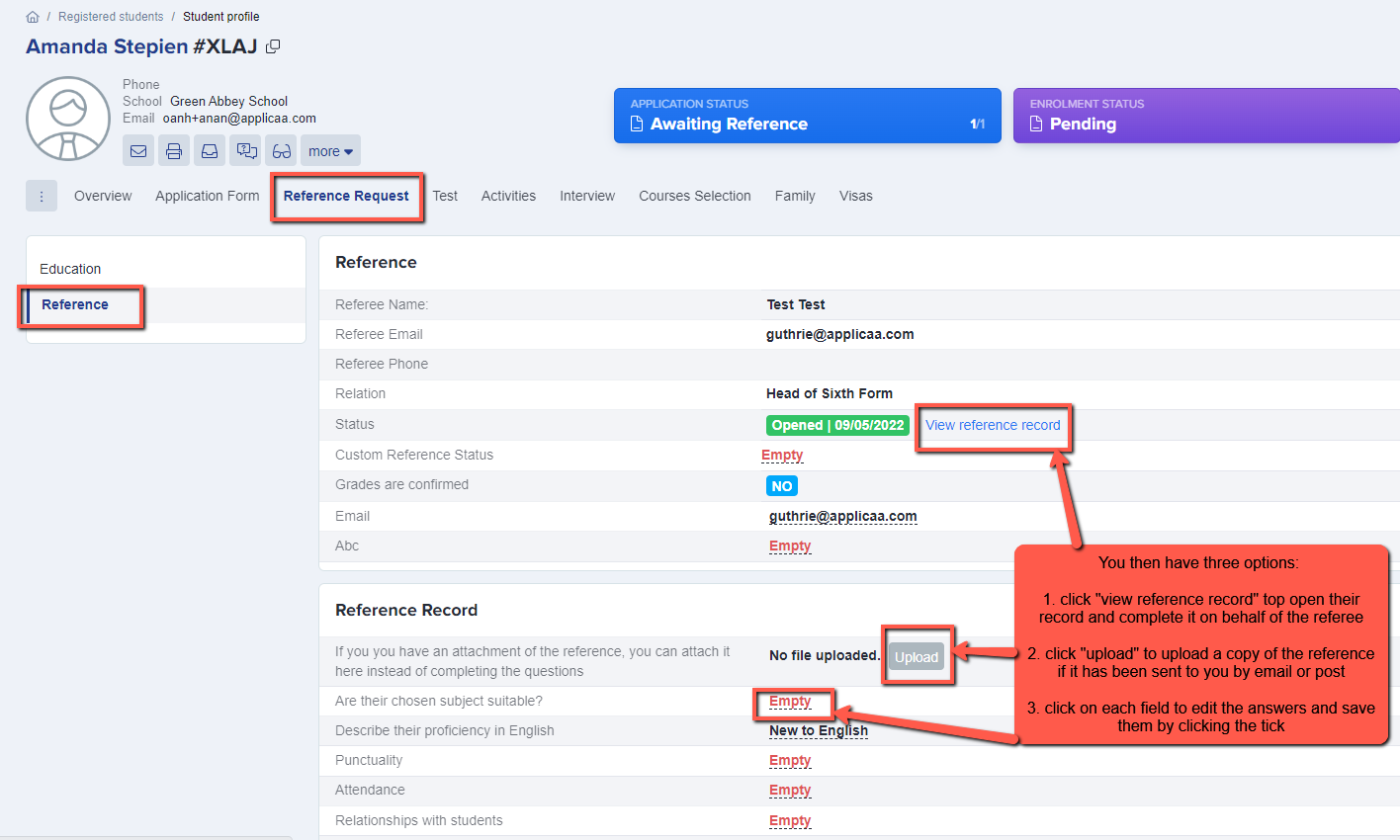
Once you have added the reference information, change the applicant's status to Complete.

Tip: If a reference was submitted through the platform but you need to download a copy, use the Download PDF action from within the reference card. A PDF is automatically generated at the point of submission and is always available, even if the form type is later changed.