
Views let you save a custom layout of the student table — the columns you want and the order they appear in — so you can switch back to it whenever you need it. By default a view is private to the person who created it, but you can share a view so the rest of your staff can select it too. You can set this when you first create a view, and you can change it at any time afterwards.
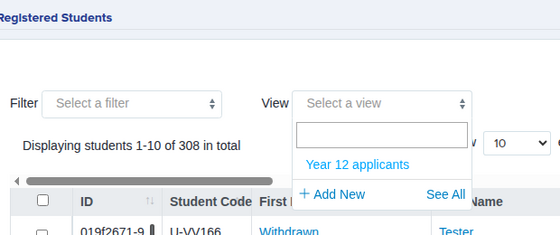
Open your student list and click the "View" dropdown above the table. At the bottom of the list, click "See All" to open the "Manage Views" window.
The "Manage Views" window lists every view you own, plus any that have been shared with you. To share one of your own views with the whole team, switch on the toggle in the "Shared" column for that view. Turning it off again makes the view private to you.
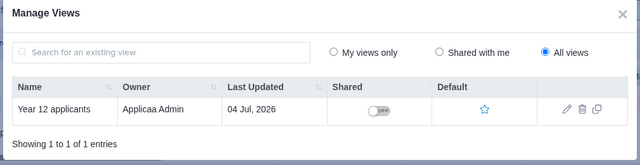
You can only change sharing on views you created. The "Shared" toggle is greyed out for views owned by other staff — a view someone else has shared with you still appears here (use the "Shared with me" filter to see just those), but only its owner can change who it is shared with.
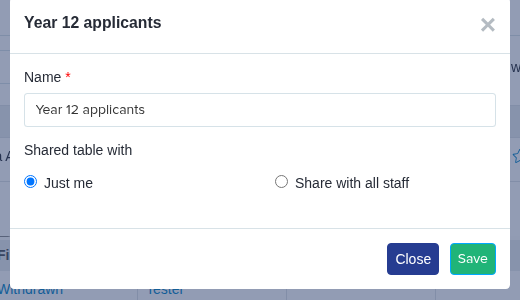
You can also change sharing while editing a view. Click the pencil (edit) icon next to your view, then under "Shared table with" choose "Just me" to keep it private or "Share with all staff" to share it with everyone, and click "Save".
A few things worth knowing:
- "Share with all staff" makes the view selectable by everyone at your school; "Just me" keeps it visible only to you.
- Only the person who created a view can change its sharing setting or edit it.
- Sharing a view shares the saved column layout, not the students themselves — each colleague still only sees the data their own permissions allow.
- The same "Shared table with" choice is offered when you first create a view, so you can share it straight away.