
You have the option to add User Defined Fields (UDF) on your form (Please note that if your MIS is SIMS these UDFs will be synced into the system automatically once you have downloaded the Admissions+ SIMS App).
If SIMS is not your MIS then this is how you could download your UDFs from your MIS.
Please go to Settings > School Settings > Integration.

You'll then be directed to the Integration area, please click "Import UDF".

Once you've done this a message should pop up saying that the UDFs have been successfully imported.

You may now start adding the UDFs on your form by doing the following (applicable for all MIS):
Go to Settings > Application Form.

Please select on which step you'd like to add the UDF to and then click "New Question".

Select Pre-defined questions and fields, as UDFs are able to write back to your MIS and will be displayed in this area.

There will be a dropdown menu displaying all available UDFs ( for example: SIMS User Defined Fields) or you can search for it in the search bar.

Tick to select the UDF(s) you wish to add into your form.
Why a synced UDF may not appear on the section you expect
When a UDF syncs in from your MIS, Admissions+ decides which sections it can go on (for example Student, Parent, or Guardian). This comes from the field's own setup in your MIS, and you cannot change it from Admissions+.
To check which sections a UDF is available for, go to Settings and open Properties.
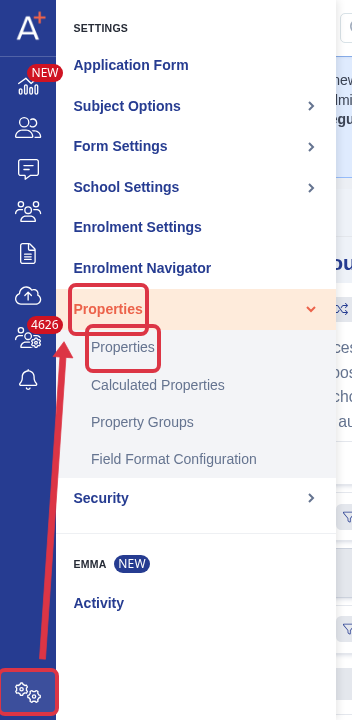
Find the field in the list and read its Apply For column. This shows every section the field can be added to as a question.
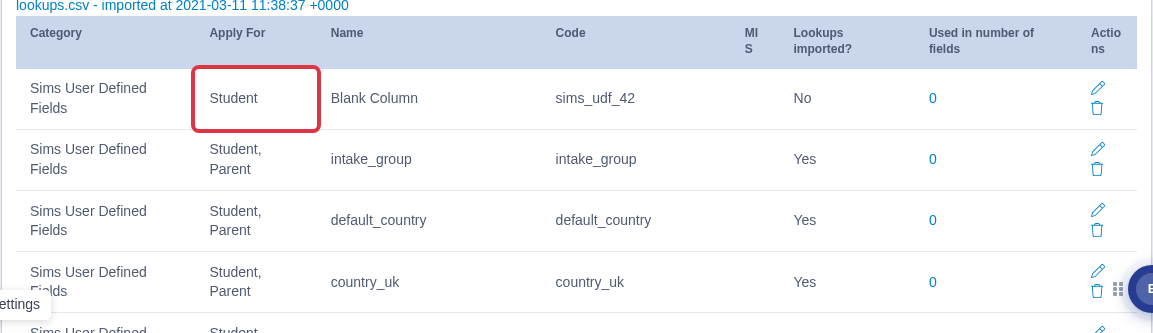
If the section you want is not listed, the field's setup in your MIS does not cover that section yet. Update the field's entity type in your MIS, re-sync it, or ask your MIS administrator to add the section there.
How to download a UDF's answers for all students
You can export the answers to any question, including a UDF, for every student who has answered it.
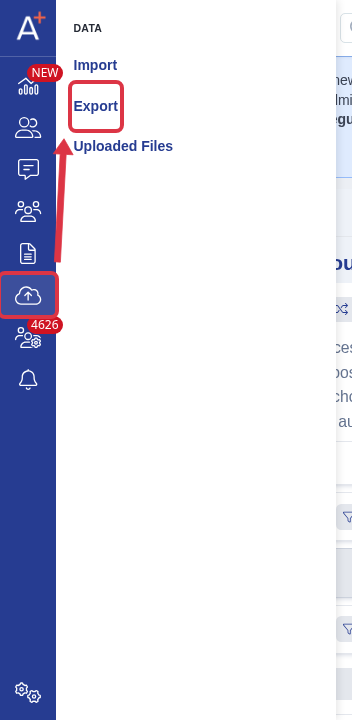
Go to Data and open Export.
Start a new CSV export and continue to the field selection step. Search for the UDF by name.
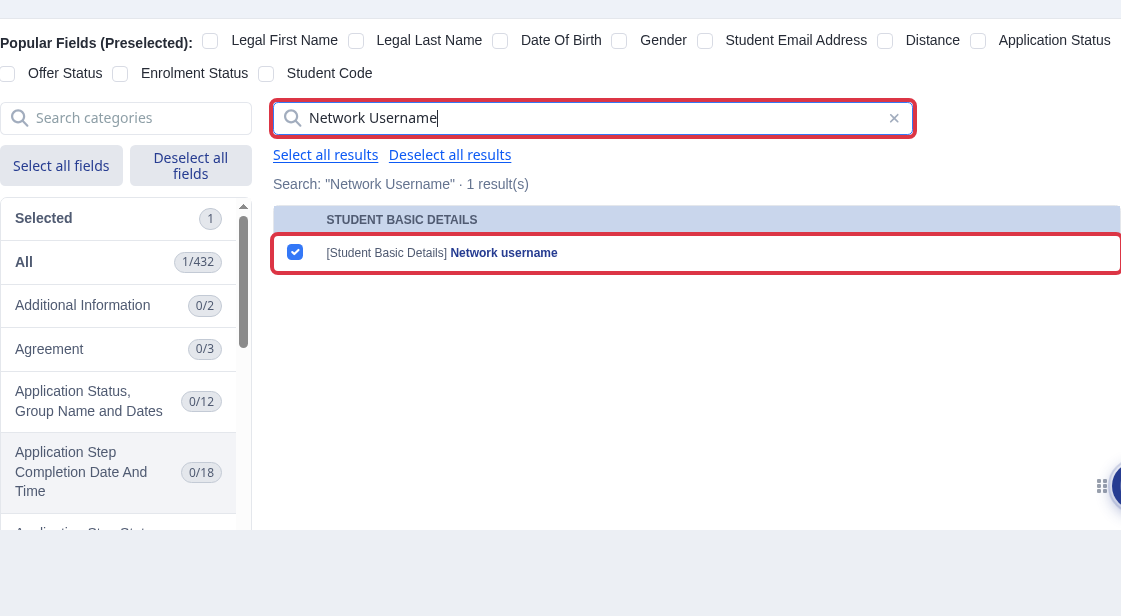
Tick the field, then finish the export. Admissions+ builds a file with that field's answer for every student, ready to download.
Choose the MIS-compatible question card
After you select New Question, select Pre-defined Question & Fields. The green MIS Compatible badge describes this card. It is not a separate choice.

Search for the UDF by name. It appears in SIMS User Defined Fields when it is available for the section.
