
Lookups are controlled within your MIS and any changes you wish to make should therefore be actioned in your MIS first, before the changes can be reflected in A+.
Cloud-based MIS Process
For cloud-based MIS (Bromcom, Arbor, iSAMS), you can update your lookups directly within your A+ system. Navigate to Settings > School Settings > Integration and click "Download Lookup Values".
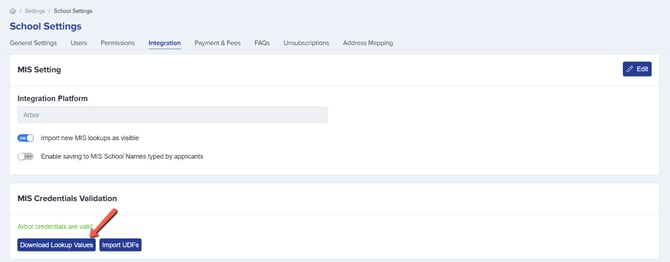
This will produce a CSV file which will be stored in the downloads area of your device.
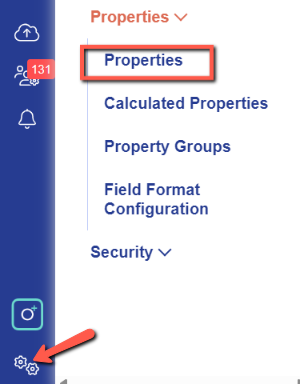
Navigate to Settings > Properties > Properties and select "Import answers".
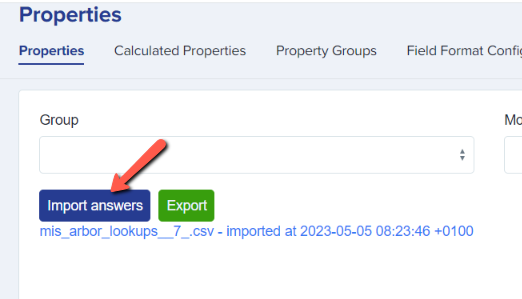
Click "Choose file" to attach the CSV you just downloaded, and then select "Import". The import will proceed, and your lookups will be up to date and synchronised with your MIS.
Medical Conditions, Specific Dietary Needs and Allergies in Bromcom
Keep Medical Conditions and Specific Dietary Needs as separate fields in Admissions+. The Bromcom download adds Medical Conditions to the lookup CSV. It does not add Specific Dietary Needs values.
When Bromcom stores medical and dietary data separately, do not combine these fields in Admissions+. Add or change the specific_dietary_needs rows in the CSV, then use the import process above. This keeps the fields separate and updates the options that applicants can select.
Check that the CSV contains every option that you want to keep before you import it. The import updates each property’s options and removes an option when its label or code is not in the CSV.
If A+ shows "Oops! Please select file", select the CSV before you import it. The CSV header must be "User Description, MIS Description, MIS Code, Property, Active" or "Label, MIS Description, MIS Code, Property, Active".
SIMS Process
For schools using SIMS, you need to log into your Admissions+ SIMS App in order for your lookups to be updated/synchronised. You may have a desktop app for this, or you may access it via your SIMS hosted service.
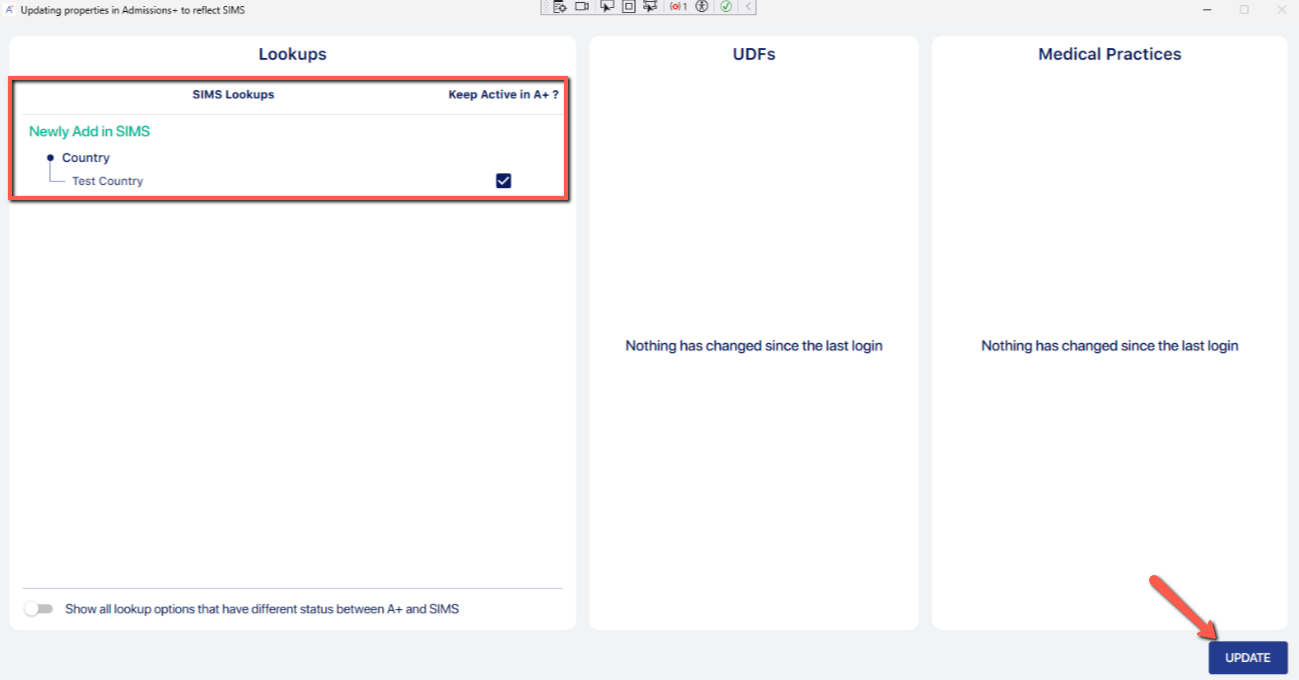
Upon logging into your Admissions+ SIMS App, a scan will take place to detect any changes made within SIMS and you will be shown a record of all changes, and can click the "update" button in order to synchronise those changes within SIMS to your A+ system.
You can also import your User-Defined Fields (UDFs) to use within your A+ forms as well - see our separate UDF guide here.