
How to Add a Prospectus and FAQs
This guide will show you how to add Prospectus & Frequently Asked Questions in your Admissions+ platform.
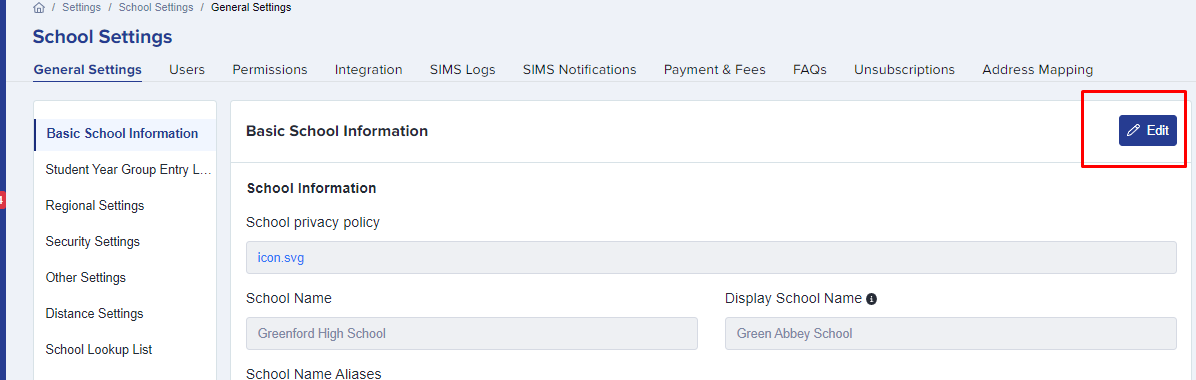
To add the Prospectus, first, login to your system and kindly go to your Settings > School Settings > General settings.

Then click on the Edit button to update the settings.
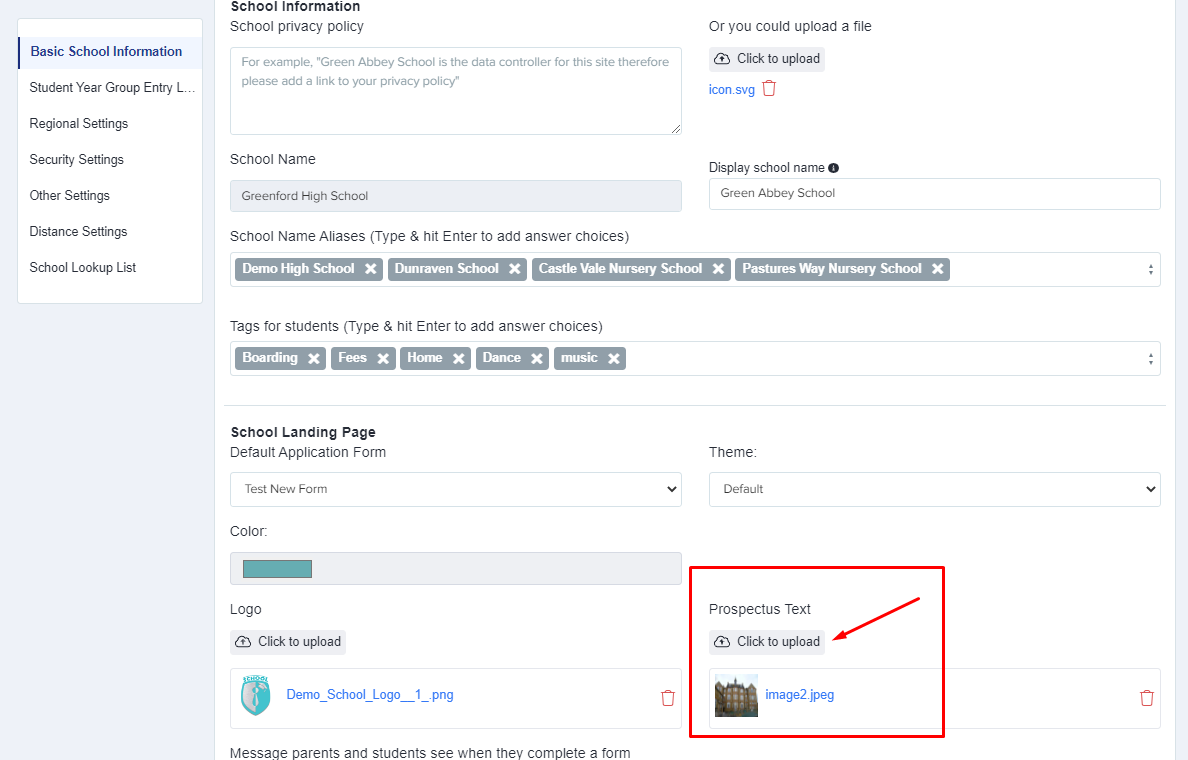
Just below the 'School landing page' 'Theme' field, there is 'Prospectus text' field wherein you can upload a file, photo or any document that advertises or describes your school. Just click the below button in the screenshot to upload a file.
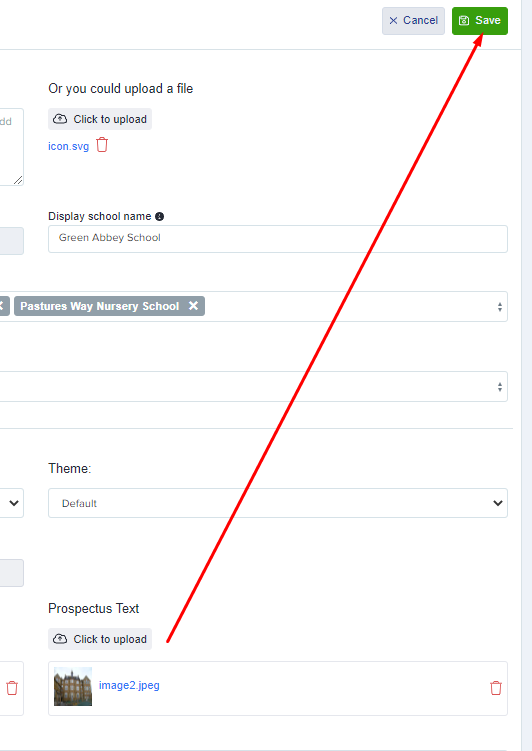
Once done, just click the 'Save' button.
*******************************************
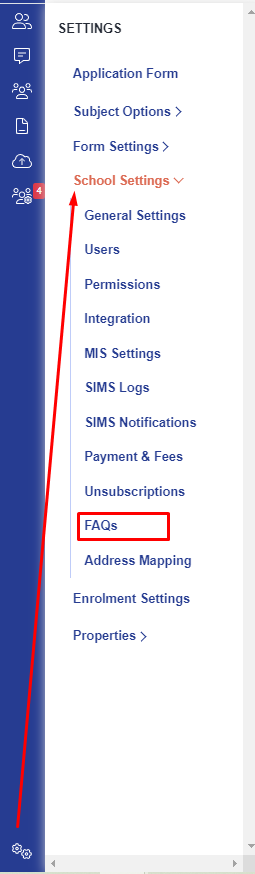
Next, to add the FAQs, first, login to your system and kindly go to your settings > school settings > FAQs.
In this area, you will be able to input the title of the FAQs, and have the option to show the FAQs on the student homepage for your prospective students to see once they log in; they can then click 'Apply' if they're happy to proceed with their application.
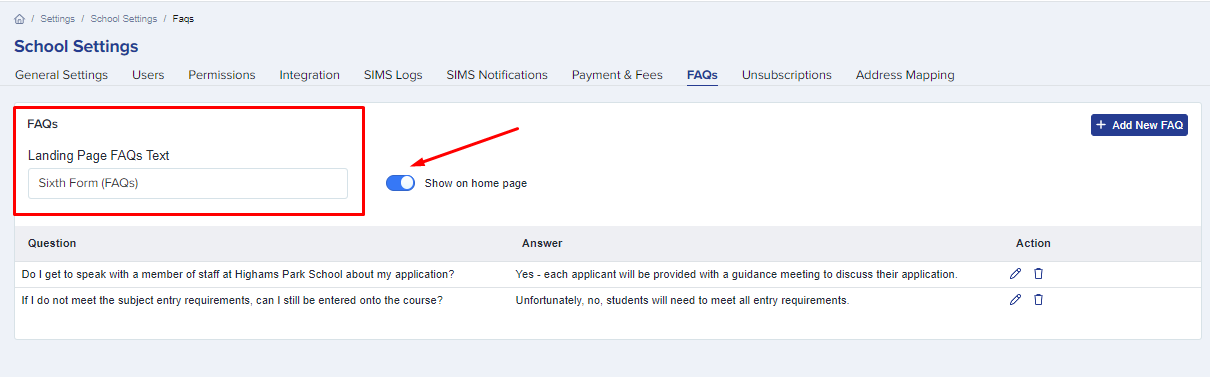
(This is shown when they login to the platform)

(if not shown in homepage, they will be able to click the FAQs button in the Landing page)
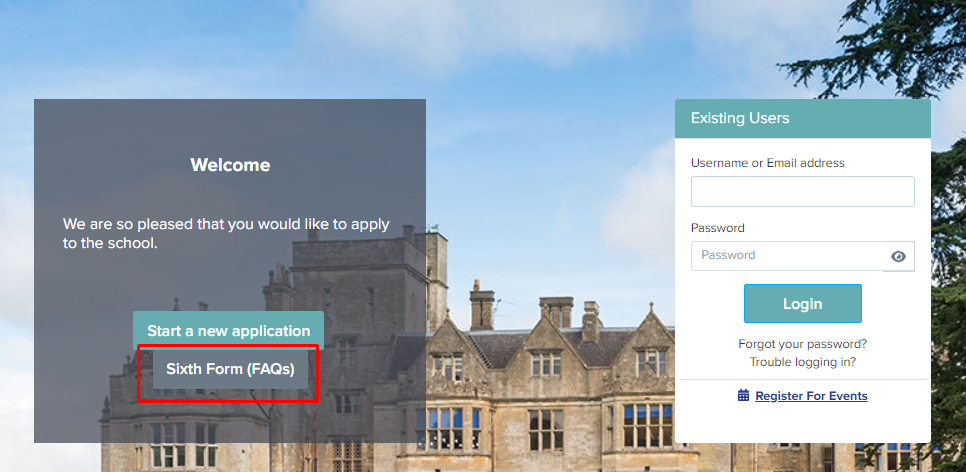
To add new FAQs, just click the '+Add new FAQ' button on the right side of the page, put the question & answer in as prompted, then kindly click the 'save' button.


Was this article helpful?