
Properties
How to access the properties area of your system, and the functions you can perform there.
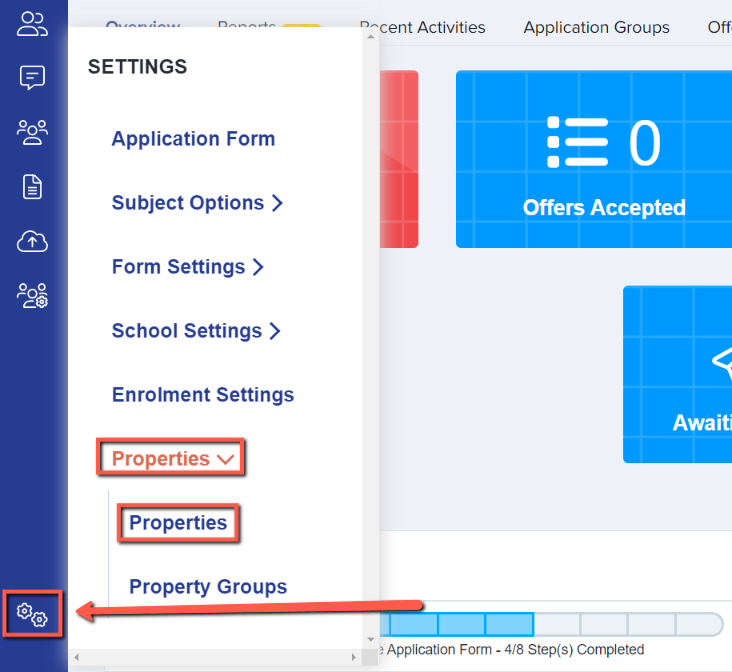
If you want to access the properties that you already have in your system, you will need to navigate to:
Settings > Properties > Properties:
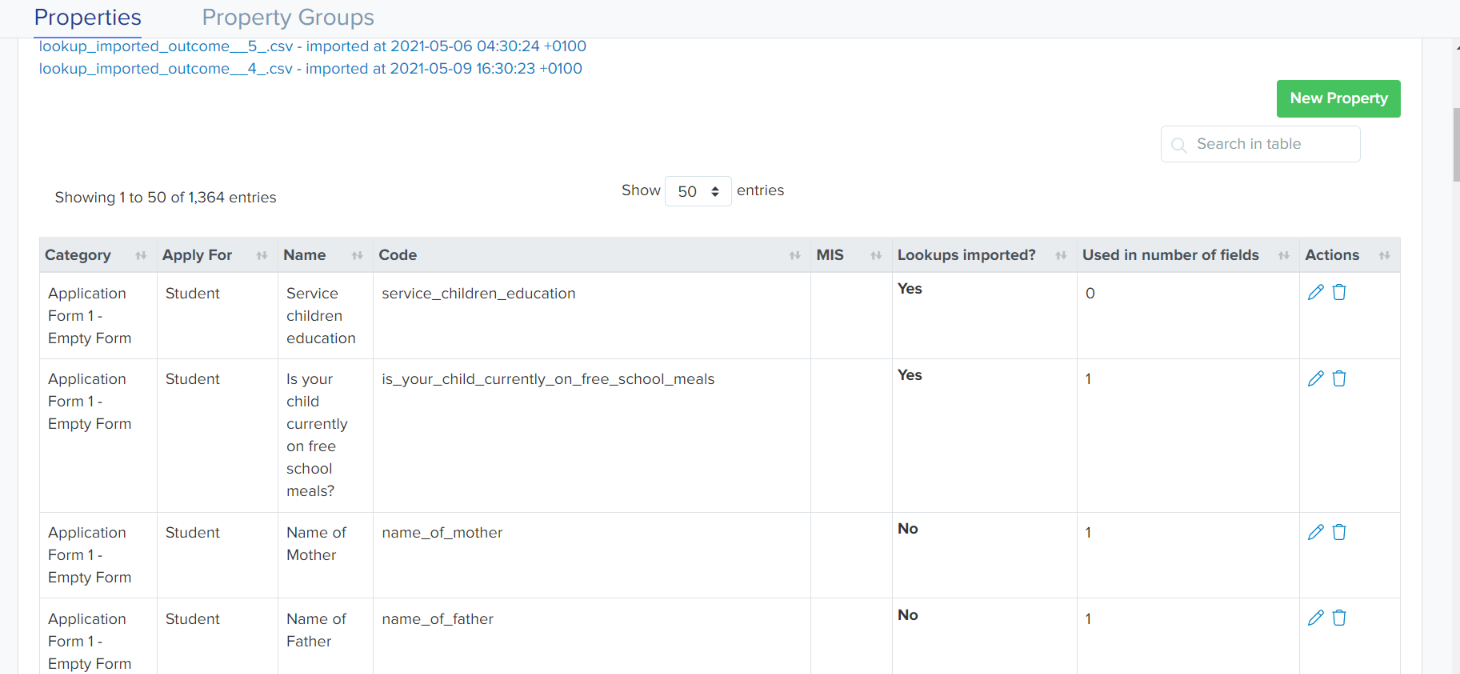
Once you've opened the properties area, you will see this page, where you can view every property which exists within your system and see whether or not they are currently being used within your form.
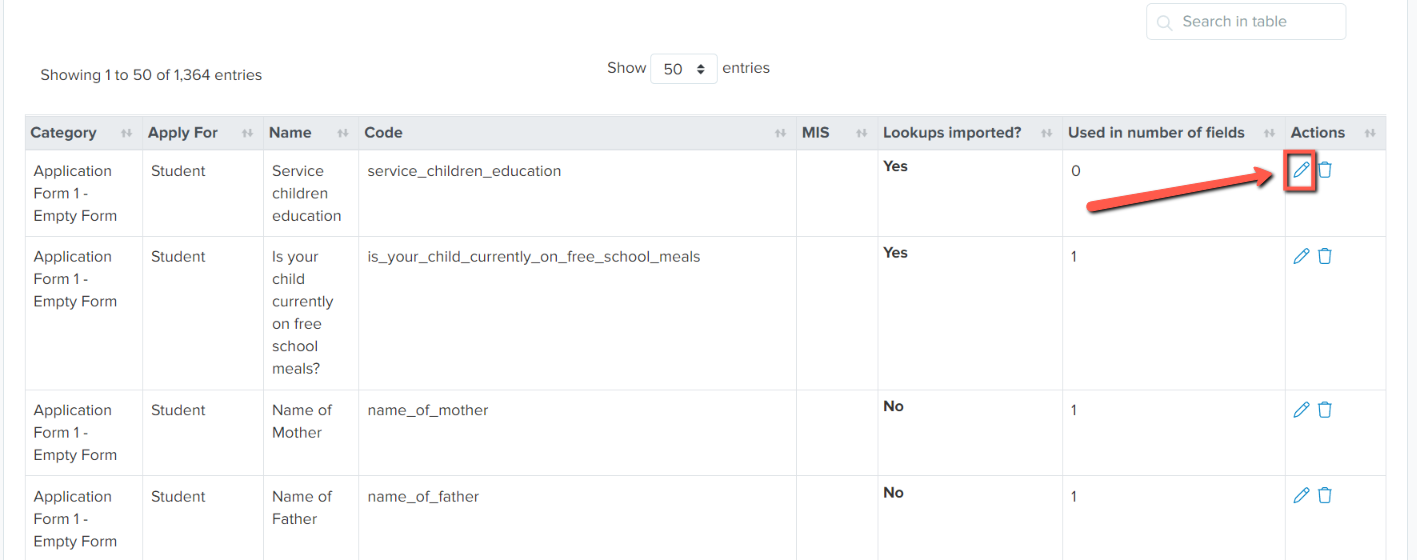
If a property has lookups imported (Lookups Imported = Yes), you can double-check these to confirm whether they are active, by clicking on the pencil button for each property.
Note: properties where lookups are imported from your MIS are controlled by your MIS. If an answer is missing, or showing as inactive, you would need to rectify that within your MIS first in order for it to become active within your platform.
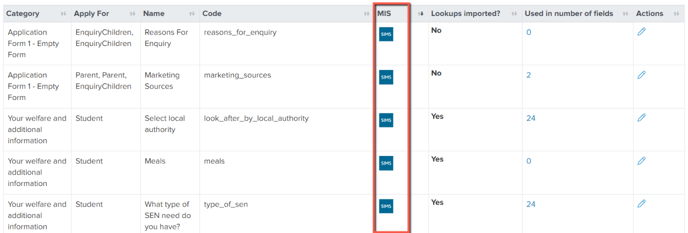
Properties which are able to write back to your MIS will be indicated by showing the logo for your MIS (in this example, SIMS):
For properties where lookups are not imported, you will have the option to hide or activate the existing answers for each property. (Tick the box to activate an answer, untick to hide it).
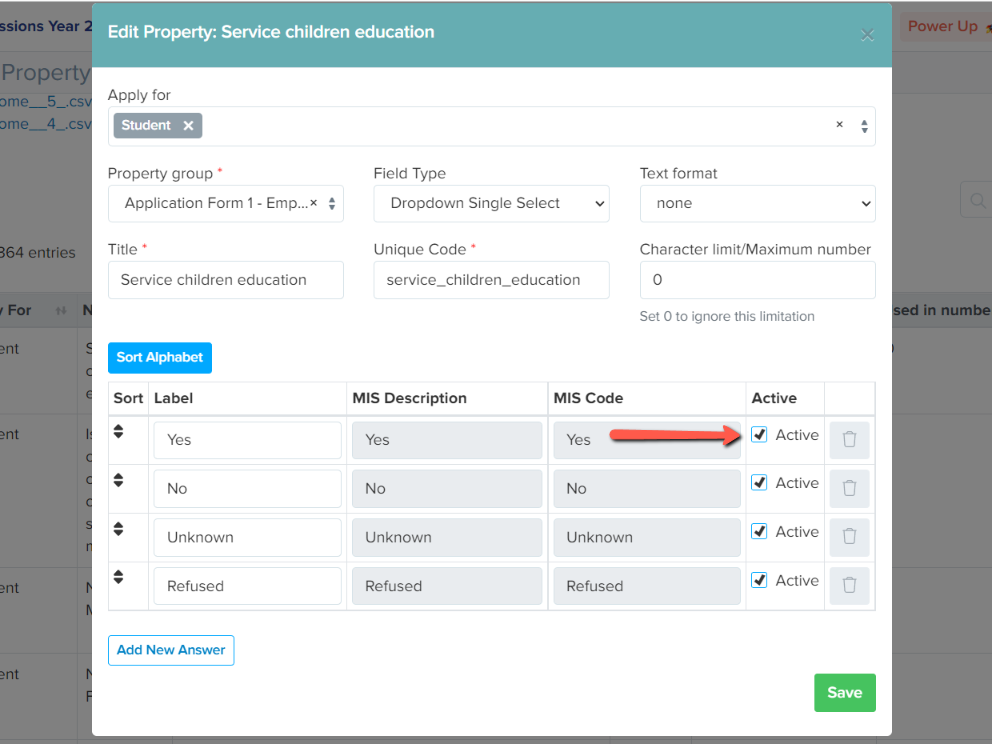
For properties where lookups have not been imported, you may also be able to change the field type and text format of the field, as desired.
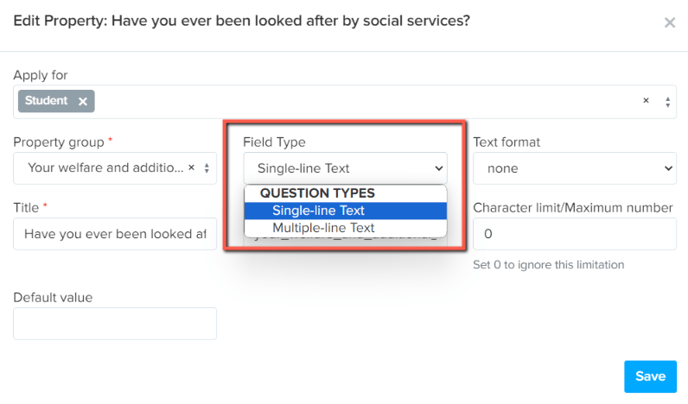
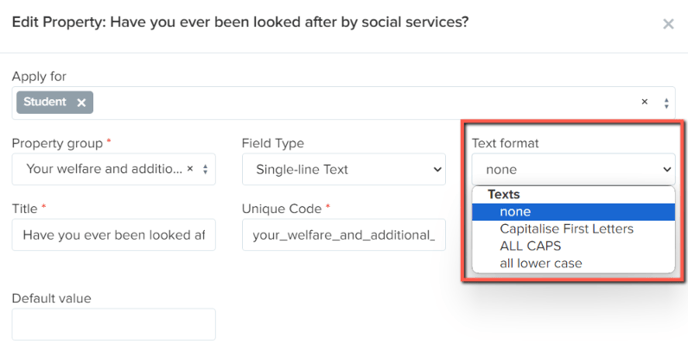
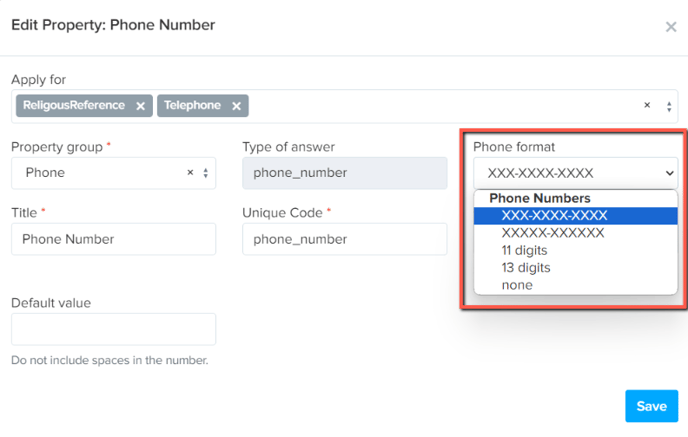
You could consider for example changing the formatting of phone numbers, to require them to contain 11 digits, or be formatted in a particular style as preferred:

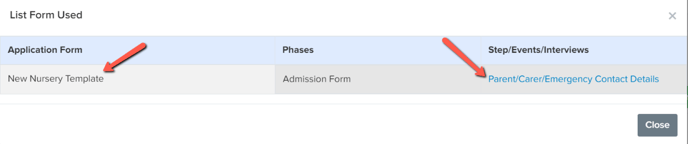
If a property is being used within your form, but you are unsure where exactly, you can click on the number in the Used in number of fields column and it will tell you whereabouts that property is being used. You can click the hyperlink and it will take you directly to that area of your form to view the field.

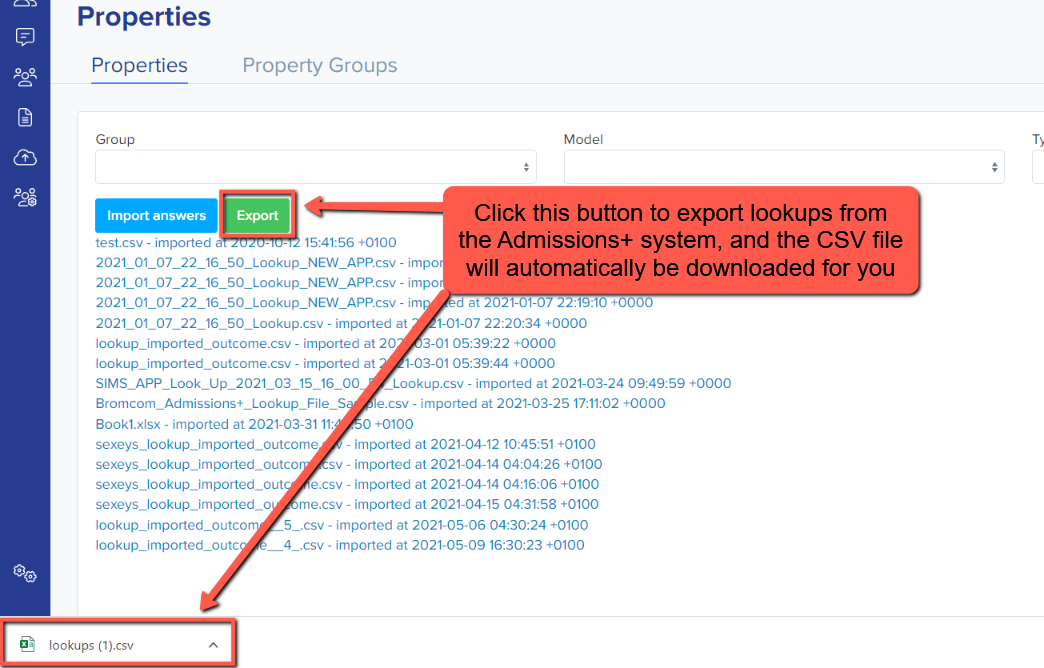
If you need to update your lookups, you may do so by using the import answers and export buttons.
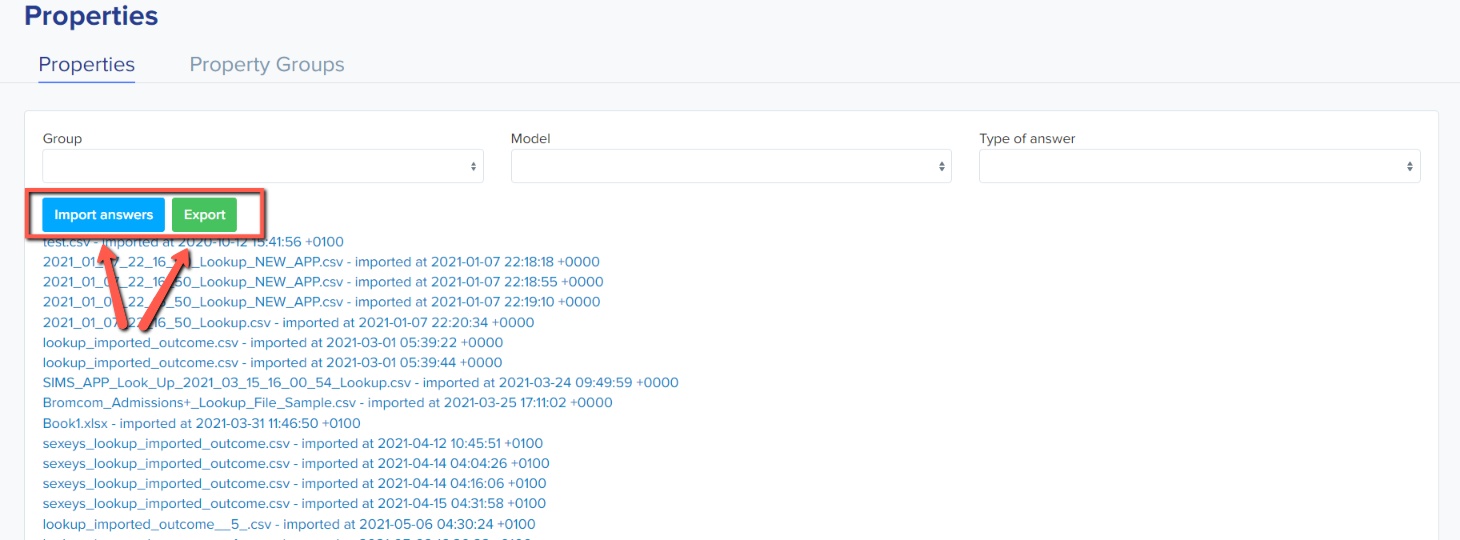
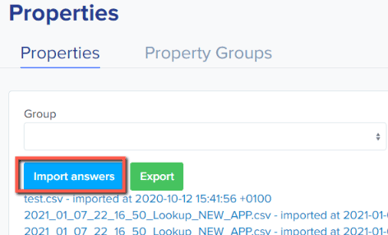
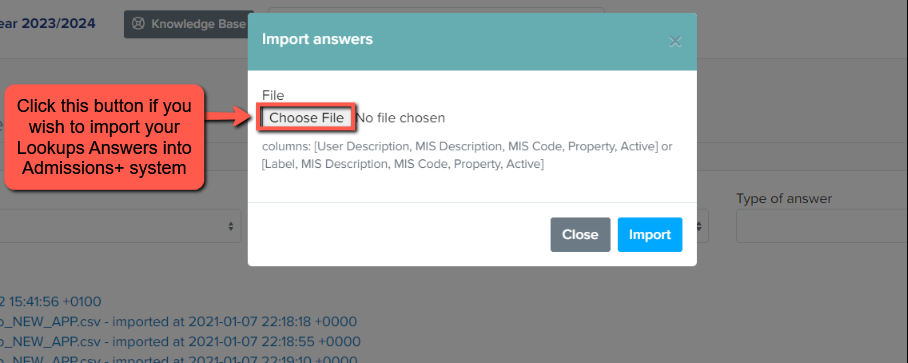
Import Answers - To import your MIS lookups from a CSV file into your platform
Export - To export a CSV of your current lookup answers from your platform
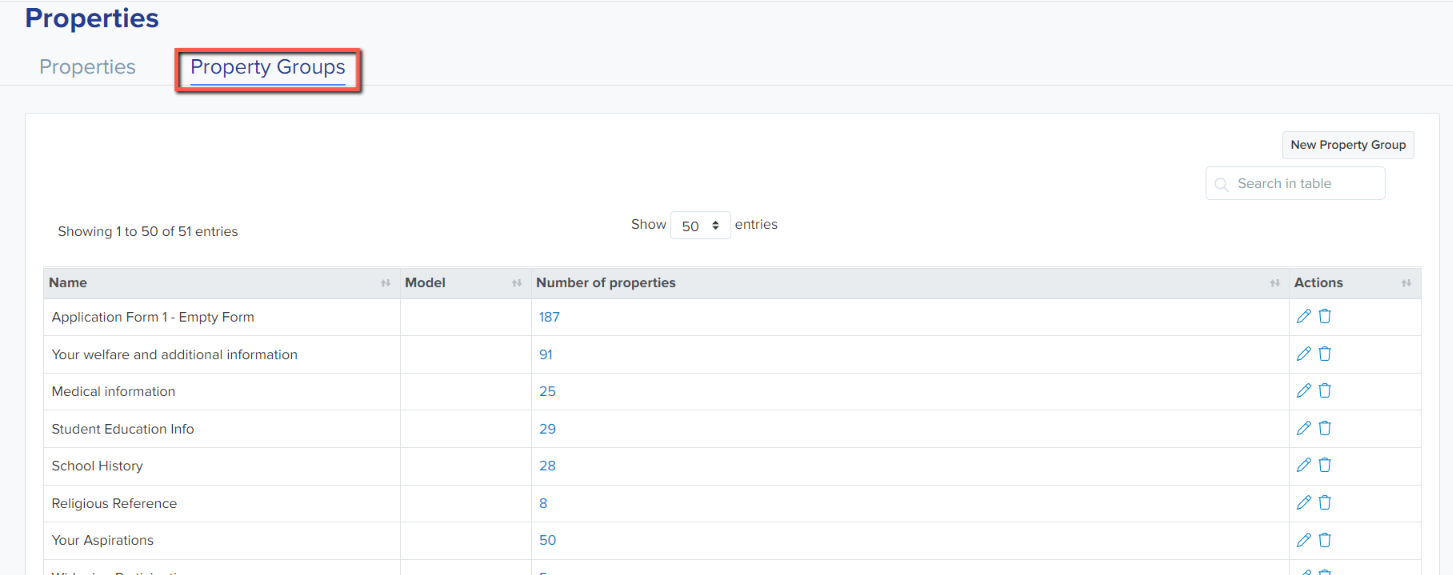
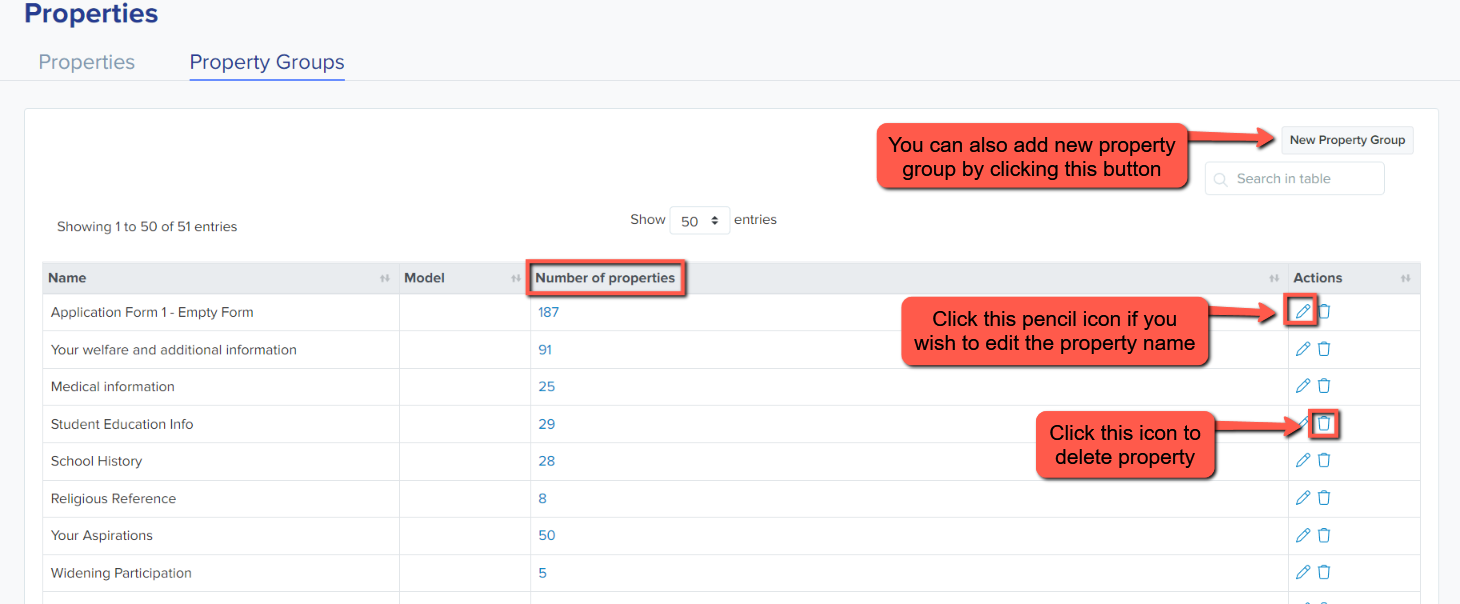
The Property Groups area lists all properties per group or section.
Was this article helpful?