
How to export data from B16+ as a CSV
This guide will show how you can export information from the Bursary16+ system into a spreadsheet that you can then use to import the information into other systems or retain for your records.
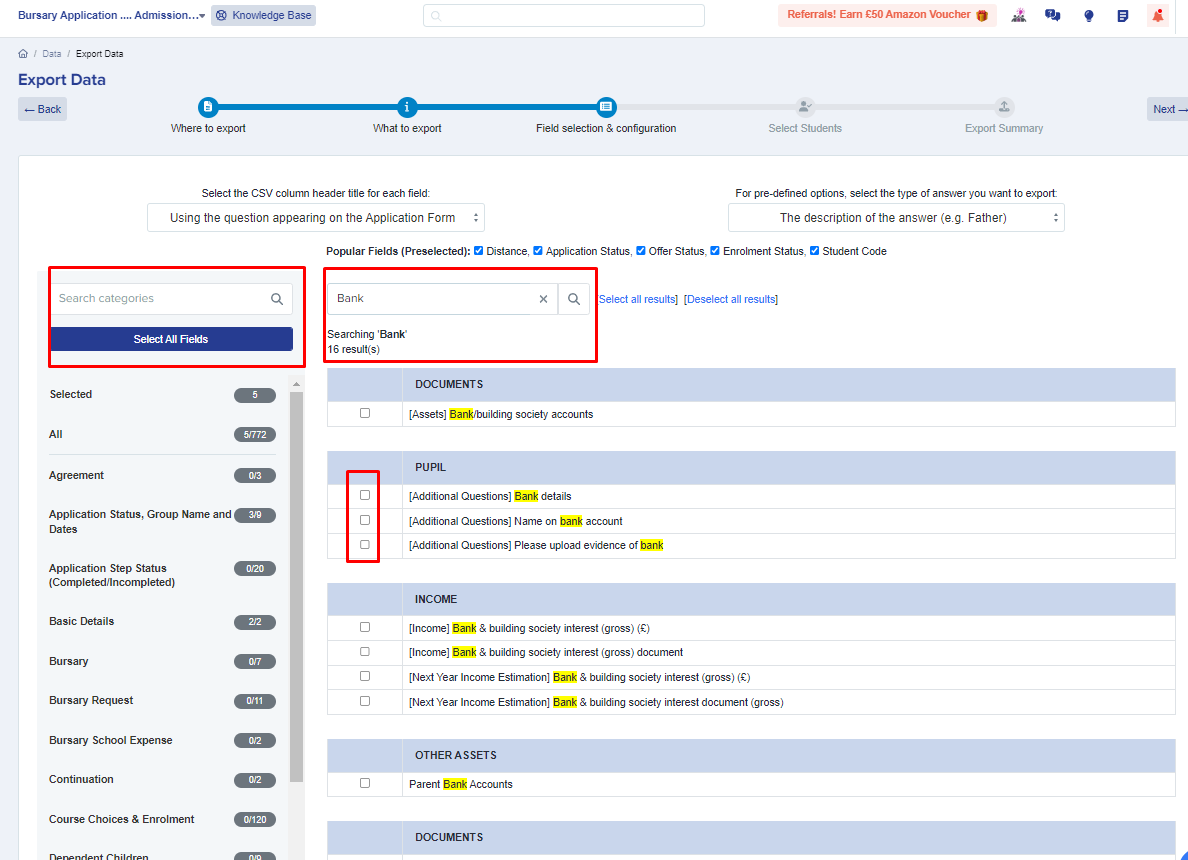
For example, you'd like to export all the bank information of the students for payment purposes.
From your main dashboard, click on Data, select Export, and click on Start an Export located on the right hand side of the page.


Give you export a name, select CSV, and click Next.

Select Students and click Next.

Select the fields you wish to include in the export and click Next. You can search for specific fields or look through each section, and select as many items as required.
Note: Some properties are pre-selected for you. You have the option to uncheck them across the top.

You will then see the list of students who will be included in the export. You may click on 'select all' button or just select a handful of students as needed using the checkboxes.

You may also filter this list to export only a selection of your applicants, if you need to narrow the export to a particular group. To do so, click on the filter summary pencil icon and use the filtering functionality.


Proceed to complete the export, and once the export is done, save the file by clicking on Download file.

Was this article helpful?