
How to export attached documents or photos to a zipped file
When applicants attach documents or photos to their applications, it can often be useful to be able to access those files in bulk - this guide will cover how to export them into a zipped folder
Navigate to Data > Export > Start an Export
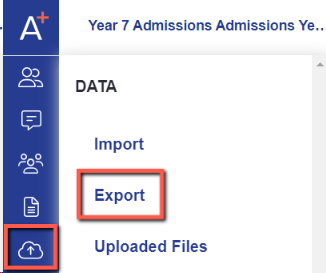

Give your export a name, and select "A Zipped Folder" as the export type.

Click "next" and you will be prompted to choose whether you wish to export Attached Documents or Photos.

Select an option and click "next" to select the export options and formatting.
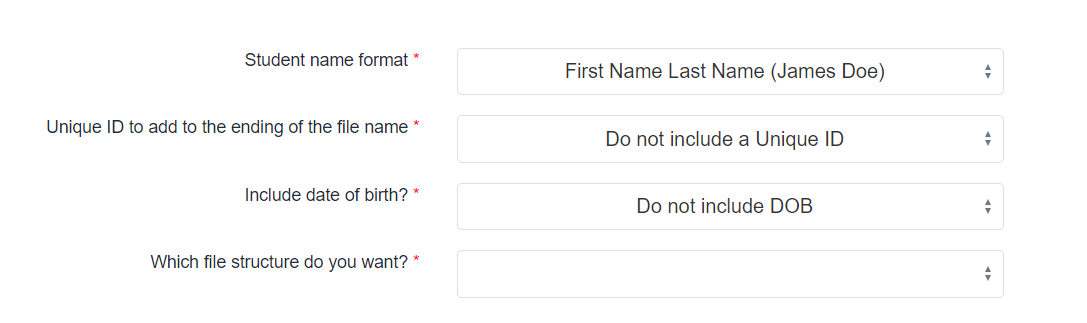
The file structure can either be one folder per applicant, or one folder per question (eg all ID photos in the same folder).
Choose "next" and then select the students you wish to export the data for. You can "select all" or filter them, for example just to extract the files of applicants whose applications are complete.


Click "next" and your export will begin.

You can then click to download the file.

Was this article helpful?