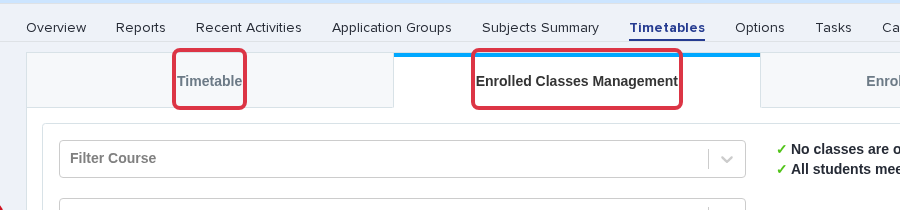
From your main dashboard, navigate to the "timetables" area and then click on "enrolled classes management"

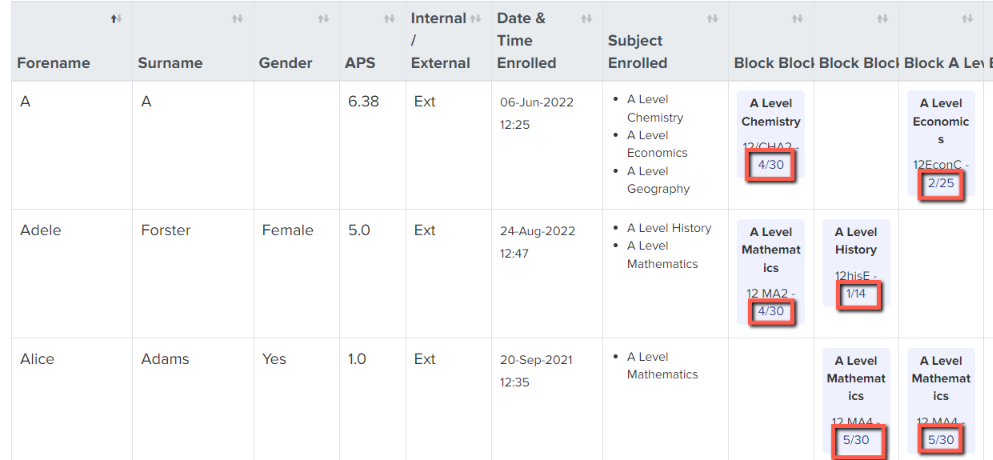
This shows you a list of all enrolled applicants, alongside their subjects and blocks
Each class will show the total number of allocated students and these will be colour-coded; a green class means it is neither over nor under-subscribed and classes which are outside these parameters will show in red
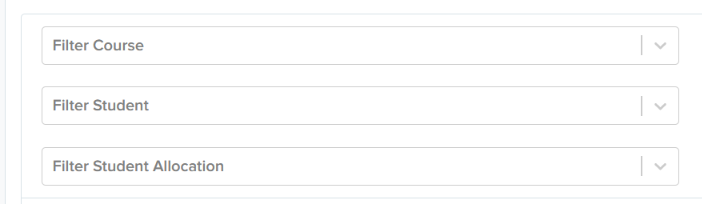
Use the filter function to filter by course or by student
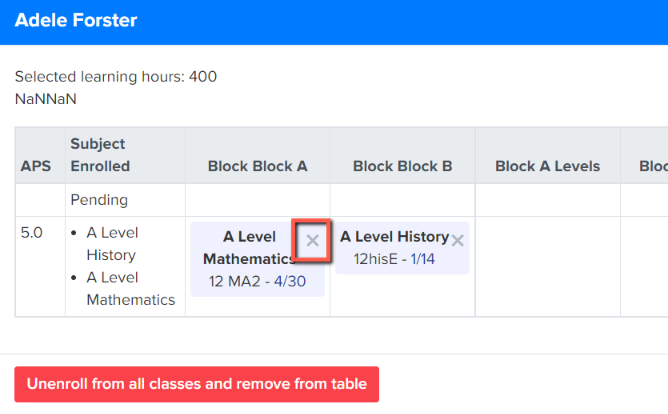
To edit classes for a student, click on one of their classes and this will open a pop-up whereby you can remove a class by clicking the X
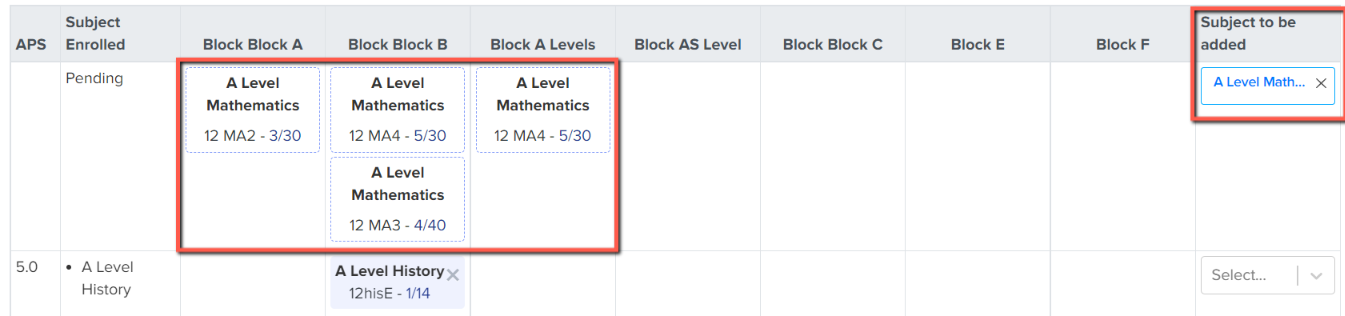
Once a class is removed, all other available classes for that course will then be displayed and you can drag and drop the name of the course from the right of the table onto the block you wish to add them to
It will not allow you to go "back to student table" until you have addressed and resolved all clashes
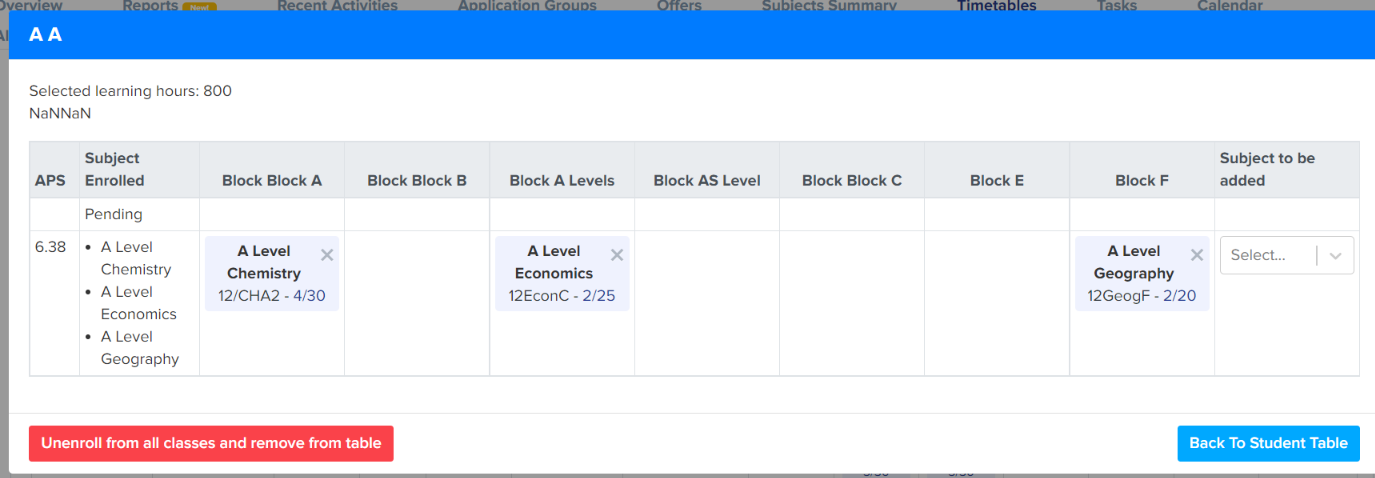
Provided no classes are over their capacity and all meet their learning hours requirement, this will then allow you to click the "update" button to save the changes
If a class is over capacity, it will show in red and you will be unable to press "update" because the system will notify you that you have a class which is over capacity
Follow the steps above to move a student into another group if available, to free up space
There is also a "free up space" button
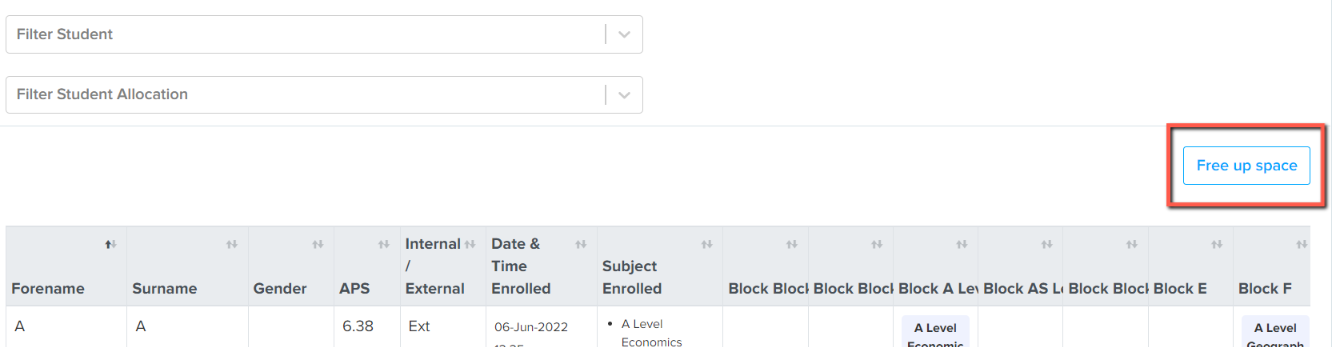
Click the button and then select the subject and the class you want to free up space in
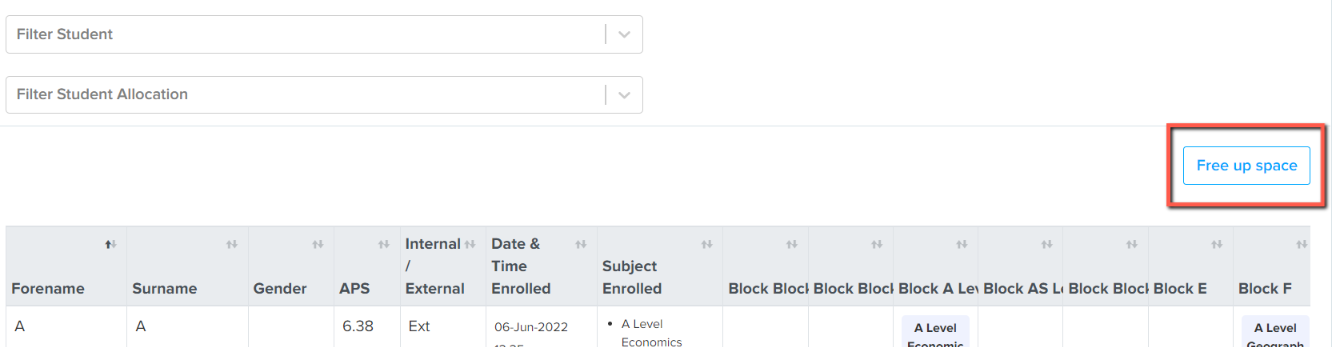
The system will then locate any students who would be able to move to a different class for that subject (whilst retaining all of their current courses)
Remember to click "save update" once you have made your changes, so these are retained or click "discard" to go back to what you had before
Classes under one subject
Go to "Timetable" and select "Enrolled Classes Management" to manage class allocations after enrolment.
Classes under the same subject are alternatives. When you move a student, Admissions+ removes the old class allocation before it adds the new class allocation. A student does not need to be in both classes.
Removing a class that has enrolled students
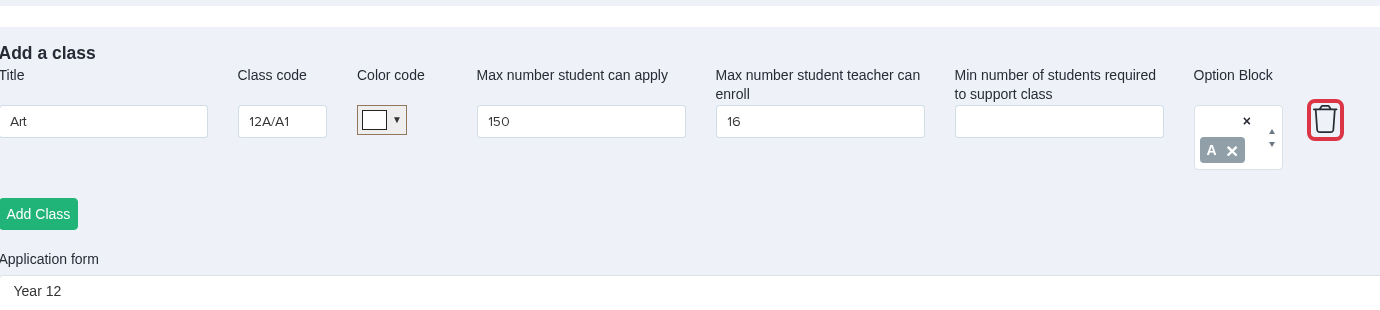
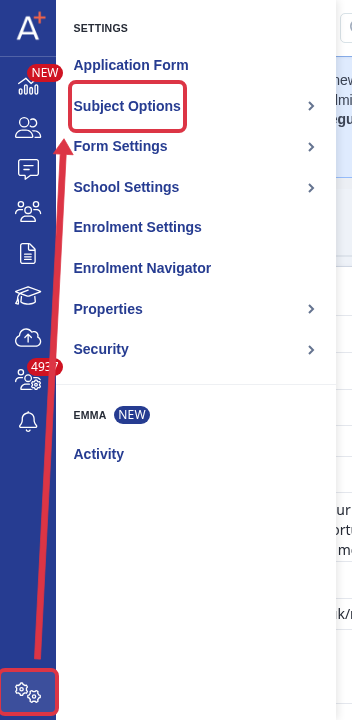
Go to "Settings" > "Subject Options", then open the course that contains the class.
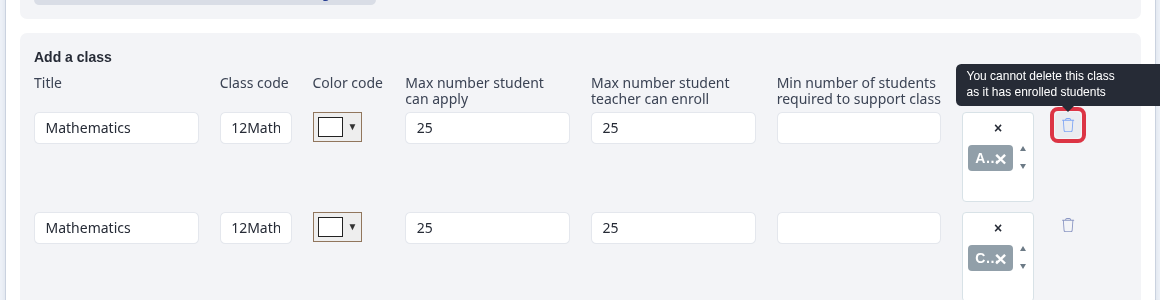
Under "Add a class", find the class row. The remove control is unavailable while the class has enrolled students. Its message says, "You cannot delete this class as it has enrolled students".
When no enrolled students remain, the remove control becomes available. The course update then keeps the changed class list.
A new class must be saved under the same course before Enrolled Classes Management can show it as an available class.
Exporting classes for internal students
Before you export enrolled class allocations to your MIS, make sure the students already exist in the MIS. Use the class-import guide for the required order and MIS-specific steps.
For a Bromcom class export, Admissions+ uses the mapping from the most recent Bromcom class export when the current export has no mapping. Check the mapped class codes before you continue.
Related articles